
When a source update fails
When a source’s update fails or is interrupted, Feedink tells you why. This page lists the messages and what you can do about each. The same update also shows up on the dashboard: see Failed updates on the dashboard.
Where you see the message
Section titled “Where you see the message”A source whose last update did not succeed has a chip that reads Failed or Aborted (Source statuses). Three places say what happened.
The steps of the update. Click the chip (it offers Show details when you point at it), or the Show details link of an interrupted update, or the information button on a row of Recent updates. Update details lists what Feedink did, one line per step. The step that failed is red and its reason follows below the steps. Each line has its time, and at the top the panel says when the update ran and the format, compression and encoding of the file Feedink stored, when they are known (Update details). Copy copies the steps, for a message to support (Feedink says Update steps copied to the clipboard.) and OK closes the panel. An update with no steps says There are no logs for this update. and, if the steps cannot be read,
Could not load the update details. Try again in a moment.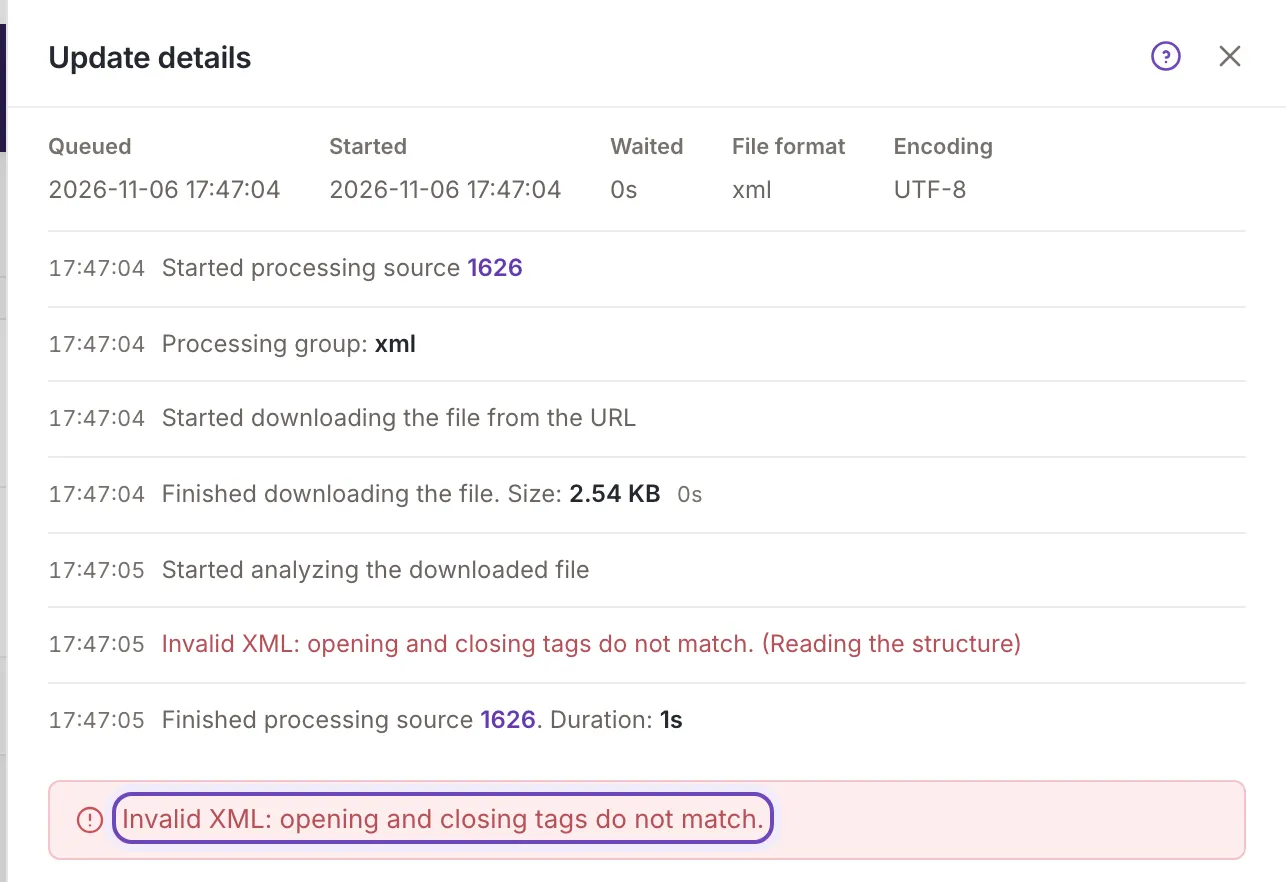
The red message above the settings. The source’s settings show the reason of a failed update above the form, until the next update has finished.
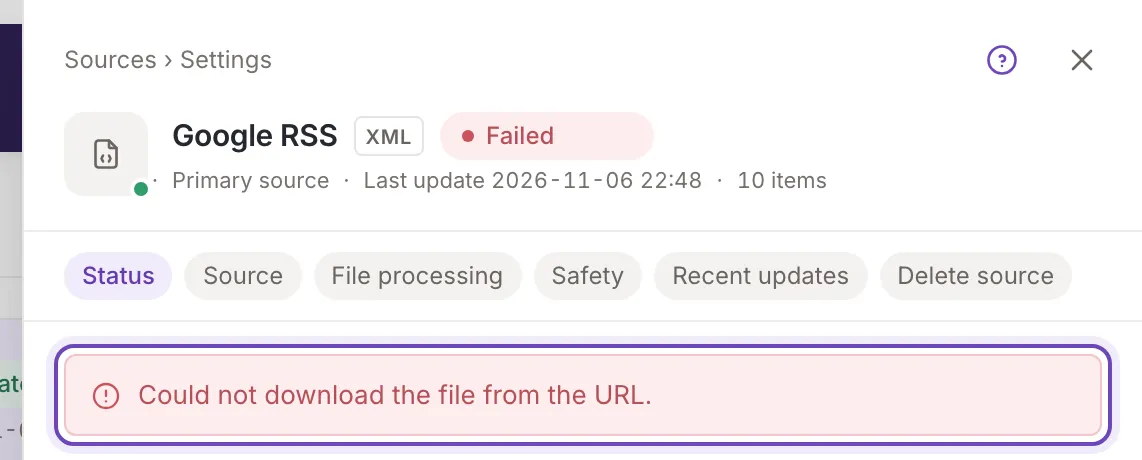
The steps can be more exact than this message. For example the steps of a file with mismatched tags say Invalid XML: opening and closing tags do not match. A failure that has no sentence of its own in the settings reads The last update failed. there; open the steps for the reason.
The amber notice of an interrupted update. It says The last update was interrupted. with the reason (see Interrupted updates).
After a failed update the list keeps showing the item count of the last successful update, and the Mapping and Rules shortcuts stay on for a source that has a mapping. The next update tries again.
The file could not be downloaded or read
Section titled “The file could not be downloaded or read”- Could not download the file from the URL., Could not download the file from FTP. or Could not download the file from SFTP.: the file could not be fetched from the address in the source’s URL. Open the URL in a browser to check that it works, and that it needs no sign-in. Fix the URL in Source settings if it changed.
- The downloaded source file is empty.: the address answered, but with nothing in it. Check the export on your side.
- The imported feed is empty.: the file was read, and it holds no products.
- Download failed because of a certificate problem. Check that the certificate is valid. The address uses a secure connection whose certificate is not valid. Renew the certificate on your server.
- Could not decompress the source file. and The decompressed source file is empty. come with zipped files: check that the file is a valid archive and that Unzip imported file is switched on only for a file that is one.
- A file larger than your plan allows. The message gives the size of your file and your plan’s limit in MB, for example “The file is 412 MB, but your plan allows up to 300 MB.”, with a Contact us link to choose another plan. When the download was stopped at the limit, the message says so and gives the size where it stopped.
The file’s structure
Section titled “The file’s structure”- Source update failed: invalid XML structure. The file is not valid XML, or its structure is not what Feedink can read. Check it in a browser or an XML validator. The steps can name the problem more exactly, for example mismatched tags (Invalid XML: opening and closing tags do not match.) or text after the end of the file (Invalid XML: extra content at the end of the file.).
- Source update failed: invalid CSV structure. The CSV file could not be split into columns.
- Could not find the header row in the feed file. The first row of a CSV file must hold the names of the columns.
- None of the headers match the structure of the feed file. None of the column names in the file matches the structure Feedink expects. Check the file and the source’s mapping.
Google Sheet
Section titled “Google Sheet”- The downloaded Google Sheet is empty. Check that it has been published to the web and try again. and The downloaded data is empty. Check that this Google Sheet has been published to the web and try again. Both mean Feedink got no data from the sheet. Publish the sheet to the web, check that the URL in the source’s settings is the sheet’s address, and update the source again (Update now). See XML, CSV and Google Sheet.
Blocked on difference
Section titled “Blocked on difference”A source whose number of items changed by more than you allowed is blocked, and reads Failed with a message such as “Source blocked: the item count changed by 35% (last: 1000, current: 650).” This is not an error of the file: it is the safety limit you set. See Block on difference for what to do.
Interrupted updates
Section titled “Interrupted updates”An update that ran out of time, was stopped midway or was never started reads Aborted, and the amber notice gives the reason. Among the reasons:
- the source was deactivated while its update waited in the queue, so it was not started: activate the source and update it again;
- the update did not finish in time, or processing stopped midway and was restarted, or the update made no progress and seemed stuck: update the source again, and contact support if it happens every time;
- an inkspace update took the source’s update over, or an update it depended on failed;
- the update was not started before the inkspace update ended, it could not be handed over for processing (a system error), or the source was deleted during the inkspace update;
- the update’s configuration could not be prepared, or the settings saved for it were missing, or the inkspace update it belonged to had already ended (for the first two the message asks you to contact support);
- the Feedink team started a new update.
An update that someone stopped reads Canceled; it is not an error.