
Edit a rule
Click a rule in the list to open it. The page has a header with the rule’s name and actions, the conditions and adjustments, and a Notes card. Owners and collaborators can change and save a rule; viewers can open it and look at it.
The rule header
Section titled “The rule header”
- Name: the rule’s name, edited in place. A name needs at least one character that is not a space.
- A label with the type of the rule, General for every rule you can create.
- Active: switches the rule on or off and saves at once; see Order and switch rules on or off.
- The clock (Limit the rule in time): opens the dates row of the time limit; see Run a rule between two dates.
- Clone: see Clone a rule.
- Delete: see below.
Under the header, change the conditions and adjustments as when you added the rule. Notes at the bottom is a free comment for yourself and your team (Comment…), saved with the rule.
Save and unsaved changes
Section titled “Save and unsaved changes”A change makes a bar appear with Unsaved changes, the Undo and Redo buttons, Discard changes and Save. Opening a rule shows no bar until you change something.

Click Save and Feedink says Rule saved.. It saves only what you changed: first the name, dates and notes, then the conditions and adjustments. Before it sends anything it checks the name and the fields of the conditions and adjustments; a missing name is outlined, its hint changes to Type a rule name to save it…, the cursor goes there and nothing is sent, and a field that needs filling in is marked the same way. If a part is refused, the part before it stays saved and the toast names what failed, for example Conditions and adjustments not saved with The name, dates and comment were saved. Save again to save the conditions and adjustments. Feedink may also refuse a save, for example a name of only spaces (Enter a rule name.), an adjustment without an action (Every adjustment needs an action.) or incomplete conditions or adjustments (Some conditions or adjustments are incomplete. Check them and save again.). Other failures are titled Rule not saved. Fix the problem and click Save again.
If you leave the rule with unsaved changes (to another rule, with the back button or to another tab of the page), Feedink asks whether to stay or leave.
Delete a rule
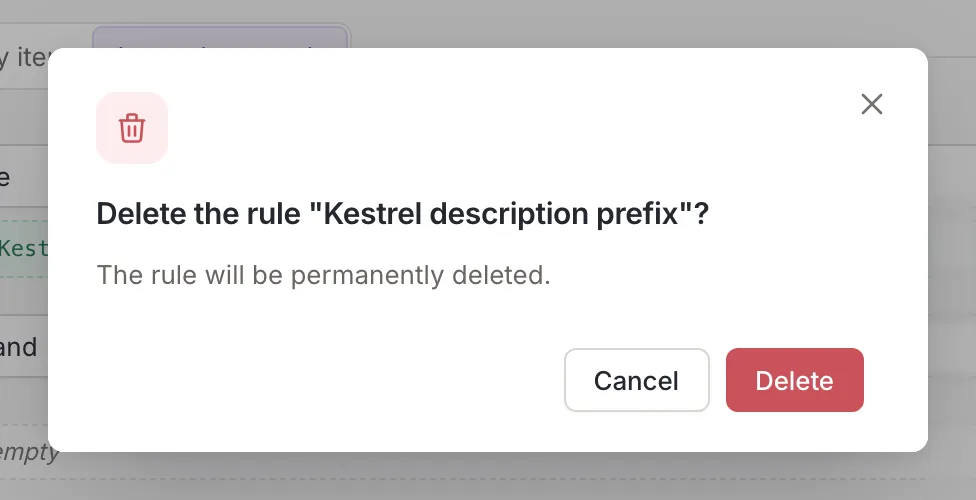
Section titled “Delete a rule”Delete asks whether to delete the rule, with its name (for example “Delete the rule “Kestrel description prefix”?“), and warns: The rule will be permanently deleted. After you confirm, a toast says that the rule was deleted and names it, and the page opens the first rule that is left, or Add rule when none is.
Changed elsewhere
Section titled “Changed elsewhere”Someone else, or you in another window, may save the same rule while you are editing it. If you have not changed the rule, it simply takes the new version. If you have unsaved changes, Feedink merges the update silently unless it touched a part you also changed. Only then your changes are kept and a notice appears: This rule was changed elsewhere. Your unsaved changes are kept. Choose Load the new version to drop your changes and take the new version, or Keep my changes to keep editing on top of it. A rule that someone deletes while you have it open is closed, and the page opens the first rule that is left, without asking about your changes.

Who can edit
Section titled “Who can edit”Only owners and collaborators see the Active switch, Clone and Delete, and only they can save. A viewer can open a rule and type in its fields, which shows the bar with the changes but without Save; nothing a viewer types is saved.