Your inkspaces
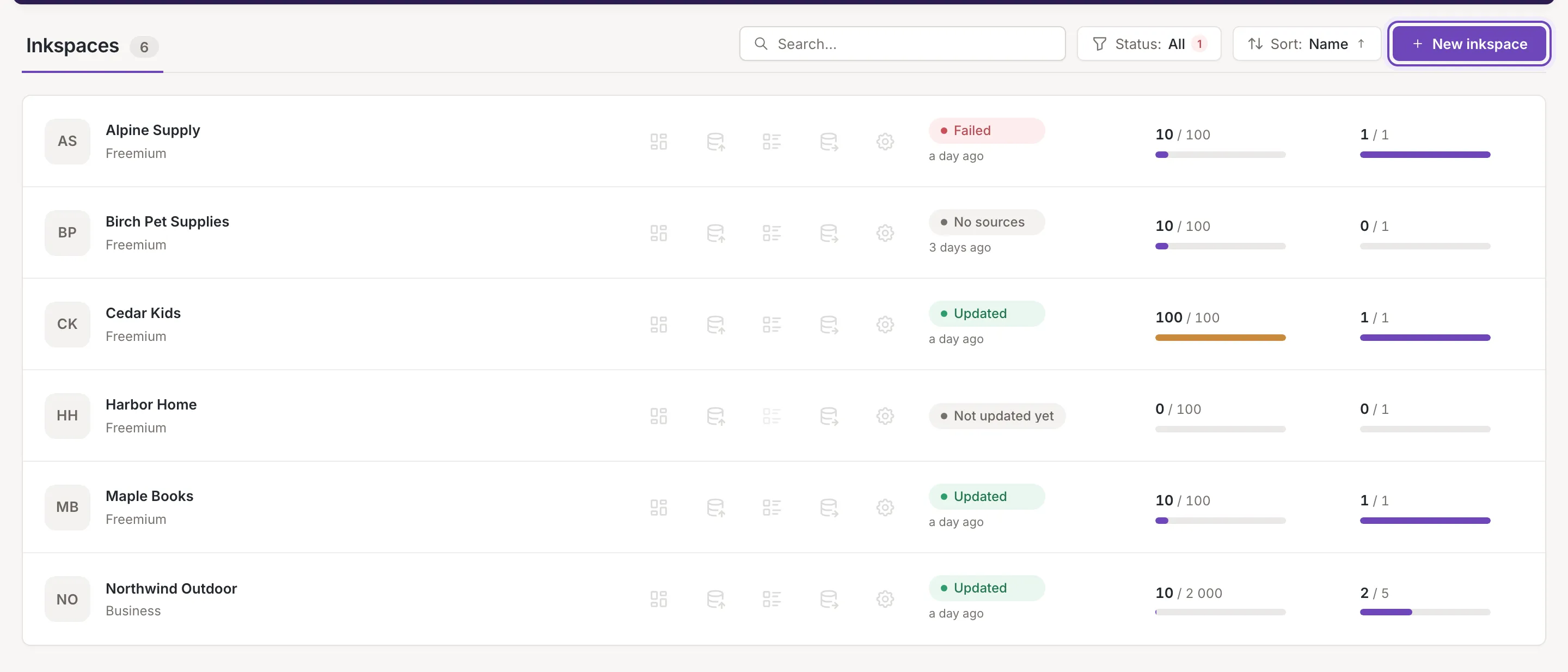
Inkspaces lists every inkspace you can open. An inkspace holds the sources, items and channels of one e-store. The number beside the title is how many inkspaces you have.
New inkspace opens Add an inkspace. Anyone can add one.
Inkspace row
Section titled “Inkspace row”
- The inkspace. A tile with its initials, its name and, under the name, its plan. The name opens the inkspace’s dashboard. An inkspace without a plan shows No plan in amber instead.
- Five shortcuts. Dashboard, Sources, Items, Channels and Settings open that screen of the inkspace. Point at an icon for its name. Items is off while the last successful update of the inkspace had no items, and before there is one.
- Status. The chip says what the last update did, for example Updated, Failed, No sources or Not updated yet, and Updating while one runs. Under the chip is how long ago the update finished; point at it for the exact date and time in the inkspace’s timezone. Update status explains every chip. A click on the chip opens Update details: the running update while one runs, otherwise the last finished one. It opens nothing before the first update has started, and while an update is requested or postponed and has not started.
- Update required mark. A warning mark beside the time says “An update is required. The result does not include recent changes yet.” when changes were made after the last update.
- Items and active channels. Each shows a count against your plan’s limit and a bar, for example 10 / 2 000. The Items bar turns amber when the limit is almost reached or reached. Without a plan both show a dash. See Your plan and its limits.
- Cancel update. While an update runs or waits to start, Cancel update is the first shortcut of the row. Only an owner or a collaborator sees it, never a viewer.
The rows follow what happens in your inkspaces: a status, a count or a new inkspace changes in the list by itself.
Search, filter and sort
Section titled “Search, filter and sort”The tools above the list appear once you have an inkspace.
- Search. Search… keeps the inkspaces whose name contains the text. It ignores case and the spaces around the text.
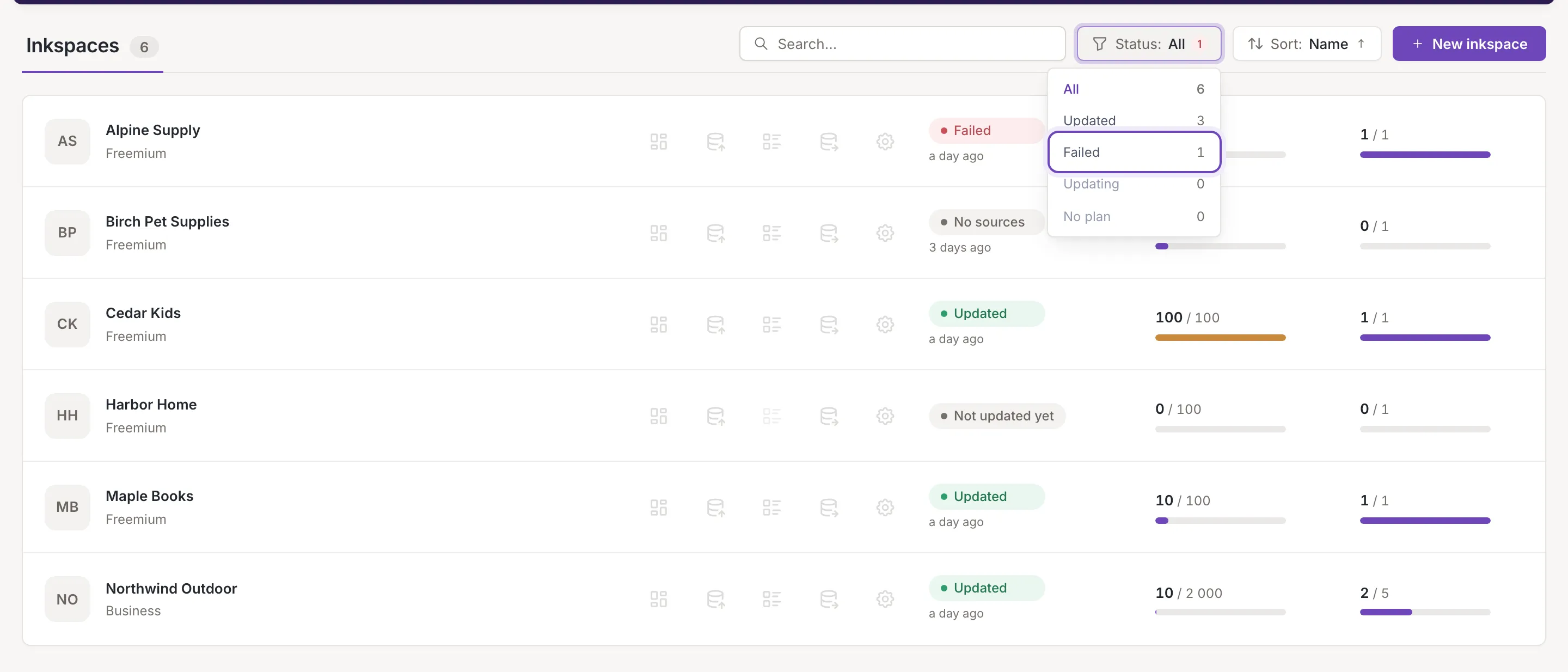
- Status. Status: opens a menu with All, Updated, Failed, Updating and No plan, each with the number of inkspaces it holds. The numbers count all your inkspaces, not only those the search leaves. An inkspace that could not be set up also counts as Failed. The chip of an update that is queued already reads Updating, but the Updating filter counts only updates that are running. The chosen filter is kept in the address of the page.
- Sort. Sort: opens the orders: Name, Status (the time the last update finished), Items and Active channels. The list starts by name, ascending. The first pick of another order sorts descending; picking the same order again reverses it.
Empty account and no matches
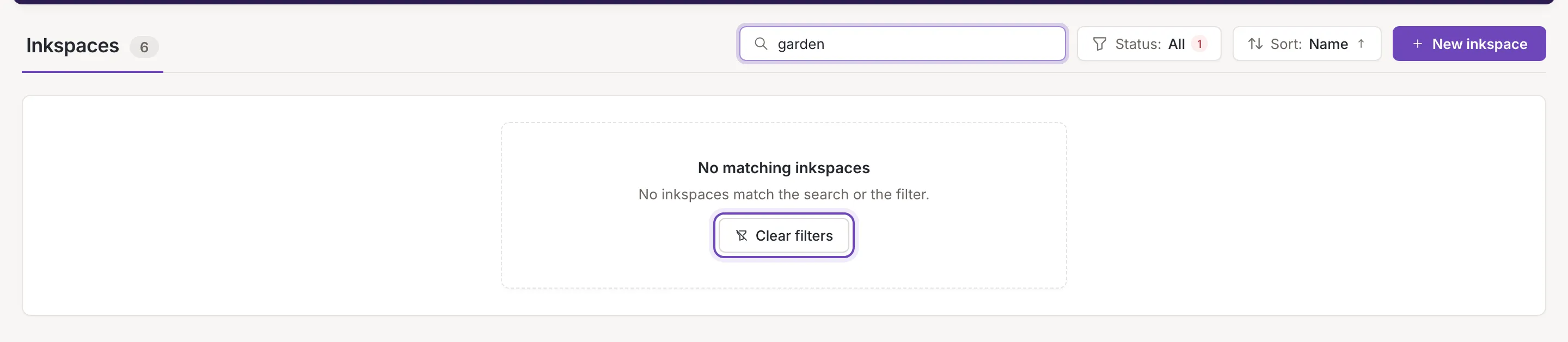
Section titled “Empty account and no matches”When nothing matches, the list says No matching inkspaces and “No inkspaces match the search or the filter.” Click Clear filters to clear the search and the filter.
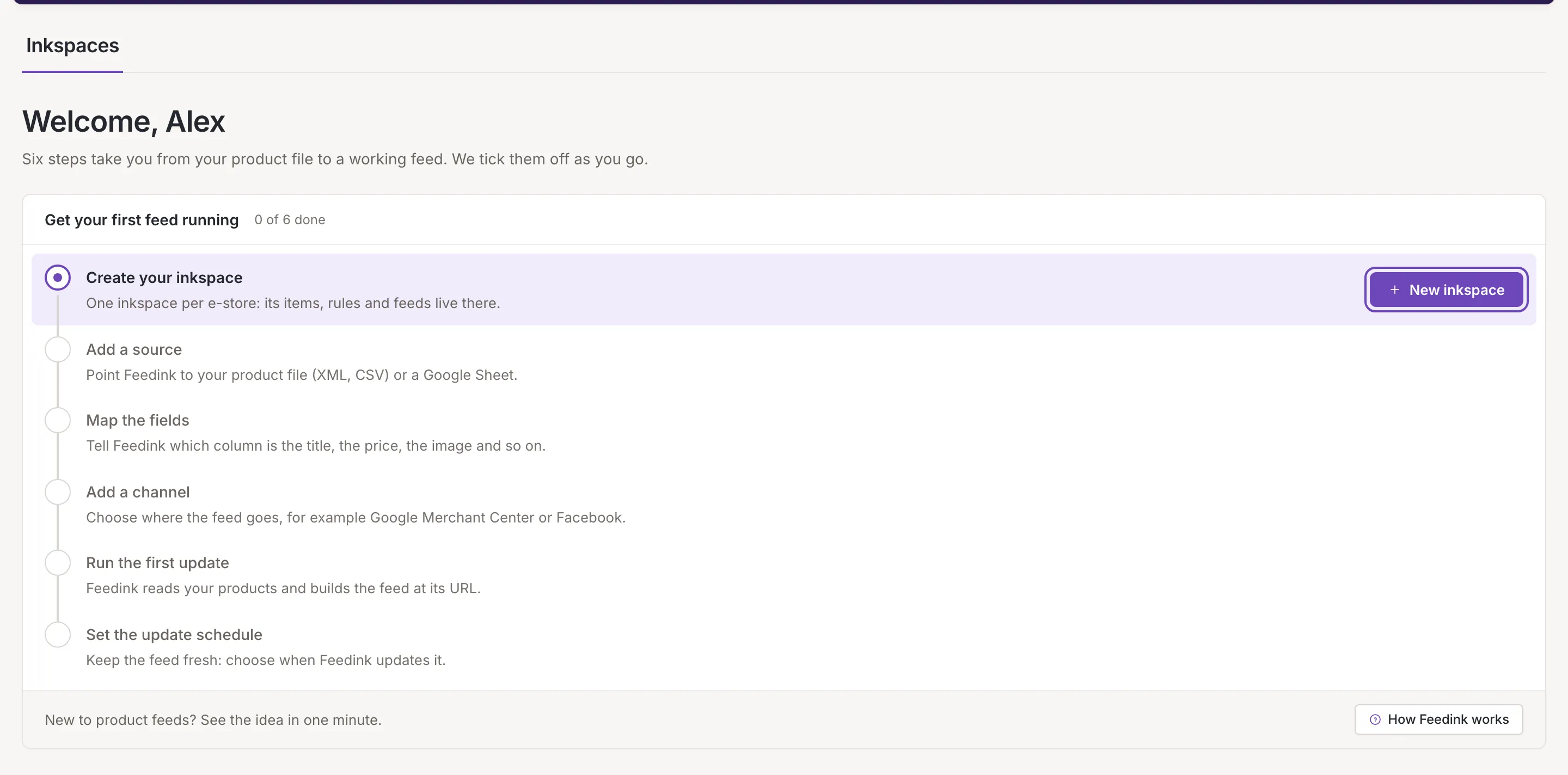
An account without an inkspace shows only the title and a guide in place of the list: a greeting (Welcome to Feedink or, with your first name, “Welcome, Alex”), the six steps from your product file to a working feed, and New inkspace as the first step. There is no search, filter or sort until you have created an inkspace.