Source settings
A source’s settings are where you rename it, change its URL or format, switch it on or off, set when to hold back a file that changed too much, and delete it. They open in a panel over the Sources list.
The panel
Section titled “The panel”Every screen of a source opens in the same panel, with the same head.
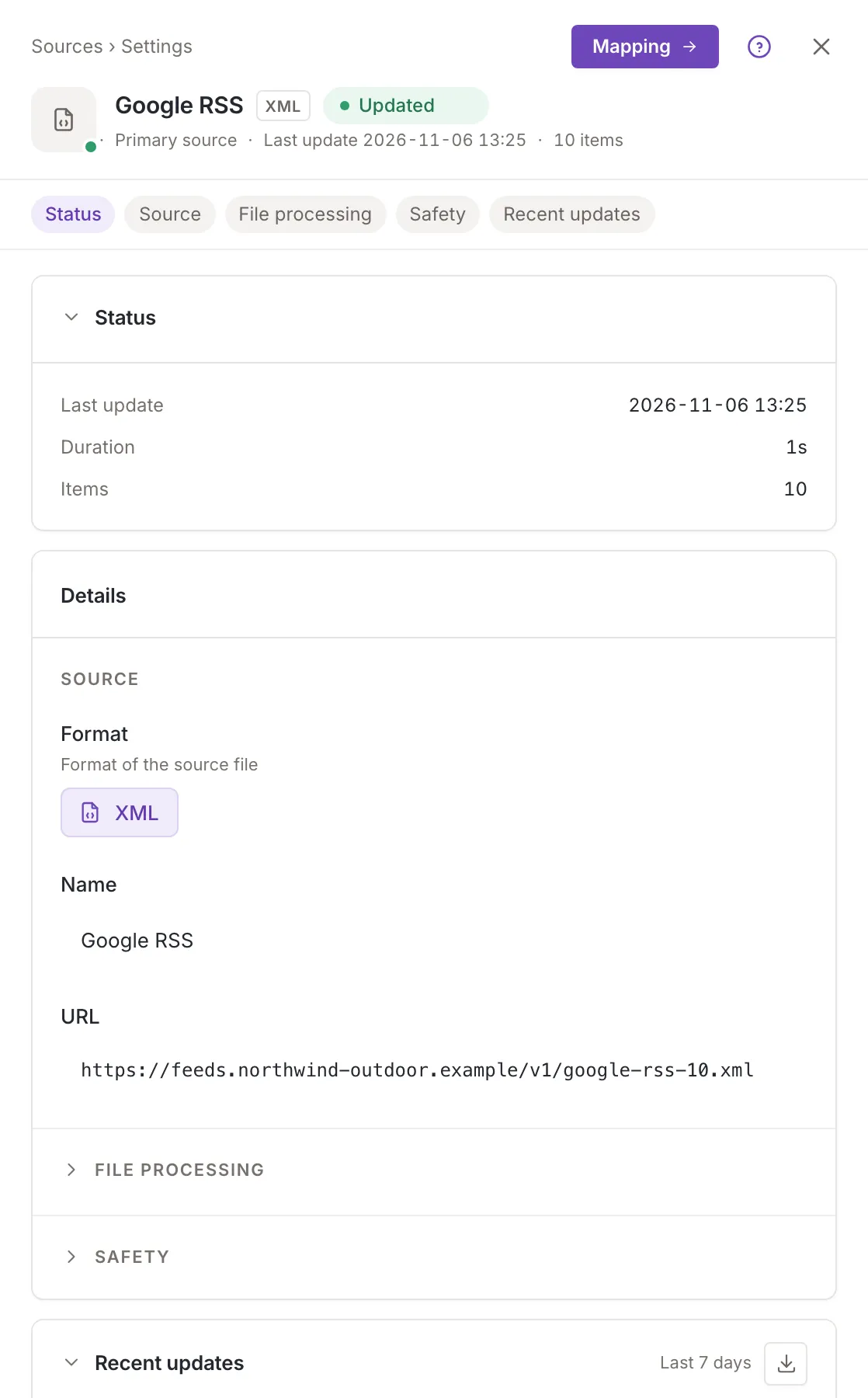
- The first line names the list the panel opened from and the step you are on (Sources, then Settings). Next to it are the button for the next step, Mapping, and the close button, which returns to the list. A source whose last update failed or was interrupted has no next-step button.
- The tile shows the format’s icon with a green dot while the source is active and a grey one when it is inactive. Then come the source’s name, its format and its status. In the head the status Update now is shown as a label, Changed, not as a button.
- The line under the name says Primary source or Complementary source, the time of the last update and the number of items of the last successful one. How a source becomes complementary is set in its mapping: see Combine data.
Under the head, a notice appears when the source is being updated, over your plan’s limit or was interrupted (Source statuses). The row of chips under it (Status, Source, File processing, Safety, Recent updates and, for an owner or a collaborator, Delete source) jumps to a card or a section. Click the title of Status, File processing, Safety or Recent updates to fold or unfold it; the Details card itself does not fold. Status and Recent updates open unfolded; File processing and Safety open folded, and the chip of a folded section opens it.
The Status card shows Last update, Duration (both of the last update that finished) and Items (of the last successful update), with a dash where a value is not known yet. Recent updates of a source describes the card further down.
Edit and save
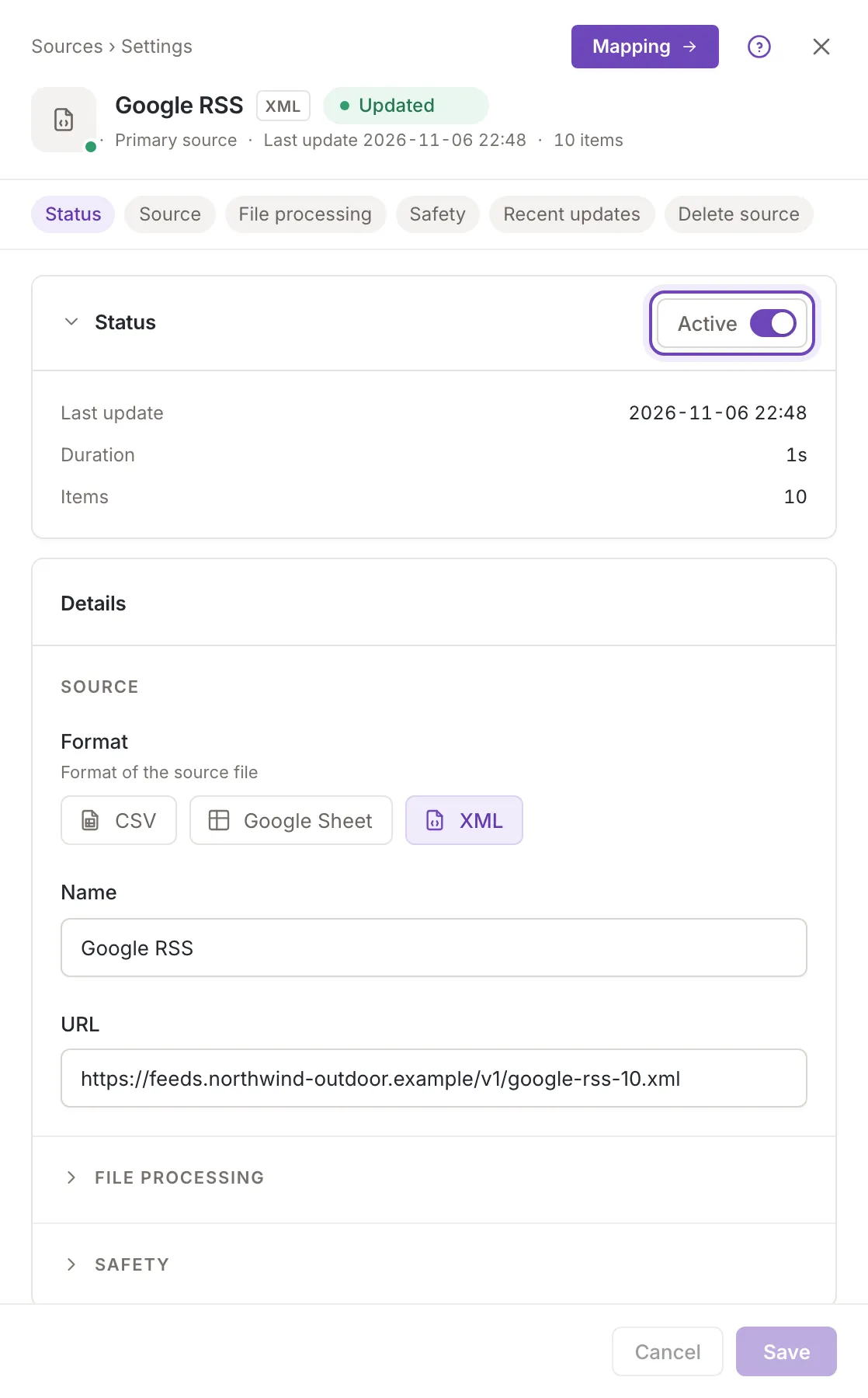
Section titled “Edit and save”The Details card is the same form as Add a source: the format tiles, the name, the URL with its two buttons (Copy URL and Open the file in a new tab), then File processing (zipped files) and Safety (Block on difference). It is editable at once; there is no Edit button. The name is at least 3 and at most 255 characters. The same checks as in Add a source mark a name or a URL that is not valid, and Save is off until they pass.
Nothing is saved until you click Save. While there is something to save, the footer says Unsaved changes. Cancel goes back to the saved source. Feedink says Source saved. or, if the save is refused, shows a toast titled Request failed with the reason, for example A source update is already in progress. Try again after it finishes. A change you save can wait for the next update: the chip then reads Update now.
If you leave with unsaved changes (the close button, another step, another page), Feedink asks Leave without saving? and you answer Leave or Stay.
If the source is changed somewhere else while you edit it (another person, or another window) and the change touches a field you also edited, Feedink keeps your edits and says
This source was changed elsewhere. Your unsaved changes are kept.Load the new version drops your edits and shows the new version; Keep my changes keeps them. A change to a field you did not edit is taken in without a question.
Change the URL or the format
Section titled “Change the URL or the format”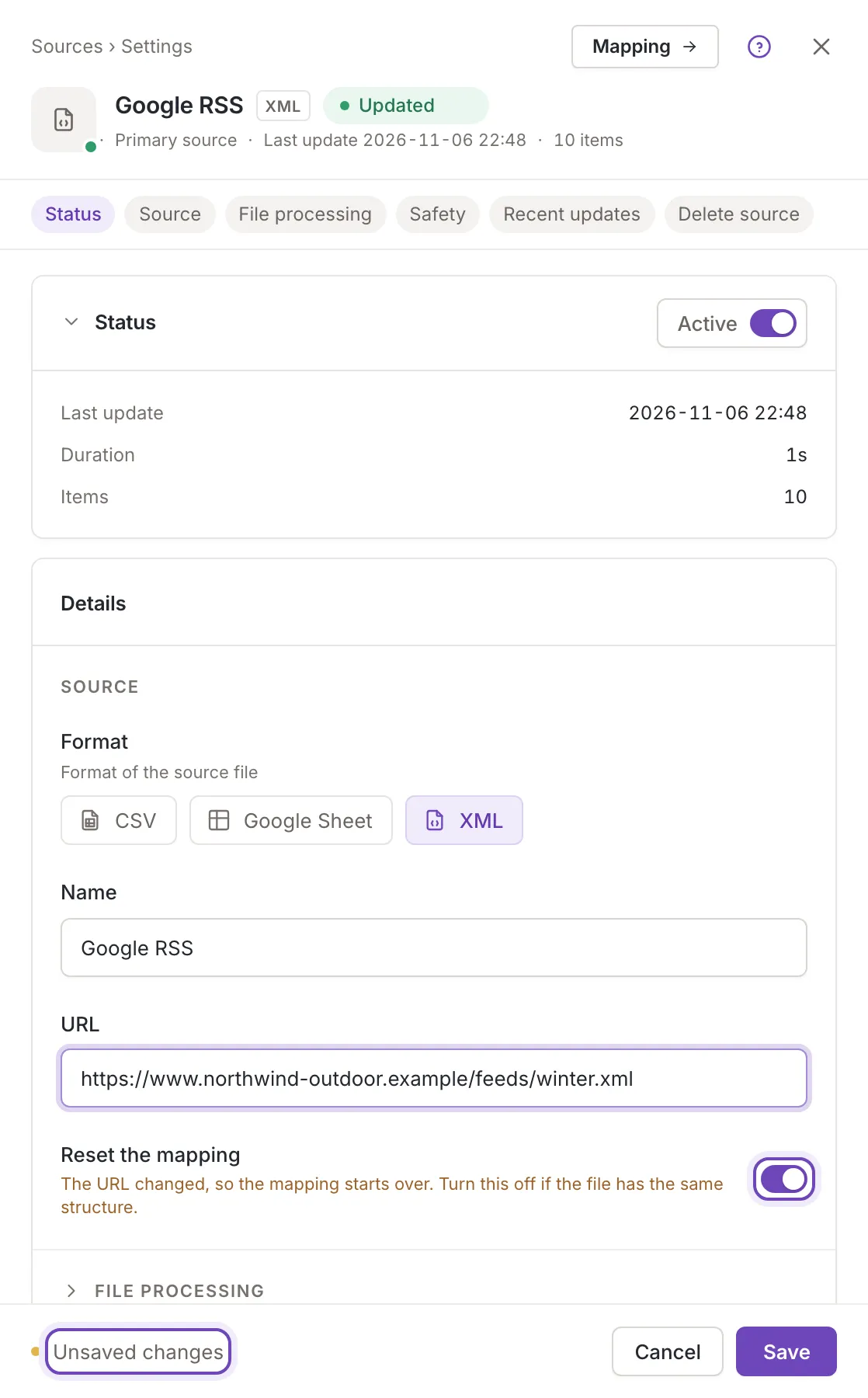
The mapping says which field of the file feeds which field of the items, so a file with another structure needs a new mapping (see Source mapping).
- A new URL, the same format. The row Reset the mapping appears, switched on: The URL changed, so the mapping starts over. Turn this off if the file has the same structure. With it on, Save first asks Reset the mapping? (The current source mapping will be erased.); you confirm with Reset mapping. With it switched off, Save keeps the mapping and asks nothing. Put the old URL back and the row goes away.
- Another format. The warning Changing the format resets the current mapping. appears above the form, and saving resets the mapping. See XML, CSV and Google Sheet.
Activate or deactivate
Section titled “Activate or deactivate”An owner or a collaborator sees the Active switch in the Status card. It works at once, without Save: Feedink says Source activated. or Source deactivated. An inactive source is not read. A complementary source needs at least one other active primary source: when a change would break that, a toast titled Request failed says
A complement source needs at least one other active data source.Delete a source
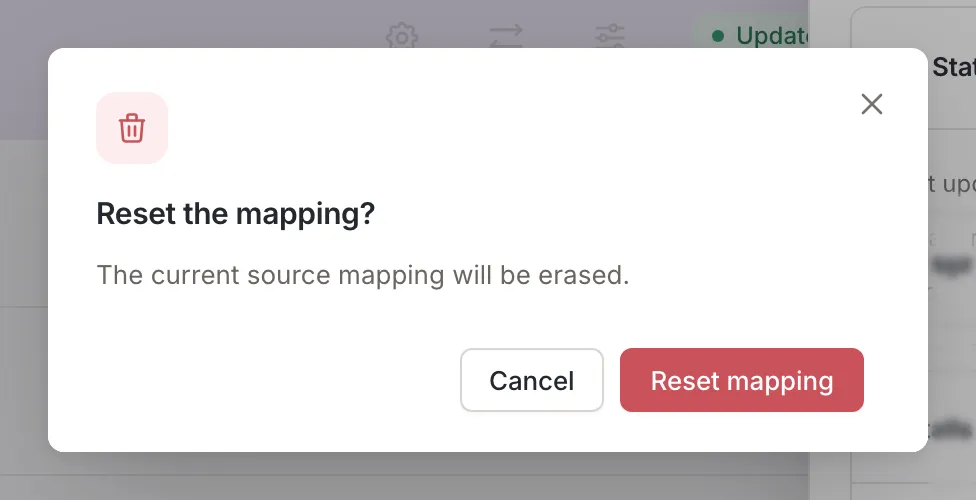
Section titled “Delete a source”The card Delete source says Deletes the source and its mapping. Its Delete button is off while you have unsaved changes (Save or cancel the changes first.).
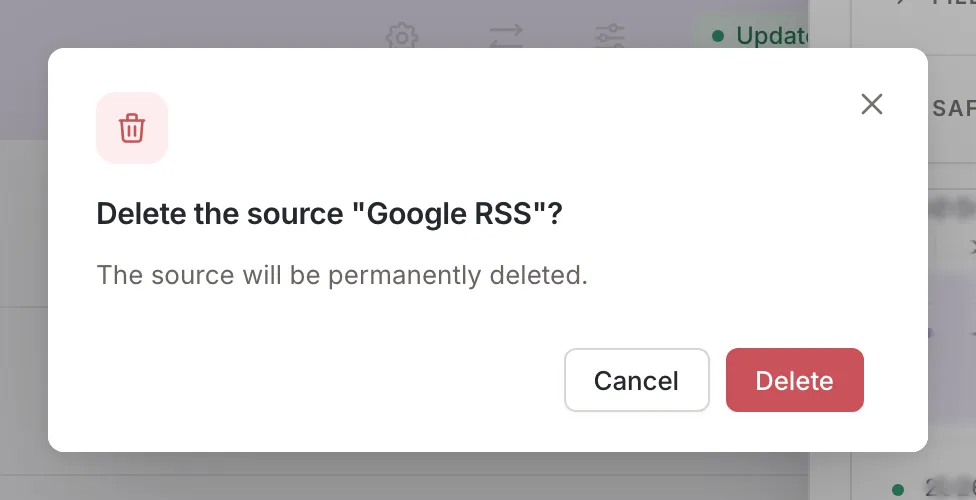
Feedink asks to confirm, with the name of the source in the question, and says The source will be permanently deleted. Deleting cannot be undone. Afterwards the Sources list opens and a toast says that the source was deleted. If an update of the source or of the inkspace is running, the request can be refused; the toast is titled Request failed and gives the reason. Try again when the update has finished.
Who can do what
Section titled “Who can do what”Owners and collaborators can change everything above. A viewer sees the same panel with the fields read-only: no footer, no Active switch and no Delete card.