
Channel statuses
Every channel shows a status chip in the list and in the head of its panel. It tells you whether the feed is up to date, and what to do when it is not.
The status chip
Section titled “The status chip”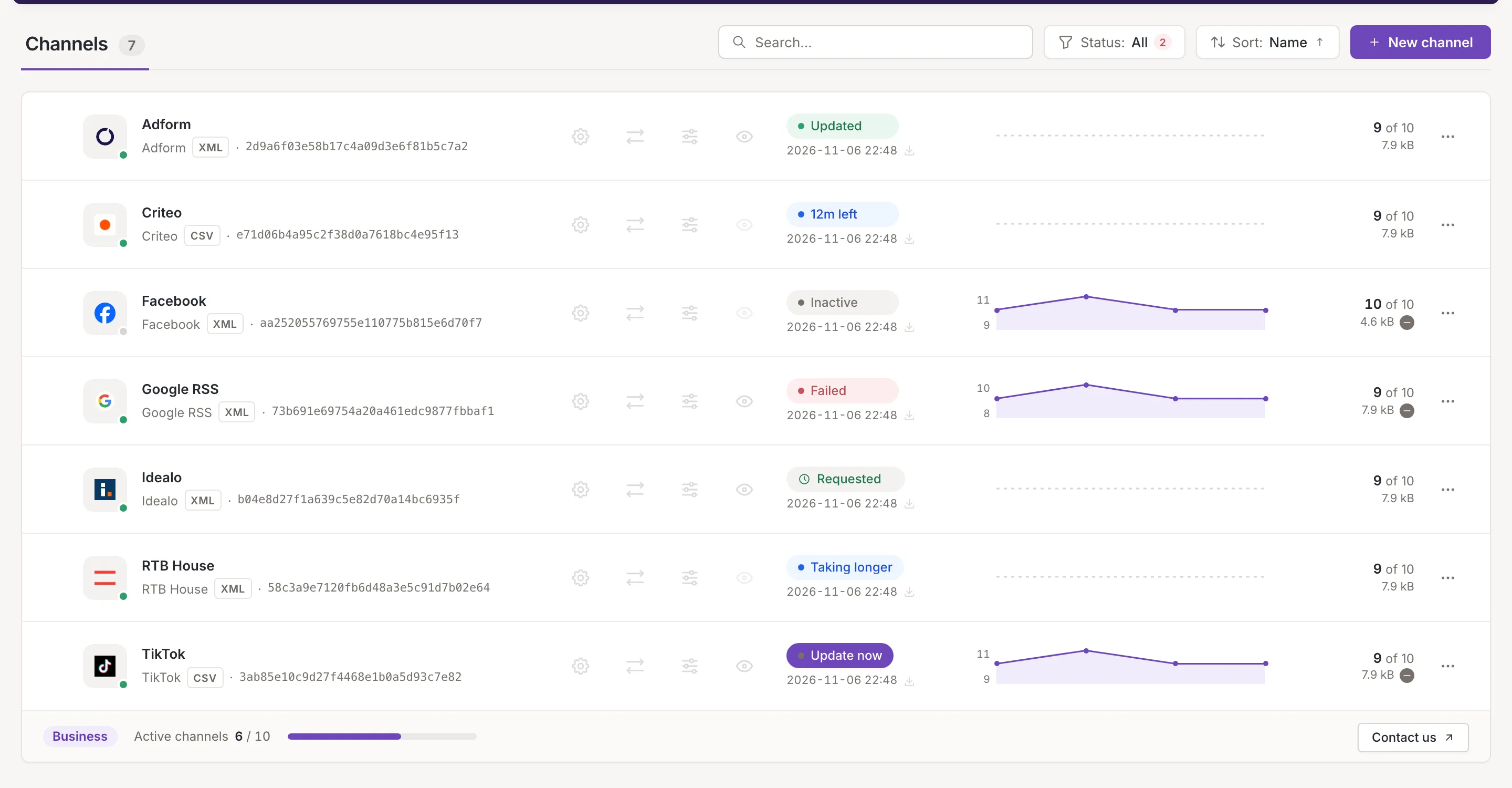
A channel updates together with its inkspace: it has no schedule of its own. The chip shows the first of these that applies:
- Inactive: the channel is switched off.
- Over limit: your plan leaves the channel out.
- Cancelling…, Requested or Postponed: an update was asked for or is being stopped.
- Update now: your latest changes are not in the feed yet.
- An update that is running: Updating.
- The result of the last update: Updated, Failed, Aborted or Canceled.
- Not updated yet: the channel has not been updated yet.
Point at a chip and it offers Show details: click it to open the update’s steps (Why a channel update failed). While an update runs, the chip opens that update; otherwise the last finished one. Chips that stand for a request, or for a channel with nothing to show yet, open nothing.
While an update runs
Section titled “While an update runs”The chip reads Updating with the time left, for example “12m left”. When the update runs longer than expected it reads Taking longer.
An update starts when the inkspace updates, or when you ask for one with Update now. While it runs, the feed’s URL keeps serving the previous feed, and changes you make go into the next update (Changes you make now go into the next update. The URL still serves the previous feed.) Preview waits for the update to finish.
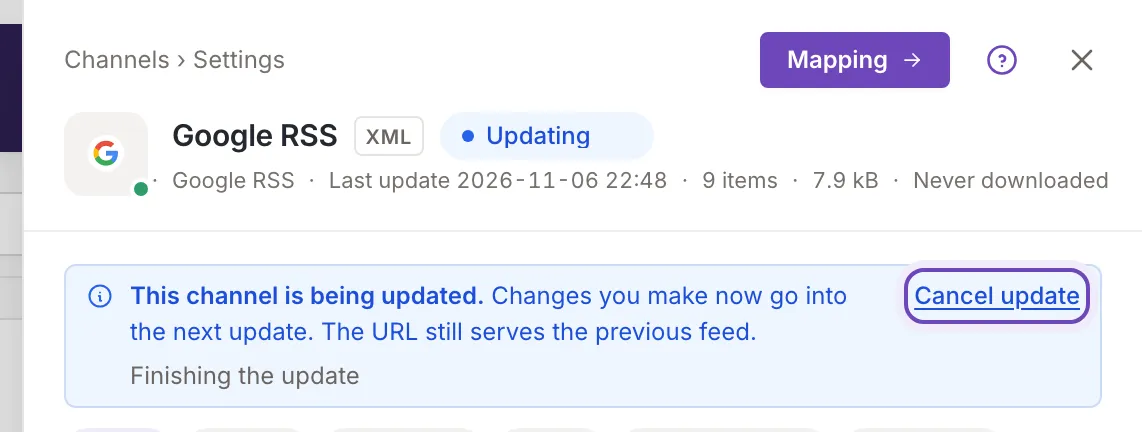
The channel’s panel says This channel is being updated. with Cancel update, which an owner or a collaborator can use to stop the update (the chip then reads Cancelling…). A requested update shows Update requested.; the same button withdraws the request. Postponed means the request starts after the maintenance window.
When changes are waiting
Section titled “When changes are waiting”Update now means a change you made is not in the feed yet. Click the chip to request an update (owner or collaborator; for a viewer it is off). The chip then reads Requested, then Updating. In the head of the channel’s panel the same state is a plain label, Changed.
When the inkspace has no items to build a feed from, the chip is not a button. It reads Not updated yet if the inkspace has never finished an update, or No items if it has none now. Check your sources and rules.
Inactive and over the limit
Section titled “Inactive and over the limit”An inactive channel is not updated. Its URL keeps serving the last feed it generated (This channel is inactive. Its file is not updated, and the URL serves the last generated feed.). Switch it on again from the row menu or in its settings (Row menu and bulk actions).
Over limit means the channel is over your plan’s limit. It is kept and can be changed, but it is not processed until your plan allows more channels (Over your plan's limit, so it is not processed. It comes back by itself when the plan allows it.).
Failed and aborted
Section titled “Failed and aborted”Failed means the last update did not produce a feed. The panel of the channel says so in red, with Show details.
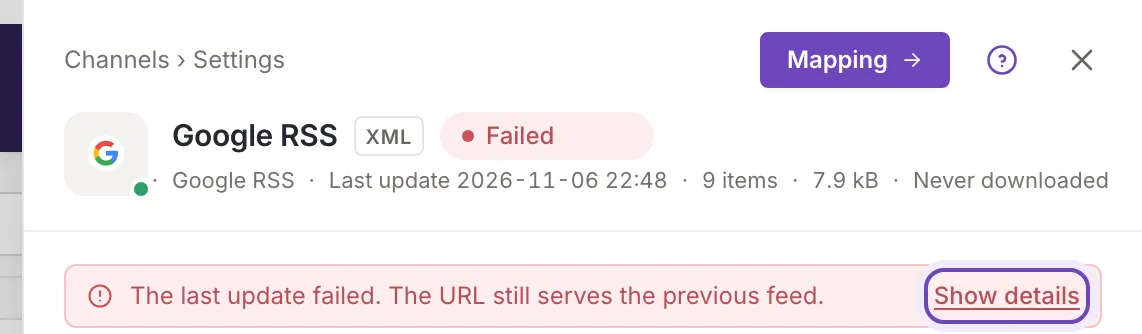
- If the channel had a feed before, The last update failed. The URL still serves the previous feed.
- If it never had one, The last update failed. There is no feed at this address yet.
Open the details to read the reason, and see Why a channel update failed. A channel that is blocked because its item count changed too much also reads Failed.
Aborted means the update was interrupted (The last update was interrupted.); the details say why. The previous feed stays. Canceled means someone stopped the update.
The filter Needs attention on the list gathers the active channels that read Failed, Aborted or Update now.