
The product preview
The panel to the right of the mapping tree shows one example as your mapping reads it: its photos, title, price and the other fields you have mapped. It updates as you map, so you can check a choice before you save it. Nothing you do in the preview is saved by itself.
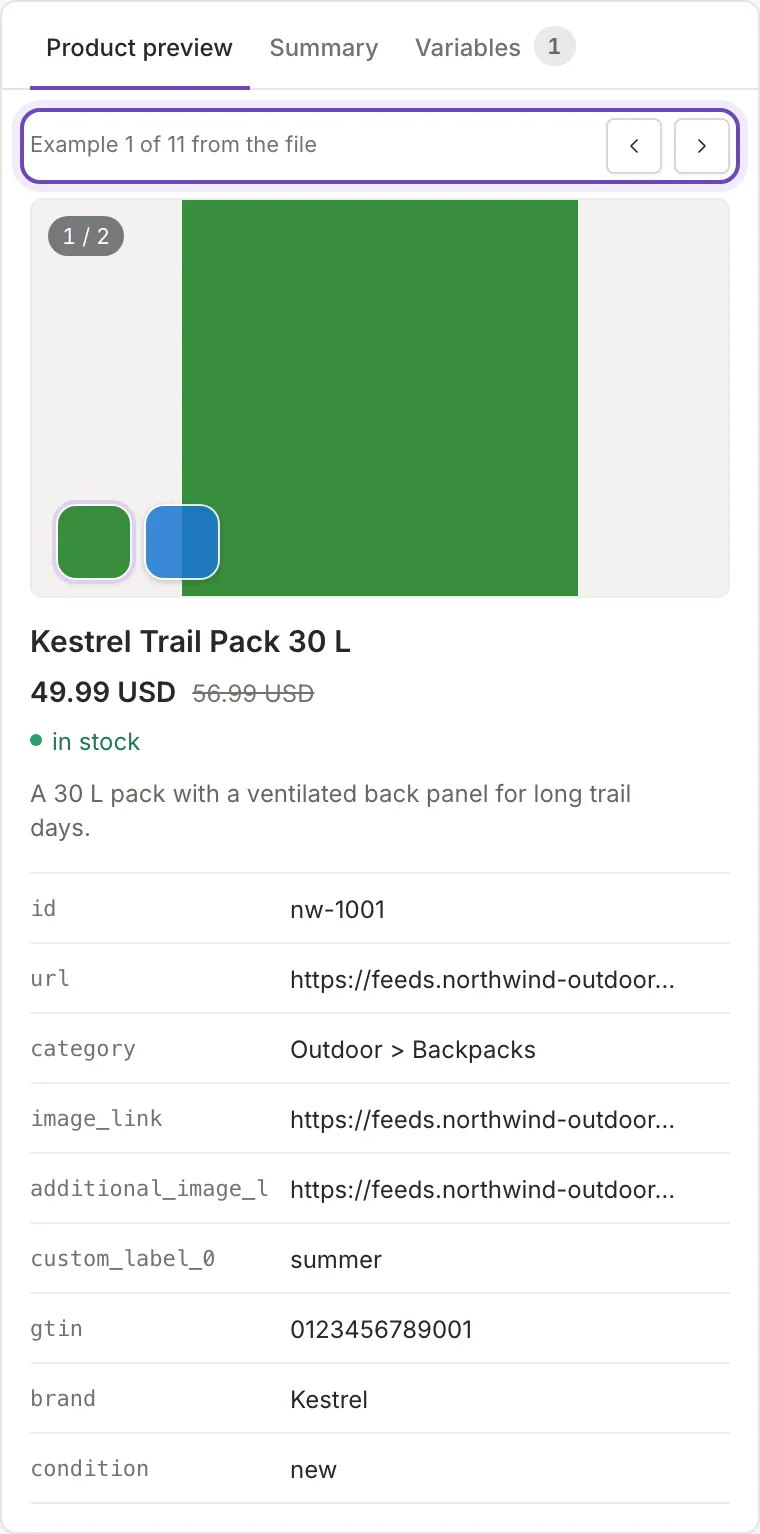
What the preview shows
Section titled “What the preview shows”The panel has three tabs: Product preview (this article),
Summary and Variables. The preview is ordered by Feedink
field, not by the elements of your file. At the top is a card with the photos, the title, the price (when the example
has a sale price, that price is bold and the regular price is struck through), the availability and the description.
Under the card every other mapped field is listed by name with its value, and so is a mandatory field that is not mapped
yet. A field mapped to a custom variable carries the variable mark before its name.
A card field that has no value is a grey placeholder the size of the value. Hover over it to read why: the field is not mapped, or it is empty in this example.
Step through examples
Section titled “Step through examples”A source maps a file, not items, so the preview reads the sample of your file: the first products Feedink saw in it. Example {{index}} of {{total}} from the file (for example “Example 1 of 11 from the file”) tells you which one you are looking at. The two arrows, Previous product and Next product, move through them and wrap around at either end. With a single example the selector is not shown.
The sample is only the start of your file. When the examples of an element are fewer than the products, the preview cannot tell which product a value belongs to, and marks the value with an exclamation mark:
The file sample has fewer values than products for this element, so this value may belong to another product.Photos
Section titled “Photos”The first photo is the image_link field, followed by the additional_image_link ones. When there are several, the
photo shows its place (for example “1 / 2”) and a thumbnail for each; click a thumbnail to show that photo, and scroll
the thumbnail strip sideways when they do not fit. The link in the corner of the photo
(Open in a new tab) opens it.
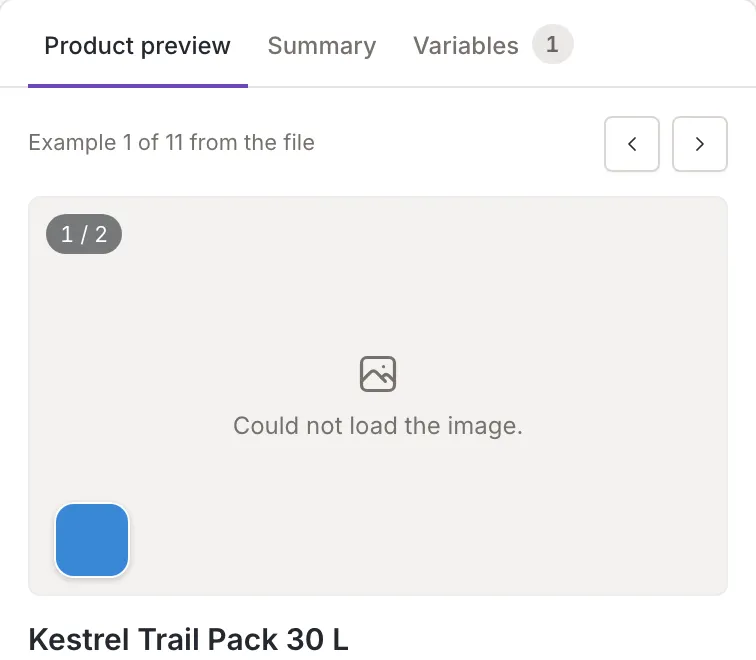
Two notices can stand in for the photo:
-
Image URL shortened in the file sample. The sample of your file keeps only the first 100 characters of a value, so a longer image URL cannot be loaded here.
The whole URL is imported: the photo shows in the items and in a channel's preview.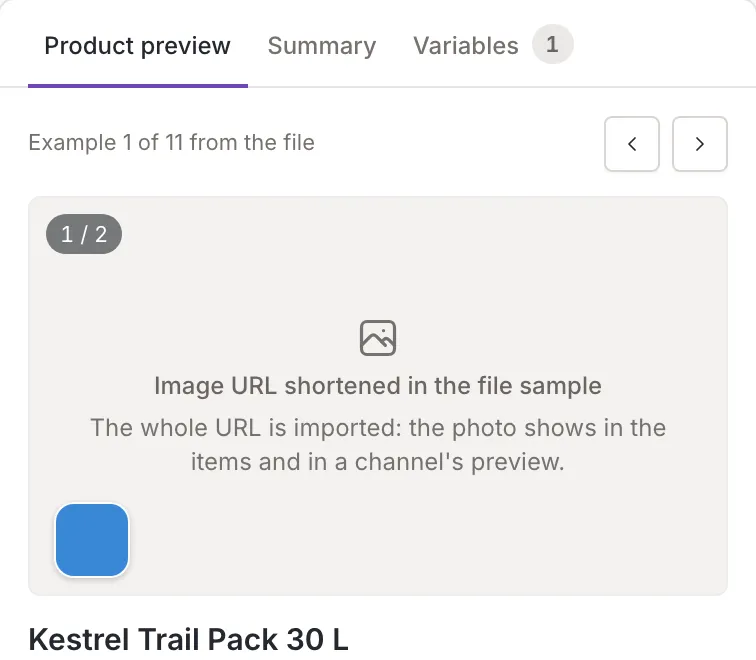
-
Could not load the image. The URL is whole, but the image behind it did not load: the address is wrong, or the server did not answer.
An example without a photo shows No image, and under it whether
image_link is not mapped or is empty in this example.
Why a value is empty or shortened
Section titled “Why a value is empty or shortened”Next to a value or a placeholder the preview can say why there is nothing to show, or less than all of it:
- not mapped (in the list under the card): the field has no element yet. In the card a placeholder says which field is not mapped. A mandatory field that is not mapped is drawn in the warning color.
- empty in this product: the element is mapped, but this example has nothing in it. A placeholder says the same in its hover text, for example “title: empty in this product”.
- “depends on the variant (…)”, with the variant’s own value in the brackets: the field is mapped from a variant of an element. The file sample lists the values of all variants of this element together; each item gets its own variant's value.
- shortened beside a value, such as a description or a link, that was cut at 100 characters in the sample of your file. The file sample keeps the first 100 characters of a value; the whole value is imported.
When nothing is mapped, the preview is empty:
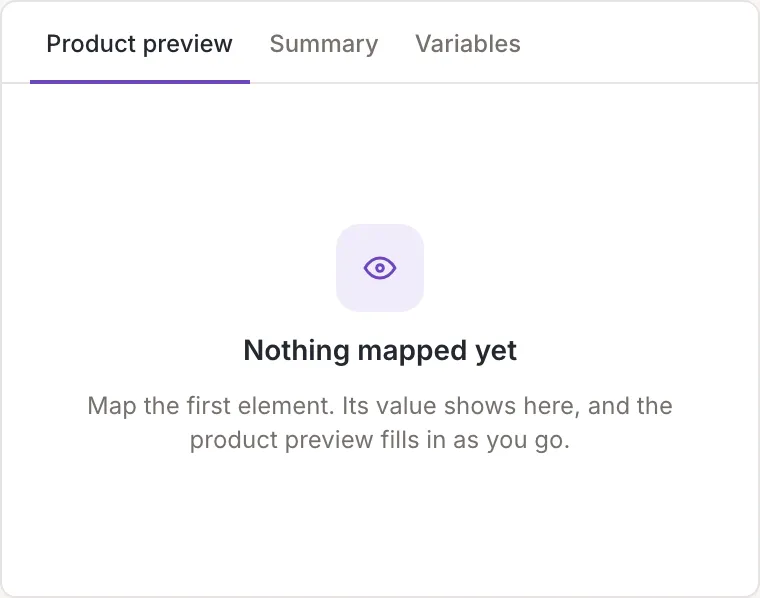
It says Nothing mapped yet:
Map the first element. Its value shows here, and the product preview fills in as you go.Click a value to find its element
Section titled “Click a value to find its element”Click a value, the title, the price, the photo or a row of the list, and the tree flashes the cell of the element that fills it, scrolling to it when it is out of view. Hover over a value to show its copy button (Copy value); it copies the value and says
Copied to the clipboard.On a channel
Section titled “On a channel”A channel’s mapping has the same panel, with the first tab named Item preview. It shows items of your inkspace instead of the sample of a file, so there is no shortened value and no exclamation mark; see The channel’s item preview. In the list, a value with nothing in it reads empty in this item.