
The Sources list
Sources lists every source of the open inkspace. A source reads the product file of your e-store, and its products become the items of the inkspace.
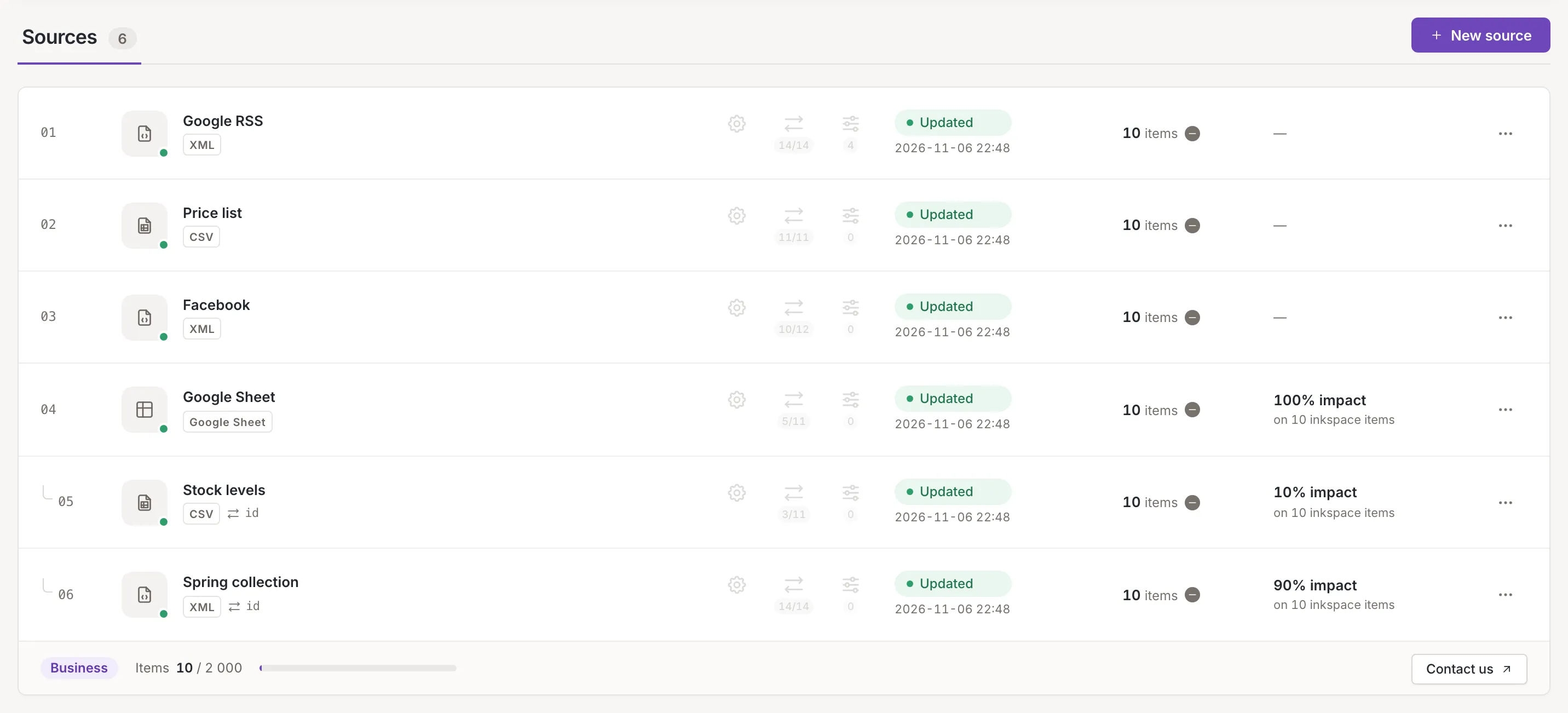
The number beside the title counts the sources. The list has no column headings; from left to right a row shows:
-
The order. The number of the source in its group and the arrows that move it (see Order and complementary sources).
-
The format and the name. The tile shows the format’s icon (XML, CSV or Google Sheet) with a dot: green and Active while the source is active, grey and Inactive when it is not. The name opens the source’s settings (Source settings). Under the name is the format. A complementary source also shows an icon and the fields it is combined on (point at it for Combined on).
-
Three shortcuts. Settings, Mapping and Rules open the source’s steps. The number under Mapping is how many of the source’s elements are mapped out of all that can be mapped; the number under Rules is how many rules the source has. Mapping and Rules are off for a source whose last update failed or was interrupted and that has nothing mapped yet. For a source that has been updated, is active and has nothing mapped, Mapping is highlighted: it is the next step. While a source is updating, or an update of it has been requested, an owner or a collaborator also sees a Cancel update icon before the three; it goes away once the update is being canceled.
-
The status. The chip says what the source’s last update did, with the time the update finished under it, in the inkspace’s time zone. Source statuses explains every chip.
-
Items. The number of items the source’s last successful update read, or a dash if it has none. The icon beside it compares that update with the one before: More items than in the previous update, Same number of items as in the previous update, Fewer items than in the previous update or At least 10% fewer items than in the previous update. Point at it for the change and both counts.
-
Impact. The share of the inkspace’s items that the source’s last successful update affected, with the number of items of the inkspace, for example “35% impact on 120 inkspace items”. A dash means the update affected none, or the inkspace has no items.
-
More actions. The three dots at the end of the row (point at them for More actions) open the source’s menu:
- Update now asks for an update of the source.
- Cancel update stops an update that is running or waiting; it shows only then.
- Last update details opens what the last finished update did.
- Download source file downloads the file the last successful update read.
- Clone copies the source (Clone a source).
- Deactivate (or Activate) takes the source out of the updates, or back in.
- Delete removes the source after you confirm.
A viewer sees only the details and the download.
The row of a source whose panel is open is tinted. The list follows the sources by itself: a finished update or a change made by someone else shows up without a reload.
New source opens Add a source. Only an owner or a collaborator sees it.
Order and complementary sources
Section titled “Order and complementary sources”Primary sources come first, then the complementary ones; each group has its own order, but the numbers run on through both. The list shows no headings for the groups, but a complementary source is indented under its number. How a source becomes complementary, and which fields it is combined on, is set in its mapping (Combine data); the list only shows the result.
The order of the list is the order in which the sources are processed. The up and down arrows move a source one place inside its group: there is no up arrow on the first source of a group and no down arrow on the last. The new order shows when Feedink has saved it. If it cannot be saved, a toast titled Order not changed says so and the order stays as it was. The arrows are on the page for a viewer too.
Items and your plan
Section titled “Items and your plan”The footer of the list shows your plan, the number of items in the inkspace and your plan’s limit for them (Items, for example 1 720 / 2 000). Point at the bar for the share of the limit. The bar changes color when Feedink reports that the limit is almost reached or reached.

Contact us opens a request about your plan, for an owner or a collaborator; if one is already waiting, Feedink says so. A source that does not fit the number of sources your plan allows reads Over limit (Source statuses).
When there are no sources
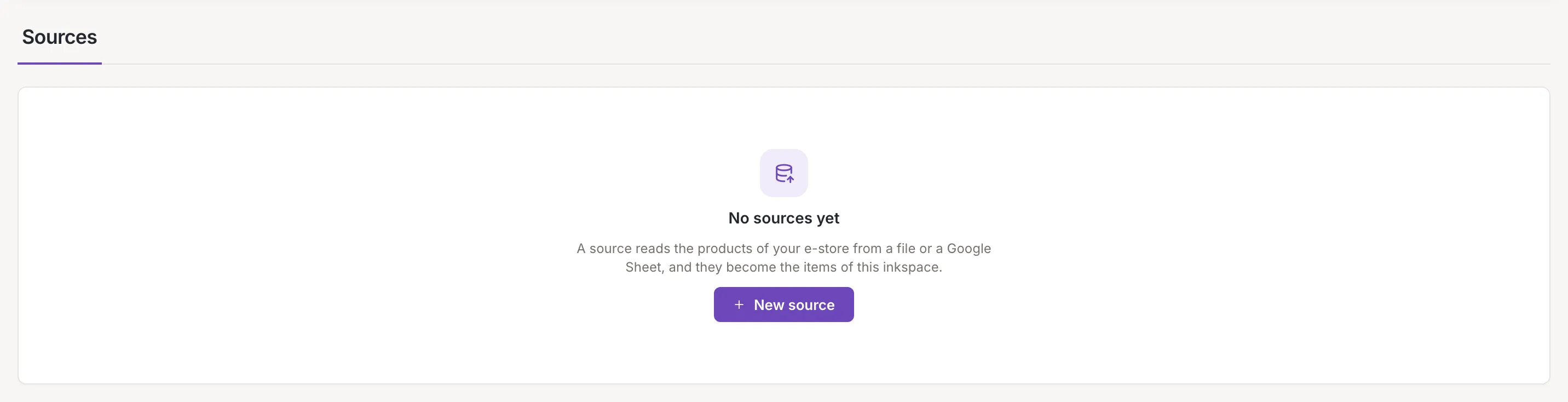
Section titled “When there are no sources”An inkspace without sources shows No sources yet. Under it the screen says A source reads the products of your e-store from a file or a Google Sheet, and they become the items of this inkspace. An owner or a collaborator also sees the button New source; a viewer sees no button.
Who can do what
Section titled “Who can do what”- Owners and collaborators see New source, Contact us, the row menu with Clone and, while an update runs or is requested, Cancel update. The status chip of a changed source asks for an update when they click it.
- A viewer sees the same list. The chip that asks for an update is off for a viewer, and a viewer sees none of those buttons.