
XML, CSV and Google Sheet
A source is one of three formats: an XML file, a CSV file or a Google Sheet. You choose it with the tiles under Format when you add a source, and the tiles are there again in the source’s settings.
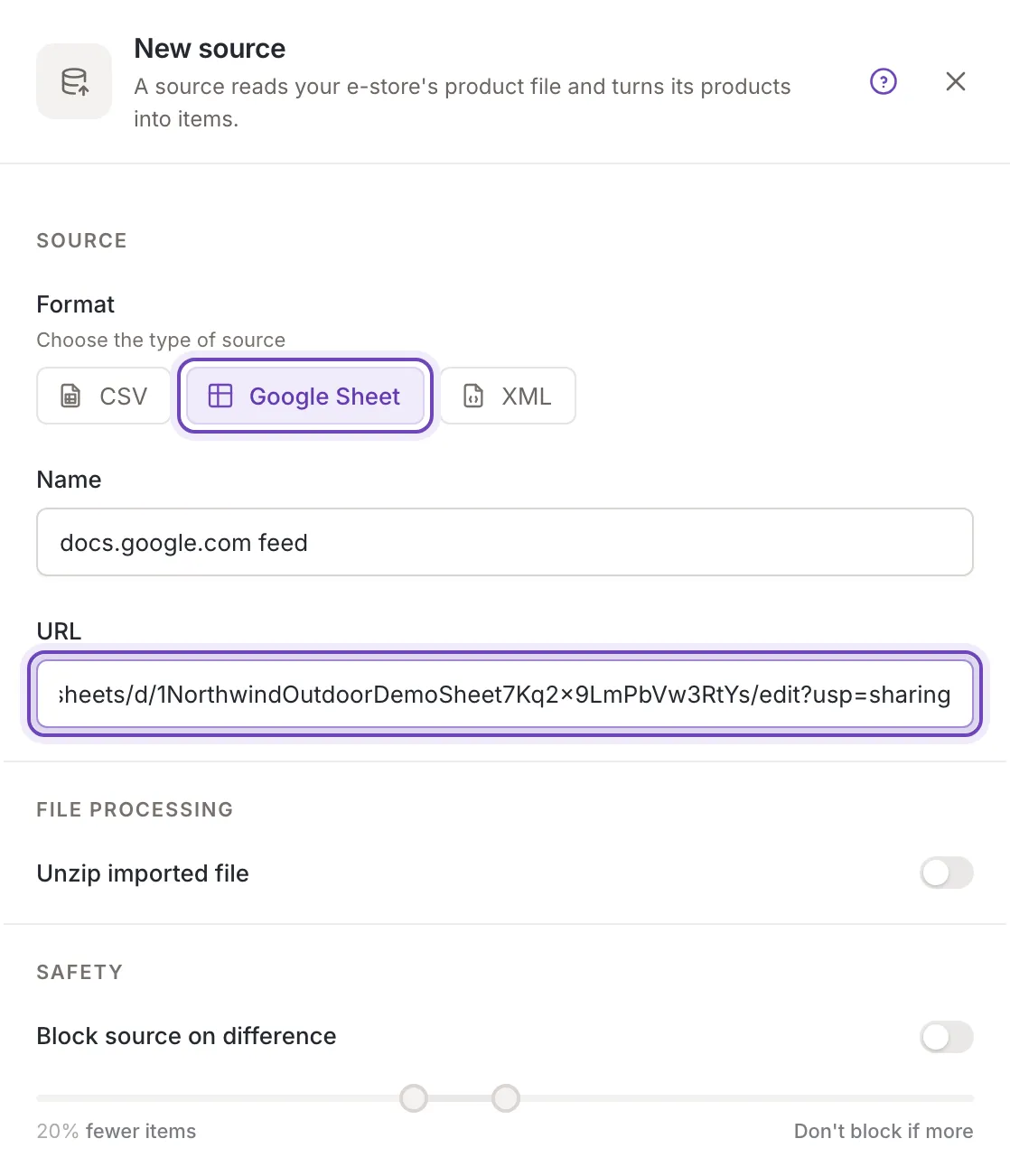
All three formats take the same two things from you: the URL of the file and a name. The rest of what a format needs (how a CSV file is split into columns, which encoding an XML file uses) Feedink sets for you. You do not see or edit those settings.
An XML file holds the products as a tree of elements, for example the product feed of a shop platform. The tile is the one chosen when New source opens.
- The URL must contain an address that starts with ftp, ftps, http or https. Otherwise the field says Enter a valid URL.
- By default Feedink reads the file as UTF-8 and tries to repair a document that is not valid XML. A file it cannot read makes the update fail (When a source update fails).
- In the mapping you choose which element of the tree is the product, then map its elements and attributes to fields.
A CSV file holds one product per row, with the names of the columns in the first row.
- The URL follows the same rule as for XML.
- By default Feedink works out the delimiter itself and reads the first row as the column names. Each column becomes a field in the mapping, with no tree to choose from.
- If it cannot find the row of column names, or none of them matches the structure it knows, the update fails (When a source update fails).
Google Sheet
Section titled “Google Sheet”A Google Sheet is read like a CSV file: one product per row, the column names in the first row.
- The URL must be the address of the sheet, starting with https://docs.google.com/spreadsheets. An address elsewhere makes the field say Enter a valid URL.
- The sheet must be published to the web. A sheet that is not published comes back empty, and the update fails with a message that says so (When a source update fails).
- The name that New source suggests follows the address, so it reads “docs.google.com feed” until you change it. Give the source a name of your own, such as the sheet’s title.
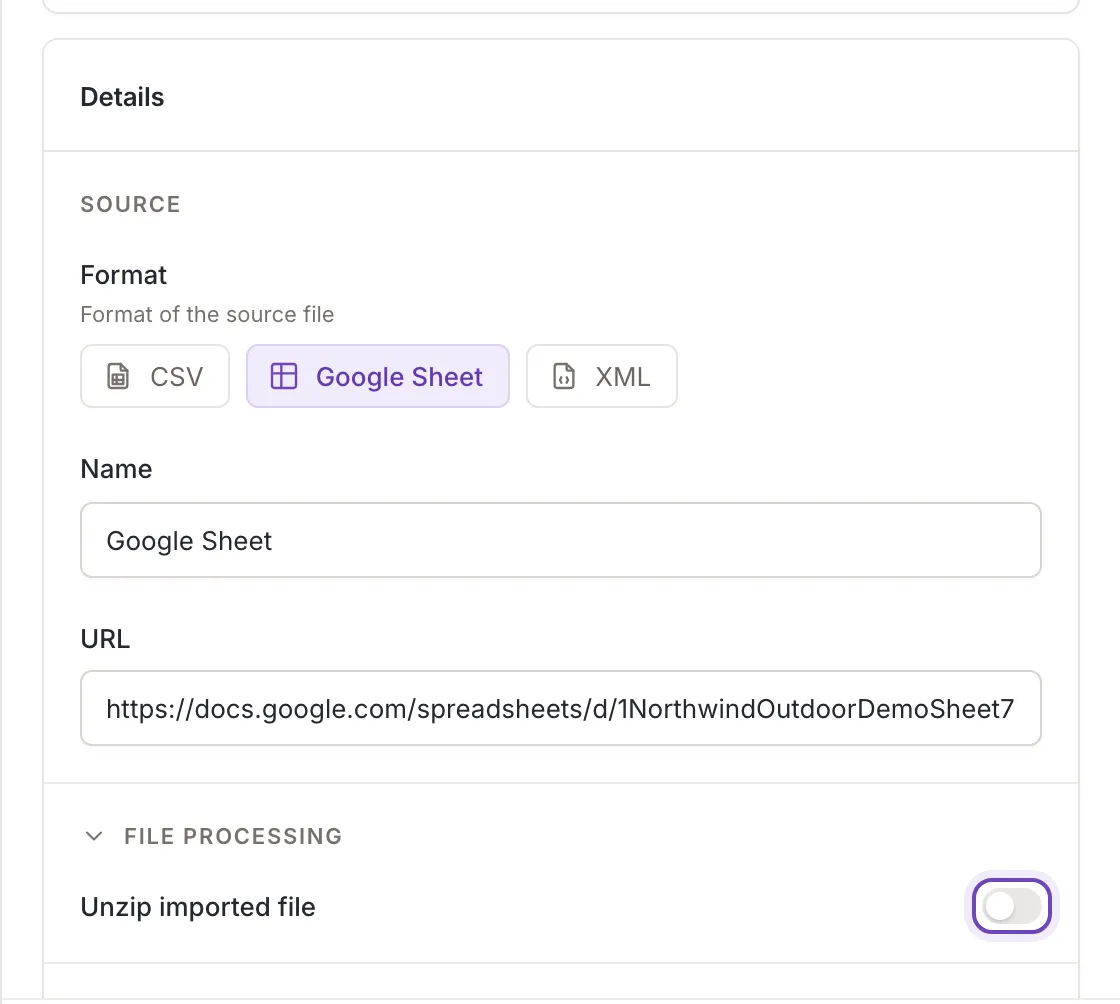
The settings of an existing Google Sheet source are the same form as for any other source.
Zipped files
Section titled “Zipped files”If your file is compressed, switch on Unzip imported file under File processing. Feedink then unpacks the file before it reads it. The switch is there for all three formats and is off for a new source. A file that cannot be unpacked, or that is empty after unpacking, fails the update (When a source update fails).
Changing the format later
Section titled “Changing the format later”In the source’s settings, the same tiles change the format. The URL and the settings every format has (unzip and the limits of Block on difference) are kept; the ones that belong to one format only are dropped. Feedink warns you: Changing the format resets the current mapping. Save, then check the source’s mapping. Source settings says more.