
Inkspace items and Per channel lists
Two tables in Update history show the same data as the charts in another way: the list of the inkspace’s latest updates, and the list of channels with a small line for each. Open the first with Inkspace items and List, the second with Channel items and Per channel.
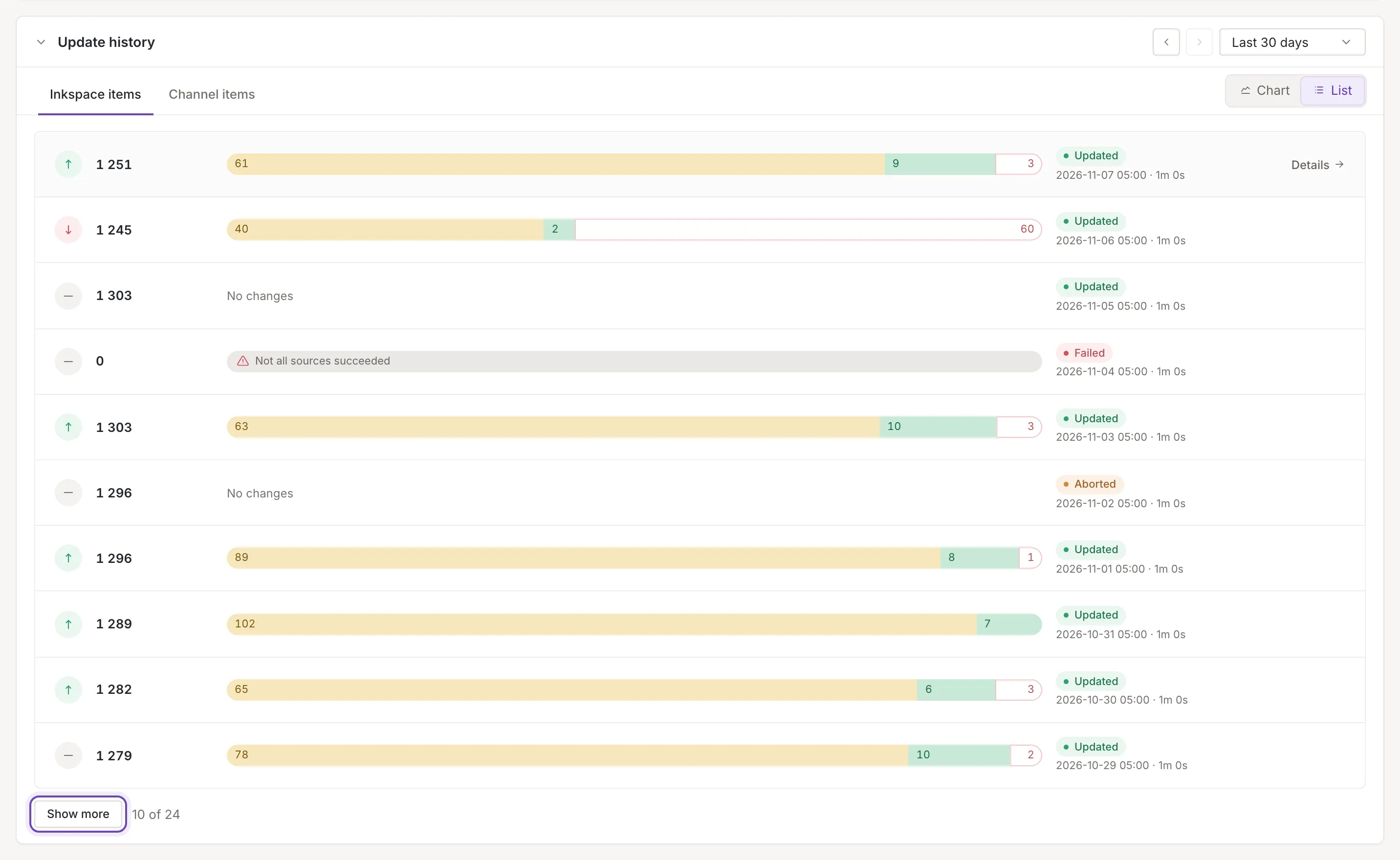
What a row of the update list shows
Section titled “What a row of the update list shows”The list shows the latest updates, newest first, whatever window and period you chose for the charts. A row has, from left to right:
- An arrow comparing the number of items with the update before: green up, red down, grey dash for the same (or when there is nothing to compare).
- The number of items after the update (a failed update has produced none, so it reads 0). When the inkspace keeps archived items, a line under it counts the archival items.
- A bar with what the update changed, each part as wide as its count and with the number inside: Updated, New, Renewed (inkspaces that keep archived items) and Deleted (read Archived in those inkspaces).
- The status of the update, and under it the time it finished and how long it took.
- Details at the right, shown when you point at the row.
Point at the bar for a box with the date and every count, including All items.
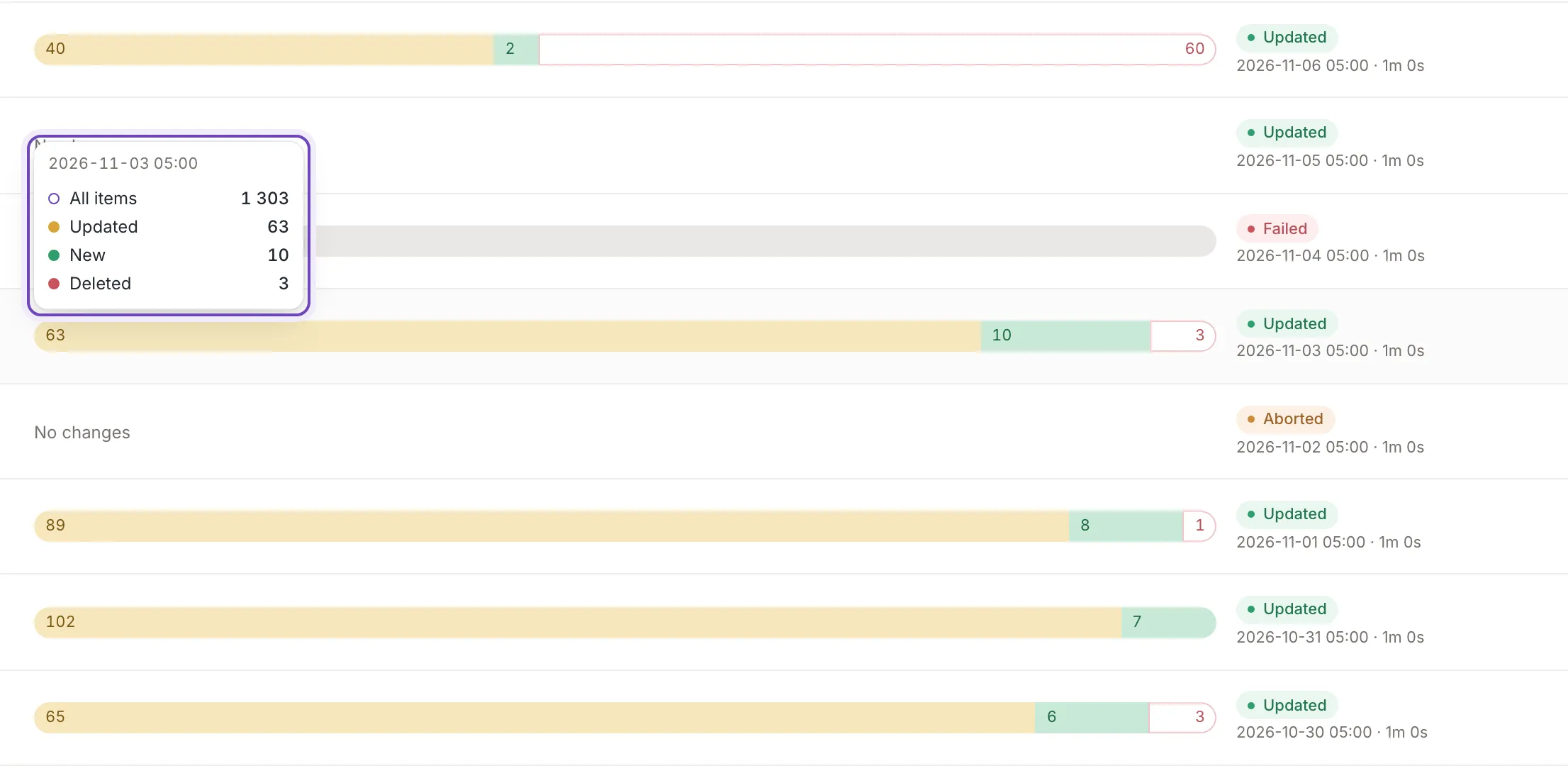
Click a row to open the update’s steps (Update details).
Status labels
Section titled “Status labels”The status is one of Updated, Failed, Aborted, Canceled, Updating, Queued, Cancelling… and No sources. Failed is red and Aborted amber, the stopped and empty ones are grey, and the others are green. No sources means the update had no sources to read.
Failed updates and updates without changes
Section titled “Failed updates and updates without changes”In place of the bar, a failed update shows its reason with a warning sign, or The update failed. when there is no readable reason. An update that changed nothing shows No changes. To follow a failure to the step that broke, see Failed updates on the dashboard.
Show more
Section titled “Show more”The list starts with 10 updates and, next to the button, counts how many of all the updates it shows. Show more adds 10 more. When the inkspace has not been updated yet, the whole section says No updates yet. The history starts with the first inkspace update. in place of the list.
What the Per channel list shows
Section titled “What the Per channel list shows”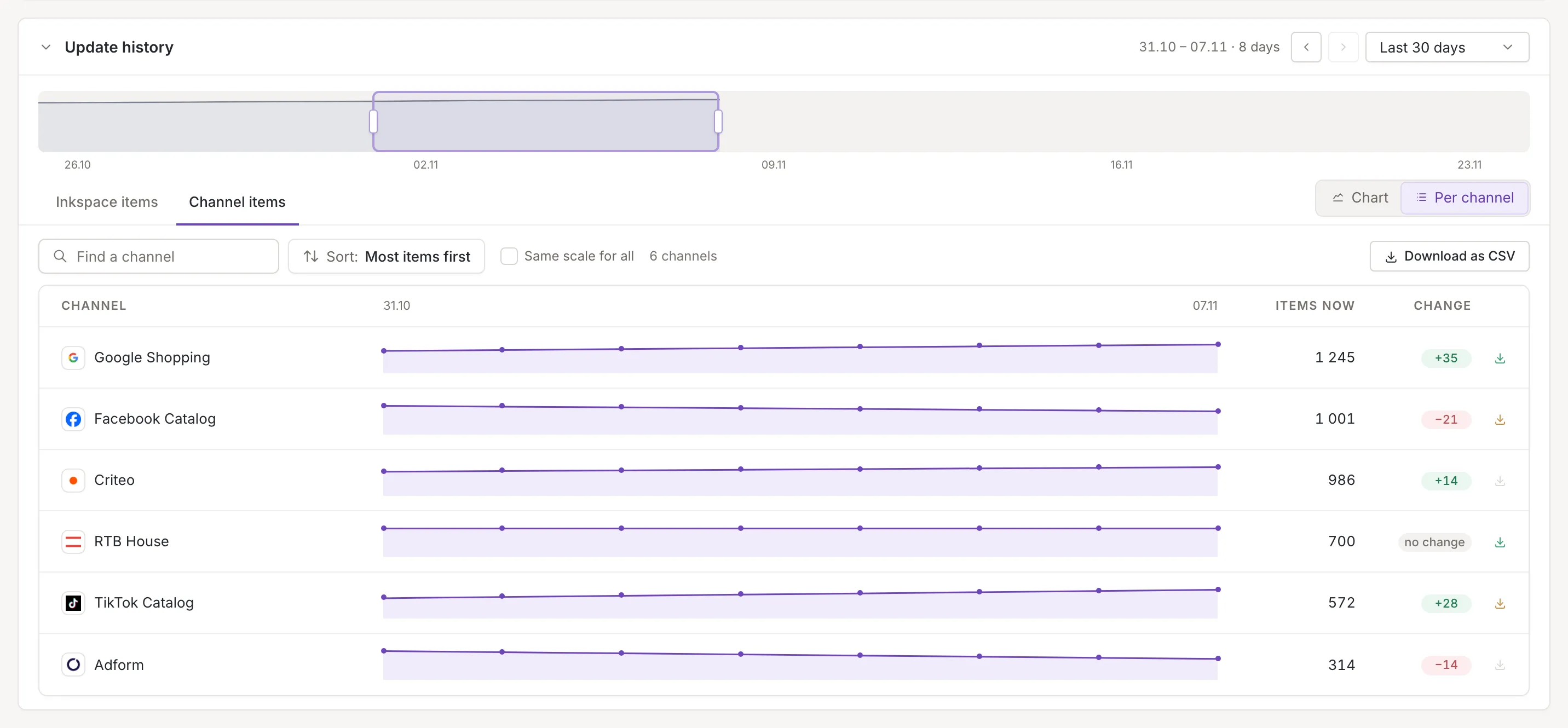
Each channel is a row, drawn over the window you chose in Update history:
- Its icon and name, and a line with a dot for each update of any channel in the window, all channels on the same timeline. The dates of the first and the last update shown are above the lines.
- Items now: the number of items in the channel’s feed after its last update in the window.
- Change: the difference between its first and last count in the window, such as “+35” or “−21”, or no change. The count it held when the window began counts as the first one.
- A download icon: green when the feed was downloaded in the last 24 hours, amber in the last 7 days, grey if not. Pointing at it says Downloaded in the last 24 hours. Downloaded in the last 7 days. or Not downloaded in the last 7 days., and when the last download was (Recent updates and downloads).
Above the table, a line counts the channels.
Hover along the sparkline
Section titled “Hover along the sparkline”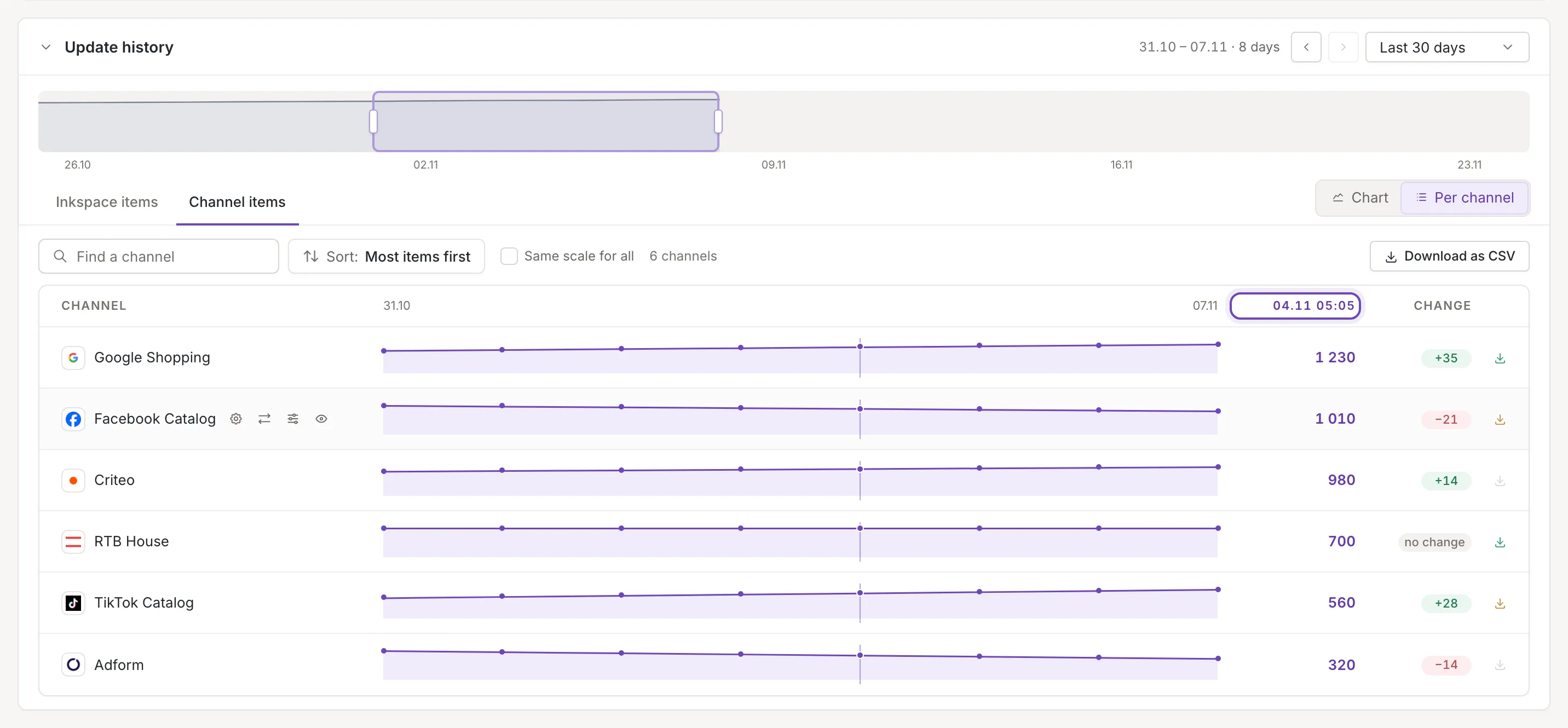
Move the pointer along any line: a guide runs through all the rows at that update, the column Items now shows each channel’s count then, and its title becomes the date of the update. A channel holds the count of its last update at or before that point; it shows a dash only before its first update in the window. Where a channel’s update failed, the Change cell reads Failed.
Search, sort and scale
Section titled “Search, sort and scale”- Find a channel filters the rows as you type. When no channel matches, the list says that and offers Clear search.
- The menu Sort: orders the rows: Most items first, Biggest change first (the biggest change compared with the channel’s first count) or By name.
- Same scale for all: by default each line fills its row, so a small change looks large. With the box ticked, all lines share one scale that starts at zero, and the lines can be compared.
- The list shows the first 12 channels. A link below them, which says how many channels there are, shows the rest.
The choices are not remembered. Download as CSV saves the window’s counts (Download as CSV).
Shortcuts and failed updates
Section titled “Shortcuts and failed updates”
Point at a row and four icons appear after the channel’s name. They open that channel’s Settings, Mapping, Rules and Preview. While an update runs, the last one is locked: Preview is available once the update has finished.
A channel update that failed in the window is a red dot on its line. Point at it for the time of the update and its reason (Failed: followed by the reason, or Failed alone), and click it: Click for details opens the steps of that update (Update details).