
Quality checks
The Quality tab, next to the items list, shows the
quality checks of the inkspace and what the last update found: which checks flagged items, how many, and which passed.
Links from earlier versions of Feedink that end in /alerts lead to this tab as well.
What a check is
Section titled “What a check is”A check is a condition on one or more fields of an item, for example “the title is shorter than 6 characters”. It runs on every item with each update of the inkspace, and each inkspace has checks of its own. An item that meets the condition is flagged. A check has a severity (Error, Warning or Info). Warnings and info only tell you about the items; an error check also stops the update when it flags items. Owners and collaborators add, change and delete checks here: Add or change a quality check.
The results are those of the last successful update. They do not move when you change a check: the change is run by the next update, and until then the header says Changes run with the next update. and a new check waits under “not run” (below). When an update finishes, the tab reads the new results by itself.
Reading the results
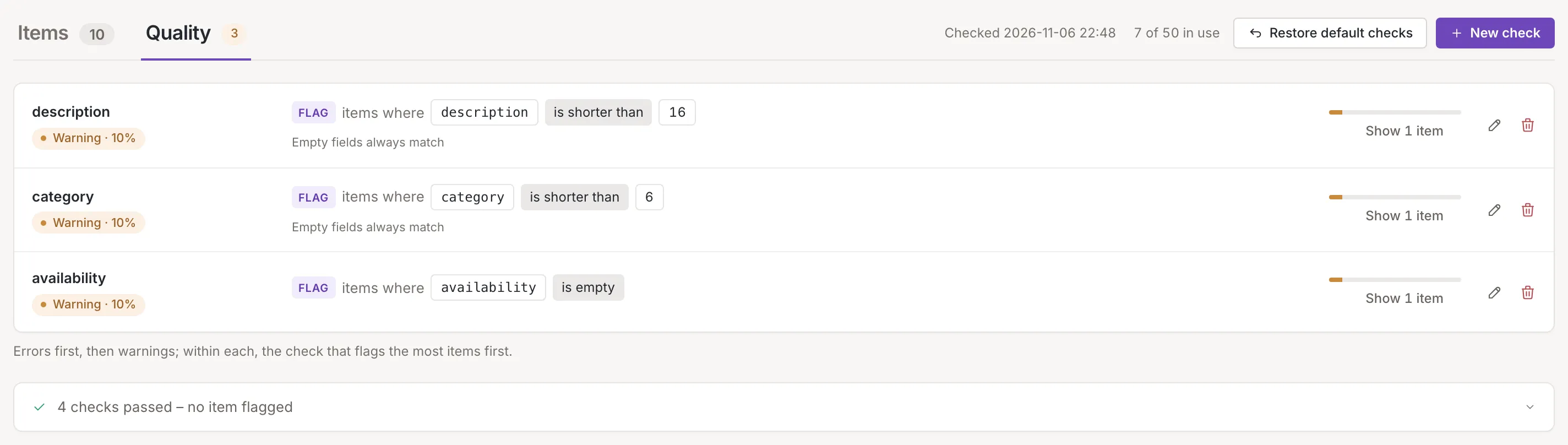
Section titled “Reading the results”The tab opens with the checks that flagged items, in a card. Errors come first, then warnings, then info; within each severity the check that flags the most items comes first (Errors first, then warnings; within each, the check that flags the most items first.). Each row shows:
- the check’s name and a pill with its severity and the share of all items it flagged, for example “Warning · 10%”. A share below a tenth of a percent reads “<0.1%”.
- the check as a sentence: Flag items where title is shorter than 6. A check on several fields joins them with and (every field must match) or or (any field is enough).
- under the sentence, its options. For a field with several values, a line appears only when the check is not the usual “every value” one: One value of a list is enough or Only the first value of a list counts. For the conditions that read empty fields, a line says whether an empty field matches (Empty fields always match or Empty fields never match).
- a bar for the share, and a link with the number of flagged items (Show {{count}} items, for example “Show 4 items”).
- at the end of the row, the buttons to change or delete the check, for owners and collaborators.
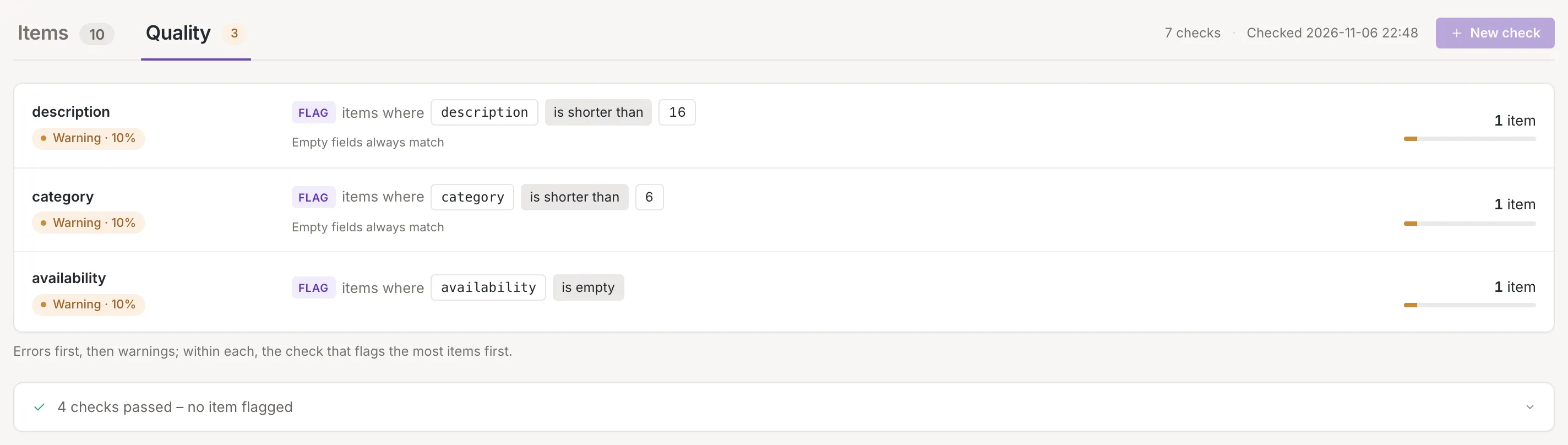
At the top, the header says when the results were made (for example “Checked 2026-11-06 22:48”, in the inkspace’s time zone). The number of checks is shown as {{count}} of {{max}} in use to owners and collaborators (see Plan limit) and as a plain count of checks to a viewer.
Show the flagged items
Section titled “Show the flagged items”Click a row’s link, or the row itself, to open the items list narrowed to the items that check flagged; a chip names the check, and its x brings back all items. Owners and collaborators have this link. A viewer sees the same rows with the number of items but no link and no buttons.
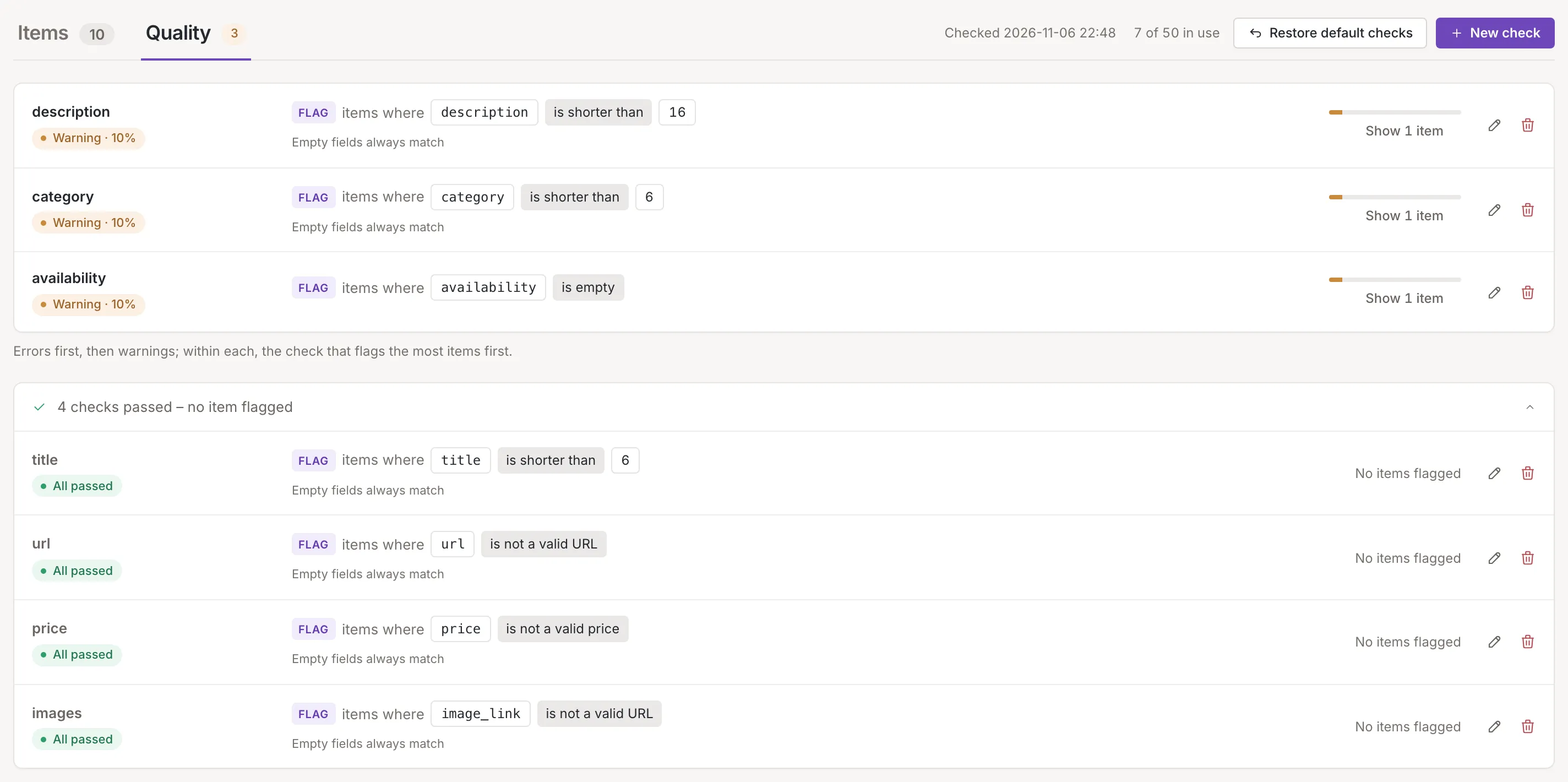
An item’s own details name the checks it failed (Item details); clicking one opens this tab with that check marked in its row. If the check passed, the line of passed checks unfolds so the marked row shows. A link to a check that has since been deleted opens a read-only panel that says This check has been deleted..
Passed and not run
Section titled “Passed and not run”Checks that flagged nothing are folded into one line under the card, for example “7 checks passed – no item flagged”. Click it to see them. Each shows All passed and No items flagged.
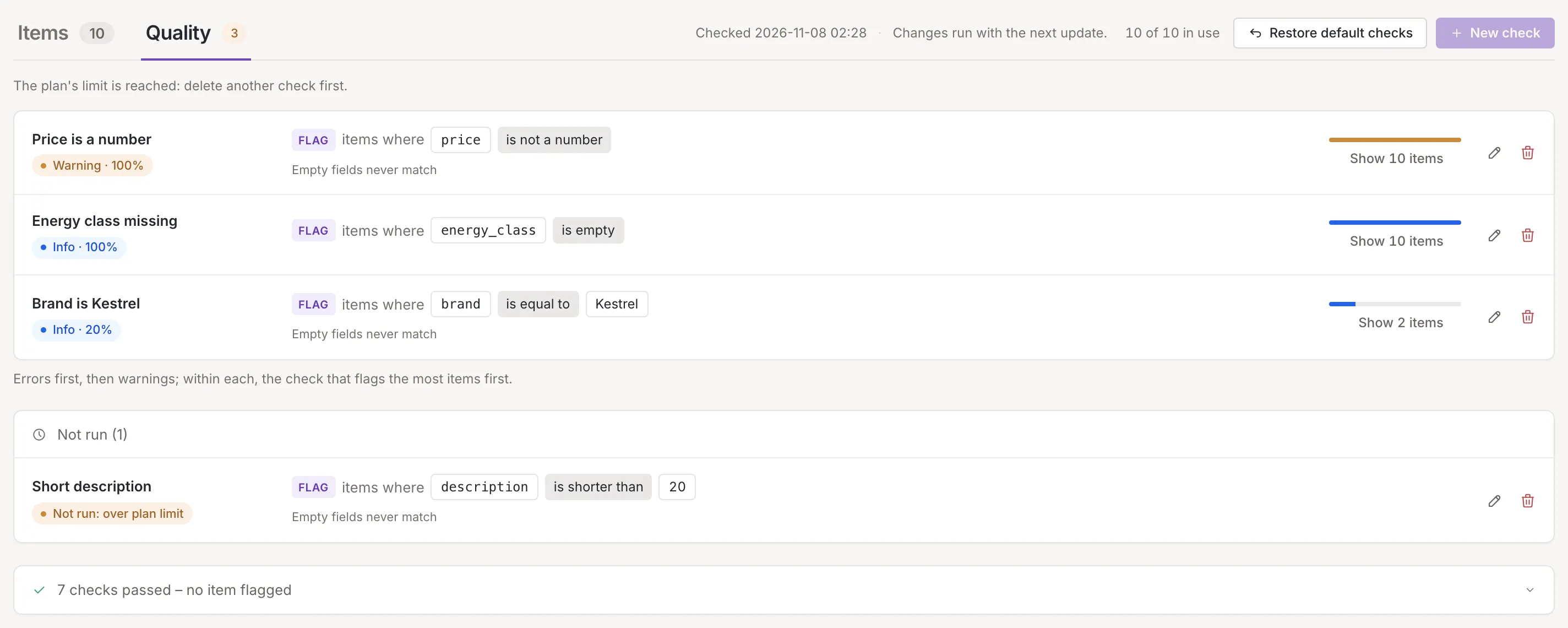
A check the last update did not run is never counted as passed. It sits in its own card, “Not run” with a number (Not run ({{count}})), with one of two chips:
- Not run yet: the check was added after the last update finished. It runs with the next one.
- Not run: over plan limit: the check is over your plan’s limit. Point at the chip for Over your plan's limit, not checked. It comes back by itself when the plan allows more; to use it now, delete another check..
Before the first update
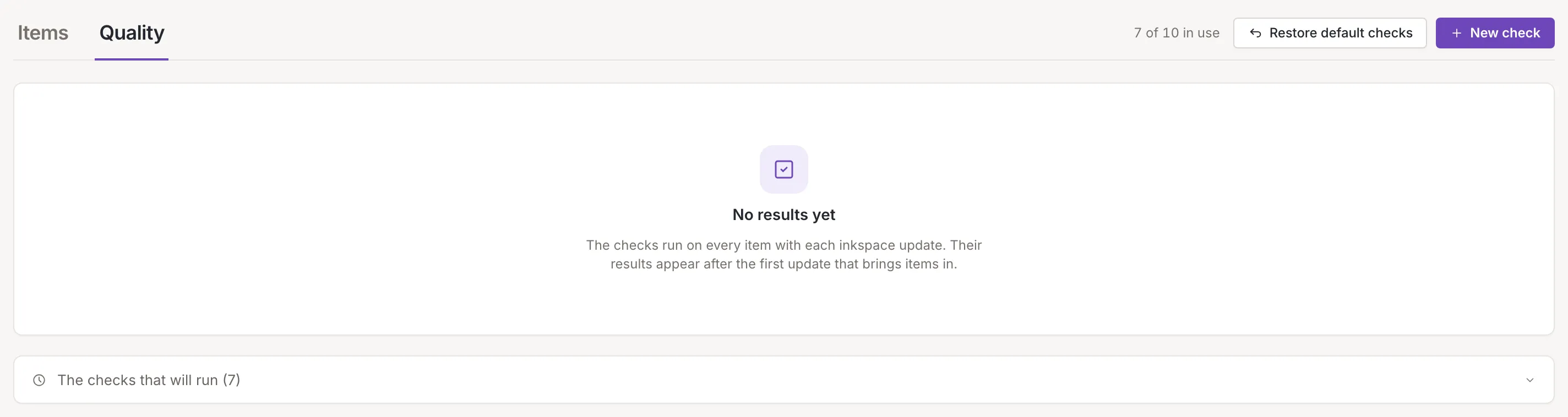
Section titled “Before the first update”Until an update has brought items in, there are no results. The tab says No results yet (The checks run on every item with each inkspace update. Their results appear after the first update that brings items in.) and offers the line The checks that will run ({{count}}) with a number, which unfolds to the checks that will run. A check over the plan’s limit shows Over plan limit there.
Quality badge
Section titled “Quality badge”The Quality tab on the items list carries a badge with the number of checks that flagged items in the last update. Its color is that of the most serious severity among them. Point at it for the split by severity: Checks with issues – errors: {{error}}, warnings: {{warning}}, info: {{info}} with the numbers filled in. The badge is absent when no check flagged anything. When checks are switched off for the inkspace, the tab itself is not offered.
Plan limit
Section titled “Plan limit”Your plan sets how many checks an inkspace can have. Owners and collaborators see how many are in use ({{count}} of {{max}} in use, for example “10 of 50 in use”). At the limit, New check is off and the tab says The plan's limit is reached: delete another check first.. Checks you already have beyond the limit are kept and can be changed, but they are not run, and show Over plan limit, until your plan allows more or you delete other checks. A viewer’s New check is off with Only the inkspace's owner and collaborators can add checks..