
The rules list
The rules screen of a source or channel shows its rules in a list on the left and the rule you opened on the right. The list is also the order in which the rules run. Opening the Rules step takes you to the first rule of the list, or to Add a rule when there is none.
The list
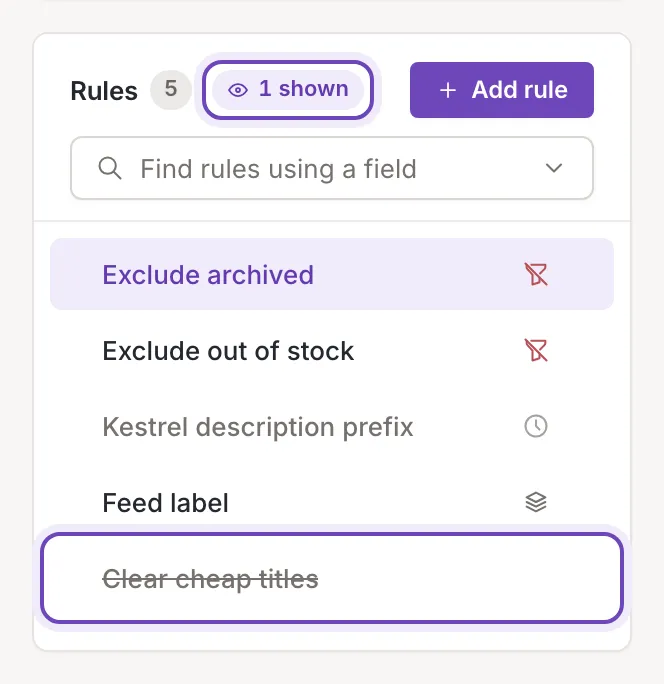
Section titled “The list”The Rules card shows the number of rules, the Add rule button and one row per rule, from the first rule to run to the last. Click a row to open that rule. The open rule is highlighted. A rule you switched off has its name struck through, and a screen reader reads Inactive after the name.
Owners and collaborators also see a handle at the left of each row (hover label Drag to move) and a checkbox at the right: see Order and switch rules on or off and Work on several rules. Viewers see the rows only; the Add rule button, the handles and the checkboxes are not shown to them.
Row marks
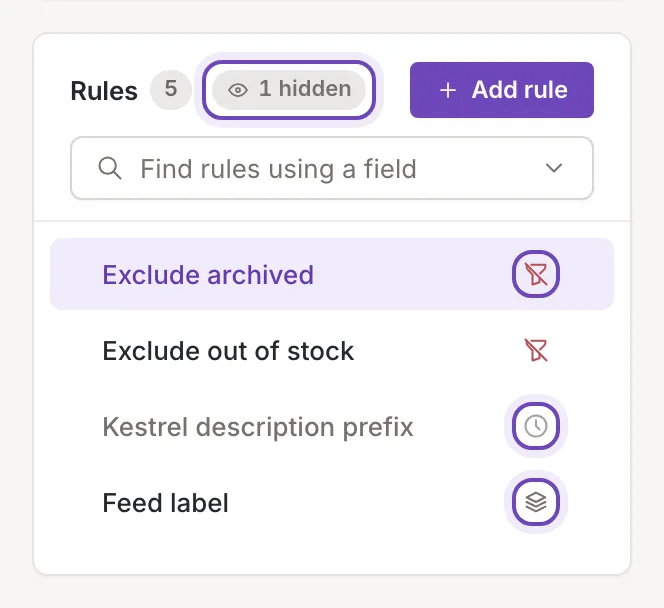
Section titled “Row marks”Small icons at the right of a row say what the rule does. Hover one to see its name. While Test on item is on, the rows get other marks that show what each rule does to the tested item; see Read the test result.
- Excluding: the rule leaves items out of the feed.
- Splitting: the rule splits an item into several.
- Every item: the rule has no condition, so it applies to every item.
- A clock: the rule runs only between two dates. Hover it to see the dates; an open end is shown as “…”. A rule whose dates have passed steps back in the list. See Run a rule between two dates.
Find rules that use a field
Section titled “Find rules that use a field”When at least one rule names a field, the card shows a Find rules using a field box under its heading. Open it to see every field the rules use, the most used first. Next to each field, if and then show in how many rules it is a condition and in how many an adjustment. A red mark (Used by a rule that excludes items) tells you that a rule that leaves items out uses the field.
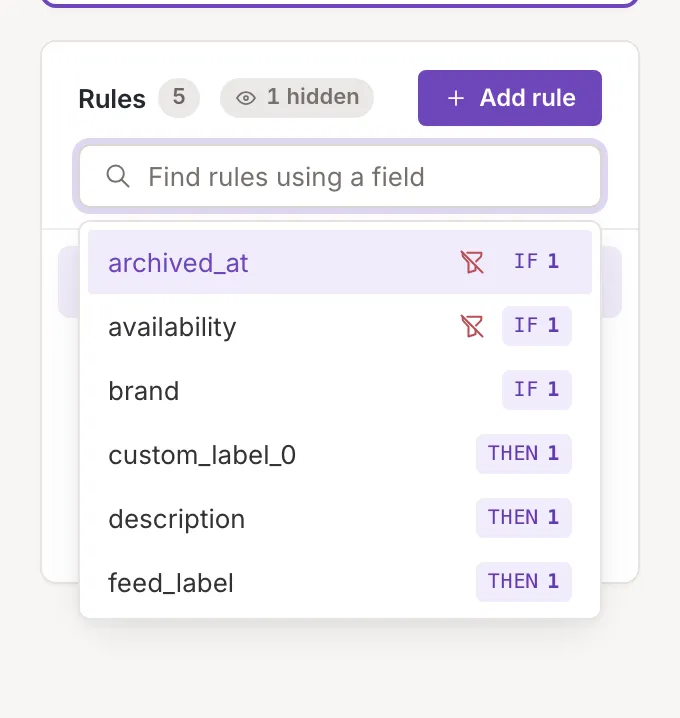
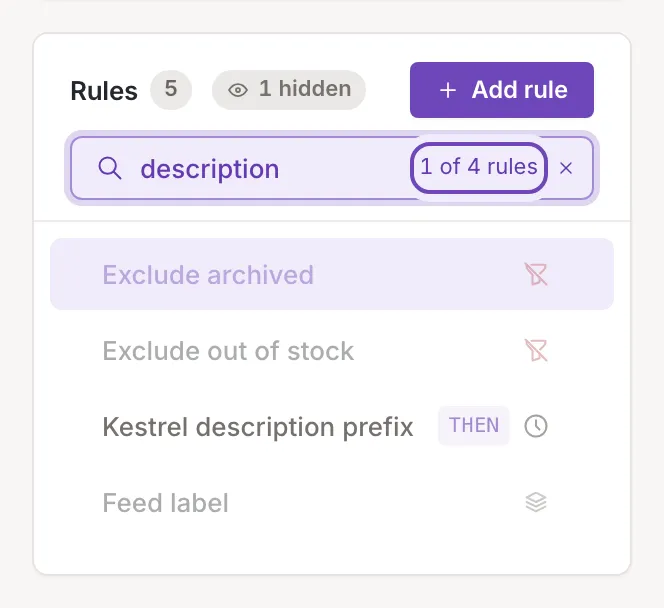
Pick a field and the rows that use it show whether it is in the condition or in the adjustment, the others fade, and the list scrolls to the first match. The box then shows how many of the rules on the list use it, for example “1 of 4 rules”. Use Clear to go back. Changes you have not saved yet in the open rule count too.
Deactivated rules
Section titled “Deactivated rules”Rules you switched off are hidden from the list. A chip next to the count reads, for example, “1 hidden”; click it to show them again and the chip then reads “1 shown”. Its hover label says what a click does: Show 1 deactivated rule for a single hidden rule, and Hide deactivated rules when they are shown. Hidden rules keep their places in the order, the open rule is always shown, and the finder and bulk selection look only at the rules on the list. Feedink remembers your choice in this browser.
No rules yet
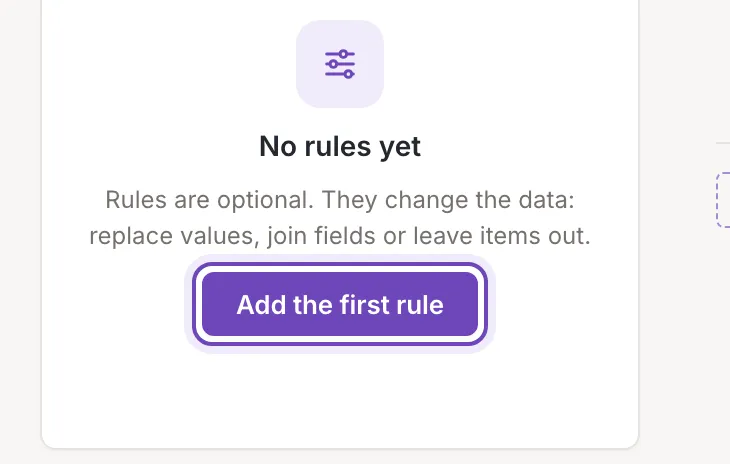
Section titled “No rules yet”A source or channel without rules shows No rules yet in place of the list: Rules are optional. They change the data: replace values, join fields or leave items out. Owners and collaborators get an Add the first rule button that puts the cursor in the name of the new rule.
Older rule types
Section titled “Older rule types”Two older kinds of rules can still appear in a list but can no longer be created: rules of the type Images and of the type Categories. An Images rule opens in the usual editor and can be edited, switched off, cloned or deleted; its resize adjustment keeps its template as it was saved and the rule takes no further adjustments. A Categories rule cannot be edited: its page says so (This rule uses the older Categories type, which cannot be edited in this version of Feedink. It still runs in updates and in Test on item; you can activate, deactivate, reorder, clone or delete it in the rules list.).