Choose a channel format
The format of a channel says where its feed goes and how the file is built. You pick it when you add a channel and can change it later in the channel’s settings.
Search and filter the formats
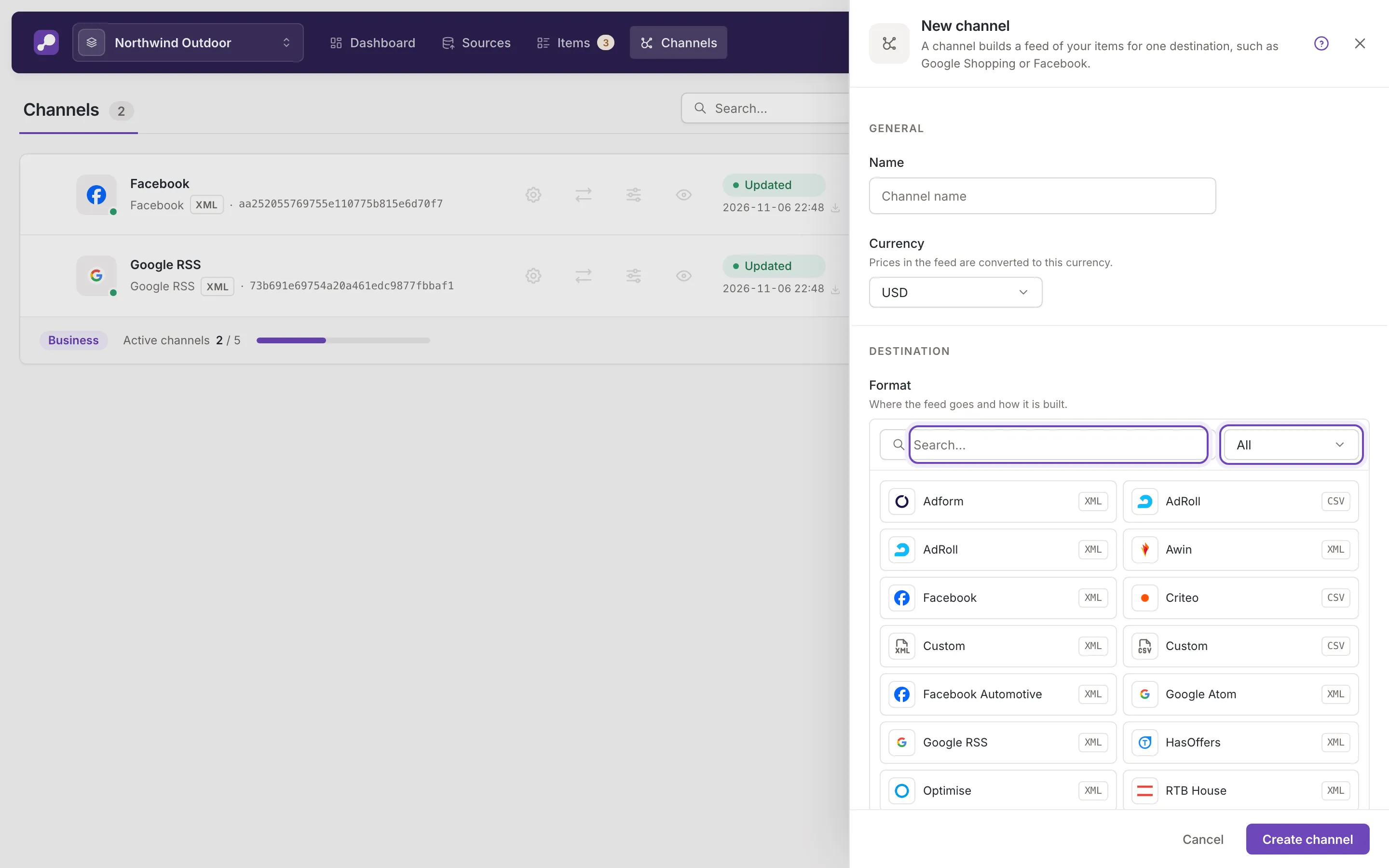
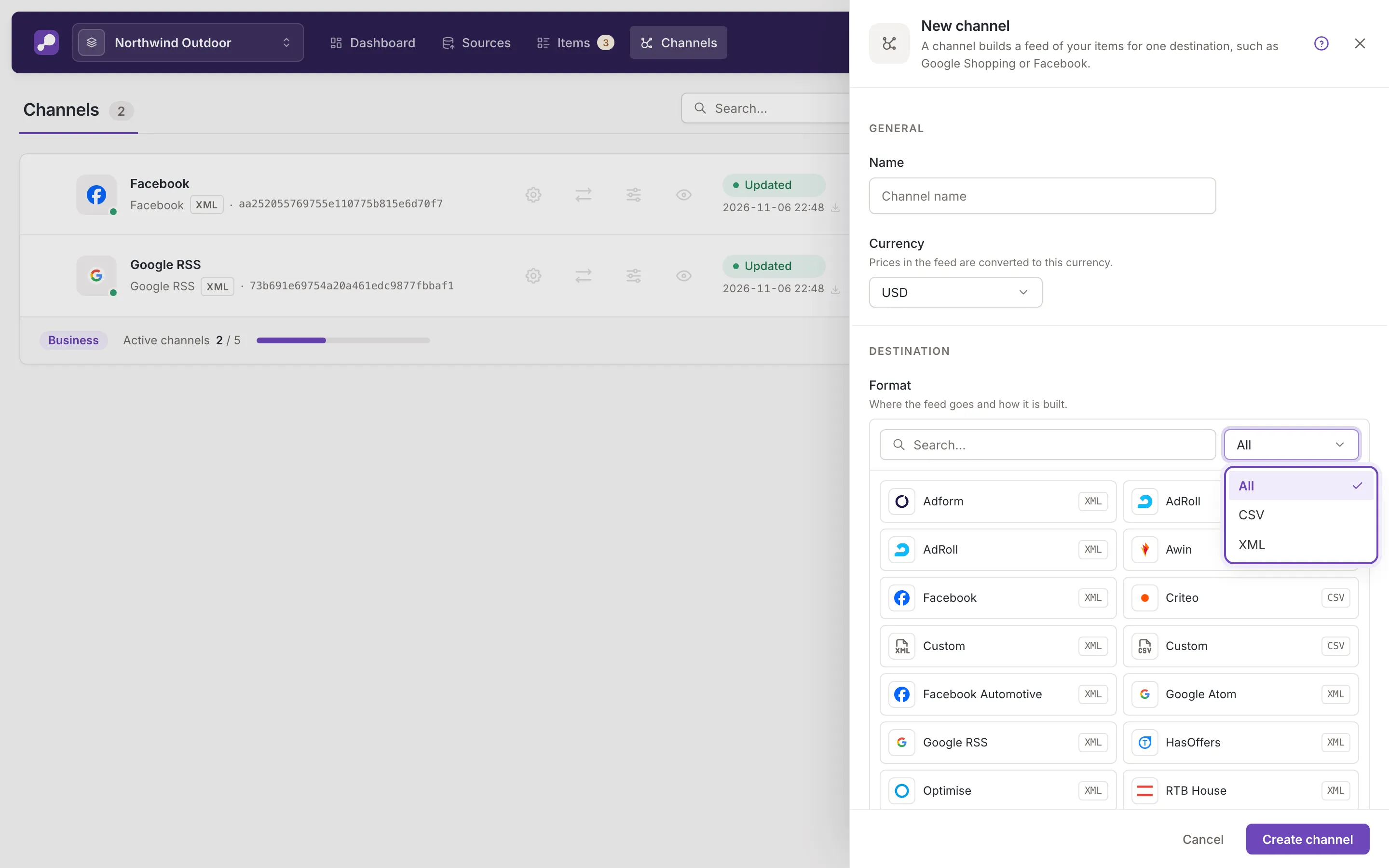
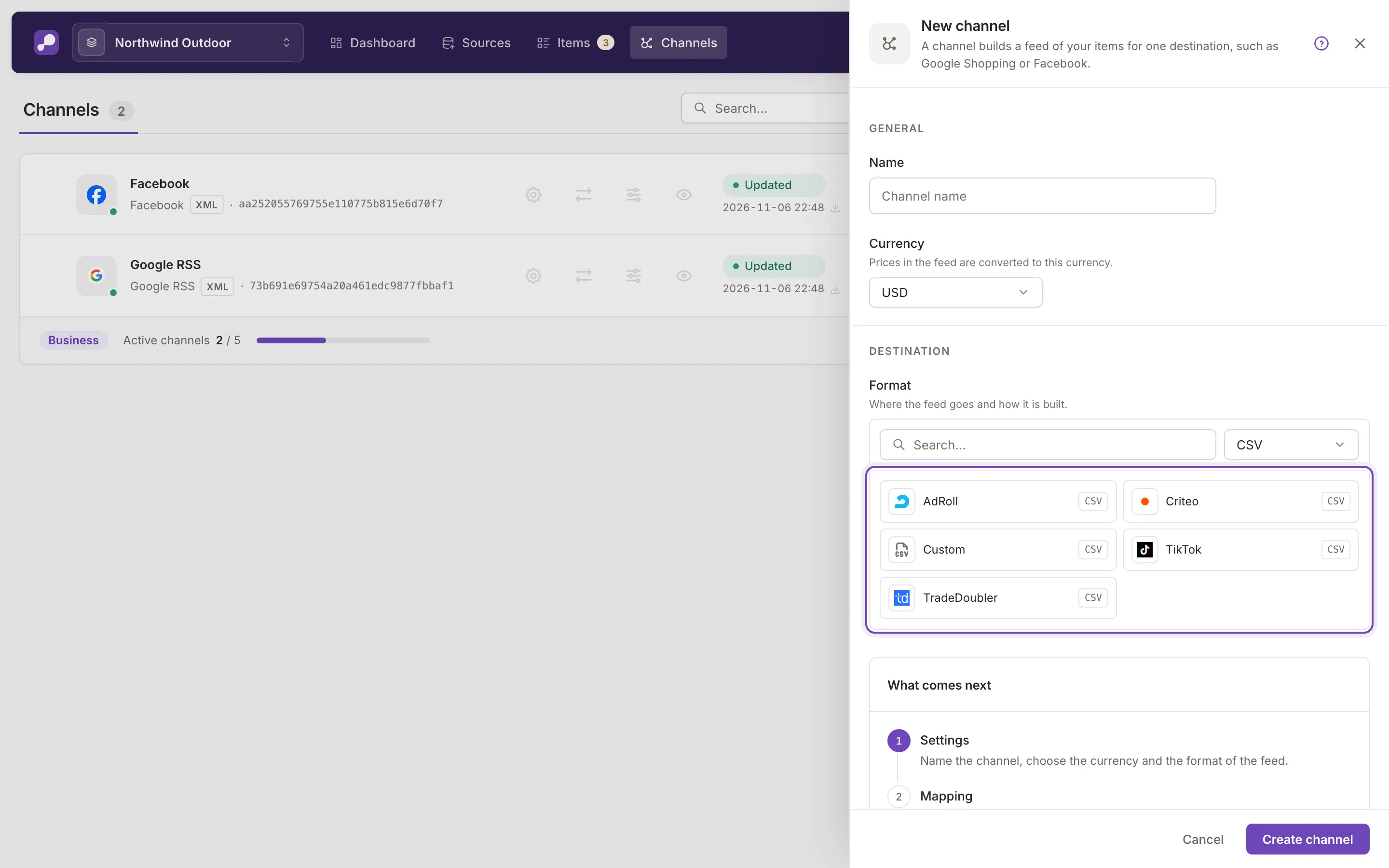
Section titled “Search and filter the formats”The picker lists the formats Feedink supports as tiles with the destination’s logo, its name and its file type. Type in the search box to keep the formats whose name contains your text (capital letters do not matter). The type list next to it narrows the grid to one file type: All, CSV or XML. The format you have already picked stays in the grid when you filter.
Click a tile to pick it. In New channel the name field then follows the format. In Settings the picker opens with Change, has its own Cancel, and nothing changes until you save.
Formats of a destination
Section titled “Formats of a destination”For Google Shopping, choose the Google RSS format: it builds the feed Google Merchant Center reads. The two Custom formats, one for XML and one for CSV, are for a destination that has no tile of its own. The list shows the formats Feedink supports at the moment, and it can change.
Changing the format of an existing channel
Section titled “Changing the format of an existing channel”Changing the destination of a channel in Settings keeps its name and currency. The picker warns: Changing the destination resets the mapping of fields the new format does not have. After saving, check the channel’s Mapping step.
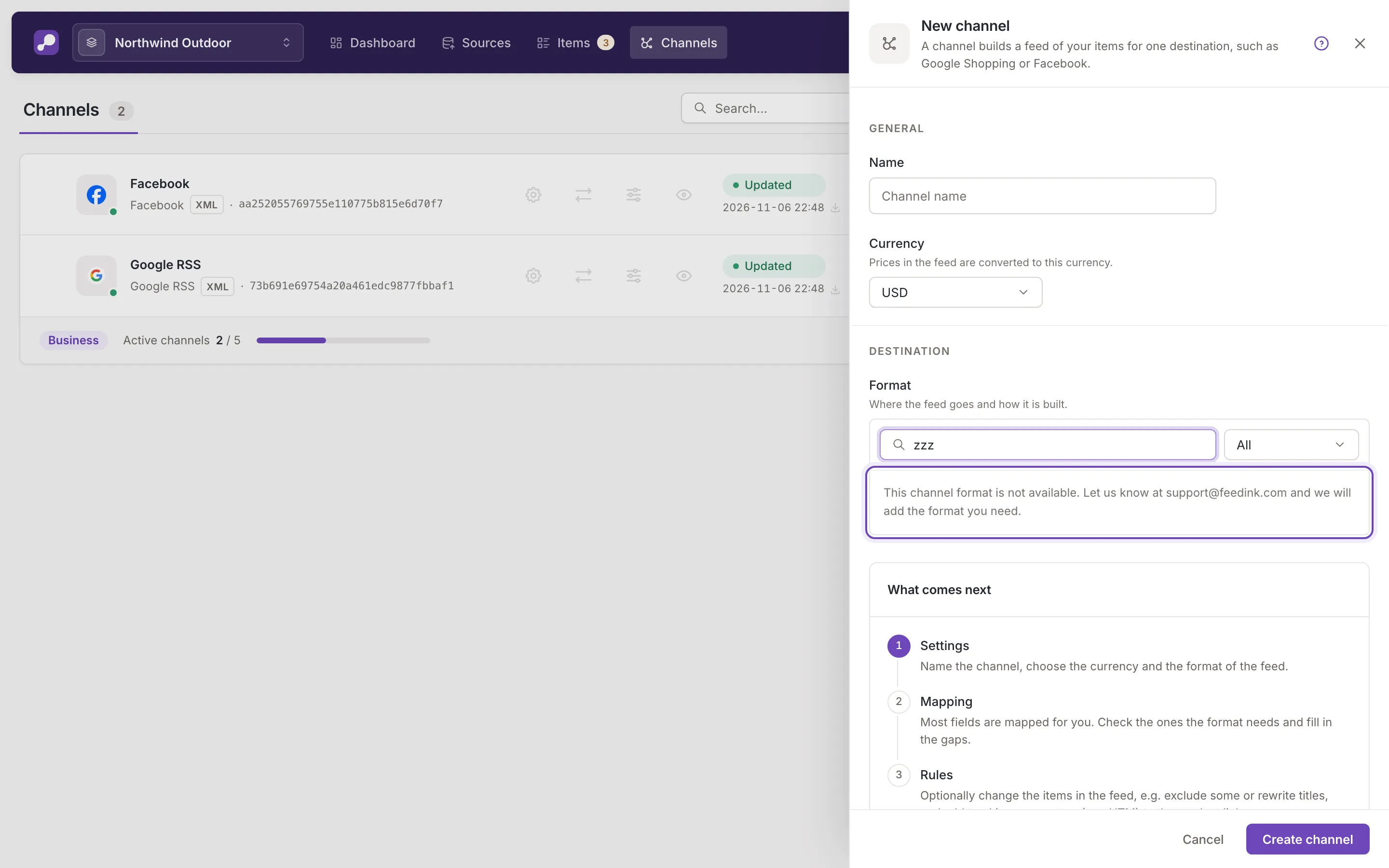
If your format is missing
Section titled “If your format is missing”When nothing matches, the grid is replaced by This channel format is not available. Let us know at support@feedink.com and we will add the format you need. Write to the address in that text and name the destination you need.