
Add a source
A source reads your shop’s product file, for example an XML feed, a CSV file or a Google Sheet. Feedink turns its products into the items of your inkspace.
- Go to Sources and click New source.
- Under Format, choose the type of your file. XML is chosen first. The three formats are described in XML, CSV and Google Sheet.
- Paste the URL of your file into URL. The Name starts as the format’s name (“XML feed”) and then follows the URL’s host (“northwind-outdoor.example feed”) until you change it.
- Click Create source.
Feedink says Source created. and opens the new source’s settings.
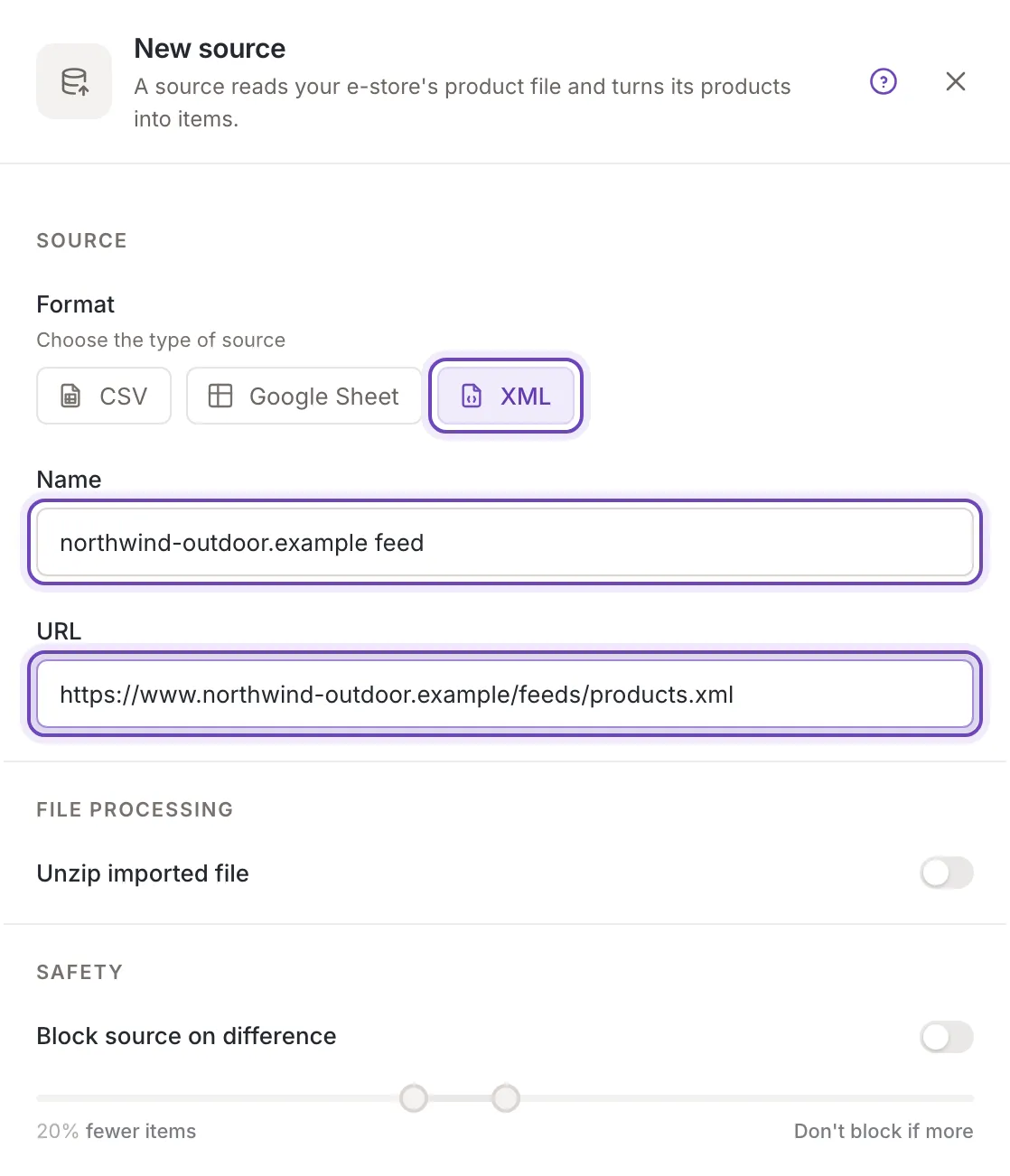
The panel opens over the Sources list. Below the form it repeats the steps ahead (What comes next), and its footer holds Cancel and Create source. The close button of the panel and Cancel close it without asking.
Name and URL
Section titled “Name and URL”The name. It is at least 3 and at most 255 characters. Before you type anything, Feedink suggests one: the name of the format (“XML feed”, “CSV feed”, “Google Sheet feed”) until there is a URL, then the host of the URL without “www.” (“northwind-outdoor.example feed”). If a source of the inkspace already has that name, a number is added (“XML feed 2”). Capital letters and spaces at the ends do not count when names are compared. The name follows the URL and the format until you edit it yourself; a name you typed stays, even a short one.
The URL. For XML and CSV it must contain an address that starts with ftp, ftps, http or https. For a Google Sheet it must be the address of a sheet, starting with https://docs.google.com/spreadsheets. When you leave the field, spaces at its ends are removed. Once the field holds a URL, two buttons appear in it: Copy URL and Open the file in a new tab.
Switching the format. The URL and the settings every format has stay when you choose another tile; the name follows the format while it is still the suggested one.
File processing and safety. Unzip imported file under File processing is for compressed files (zipped files). Block source on difference under Safety stops an update when the number of items jumps too far (Block on difference). Both are off for a new source. Other settings of a format (the delimiter of a CSV file, the encoding of an XML file) are set for you and are not shown.
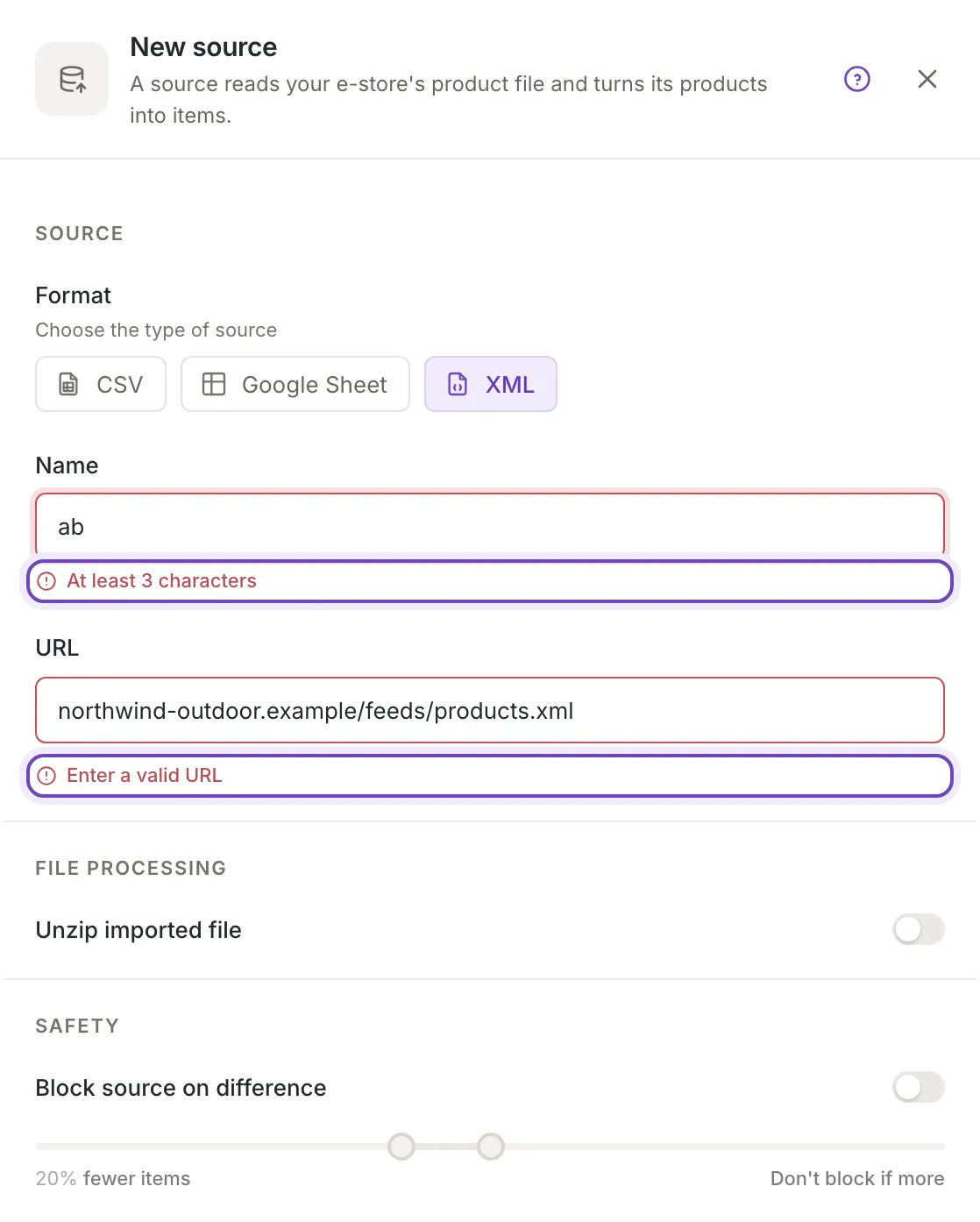
If you click Create source while the form is not valid, nothing is sent: every message shows under its field and the cursor moves to the first field to fix. A missing URL says Required, a URL of the wrong kind says Enter a valid URL, and a name of one or two characters says “At least 3 characters”.
After you create it
Section titled “After you create it”Feedink says Source created. and the new source’s settings replace the panel (Source settings). The source reads Not updated yet until its first update has finished (Source statuses). If the settings cannot be read at that moment, the panel says Could not load the source. Try again in a moment. and the source is there anyway; close the panel and open it again from the list. Create is off from the moment you click it, so a second click sends nothing, and it stays off after the source has been created.
Sometimes the new source cannot be fetched at once, and Feedink says so:
- The source will be fetched after the maintenance window. (a toast).
- The source has been added. It will be fetched after payment. (a toast).
- When the inkspace is being updated right now, Feedink asks The inkspace is being updated: the new source will be fetched with the next update, or you can stop the current update and fetch it now. Cancel the current update and fetch it now stops the inkspace update and asks for an update of the new source; Fetch it with the next update (and closing the question) leaves the update running. The settings open after you answer.
If Feedink refuses the source, a toast titled Request failed says why, for example An inkspace update is already in progress. Try again after it finishes. Nothing is created, and the panel stays open with your entries.
What comes next
Section titled “What comes next”In Mapping, tell Feedink which source fields hold the product ID, title, price and the rest (Tell us which fields of your file hold the product ID, title, price and the rest.). Then, if you want, fix or enrich the data with rules (Rules).
Who can do what
Section titled “Who can do what”Owners and collaborators see New source and can create a source. A viewer sees no button; if a viewer opens the address of the form, it shows without Create source.