
Channel element settings and fixed values
Every row of a channel’s feed schema has its own settings: what the element is called, how much the destination needs it, whether it carries a fixed text instead of a field, and a few rules for how it is written. The panel is the same one a source has, with more choices; the source’s is in Element settings of a source.
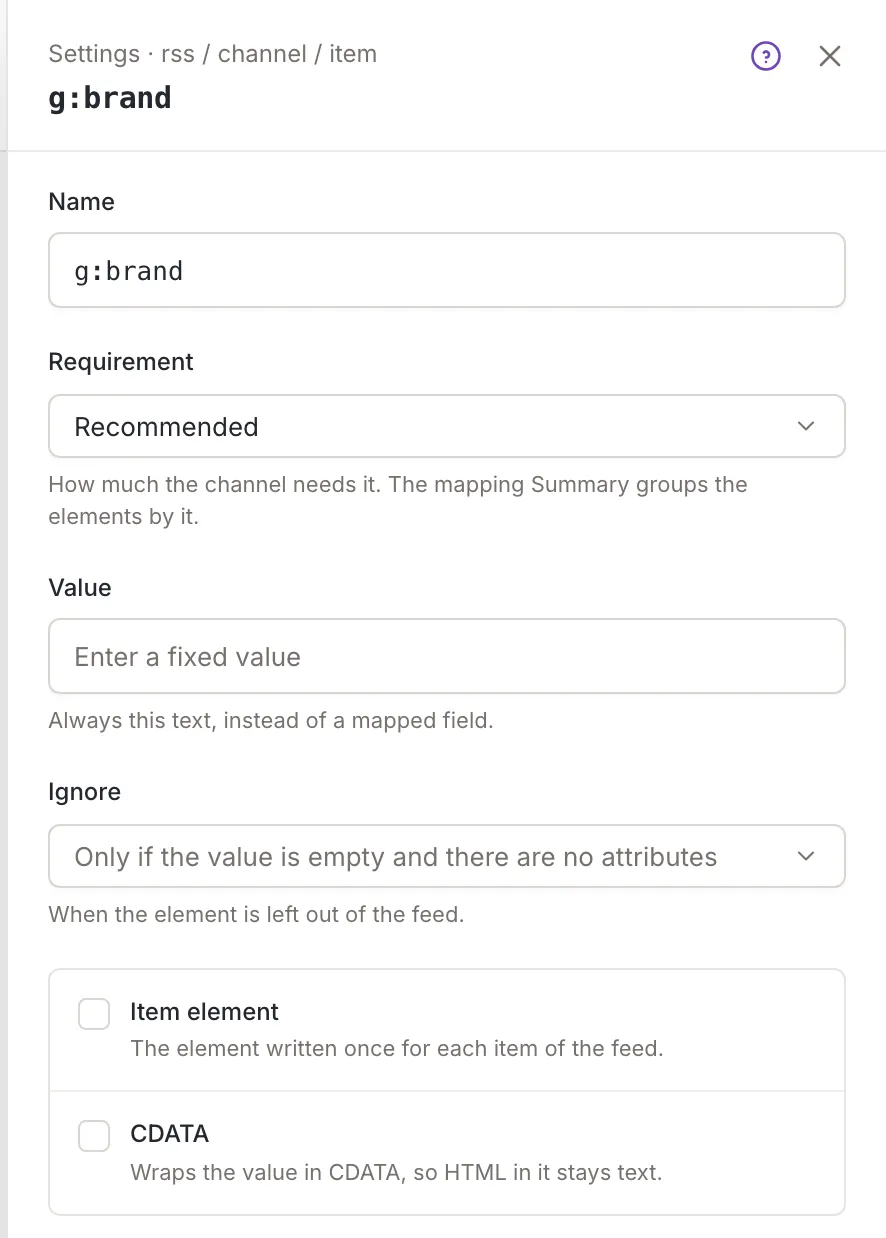
To open it, hover over a row in the mapping tree and click its Element settings button. The panel slides in from the right with the title Settings and the path of the element. Apply puts your choices in the tree, and Cancel (or Esc, or a click outside) closes the panel without changing anything. An applied change waits for Save like any other.
The panel shows only the settings that make sense for the row. This article covers an element; attributes, variants and CSV columns are at the end.
Name is the name of the element as it is written in the feed. A name must be a valid XML name: Start with a letter, _ or :, then use letters, digits, -, _, :, . or ·. The format of the channel decides what the destination reads, so rename an element of a standard format only when the destination asks for it.
Requirement
Section titled “Requirement”Requirement says how much the channel needs the element: Optional, Mandatory, Recommended or Useful. The panel explains: How much the channel needs it. The mapping Summary groups the elements by it. The tree marks the row with the color of its requirement too. A format brings its own requirements.
A fixed value
Section titled “A fixed value”Value is shown for an element that has no child elements. Type a text into the field (Enter a fixed value) and the element carries it as it is. Always this text, instead of a mapped field. Use it for something that is the same in every item, such as the name of your shop.
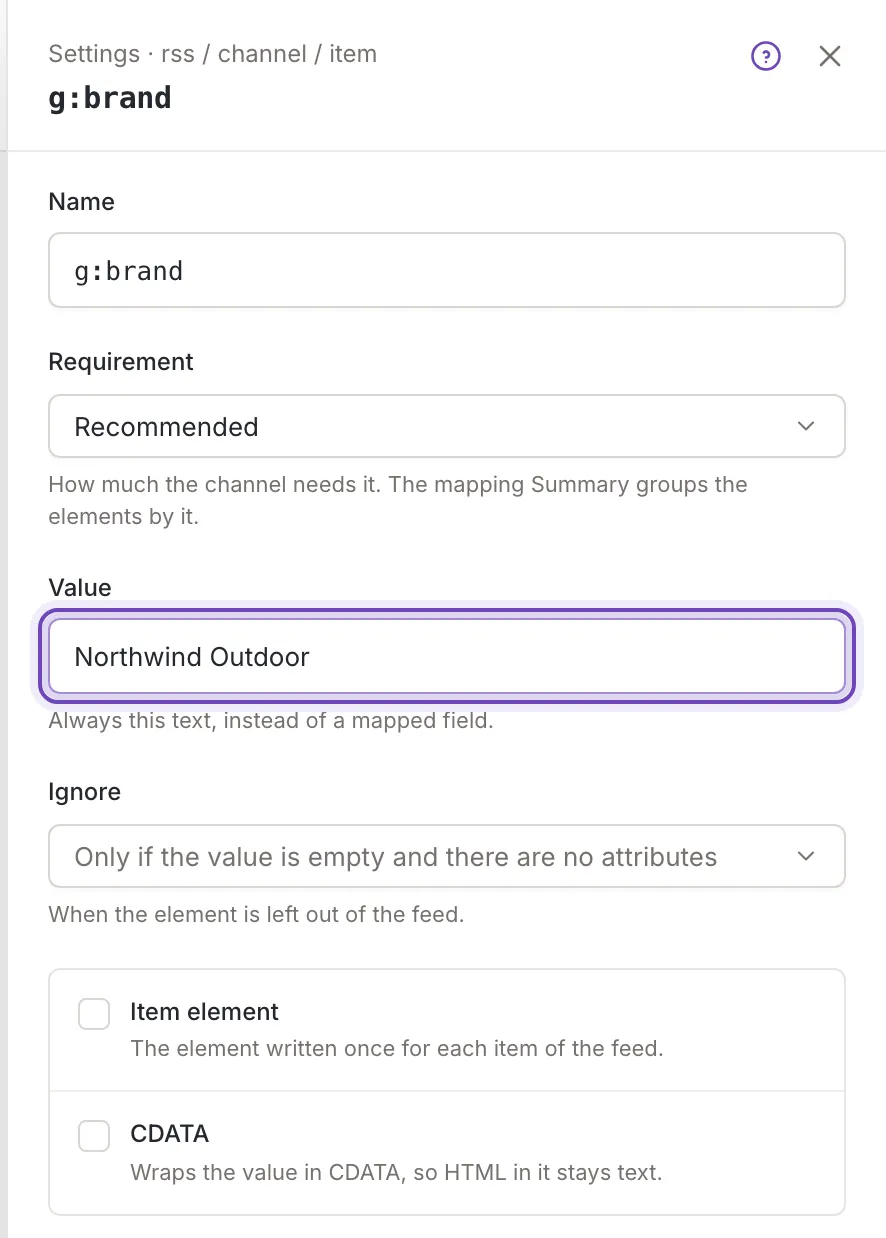
Once you apply it, an element that has no field shows the text as its sample in the tree.
CDATA is a checkbox for an element without child elements. Wraps the value in CDATA, so HTML in it stays text. Tick it for a text that may contain HTML, such as a description.
Item element
Section titled “Item element”Item element marks the element that stands for one item of your inkspace. The element written once for each item of the feed. Everything the feed says about an item sits inside it, and its descendants are the elements you map. A schema with no item element shows an alert above the tree that says that none is selected: open the settings of the element that wraps each item and tick the box.
Ignore an empty element
Section titled “Ignore an empty element”Ignore is offered for the item element and the elements inside it. When the element is left out of the feed. The choices are:
- Only if the value is empty and there are no attributes (the default),
- Only if the value is empty,
- Only if there are no attributes.
Attributes and variants
Section titled “Attributes and variants”The settings of the other rows of a feed are shorter:
- An attribute has Name, Requirement and Value. A new name reaches the attribute in all the variants of its element.
- A variant has Requirement and Value, and an attribute of a variant has only Requirement.
- A column of a CSV channel has Name and Requirement. A name that is not accepted gets the message Use only a-z, 0-9, _ and -.
A channel has no Allow empty value setting; that belongs to the sources.
Context errors
Section titled “Context errors”Some formats repeat an element for each value of a list field, such as the extra photos of an item, and the elements inside it read the value of the current round. Feedink calls that a context. When the schema is wrong about it, an alert appears above the tree at once, and Save stays disabled. Hover over it for the reason: A Use context has no enclosing Create context. Check the alerts above the schema. or
A Create context repeats a field an enclosing element already iterates. Check the alerts above the schema.
Two sentences are possible, with the name of your element in them:
- An element, an attribute, or an attribute of a variant uses a context, but no element above it creates that context,
for example
<g:mpn> uses the context "additional_image_link", but no element above it creates that context.It ends by telling you to set Create context on an element above it. - An element creates a context that an element above it already creates, for example
<g:shipping> creates the context "id", which an element above it already creates.It adds that you can copy the source field with a rule first if you need two separate contexts.
You cannot change these settings in the panel: undo the change that caused the alert (see Save, undo and leave), reset the schema (see Channel mapping), or contact support. If Feedink refuses a Save for the same reason, the sentence shows in an alert and in a toast titled Mapping not saved.