
User activity
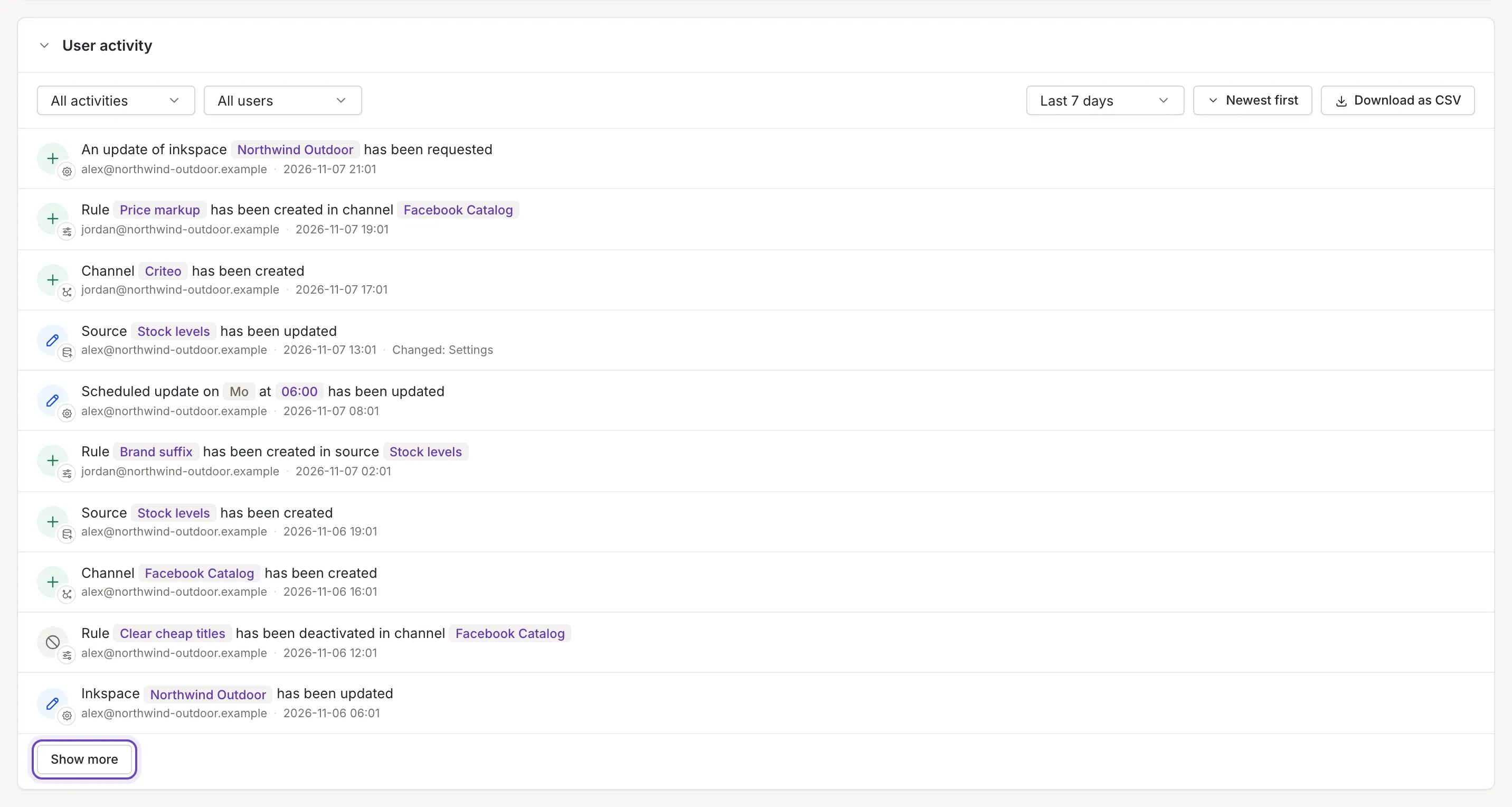
User activity is the last section of the dashboard. It lists the changes made in the inkspace: who did what, and when.
An old link to the inkspace’s user activity opens the dashboard.
What the feed lists
Section titled “What the feed lists”Each row is one change, newest first, in a sentence with the names in tags: a source created, updated, activated or deleted, a channel or a rule changed, a schedule changed, an update requested, a user added or given another role, and the inkspace’s own settings. Under the sentence are the person who did it (by user name, usually an e-mail address) and the date and time (in your browser’s time zone). When an entry lists the fields that changed, a line beside them names those fields. The icon at the left shows the kind of the change: Sources, Channels, Rules, Users or Inkspace.
The tag of what a change is about is a link to it: a rule opens in its editor, a source or a channel in its settings (or its mapping, for a mapping change), a schedule or e-mail notifications in their panel, a quality check on its page and the inkspace in its settings. The source or channel a rule is in links to its settings too, and an inkspace named in a request or a plan change to its dashboard. A deleted rule links to its source or channel; a deleted source or channel, a user and the one a rule or source was cloned from have no link.
A change made by a member of Feedink’s staff shows the employee’s name with a small Feedink chip beside it. When the employee is not named, the row only says Feedink, without the chip. The feed only reads: nothing in it changes anything.
Filters
Section titled “Filters”The bar above the rows holds three selects and a button:
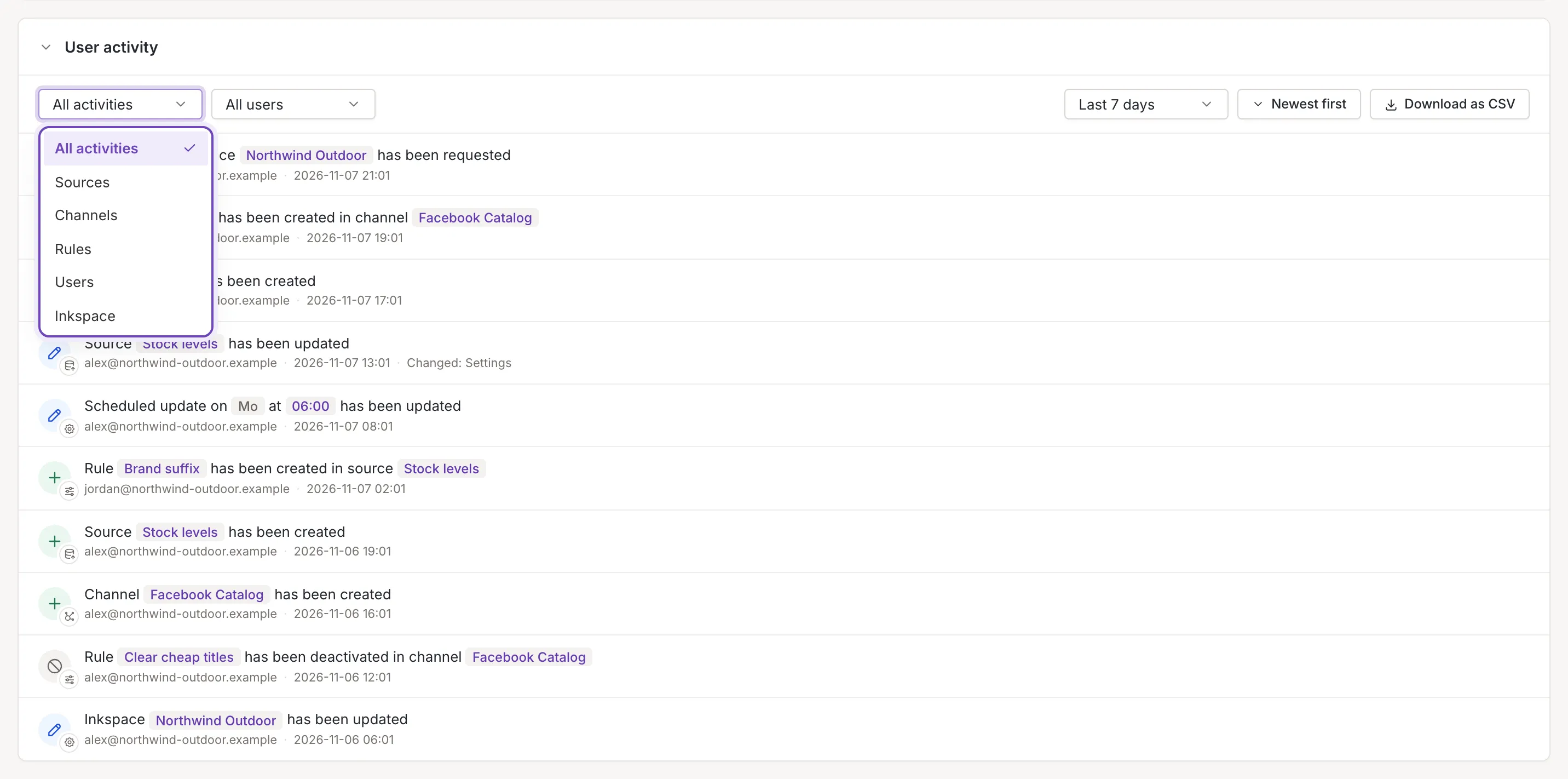
- Activity type, first read All activities: narrows the rows to one kind: Sources, Channels, Rules, Users or Inkspace.
- Done by, first read All users: narrows the rows to one person. It lists the people found in the rows loaded so far.
- Period: how far back the feed goes, Last 7 days, Last 30 days or Last 90 days. A visit starts with 7 days.
The first two filters work on the rows already loaded, so use Show more first if the person or the change you look for may be further back. A new period loads the feed again.
Order and Show more
Section titled “Order and Show more”The button after the period reads Newest first or Oldest first: click it to turn the order around. The feed loads 10 rows at a time; Show more at the bottom loads 10 more, until all rows of the period are there. The filters and the order are not remembered.
Empty, loading and error states
Section titled “Empty, loading and error states”While the feed loads for the first time, grey rows take the place of the rows.
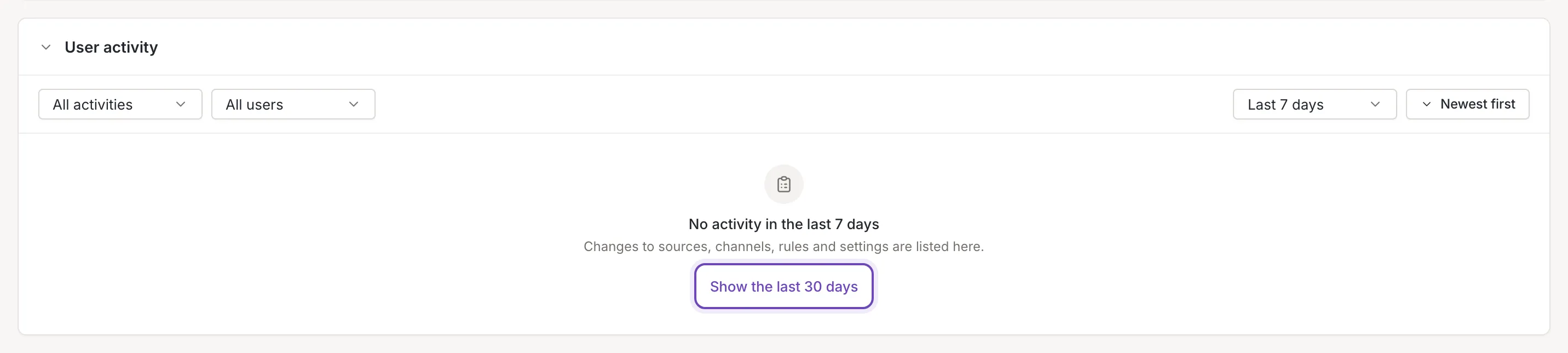
- Nothing in the period: a title that names the period you chose, the hint Changes to sources, channels, rules and settings are listed here. and a button that shows the next longer period.
- Nothing passes the filters: No activity matches the filters with Clear filters.
- The feed could not be read: Could not load the activity (or Could not load more activity when more rows did not load), the hint The server did not answer. Try again in a moment. and the button Try again.
Downloading
Section titled “Downloading”Download as CSV at the end of the bar saves the rows as a file,
inkspace_<id>_user_activity_<date>.csv, with the columns Date, User and Activity. The
file holds the rows that are loaded and pass the filters, and the button is missing when there are none. Dates are
written as 2026-11-07 21:01 in your browser’s time zone; the file’s name carries today’s date. The sentence is plain
text, with the changed fields after it. The cells are separated by semicolons; see
Download as CSV for how to open the file.