
Tracking (UTM) parameters
Tracking parameters are added to every product link of a channel’s feed, so you can see in your analytics which channel a visit came from. Each channel has its own tracking.
Open Tracking
Section titled “Open Tracking”Tracking is a block on the channel’s Rules screen, under Variables, with its own Change button. Open the channel, go to its Rules step and click the button.
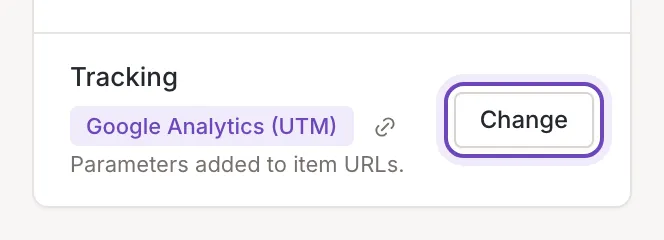
The block says what is on: Google Analytics (UTM), Advanced, Clears URL parameters or Off. The link icon, Example item URL, shows the link of an example item with the parameters added. Parameters are added when the feed is generated, after all the rules of the channel. Only owners and collaborators can change them; a viewer sees the block without the button.
Preview the link
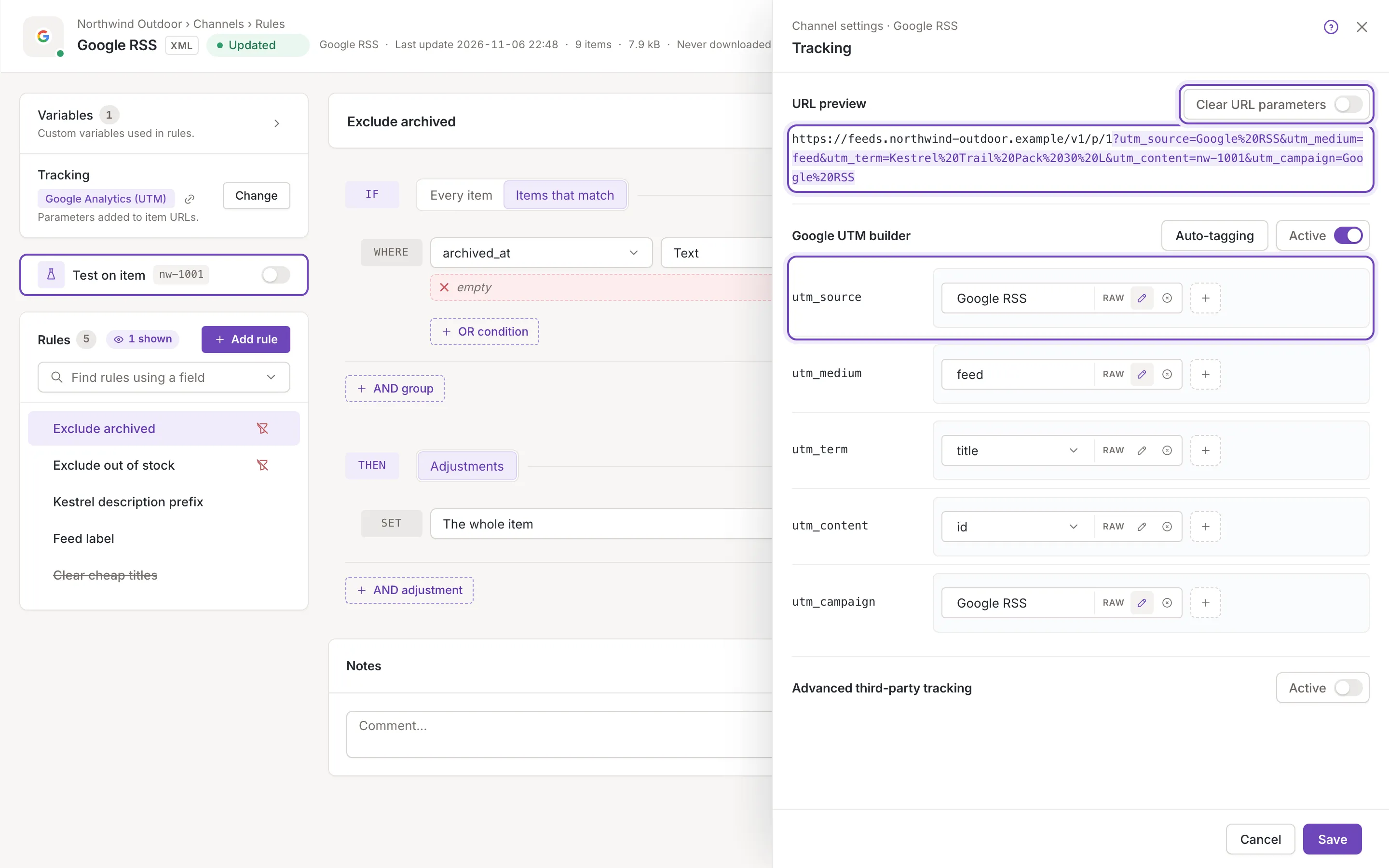
Section titled “Preview the link”The Tracking panel opens beside the Rules screen. URL preview at its top shows the link of an example item with the parameters you set; every item URL in the feed follows the same pattern. The parameters are highlighted, and a value that is not URL-encoded (see RAW below) is marked with the legend RAW value, inserted without URL encoding. The preview updates as you type. Without items it says The feed is empty. Your source file may be empty, so check your sources.
The switch Clear URL parameters removes the query string the link already has in your source, so only the tracking parameters remain.
Google UTM builder
Section titled “Google UTM builder”Google UTM builder adds the five Google parameters utm_source, utm_medium, utm_term, utm_content and utm_campaign. Its Active switch turns it on.
Each parameter is a row made of parts. A part is a field of the item (choose it from the list: for example the title or the ID) or a custom value you type. Click Add a part for another part, drag parts to reorder them, and remove one with its remove button. A part’s RAW button puts its value in the link as it is, without URL encoding. An empty value is skipped.
Auto-tagging fills the five rows with a standard set: the format’s name as source, “feed” as medium, the title as term, the ID as content and the channel’s name as campaign. It works only while the builder is on and first asks
Are you sure? Your current Google UTM builder settings will be lost.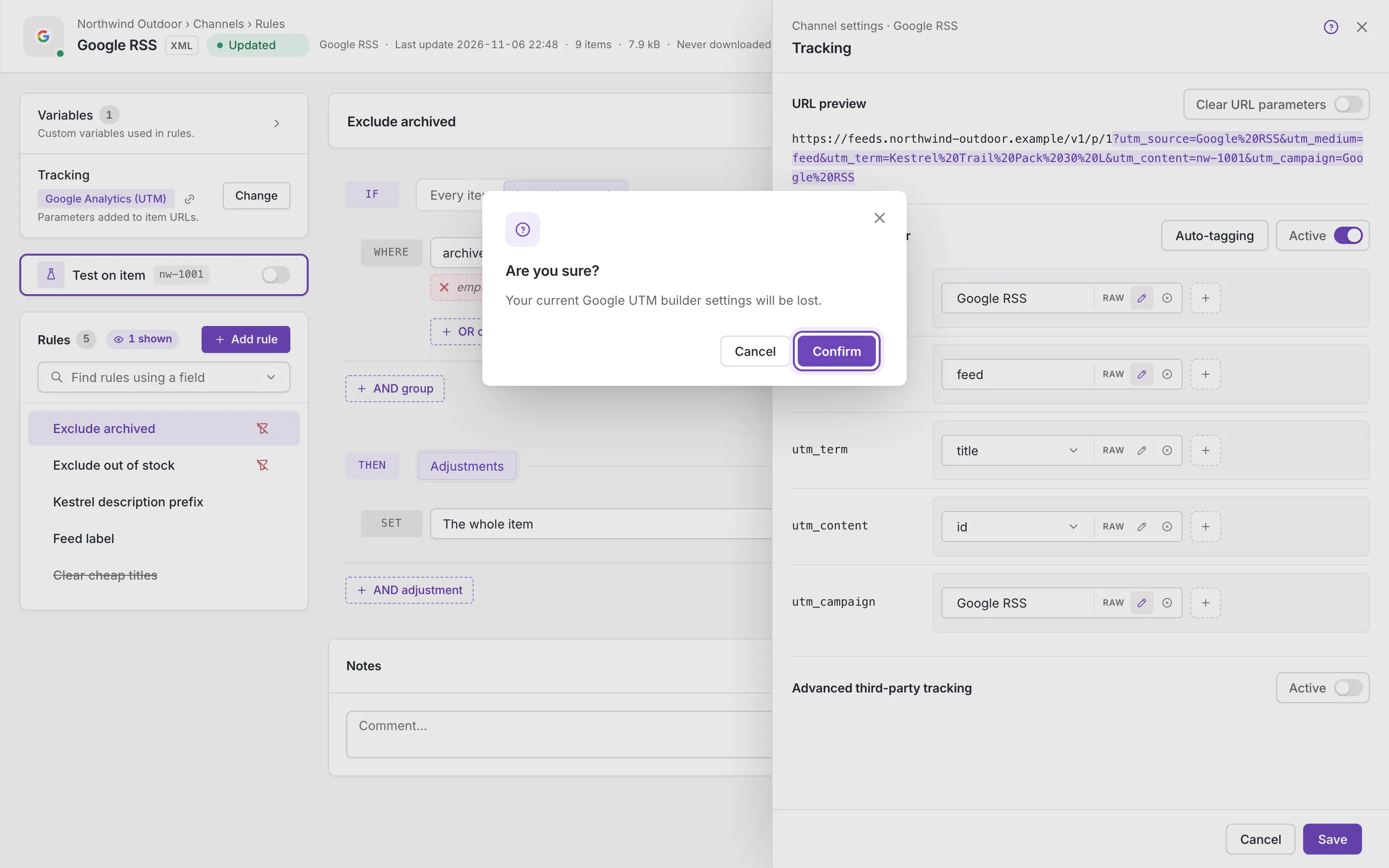
Advanced third-party tracking
Section titled “Advanced third-party tracking”Advanced third-party tracking is for trackers that need their own link shape. Its switch turns on rows for item_url, redirect and adwords_redirect, built of parts like the UTM rows; by default item_url is the item’s URL followed by a “?”. Google UTM builder and Advanced tracking exclude each other: turning one on turns the other off.
Save or discard
Section titled “Save or discard”Save saves the tracking of the channel; Feedink says Channel tracking saved. and the links in the feed change with the next update. Cancel or closing the panel with changes asks Discard the tracking changes? If someone else changed the channel while you edit, Feedink keeps your edits and asks whether to load the new version, as in Channel settings.