
Source mapping: the screen
The Mapping step of a source tells Feedink which element of your file fills which field of your items. The screen shows the structure of your file, a live preview of one product and a bar that saves what you change.
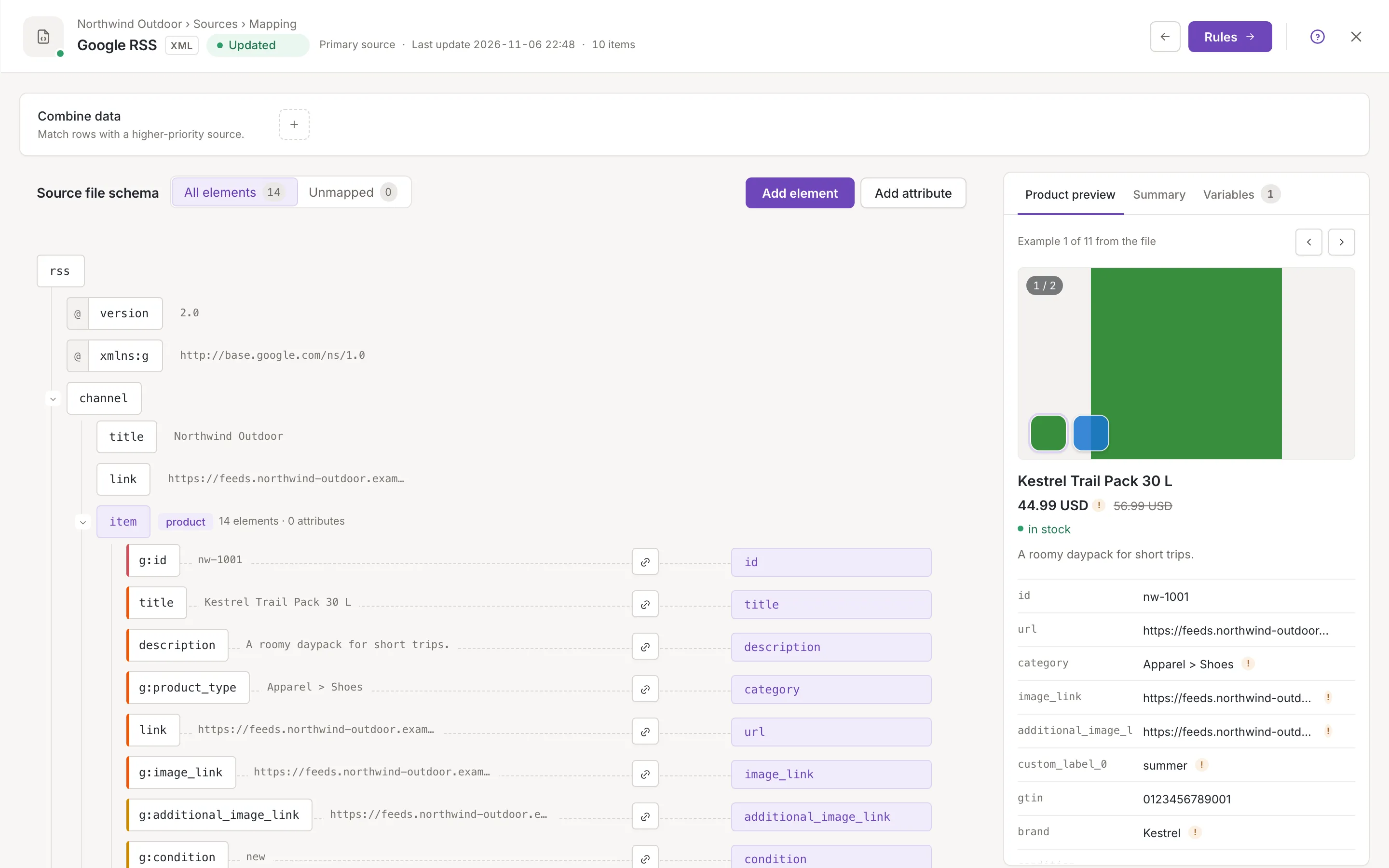
Open the mapping
Section titled “Open the mapping”- From the Sources list: the Mapping shortcut on the source’s row.
- From the source’s panel: the Mapping step after Settings (Source settings).
- From the setup guide: the step Map the fields has the button Open mapping. It opens the first source that has nothing mapped yet, or the first source when all have something.
- Right after you create a source: Mapping in the panel (Add a source).
The mapping opens full screen, in the same head as the source’s other steps: the arrow goes back to Settings, the Rules button goes on to the source’s rules, and the close button returns to the list. For a source whose last update failed or was interrupted and that has nothing mapped yet, the Mapping and Rules shortcuts in the list are switched off (Sources list).
The screen at a glance
Section titled “The screen at a glance”- Combine data at the top: how this source is matched with a source of higher priority. See Combine data.
- Source file schema on the left: the elements and attributes of your file (the columns of a CSV file or a Google Sheet), each with the field it fills. Choose the element that wraps each item, then pick a field for each element. Read it in The mapping tree; fill it in with Map an element to a field, Add, move and remove elements and Element settings of a source. A CSV file or a Google Sheet is covered in Mapping a CSV or Google Sheet source.
- The preview on the right, in three tabs: Product preview (one example product as the mapping reads it, see The product preview), Summary (what is still missing, see The Summary and required fields) and Variables (see Custom variables).
- A bar under the head with Unsaved changes as soon as you change something. Nothing you change in the tree or in Combine data is kept until you click Save. A custom variable is the exception: it is saved the moment you add, rename or remove it. Save, undo and leave has the rest.
Automatic mapping of a new source
Section titled “Automatic mapping of a new source”When you open the mapping of a source that has nothing mapped and no saved mapping linked to it, Feedink looks at the saved mappings it holds for sources of the same format. If one of them maps at least one field of your file (for an XML file it must also mark the element that wraps each product), Feedink picks a saved mapping that fits your file, applies it and saves it. It does not ask and shows no message: the tree simply opens with fields filled in. The example values of your file stay.
This happens once: after that something is mapped, so opening the mapping again changes nothing. Check the result against the Summary and fix what is wrong; every change you make after the automatic one is an edit like any other.
Read-only access
Section titled “Read-only access”Owners and collaborators can change the mapping. A viewer can open the screen and read it, but has no way to keep a change: the buttons Add element, Add attribute and Add column are not shown, and the bar that appears after an edit has no Save, no Discard changes and no Undo or Redo, so a change a viewer makes on screen is not kept.
When a source is updating
Section titled “When a source is updating”You can open and edit the mapping while the source or the inkspace is updating, and Save is not switched off on screen. If Feedink cannot take the change just then, a toast says so; try again when the update has finished (Update status, Save, undo and leave).