
Add a channel
A channel builds a feed of your items for one destination, such as Google Shopping or Facebook. You create it from a name, a currency and a format.
Open New channel
Section titled “Open New channel”Go to Channels and click New channel. The New channel panel opens over the list. Only owners and collaborators see the button that opens it, and the Create channel button belongs to them too.
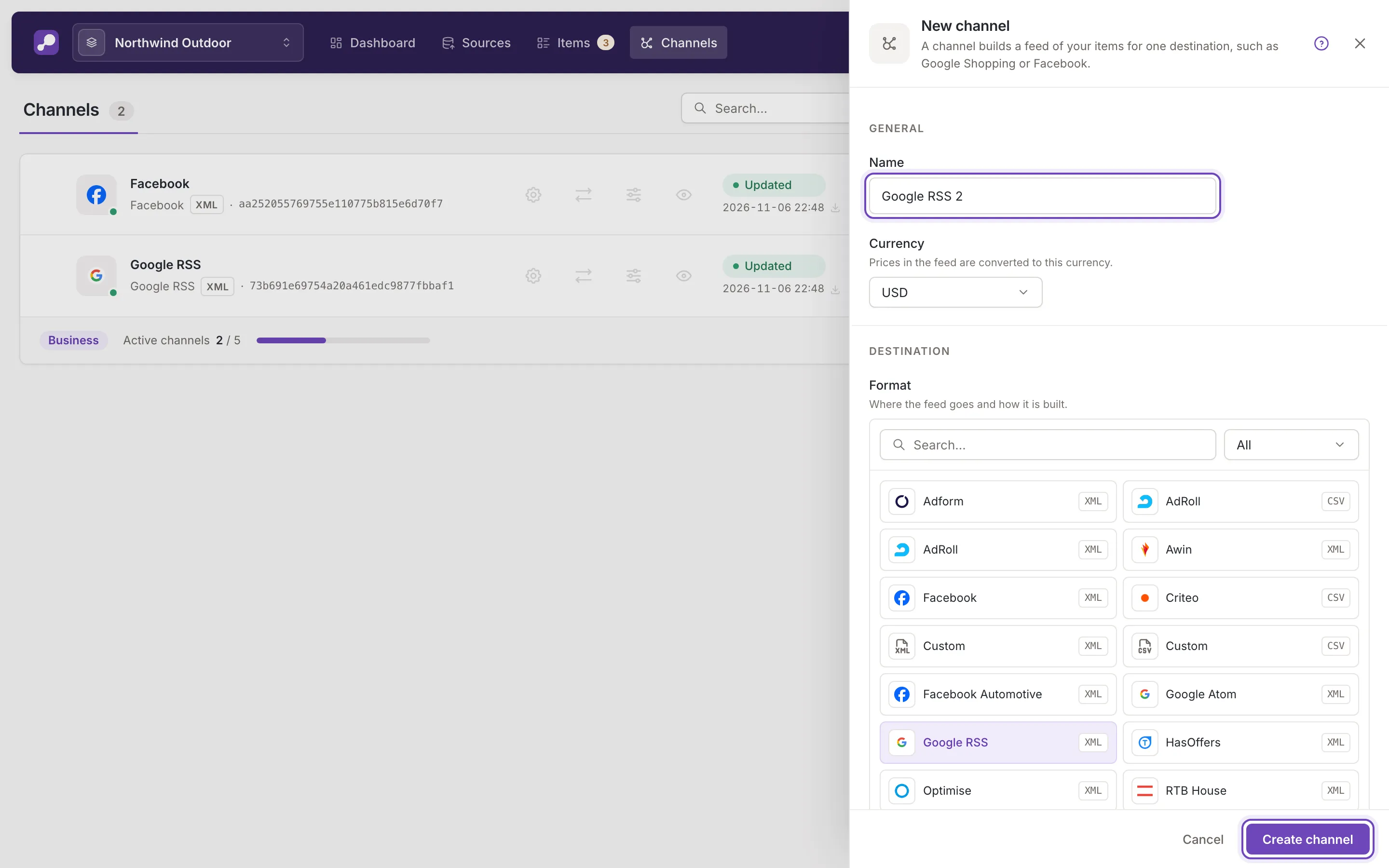
Name and currency
Section titled “Name and currency”Name is the name of the channel in your lists. It needs at least 3 characters and at most 50. When you pick a format, Feedink fills in the format’s name for you (“Google RSS”, numbered “Google RSS 2” when you already have a channel with that name). A name you type yourself is kept when you pick another format.
Currency is the currency of the prices in the feed; Feedink converts your prices to it. It starts as the currency of your location; any currency of the list works.
Choose a format
Section titled “Choose a format”Format tells Feedink where the feed goes and how it is built. Search for the destination or filter by file type, then click its tile. For Google Shopping, choose Google RSS. Choose a channel format lists the formats and what to do when yours is missing.
Create the channel
Section titled “Create the channel”Click Create channel. If the name is too short or the format is not chosen, Feedink shows what is missing next to the field and sends nothing; the name field gets the focus.
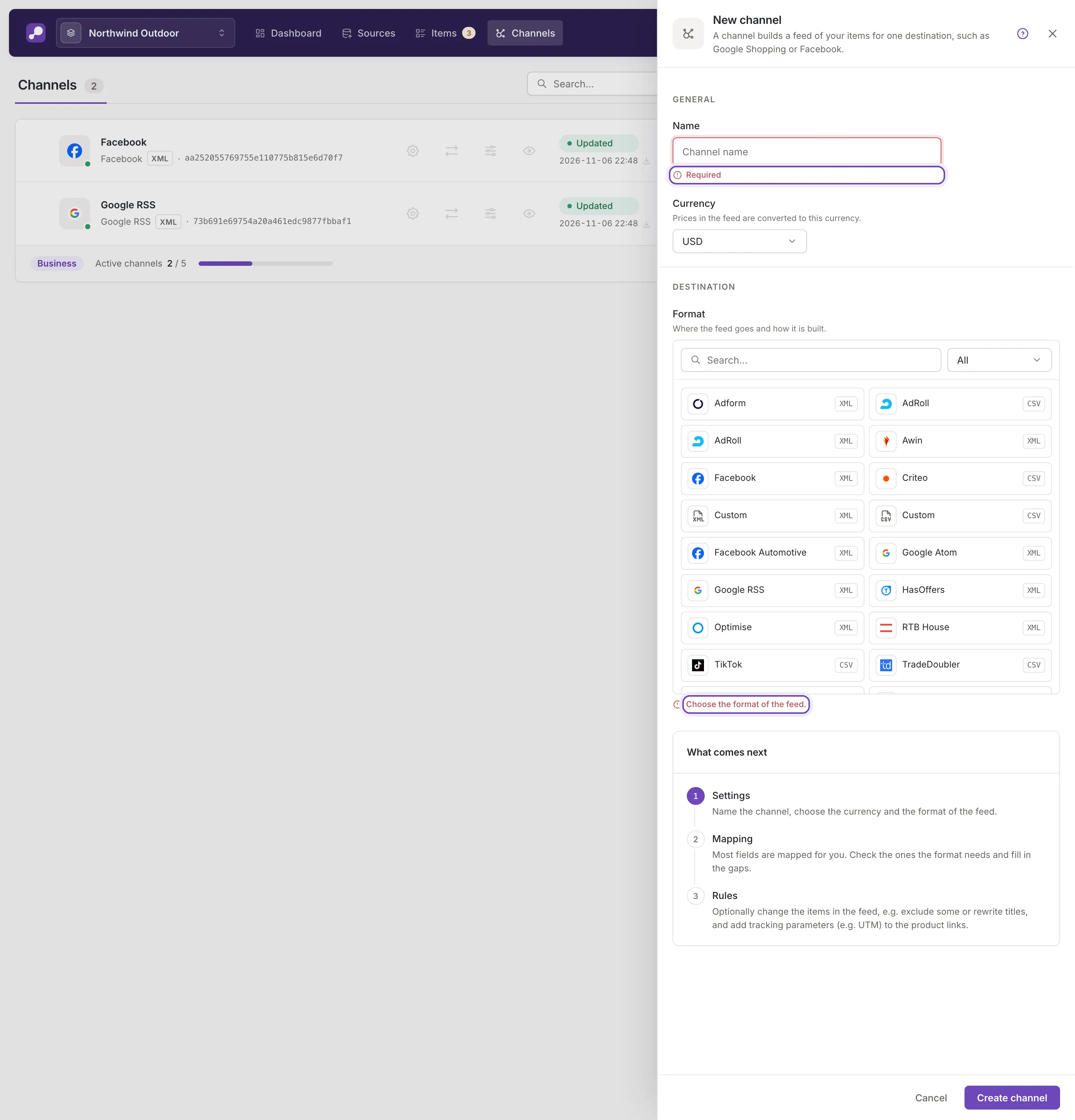
Feedink then says Channel created. and opens the new channel on its Mapping step. What comes next in the panel lists the three steps: Settings (what you just filled in), Mapping (check which of your fields go where; most are mapped for you) and Rules (optional: change the items in this feed and add tracking parameters). A new channel has no feed until the next update of the inkspace; see Preview the feed.
If Feedink cannot create the channel, a toast titled Request failed gives the reason, and the form stays as it is. Cancel or the close button returns to the list without creating anything.
When the channel limit is reached
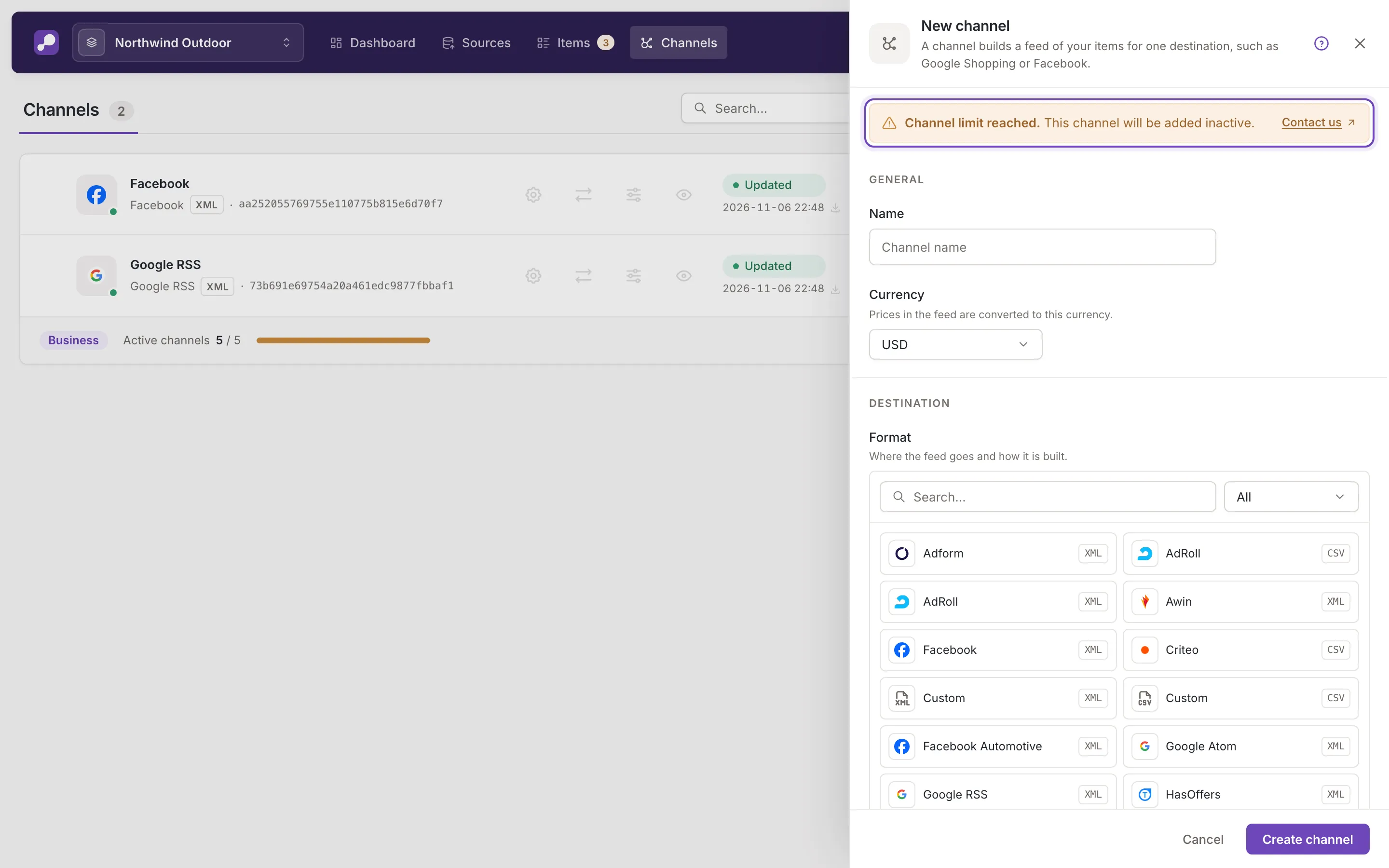
Section titled “When the channel limit is reached”Your plan sets how many channels can be active. When you have reached it, the panel shows
Channel limit reached. This channel will be added inactive.You can still create it; to activate it later, deactivate another channel or contact us (the Contact us link opens a request about your plan). Only owners and collaborators see this warning.
See Channel settings for the Active switch and the rest of a channel’s settings.