
Reset your password
If you forgot your password, you ask Feedink for a new one by e-mail. You do this while signed out; if you are signed in, these screens are not shown and Feedink opens your inkspaces list.
Ask for a new password
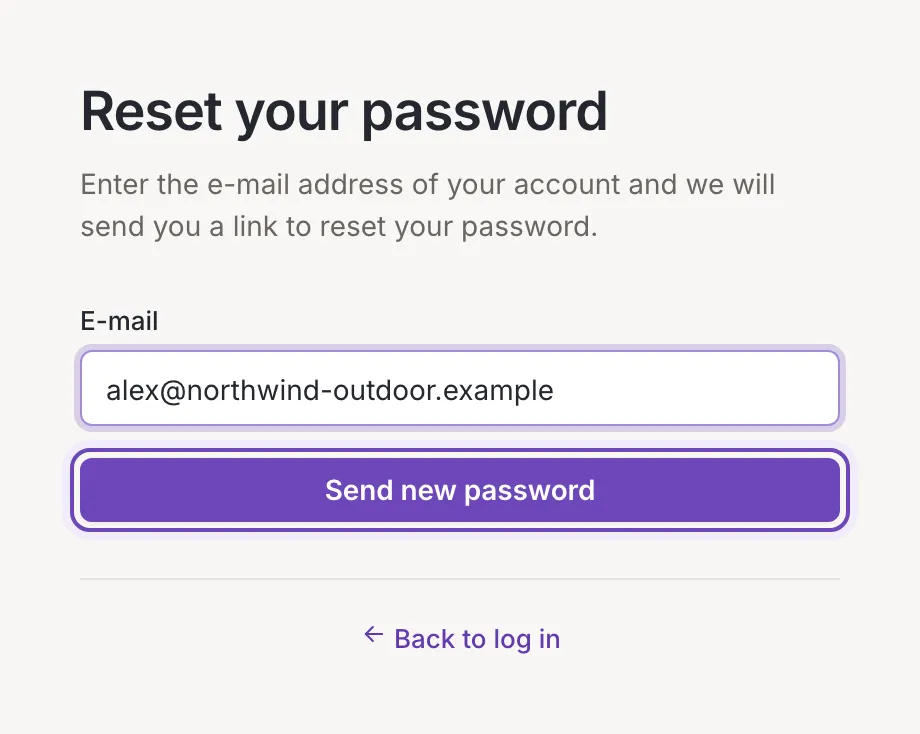
Section titled “Ask for a new password”On the log-in screen click Forgot password? (see Log in and out). The Reset your password screen asks for one thing: the E-mail of your account.
Enter it and click Send new password. While Feedink works, the button and the field are busy. When the request is accepted you see Check your e-mail inbox. and you are taken back to the log-in screen. Back to log in does the same without asking for anything.
An empty field shows Required and an address that is not an e-mail address shows Enter a valid e-mail address. Nothing is sent in either case.
If Feedink cannot do it, a message titled Could not reset the password tells you why and you stay on the screen:
- No account uses this e-mail address. Check the address for typos.
- A password reset has already been requested. Look for the e-mail you already received, and check your spam folder.
The link from the e-mail
Section titled “The link from the e-mail”The e-mail from Feedink contains a link. Open it in the browser: the screen first shows Checking your link… while Feedink checks the link, and then, if the link is good, Check your inbox:
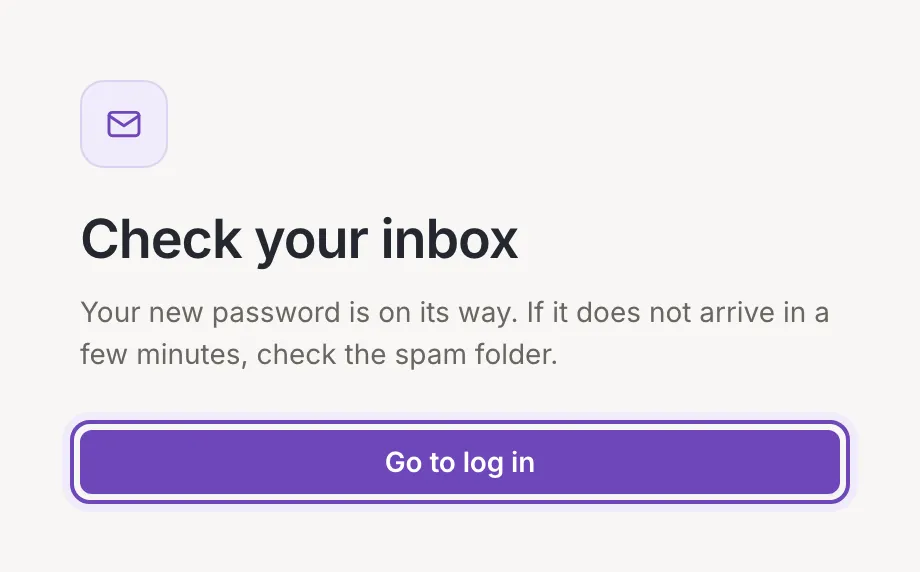
The screen tells you that your new password is on its way and to check the spam folder if it does not arrive in a few minutes. Feedink sends the new password to your e-mail address. Click Go to log in and log in with the new password. Once you are in, you can choose a password of your own under Change password.
If it does not work
Section titled “If it does not work”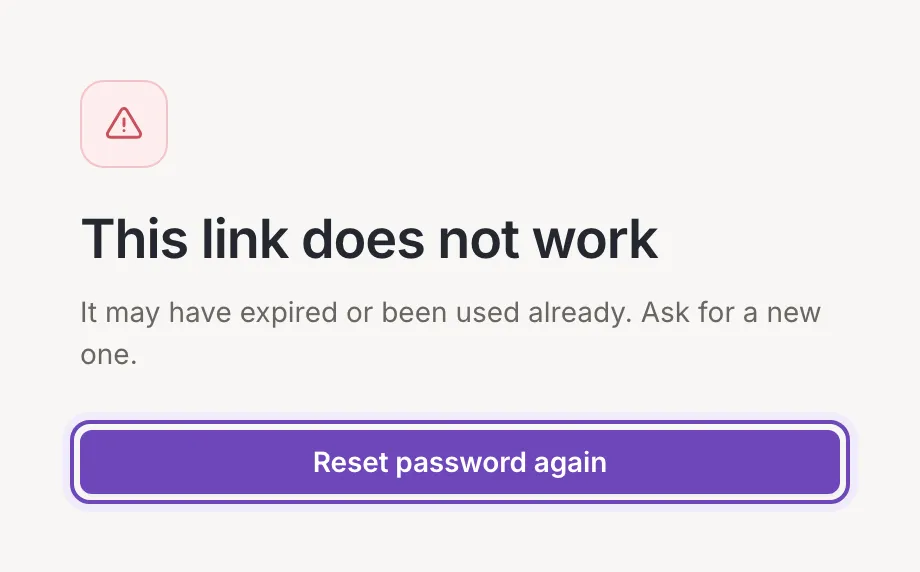
A link that Feedink does not accept leads to This link does not work: It may have expired or been used already. Ask for a new one. A link that has expired or has already been used ends here too. Click Reset password again to start again from the first screen.