
Update schedule
The update schedule lists the times at which Feedink updates your inkspace by itself: it reads your sources, applies your rules and rebuilds the feeds of your channels. Without a schedule the feeds change only when someone runs an update.
The day strip
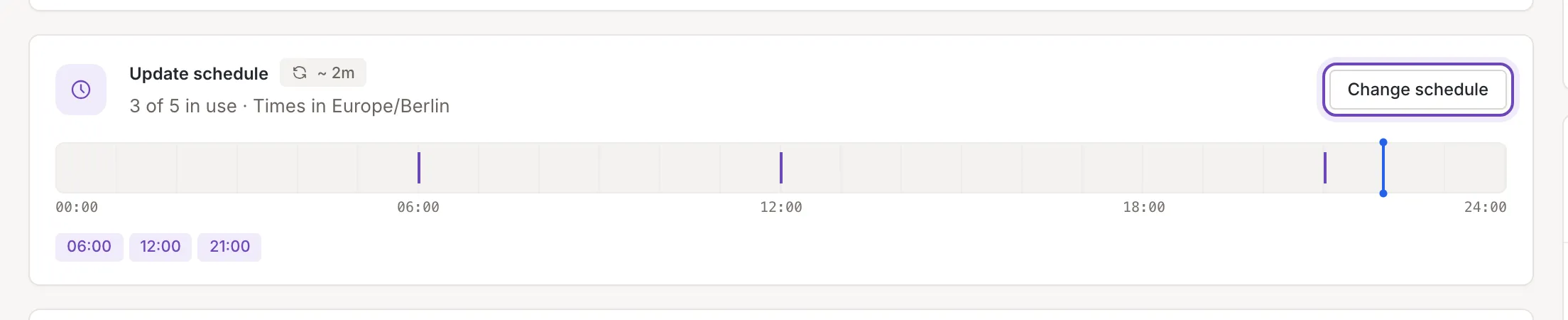
Section titled “The day strip”The Update schedule card on Inkspace settings shows the schedule:
- The strip. A day from 00:00 to 24:00, with a mark for each scheduled update that is switched on and within your plan, and its time under the strip. A mark has the width of the time an update usually takes in this inkspace. Where one update would start while the one before it still runs, the marks are joined and a note on hover names the times. The blue line is the time now in the inkspace’s timezone.
- The line under the title. How many scheduled updates are in use out of the number your plan allows, and the timezone of the times. The timezone is the one in Inkspace settings.
- The usual time. The chip beside the title, for example “~ 2m”, is how long an update of this inkspace usually takes. Point at it for the sentence.
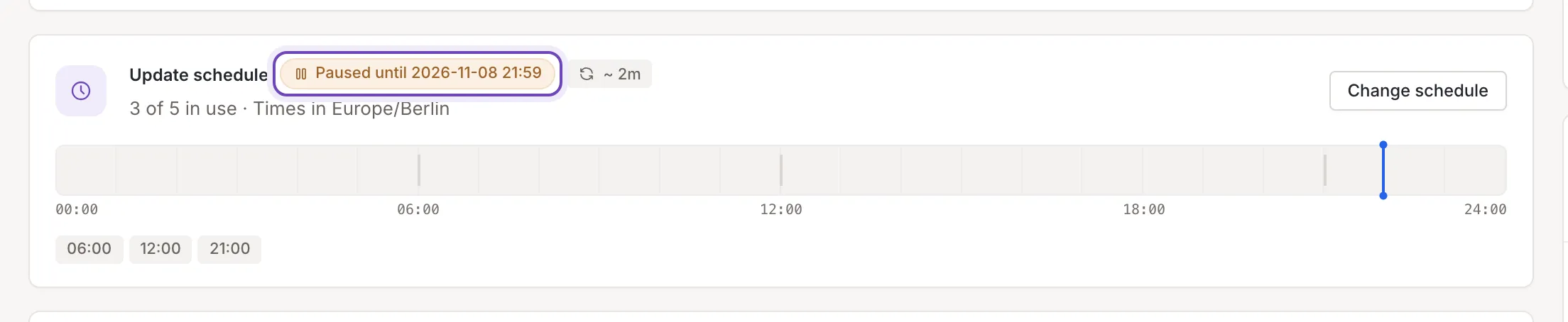
- Paused. While the schedule is paused the card shows a mark that says the schedule is paused until a date and time in the inkspace’s timezone (just Paused when no end is known), and the strip turns grey.
The schedule opens as a panel over the Settings page. An owner or a collaborator can also open it over any screen of the inkspace, from the gear in the header. On the card they see Change schedule; a viewer sees View and can only read.
Add a scheduled update
Section titled “Add a scheduled update”Click Change schedule. The panel lists the scheduled updates in the order of the day, one row each with its time, its days and the sources it skips. Under the list is New scheduled update, with how many are in use.
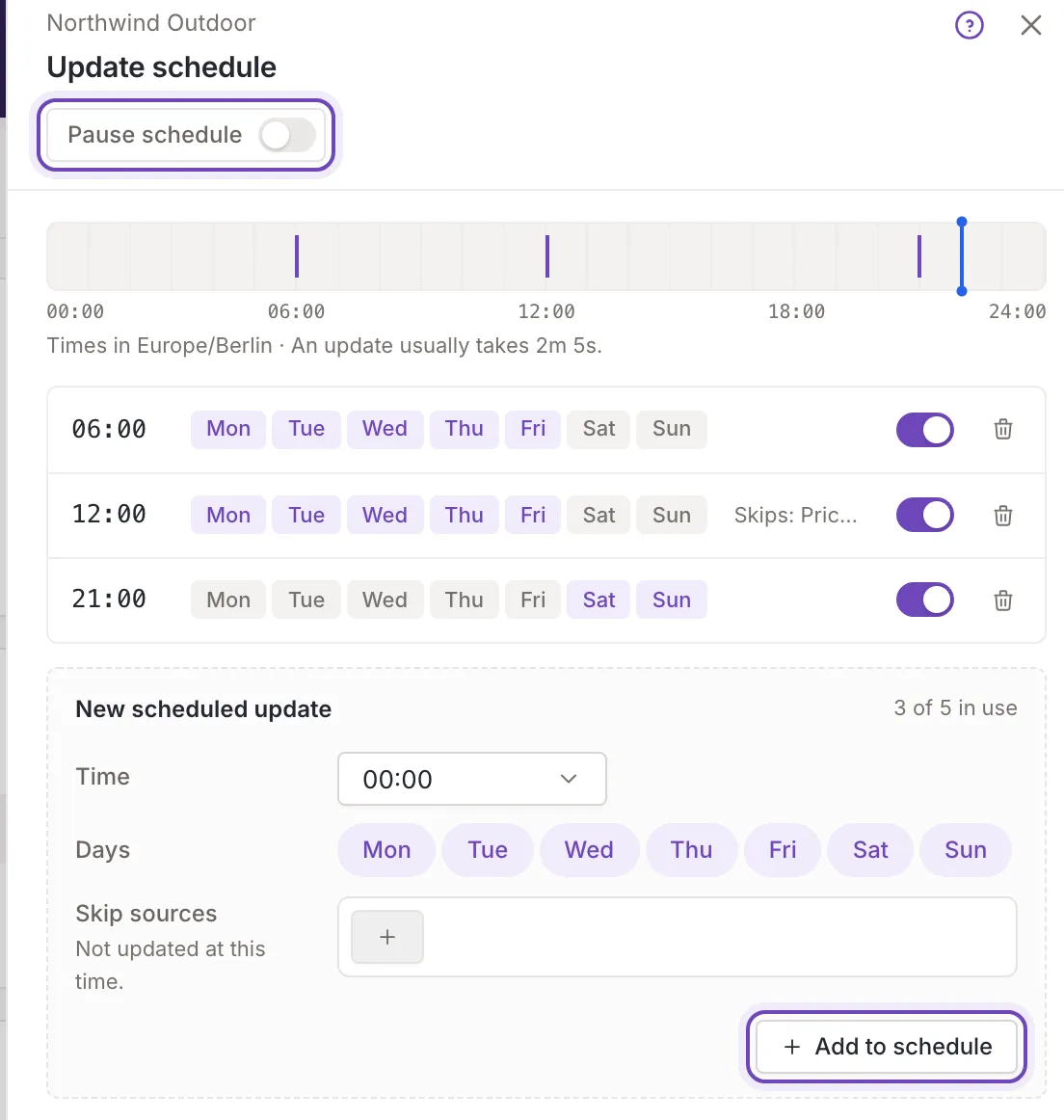
- Choose the Time. The list runs every 15 minutes, from 00:00 to 23:45.
- Under Days click the days to leave out. All days, from Mon to Sun, start on.
- If the inkspace has sources, you can choose Skip sources for this time (Not updated at this time.): click + for a picker, and × to take one away. The row then reads “Skips:” and the names.
- Click Add to schedule. Feedink says Schedule created..
Add to schedule is off while no day is selected. A time with the same days that is already in the list shows This schedule (days and time) is already added. and is not added. The panel saves at once: there is no Save button. Close closes it, and All settings opens the Settings page.
Pause and resume
Section titled “Pause and resume”Pause schedule at the top of the panel stops the automatic updates. Feedink says Automatic updates have been paused.; the strip turns grey and the card names the end of the pause. The schedule resumes by itself then. To resume sooner, switch the same toggle off: Feedink says Automatic updates have been resumed.. The header counts down to the end of a pause; see Update status.
The switch is there only once the schedule has a time, or while it is paused.
Remove or switch off a time
Section titled “Remove or switch off a time”Each row has a switch and a bin.
- The switch turns one time off or on without deleting it. A time that is off is not counted as in use and has no mark on the strip. Feedink says Schedule disabled. or Schedule enabled.. While your plan’s limit is full a time that is off cannot be switched on: point at the switch for “The plan's limit is reached: disable or remove another schedule first.”
- The bin removes the time. Feedink says Schedule removed..
A schedule without a time shows No updates scheduled and “The feeds update only when someone runs an update.” If the schedule cannot be read, the panel says Could not load the update schedule and offers Try again.
Limits and permissions
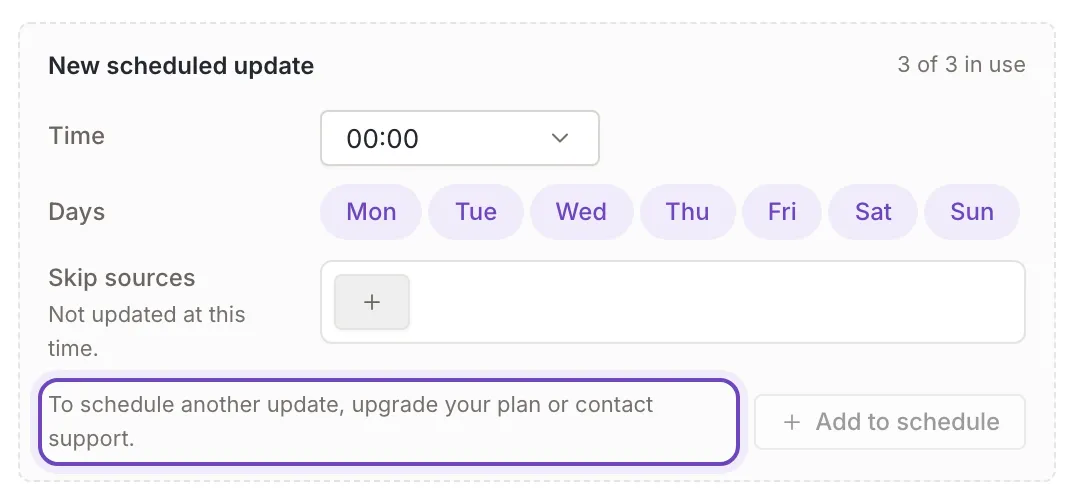
Section titled “Limits and permissions”Your plan limits how many scheduled updates are in use, counted as “n of m in use”. At the limit Add to schedule is off and the composer says “To schedule another update, upgrade your plan or contact support.” See Your plan and its limits.
If your plan changes to one that allows fewer times, the extra ones are marked Over plan limit: they are not run until the plan allows more or you switch off or remove another time.
An owner and a collaborator can add, switch, remove and pause. A viewer can open the schedule to read it and nothing more: no switches, no composer, no pause. See who can change what.