Failed updates on the dashboard
An update reads your sources and writes your channels’ feeds. When one fails, the dashboard shows when, why and on which channels.
On the chart
Section titled “On the chart”Open the dashboard and look at Update history. On the Inkspace items chart, a failed update is a red dot on the All items line. A failed update has no counts of its own, so the line carries the number from before it (The Inkspace items chart).
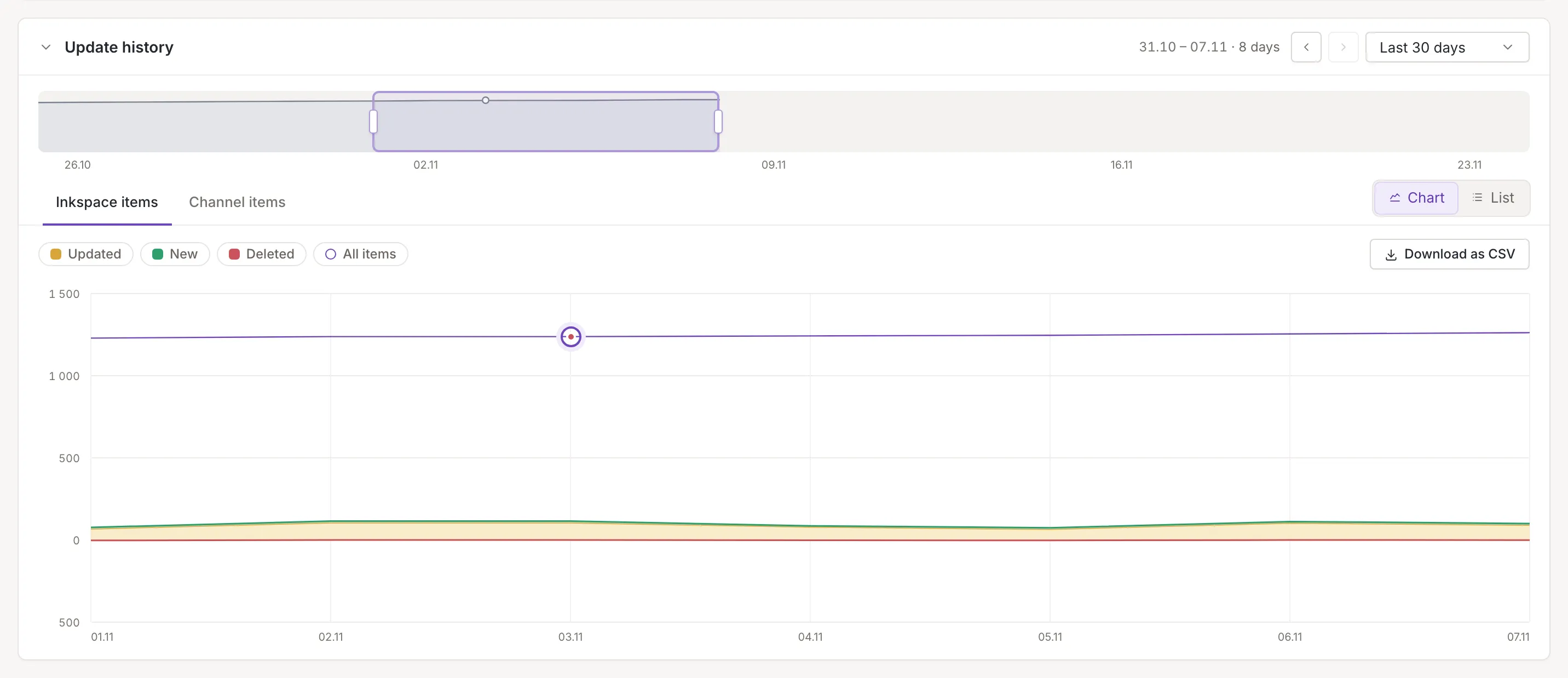
Point at the dot: the box gives the update’s time and says Update failed.
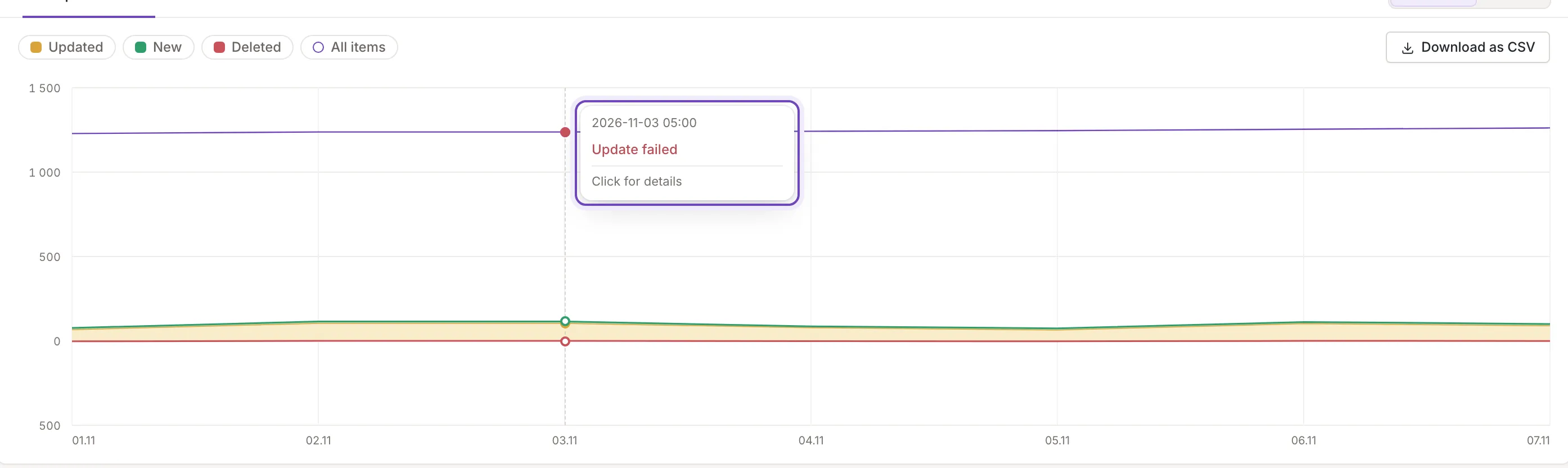
Why it failed
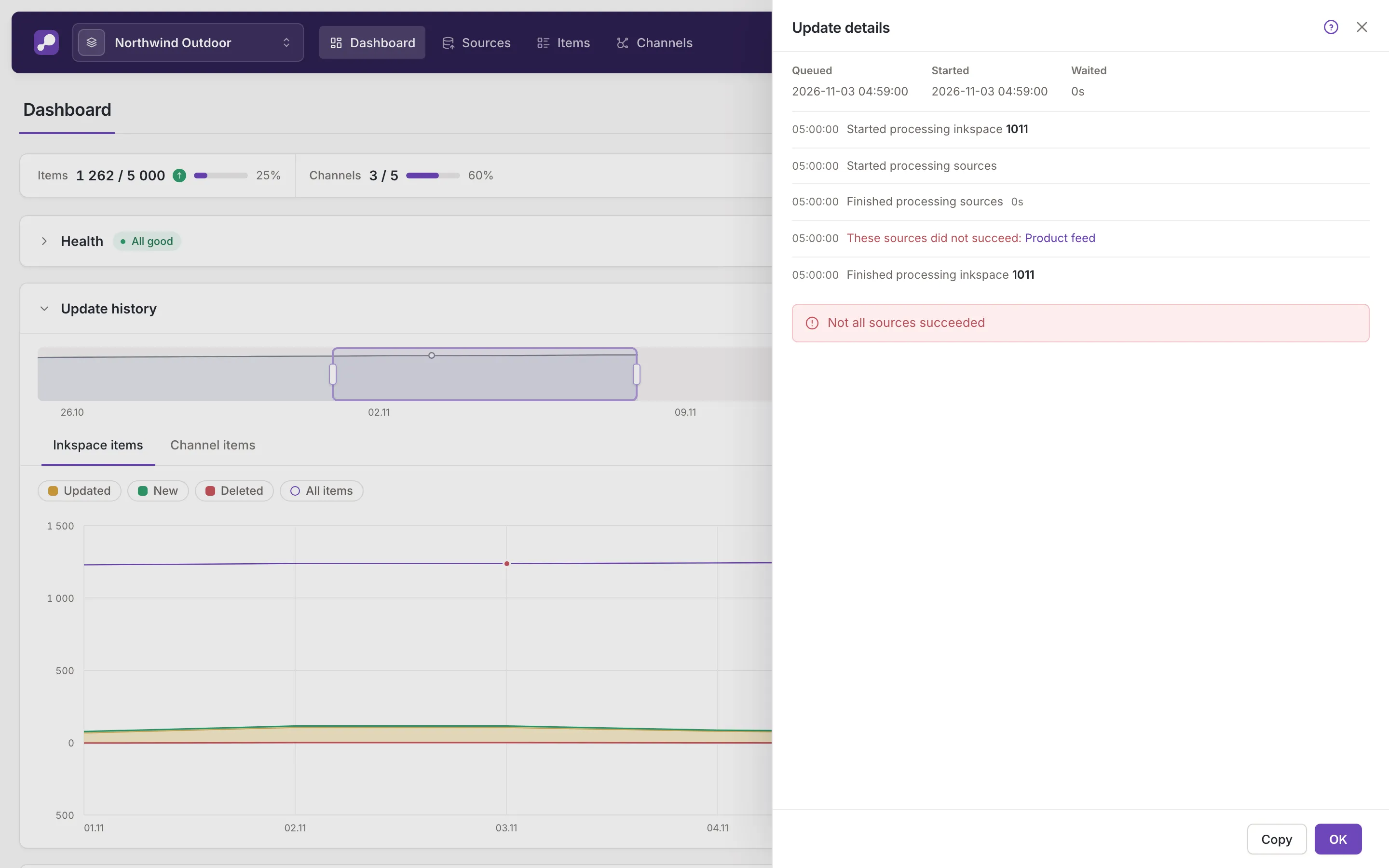
Section titled “Why it failed”The box ends with Click for details: click the dot. Update details lists the steps of the update, with the one that failed in red and its reason below (Update details).
The same update is a red Failed row in List (Inkspace items and Per channel lists). While that update is still the last one of the source that caused it, the source also has a row in Health, with Go to source (Health).
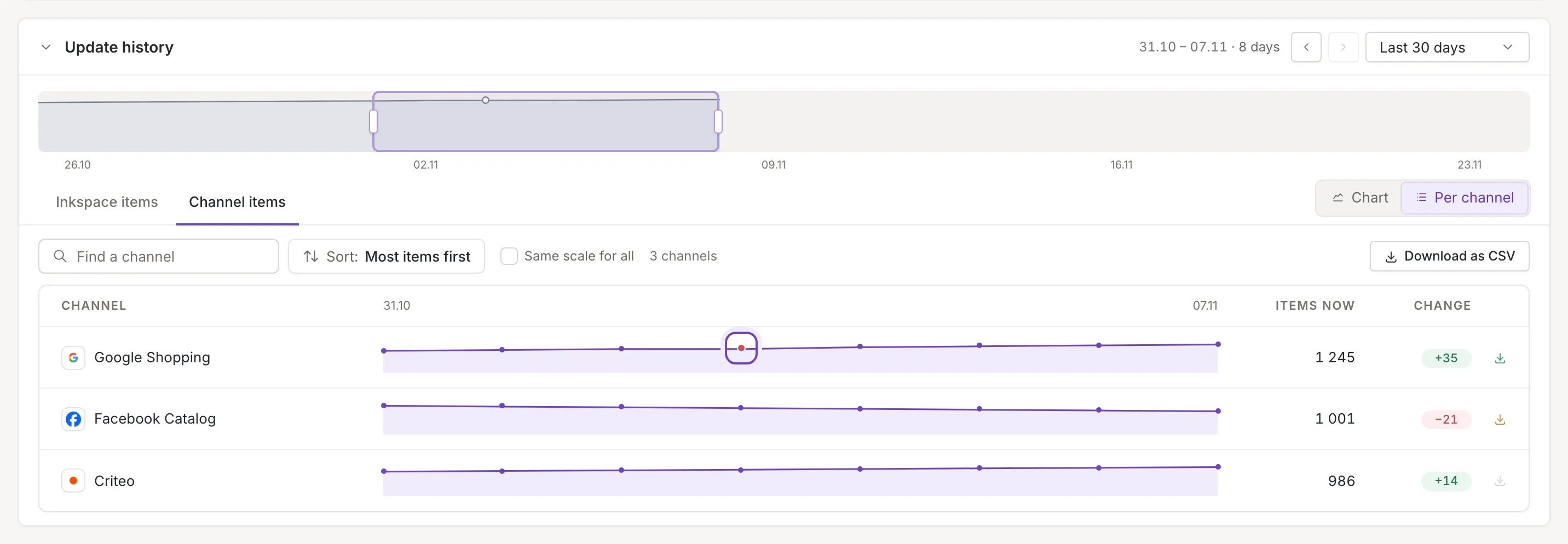
Per channel
Section titled “Per channel”Open Channel items and choose Per channel. Each channel has its own line; a red dot marks the update in which that channel’s feed failed. Point at it for the time and the reason, and click it: Click for details (Shortcuts and failed updates).