
Adjustments
The THEN card of a rule says what the rule does to the items its conditions select. Each row is one adjustment: it sets one field with one action. The card is the same on the rules of a source and of a channel.
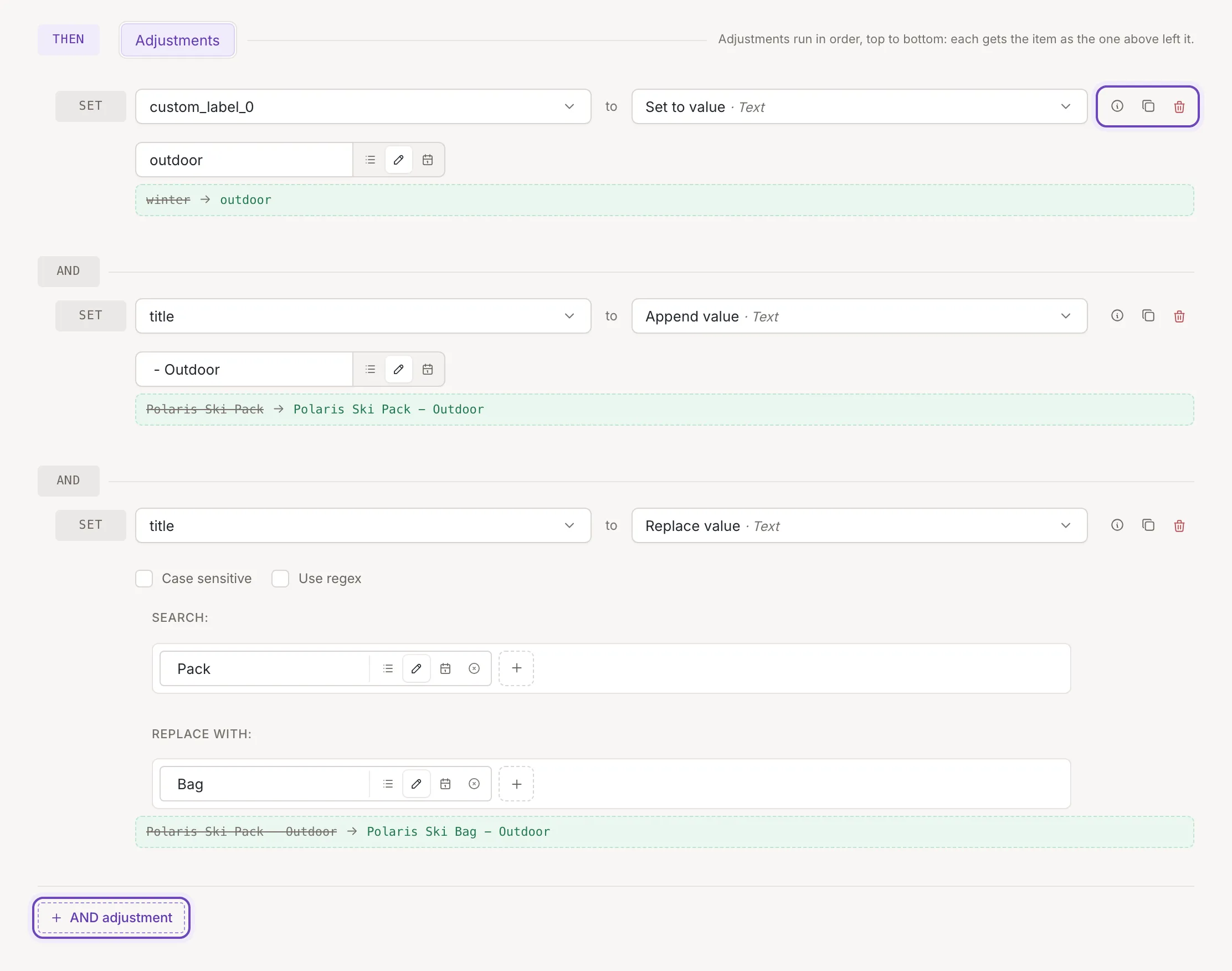
Add an adjustment
Section titled “Add an adjustment”A new rule has one adjustment, which sets The whole item to Do nothing. That does nothing, so choose a field and an action.
AND adjustment adds a row at the end; a new row starts as Do nothing too. Rows after the first are marked AND.
Every row has these buttons:
- Duplicate adjustment puts a copy right after the row.
- Remove adjustment removes it. It is there only while the rule has two adjustments or more.
- The info button (?) shows a short description of the chosen action when you hover over it. Click it to open the action’s part of this help, with examples, in the Help panel. Resize image has the description only.
You can also start an adjustment from a field of a sample item; see The Fields tab.
Choose a field and an action
Section titled “Choose a field and an action”A row reads like a sentence: Set a field
to an action. The field select
(Choose a field…) lists the fields of your items and your
custom variables, plus The whole item at the top. Global
fields of a channel, such as feedink_id, can be read in a value but not set. A field that no source maps is marked
empty; setting it fills it.
The action select (Choose an adjustment) shows the actions that fit the field, in groups:
- For a field: Text (Text actions), List (List actions) and Math (Number actions).
- For The whole item: only Do nothing, Exclude matching items and Split items, which have their own article.
Type in the select to search. It finds an action by its name, its internal name or a word of its description, in any case.
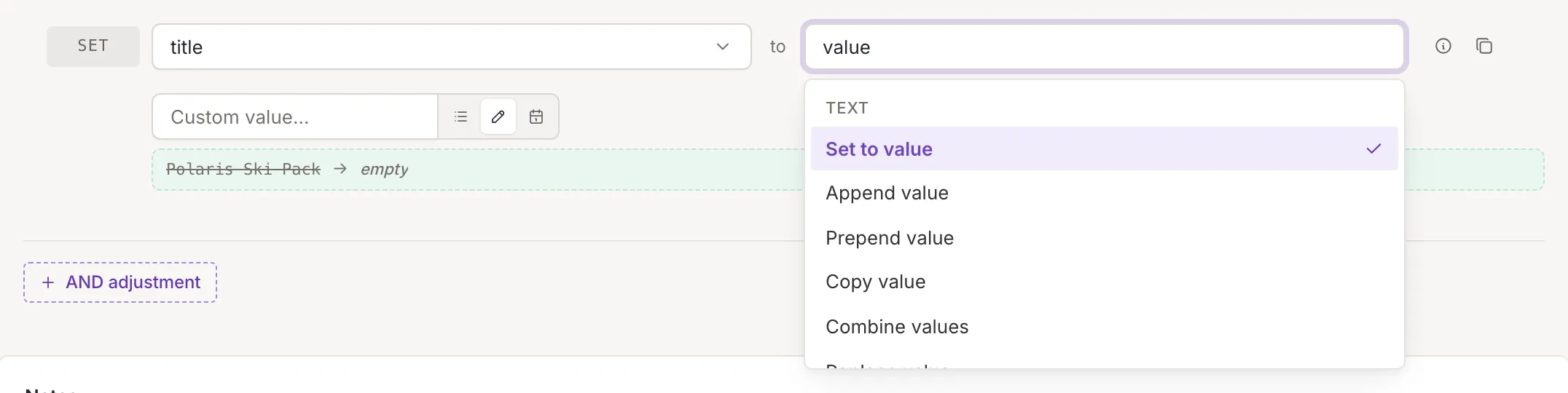
When you change the field and the chosen action is not offered for the new one, the action is cleared. When you change the action, its settings start again from their defaults. Most actions then show their own settings under the row; the value in them is chosen as described in Fields, custom values and dates.
Order of adjustments
Section titled “Order of adjustments”Adjustments run in order, top to bottom: each gets the item as the one above left it. A later adjustment can read what an earlier one wrote: append a suffix to the title in the first row, and a Copy value in the second row copies the title with the suffix.
Move a row with Move up and Move down, or drag its grip (Drag to move).
An adjustment that excludes the item ends the rule for it: the card shows Takes the item out; the adjustments below do not run. and the rows below do not run.
Several rules run in the order of the rules list. See Order and switch rules on or off.
Mistakes Save catches
Section titled “Mistakes Save catches”A rule cannot be saved while an adjustment has no field, or lacks something its action needs: a field, a separator, a mode, a modifier or a number. Marked controls turn red once you press Save, the cursor goes to the first one, and a line under the row says Fill in or correct the marked fields.
If an adjustment has no action, saving fails with the message Every adjustment needs an action.
A number argument that must be at least 1, such as the length of Pad text or the chunk size of Split text into chunks, is marked as soon as you leave it with a smaller number.
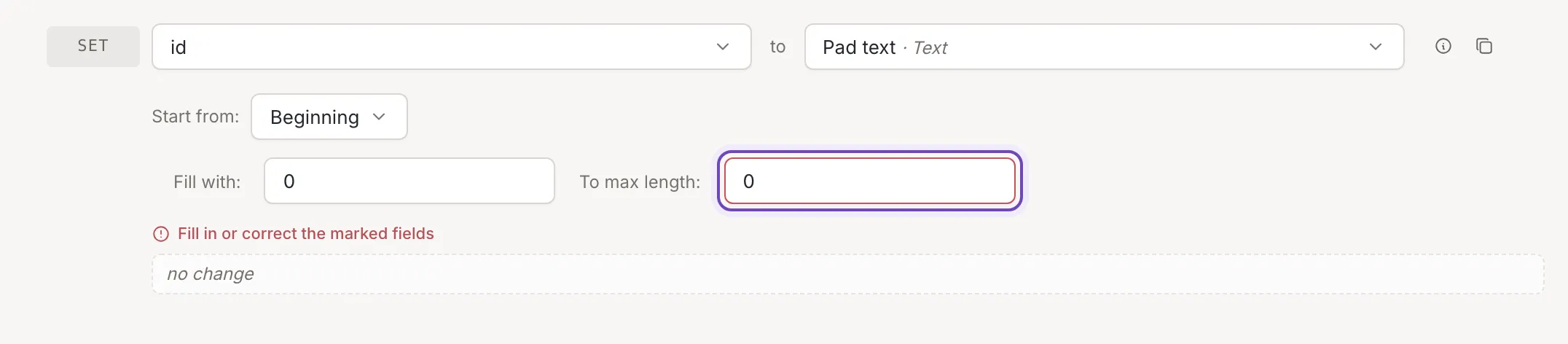
Use Test on item to see what the adjustments do to a real item before you save; each row shows the value before and after. Owners and collaborators can save a rule; a viewer can try changes on screen but has no Save button. Edit a rule covers saving and what happens when a save fails.