
Your profile, theme and the account menu
The Profile page is your own account: your name and phone number, your password, the look of the app and a card that shows who you are. Open it from the account menu (see The account menu). Every signed-in user has this page and it works the same for everybody: it is your account, not an inkspace’s, so it does not depend on whether you are an owner, a collaborator or a viewer there.
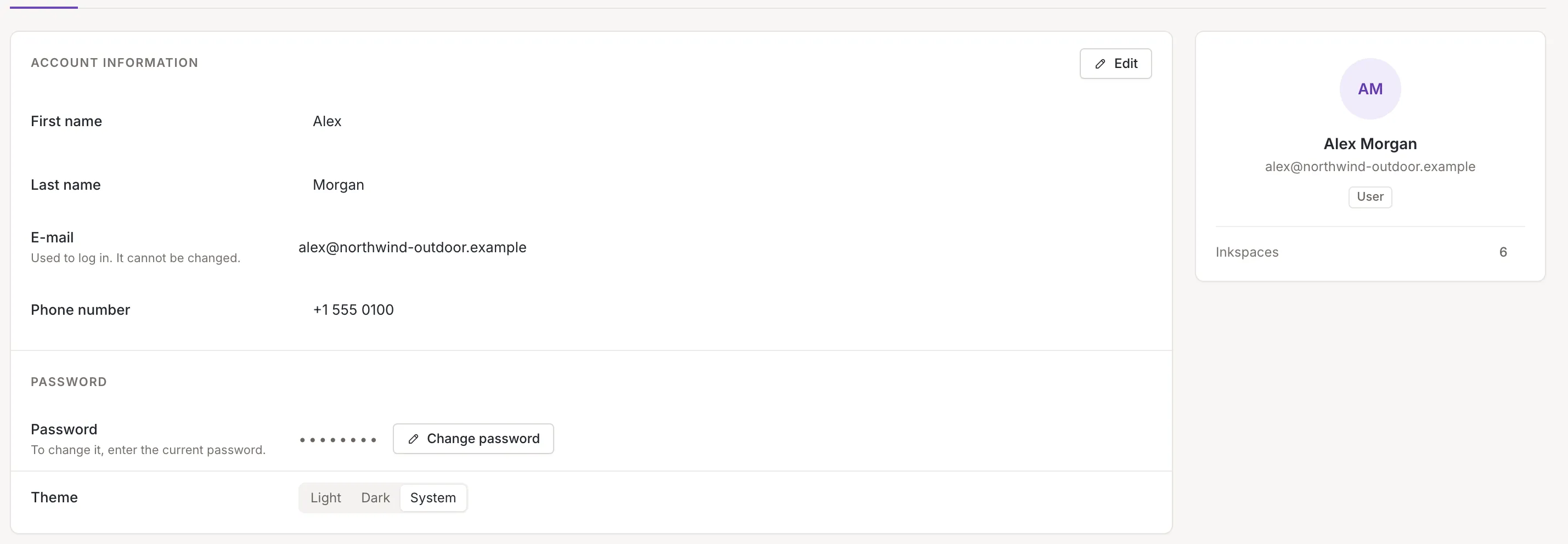
Under the cards the page lists your recent activity; see Your activity in all inkspaces.
Account information
Section titled “Account information”The Account information card shows four rows:
- First name: required, from 3 to 255 characters.
- Last name: optional; if you fill it in, from 3 to 255 characters.
- E-mail: shown as text, with the note Used to log in. It cannot be changed.
- Phone number: optional, in any format, up to 255 characters.
The fields are read-only until you click Edit. Then Cancel and Save replace the Edit button.
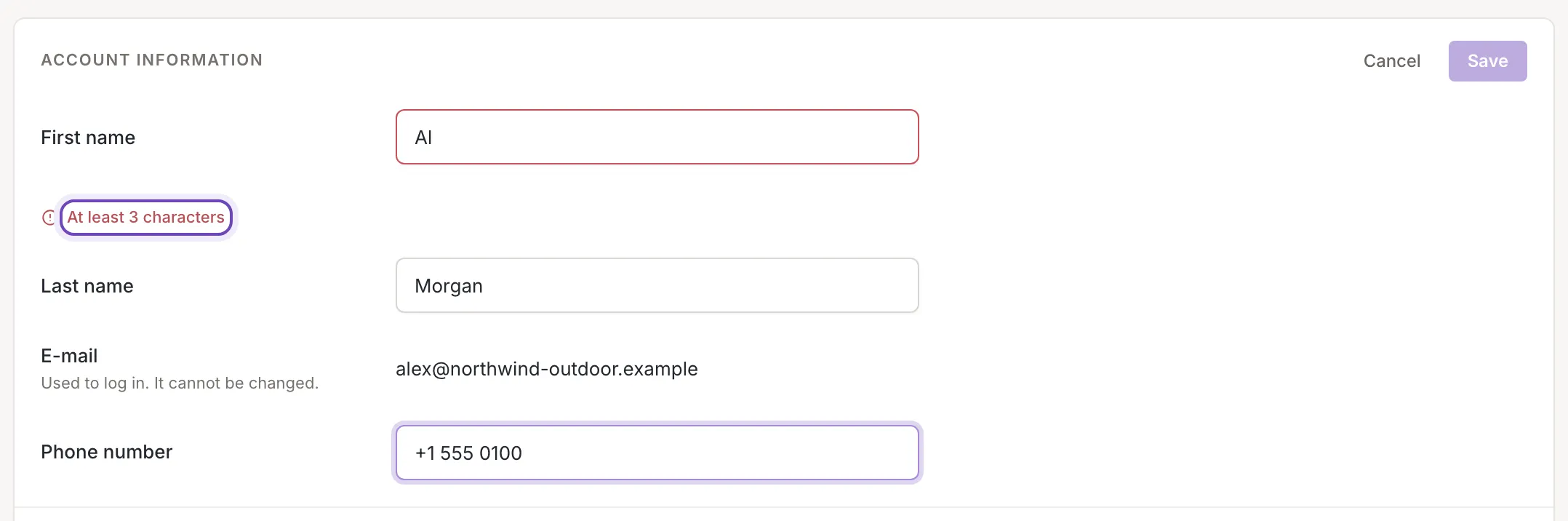
A field shows its message once you have left it: Required, a message such as “At least 3 characters” or “At most 255 characters”. While any field is invalid, Save is disabled. Nothing is trimmed: a space counts as a character.
- Save stores the three fields and shows Account information saved.. The fields become read-only again. If Feedink cannot save, a message titled Could not save gives the reason and you stay in edit mode.
- Cancel drops what you typed and shows the saved values again.
If your profile changes somewhere else while you are editing (for example in another browser tab) and the change touches a field you edited too, a notice says Your profile was changed elsewhere. Your unsaved changes are kept. Click Load the new version to replace your edits with the saved values or Keep my changes to go on with them. A change to a field you did not edit is taken over quietly.
Change password
Section titled “Change password”The Password row shows hidden characters and the note To change it, enter the current password. Click Change password to open three fields:
- Current password
- New password
- Confirm new password
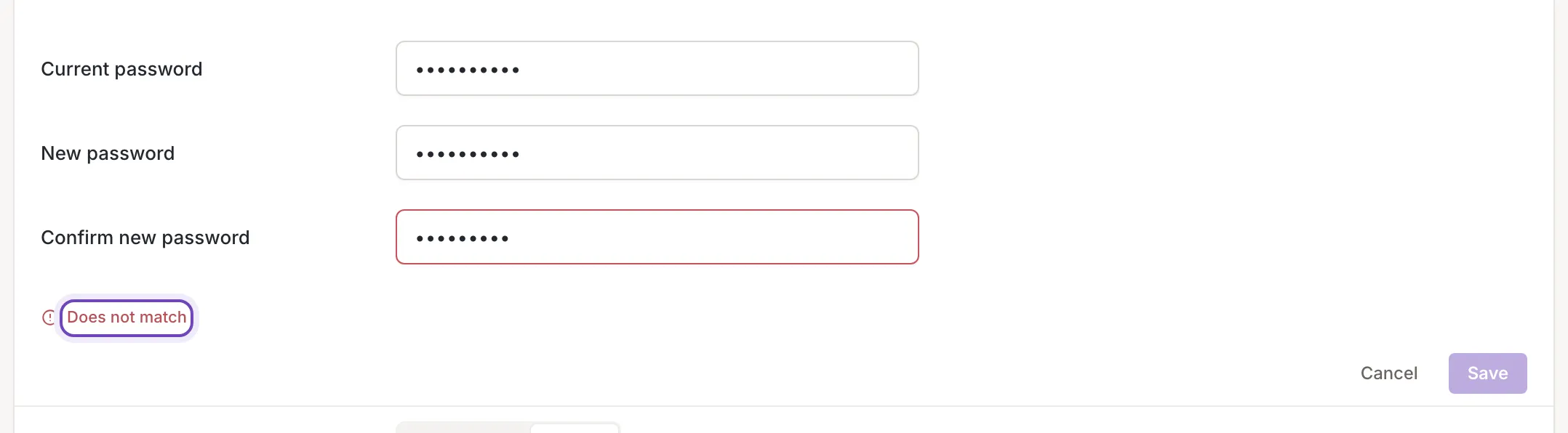
Each of the first two needs at least 2 characters, and the confirmation has to be the same as the new password; otherwise it shows Does not match. Save stays disabled until all three are valid.
- Save changes the password and shows Password changed.. The form closes and the three fields are emptied. If the current password is wrong, a message titled Could not save says The current password is incorrect. and the form stays open.
- Cancel closes the form and empties the fields.
If you cannot remember the current password, log out and use Reset your password.

Theme chooses how Feedink looks: Light, Dark or System, which follows the setting of your device. A pick applies at once and is saved to your account, so it also applies when you log in on another device. If it cannot be saved, the previous theme comes back and a message says Could not change the theme. The same choice is in the account menu.
Identity card
Section titled “Identity card”The card on the right shows your initials (the first letters of your first and last name, or a question mark while there is no first name), your full name and e-mail, and a label with your role. For a customer the label is User. It follows what you type while you edit; the initial in the account menu changes once you save.
Inkspaces is the number of inkspaces in your list, as a link to the inkspaces list. The number appears once the list has loaded.
The account menu
Section titled “The account menu”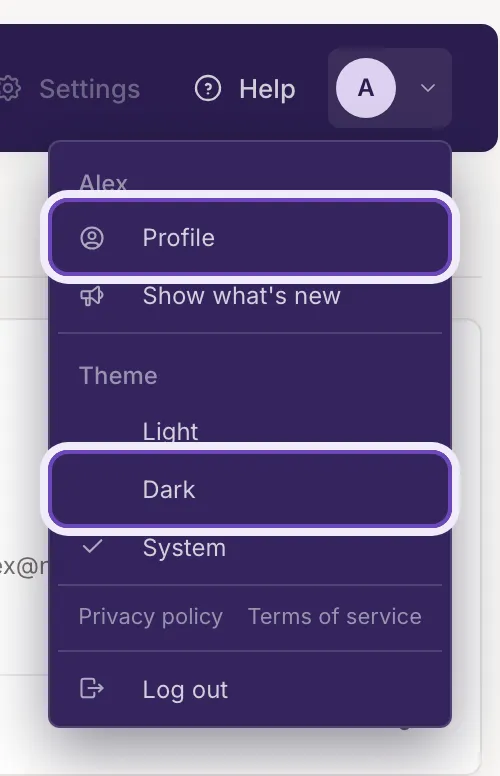
The Account menu is the round button with your initial in the header of every signed-in screen. It lists:
- your first name, as a title (not shown while you have none);
- Profile: this page;
- Show what's new: opens a short tour of what is new in Feedink;
- Theme with Light, Dark and System: the current one has a check mark; a pick closes the menu and saves, as on this page;
- Privacy policy and Terms of service: open in a new tab;
- Switch to the old Feedink: only while the old Feedink is still offered to your account;
- Log out: see Log in and out.
A click outside the menu, or Esc, closes it. On a touch screen the menu opens from the bottom of the screen as a sheet titled with your first name.