
Custom variables in rules
A custom variable is a field of your own. Rules can read it in a condition and set it in an adjustment, like any other field. This article covers using variables in rules and adding one from the rules screen; what a variable is and how to fill it from the mapping is in Custom variables.
The Variables card
Section titled “The Variables card”Every rules screen, of a source and of a channel, has a Variables card above the rules list, with the number of variables next to its name.
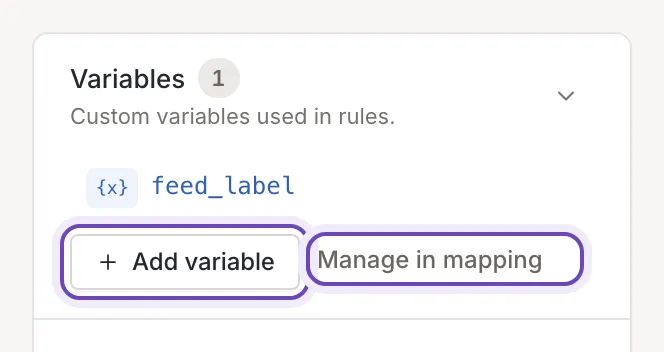
The card is closed each time you open the screen. The arrow at its right end, named Show, opens and closes the list.
- The list holds the variables of this source or channel only. A channel’s card does not list the variables of the sources, but the channel’s rules can still use them (see below).
- With no variable, the card says No variables yet.
- Manage in mapping opens the mapping of the same source or channel. Renaming and removing a variable happen there, not on this card.
Use a variable in a rule
Section titled “Use a variable in a rule”A variable is listed in every field list of the rule editor, under Custom variables: in the field of a condition, in the field an adjustment changes, and in the field lists that pick a value (Fields, custom values and dates).
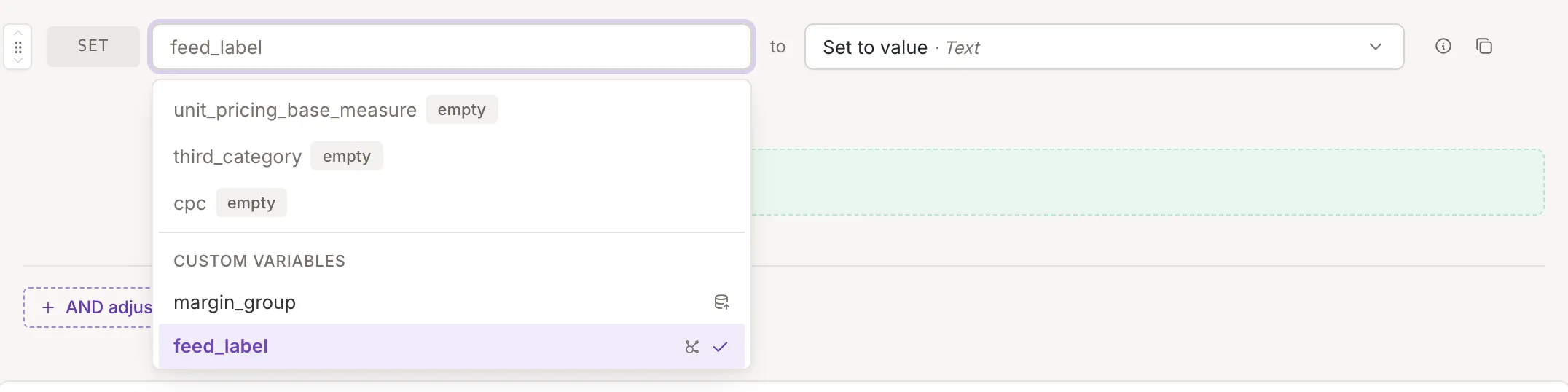
On a channel, the list holds the variables of the inkspace’s sources and the channel’s own. A small icon beside each one says where it comes from: point at it for Variable of a source (the sources are named when there are few) or Variable of this channel.
A variable holds a value only after something sets it: a mapping, or a rule above that sets it. Until then a rule that reads it sees an empty value.
Add a variable
Section titled “Add a variable”An owner or a collaborator sees Add variable in the open card. A viewer sees the list and the link to the mapping, but no button.
- Open the card and click Add variable. A form opens with the cursor in Name.
- Type the name and click Save. Cancel closes the form.
- A message confirms it: Custom variable added. The form closes.
The new variable belongs to the source or channel whose rules screen you are on. It is not mapped to anything yet: fill it from the mapping, or have a rule set it.
Name rules
Section titled “Name rules”A name is checked as you type and when you click Save; a refused name sends nothing. The reason is shown under the field.
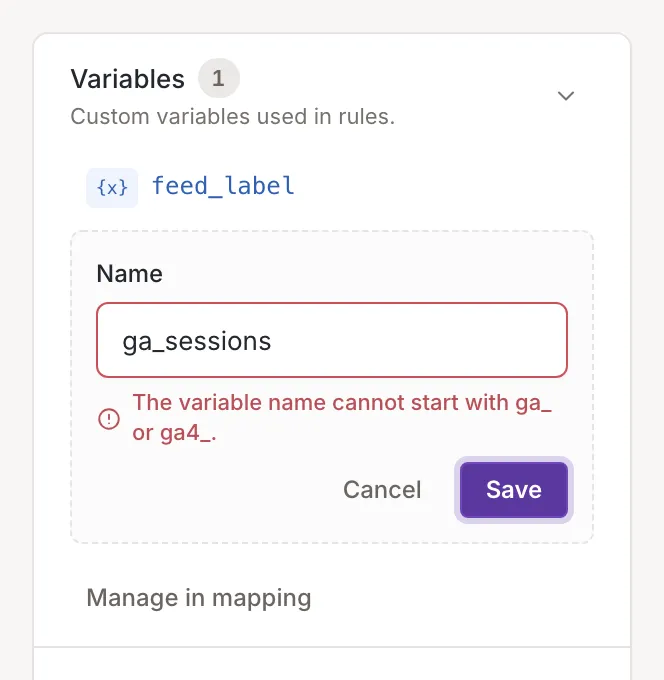
- Letters, digits and the characters
_,:and-only. No spaces. - Not empty: Enter a variable name.
- Not starting with
ga_orga4_, which belong to analytics fields. A name that is onlygaorga4is fine. - Not the name of a field or variable that is already there: A variable with this name already exists. Choose a different name. On a channel this includes the variables of the inkspace’s sources.
A name can still be refused after Save: when it is reserved for a Feedink field (This name is reserved for a Feedink field. Choose a different name.) or while an update of the source or channel is already running (the message says so and asks you to try again after it finishes). A message titled Variable not added then explains why, and the form stays open.