The channels list
Channels lists every channel of the open inkspace. A channel builds the feed of your items for one destination, such as Google or Facebook.
What a row shows
Section titled “What a row shows”
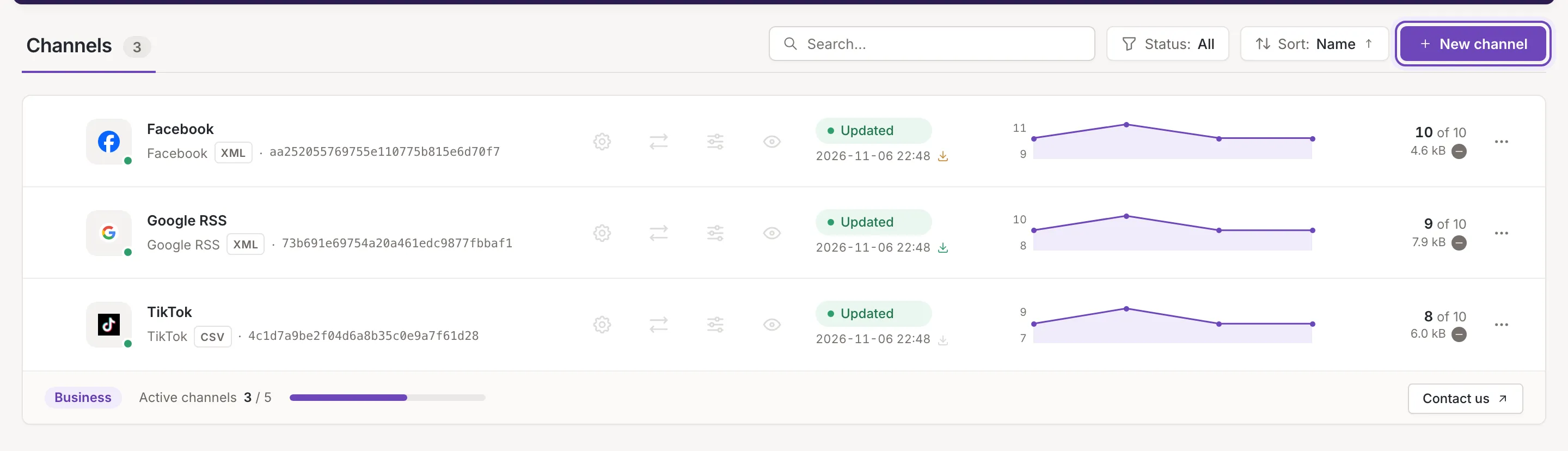
From left to right:
- The destination and the name. The tile shows the destination’s logo with a dot: green for an active channel, grey for an inactive one. The name opens the channel’s settings (Channel settings). Under it are the format’s name, the file type (XML or CSV), the feed’s hash and an icon that copies the feed’s URL (Copy feed URL).
- Four shortcuts. Settings, Mapping, Rules and Preview open the channel’s steps. Preview is off while the channel or the inkspace is updating (it says “Preview is available once the update has finished.”) and while the channel is inactive. See Preview the feed.
- Status. The status chip says what the channel’s last update did, with the time the update finished under it. Channel statuses explains every chip. The download icon beside the time shows how the feed is used: green if it was downloaded in the last 24 hours, amber in the last 7 days, grey if not in the last 7 days. Point at it for the date of the last download. See Recent updates and downloads.
- Items. A chart of the number of items in the feed after each update of the last 7 days. Point at the chart to see the count and the time of one update. Beside it are the number of items in the feed, “of” the number of items in the inkspace (point at it for the share), the size of the feed file and an arrow showing whether the last update raised or lowered the count. A channel that has not finished an update yet shows a dash.
- The row menu. The three dots open the actions of the row: Row menu and bulk actions.
A viewer sees the same rows, but no checkboxes and no charts.
Search, filter and sort
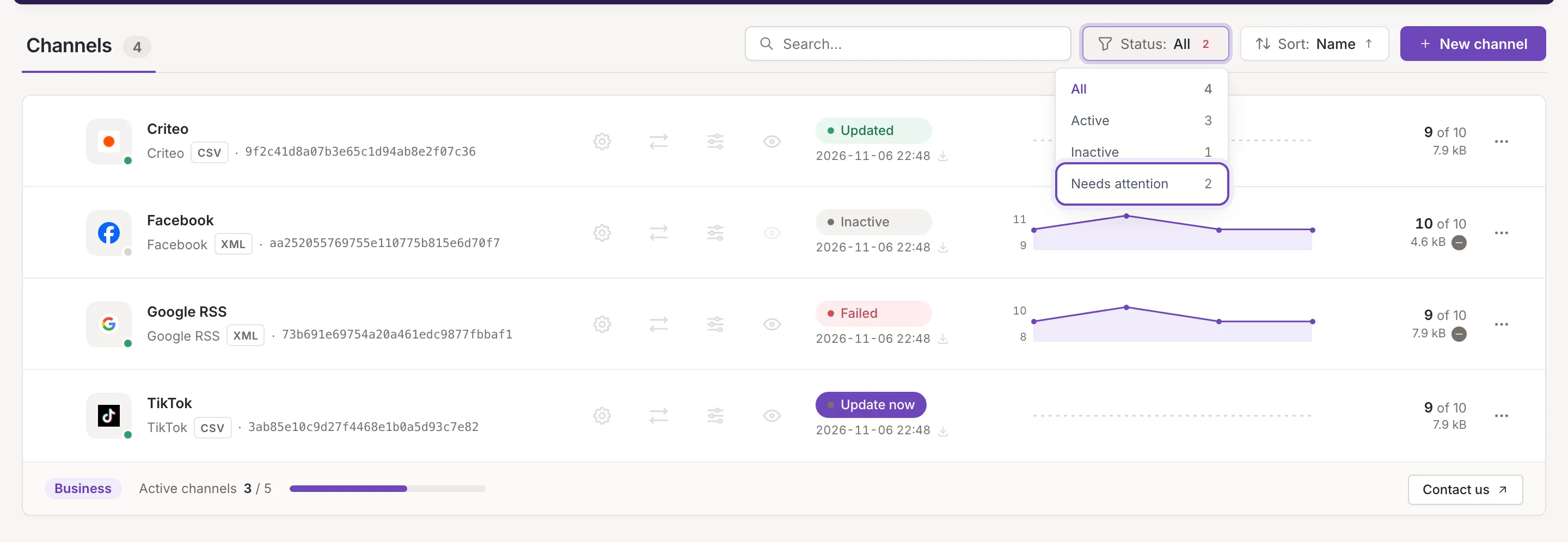
Section titled “Search, filter and sort”The tools above the list appear once the inkspace has a channel. The number beside the title follows them: it counts the channels the list shows.
- Search. Search… keeps the channels whose details contain the text, for example the name, the format or the hash of the feed. It ignores case.
- Status. Status: opens a menu with All, Active, Inactive and Needs attention, each with the number of channels it holds. The numbers count all channels, not only those the search leaves. The chosen filter is kept in the address of the page. Needs attention holds the active channels whose chip reads Failed, Aborted or Update now.
- Sort. The list is sorted by name, ascending. A click on Sort: reverses the order.
When nothing matches, the list says No matching channels. Click Clear filters to clear the search and the filter.
New channel opens Add a channel. Only an owner or a collaborator sees it.
Plan usage
Section titled “Plan usage”The footer of the list shows your plan, how many channels are active and your plan’s limit for them (Active channels, for example 4 / 5). Point at the bar for the share of the limit. The bar turns amber from 80 percent.

Contact us opens a request about your plan, for an owner or a collaborator. Only active channels count. What happens at the limit is in Row menu and bulk actions.
When the list is empty
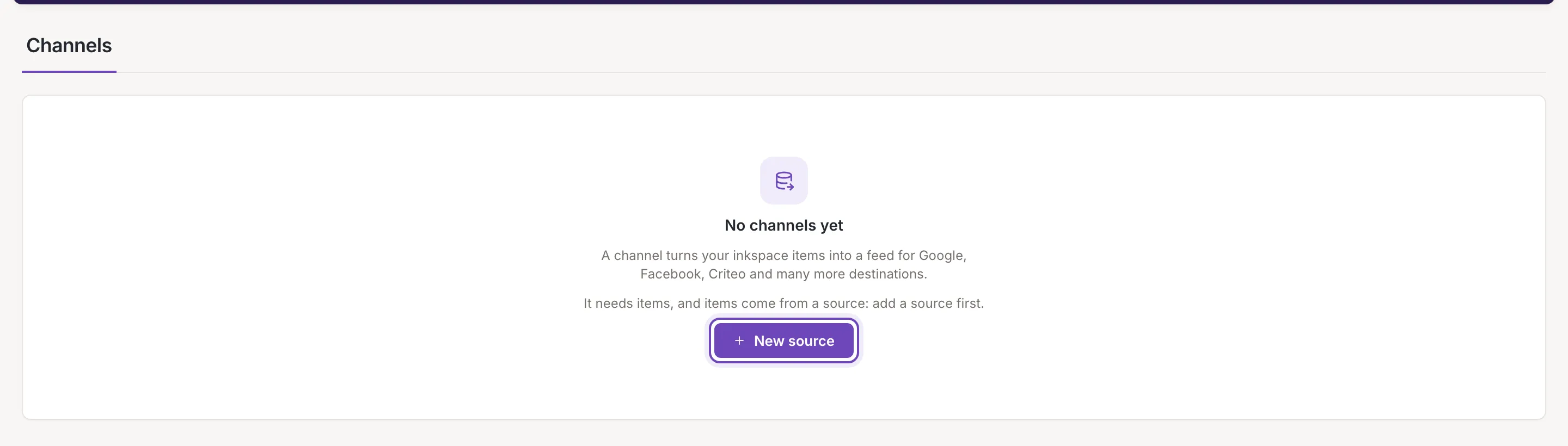
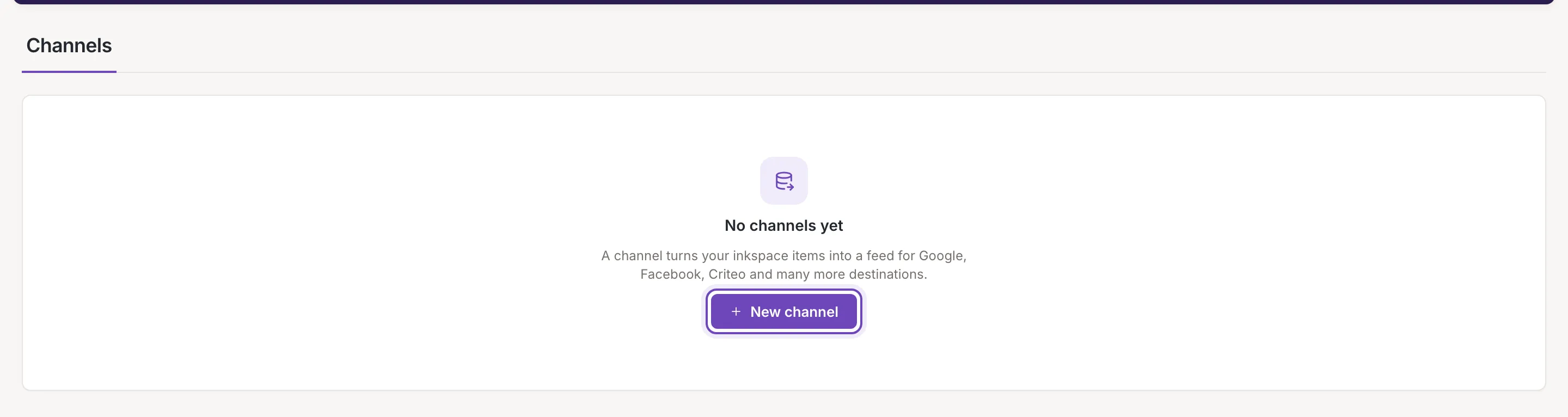
Section titled “When the list is empty”An inkspace without channels shows No channels yet and, for an owner or a collaborator, the button New channel. A viewer sees no button.
A channel is built from the items of the inkspace, and items come from sources. An inkspace without a source says so and offers New source in place of the channel button.