
Channel settings
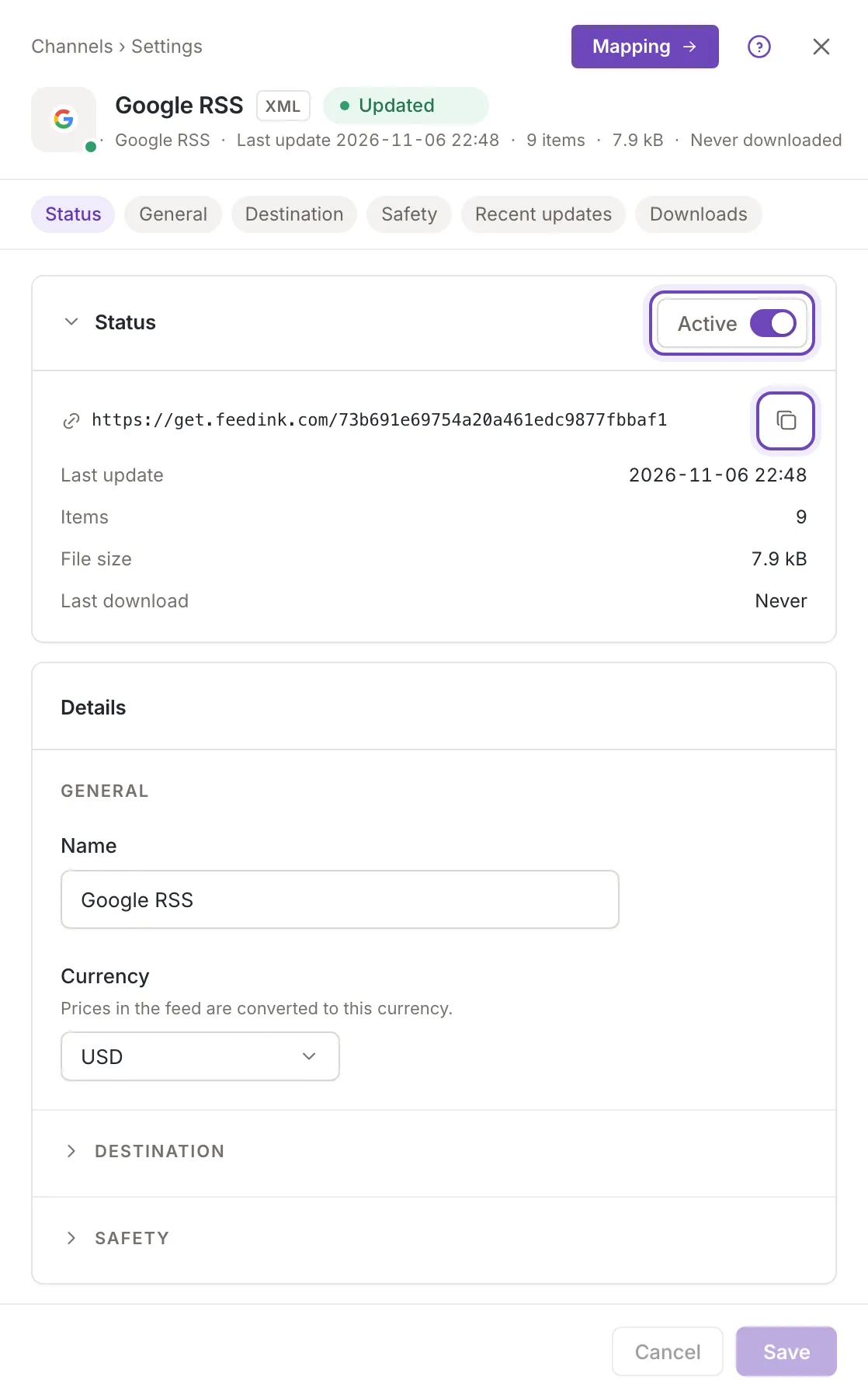
A channel’s settings are where you rename it, change its currency or format, switch it on or off, copy its feed URL and tell Feedink when to hold back a feed that changed too much. They open in a panel over the channels list.
The channel panel
Section titled “The channel panel”Every screen of a channel opens in the same panel, with the same head.
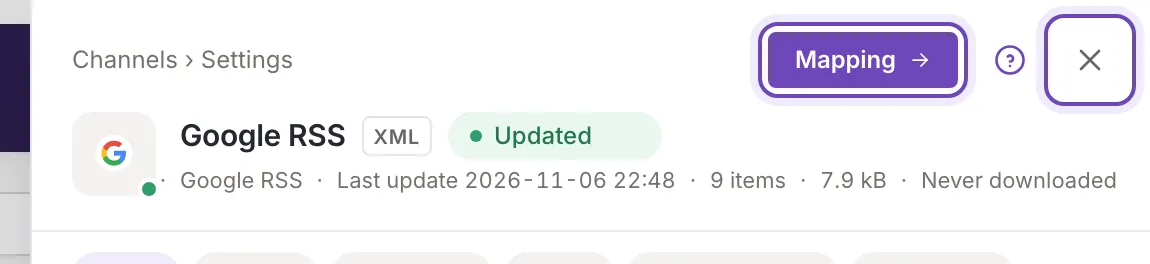
- The first line names the list the panel opened from and the step you are on. Next to it are the button for the next step and the close button, which returns to the list.
- The tile shows the destination’s logo with a green dot while the channel is active and a grey one when it is inactive. Then come the channel’s name, its file type (XML or CSV) and its status.
- The line under the name gives the format, the time of the last update, the number of items and the size of the last feed file, and the time of the last download (or Never downloaded).
A channel has four steps, in this order: Settings, Mapping, Rules and Preview. The head’s button takes you to the next one (Settings to Mapping, Mapping to Rules, Rules to Preview) and the arrow goes back one step. Mapping and Rules fill the whole screen. Preview, the last step, is not offered while the channel is inactive (the Rules step has no Preview button then). You can also reach every step from the shortcut circles on the channel’s row in the list; there Preview is off while the channel or the inkspace is being updated, and while the channel is inactive.
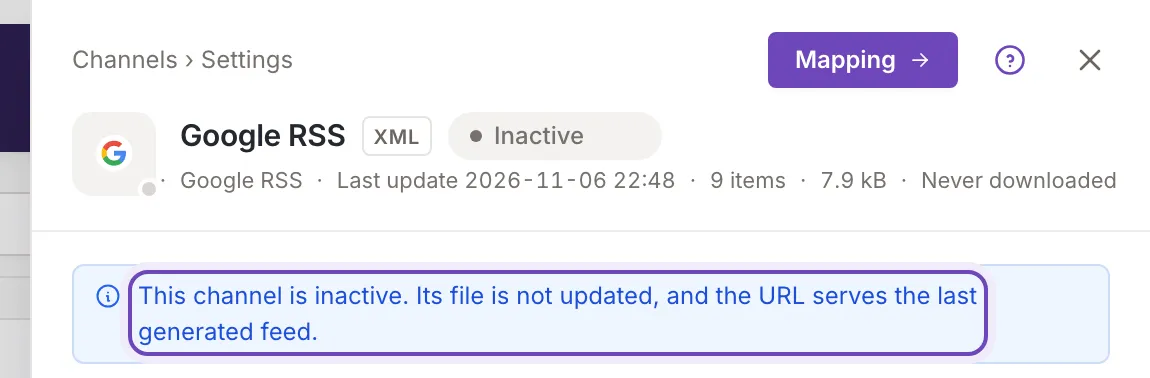
Under the head, a notice appears when the channel needs your attention, for example when it is inactive, being updated or its last update failed. Channel statuses explains each one.
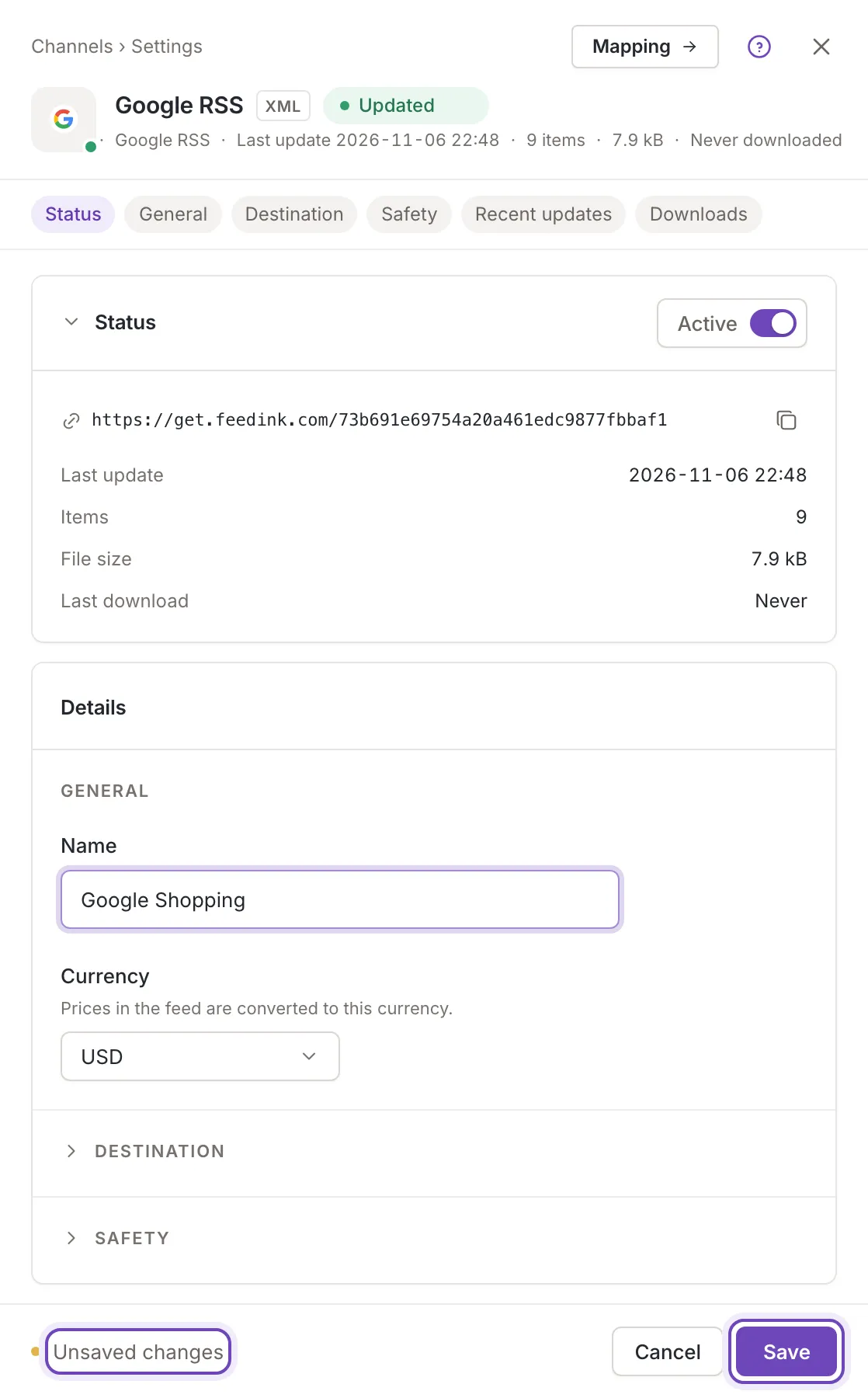
Settings is one column of cards. The row of chips under the head (Status, General, Destination, Safety, Recent updates and Downloads) jumps to a card; the first, Recent updates and Downloads open unfolded, Destination and Safety folded. Click a title to fold or unfold a card.
Feed URL
Section titled “Feed URL”Status shows the address of the channel’s feed: the URL you give to the destination, for example to Google Merchant Center. Hover to see it in full. The copy button, Copy feed URL, copies it and Feedink says Feed URL copied to the clipboard.. The same URL is on the channel’s row in the list and on the Preview step, where it can also be opened and downloaded: see Preview the feed.
- The file behind the URL is built again after every update of the inkspace. A channel has no schedule of its own.
- Until the channel has had a successful update, the card says There is no feed at this address yet. It appears after the first inkspace update.
- If an update fails, the URL keeps serving the previous feed.
- An inactive channel is not updated; its URL keeps serving the last feed that was generated.
- When you delete the channel, its URL stops working.
Below the URL are the time of the last update, the number of items and the size of the last feed file, and the last download.
Owners and collaborators also see the Active switch in this card. It works at once, without Save: Feedink says Channel activated. or Channel deactivated. When your plan’s limit of active channels is reached, activating is refused and a toast says how many you can still activate. See Row menu and bulk actions.
Name and currency
Section titled “Name and currency”The Details card starts with General. Name needs at least 3 characters and at most 50. Currency is the currency the prices in the feed are converted to; any currency of the list works.
Destination
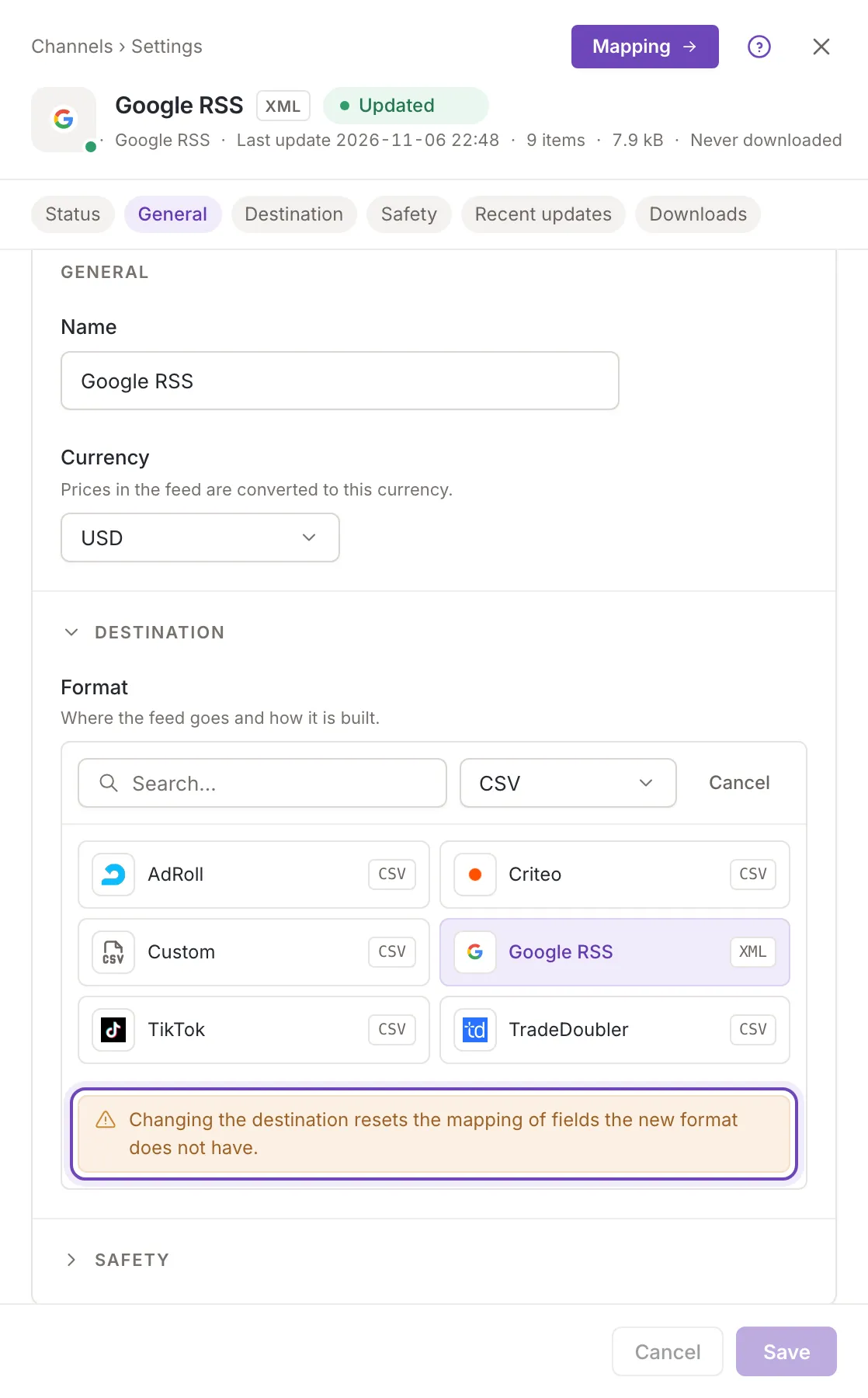
Section titled “Destination”Under Destination, Format shows the channel’s current format. Change opens the list of formats, the same one as in Choose a channel format; its own Cancel closes it without a change. Picking a format does not save it: use Save, then check the channel’s Mapping step, because fields the new format does not have are removed from the mapping.
No other setting of a format is edited here.
Block channel on difference
Section titled “Block channel on difference”Block channel on difference protects your feed from a sudden change in the number of items. Keep the last feed when the item count changes too much. Under Safety, switch it on and set two limits with the slider:
- Lower limit is how many items the feed may lose, from 0% to 100%, and reads, for example, 20 fewer items. At 0 it reads Don't block if fewer: a drop is never blocked.
- Upper limit is how many items it may gain, and reads, for example, 30 more items. At 0 it reads Don't block if more.
The slider is off while the switch is off.
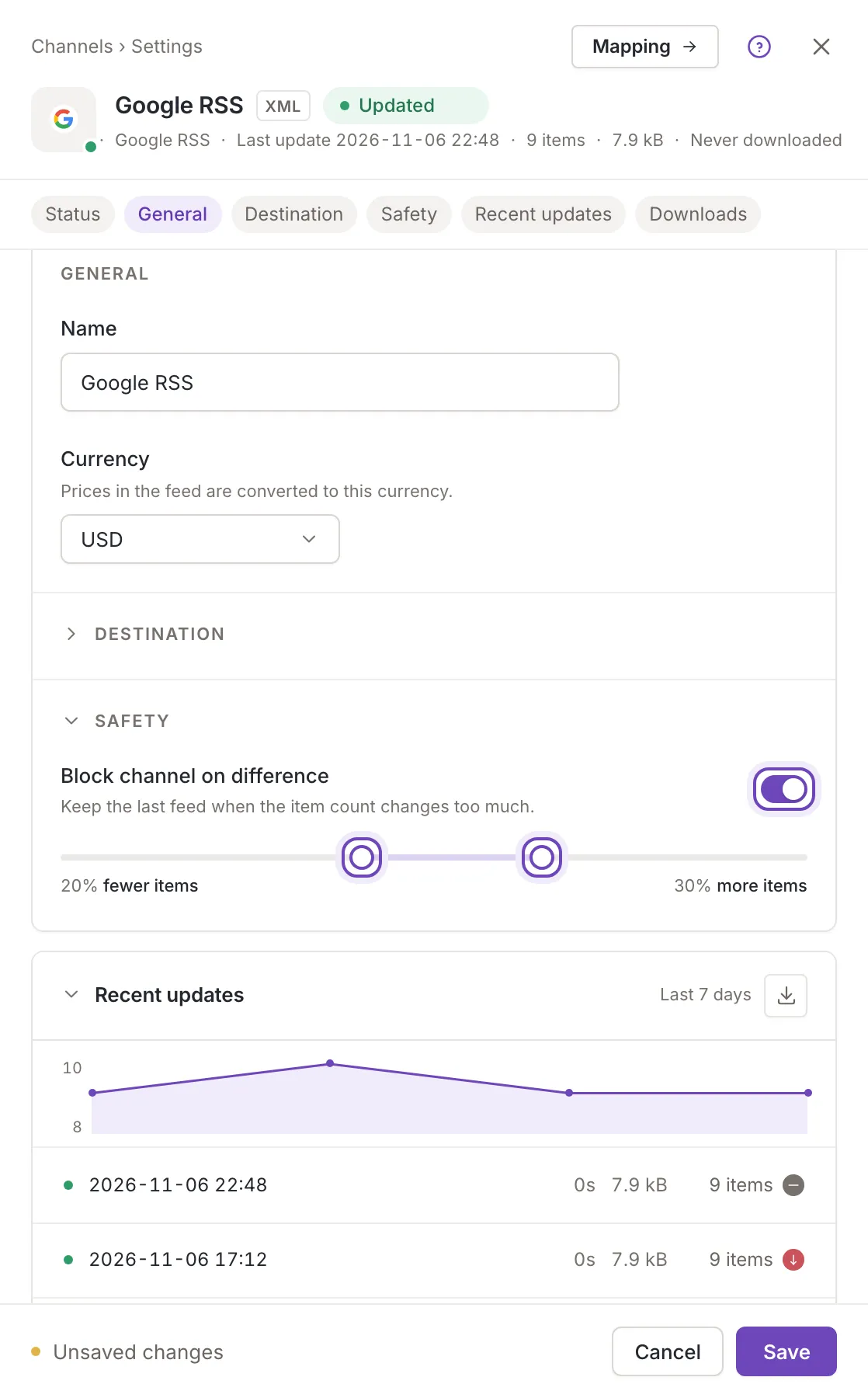
When the number of items in a new feed differs from the previous one by more than a limit, the update of this channel stops: its status reads Failed, the URL keeps serving the previous feed, the Preview step says Channel blocked and the update details give the two counts. Look at your sources and rules for the cause; if the change is wanted, widen the limit. See Why a channel update failed.
Save your changes
Section titled “Save your changes”Changes to the name, currency, format and the safety settings are not applied until you click Save. While there is something to save, the footer says Unsaved changes. Cancel goes back to the saved channel. Save is off while the name is invalid. Feedink says Channel saved. or, if the save is refused, shows a toast titled Request failed with the reason. If you leave with unsaved changes, Feedink asks first.
If the channel is changed somewhere else while you edit it (another person, or another window), Feedink keeps your edits and says This channel was changed elsewhere. Your unsaved changes are kept. Load the new version drops your edits and shows the new version; Keep my changes keeps them.
Recent updates and downloads
Section titled “Recent updates and downloads”The Recent updates and Downloads cards of this panel are described in Recent updates and downloads.
Clone a channel
Section titled “Clone a channel”The card Clone channel says Same settings, mapping and rules. Its Clone button opens the clone window: see Clone a channel.
Delete a channel
Section titled “Delete a channel”The card Delete channel says The feed URL stops working. Delete asks you to confirm, and deleting cannot be undone. It is off while you have unsaved changes (Save or cancel the changes first.). If an update of the channel or of the inkspace is running, the request is refused; try again when it has finished. Afterwards you are back on the list.
Who can do what
Section titled “Who can do what”Owners and collaborators can change everything above. A viewer sees the same panel with the fields read-only, no footer, no Active switch, and no Clone or Delete; a viewer can still copy the feed URL.