
Create an account
You create a Feedink account on one screen in three steps: your details, the code Feedink e-mails you, and three optional questions. You do not need to be signed in, and there is nothing to pay at this point.
Create your account
Section titled “Create your account”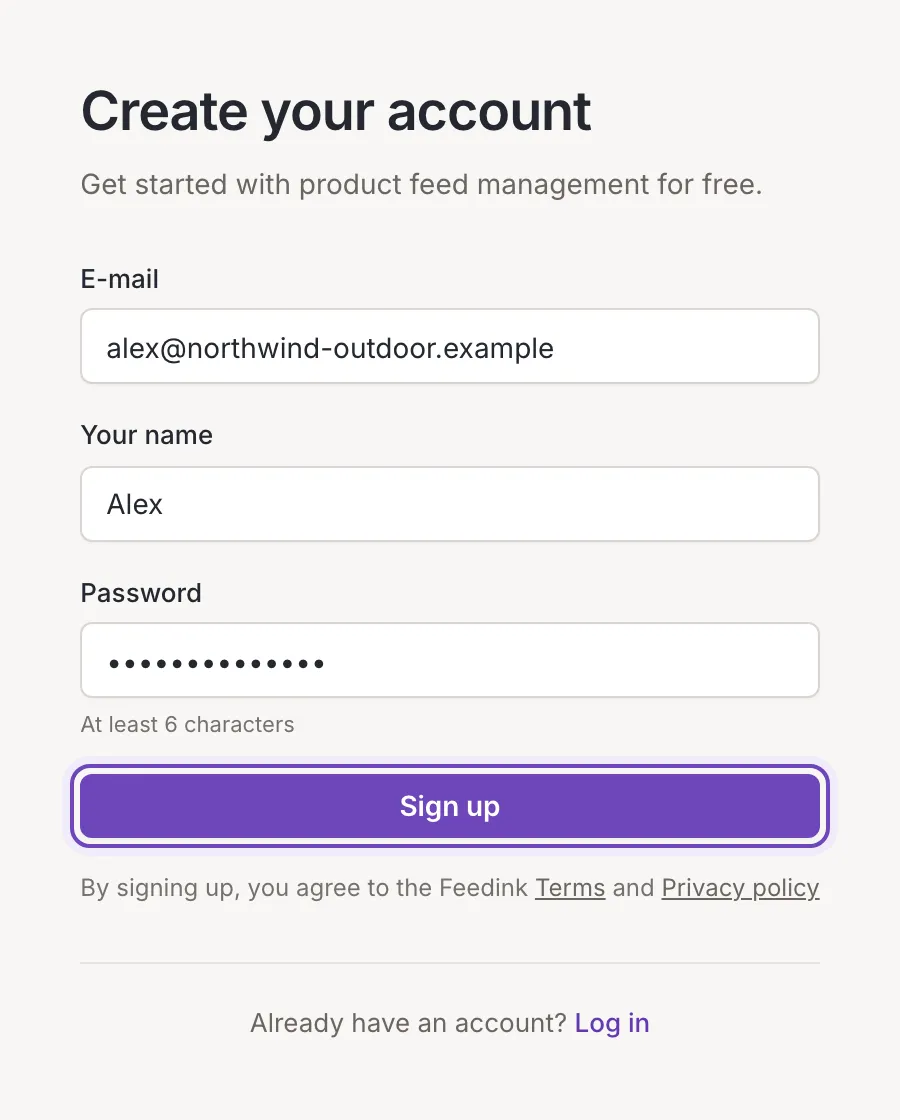
Fill in three fields:
- E-mail: the address you will log in with. Use your company address.
- Your name: your first name. Feedink greets you with it.
- Password: at least 6 characters.
Click Sign up. Under the button, the screen says that by signing up you agree to Feedink’s Terms and Privacy policy; both links open in a new tab. If you already have an account, use Log in at the bottom (see Log in and out).
A field you leave empty shows Required, and an address that is not an e-mail address shows Enter a valid e-mail address. Nothing is sent until all three fields are valid. The password is not checked against any other rule than its length.
If you are already signed in, the sign-up screen is not shown: Feedink opens your inkspaces list instead. The addresses
of the older sign-up (/register) lead to this screen too.
Verify your e-mail
Section titled “Verify your e-mail”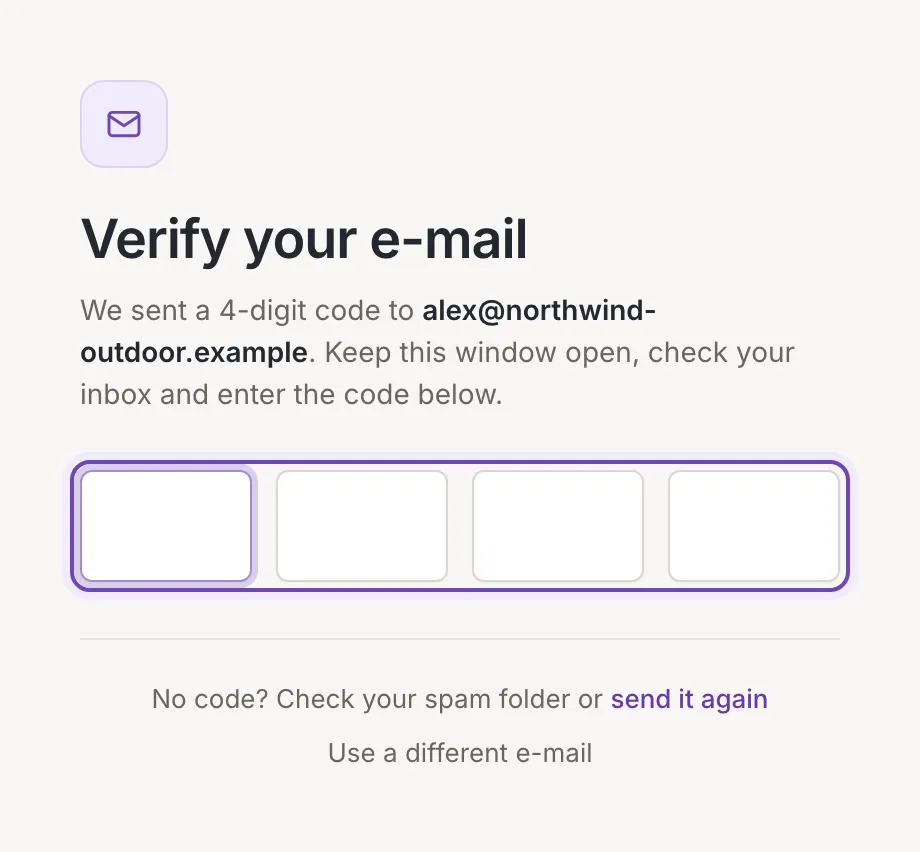
After Sign up the screen changes to Verify your e-mail. Feedink has sent a 4-digit code to the address you typed (it is shown in bold, so you can check it). Keep this window open, find the e-mail and enter the code.
- Type the digits one after another: each box passes the focus to the next one. Anything that is not a digit is dropped.
- Paste the whole code into the first box and it fills the row.
- Backspace in an empty box clears the box before it and goes back to it.
- At the fourth digit the code is sent on its own, there is no button to press. While Feedink checks it, the boxes are disabled and the screen says Creating your account…. When the code is accepted, your account exists and you are signed in.
If the e-mail does not arrive, check your spam folder or click send it again: Feedink sends a new code, clears the boxes and shows A new code has been sent.. If the address is wrong, click Use a different e-mail: you are back on the first step with what you typed still in the fields.
Answer three questions (optional)
Section titled “Answer three questions (optional)”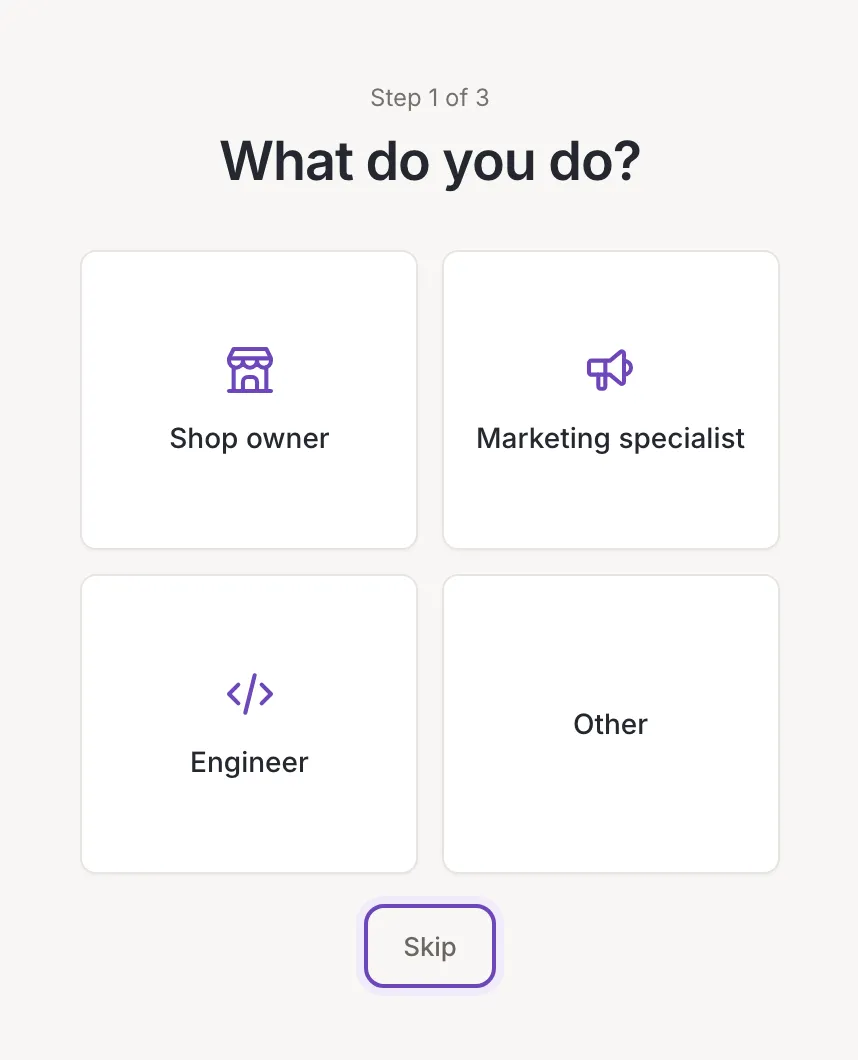
Once the account is created, Feedink asks three short questions about you and your business. Each one is on its own screen, headed, for example, “Step 1 of 3”:
- What do you do?: shop owner, marketing specialist, engineer or other.
- How big is your company?: small (up to 10 employees), medium (over 10), large (many more than 10), or that you do not represent a company.
- What industry is your business in?: fashion, electronics, home and garden, beauty and health, lifestyle or other.
Click an answer to save it and move on, or click Skip to move on without answering. Every question is optional, and an answer that could not be saved does not stop you. After the third screen Feedink opens your inkspaces list, where you create your first inkspace.
Errors and limits
Section titled “Errors and limits”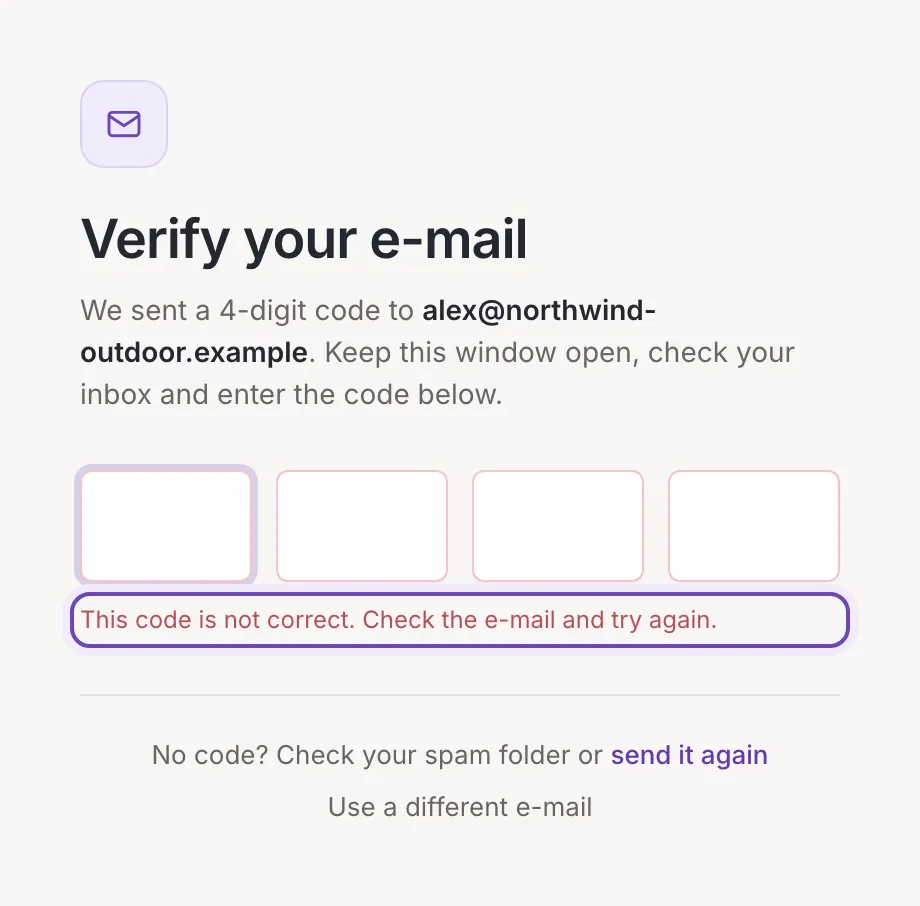
- Temporary e-mail addresses. Addresses of disposable e-mail services are refused on the first step: the field shows This domain cannot be used to sign up. Use your company e-mail address. and nothing is sent. Use your company address.
- An address that already has an account. A message titled Could not sign up says An account with this e-mail already exists. Log in instead. Log in with that address, or use Reset your password if you forgot the password.
- A wrong code. The boxes turn red, are cleared, and the screen says This code is not correct. Check the e-mail and try again. Type the code again.
- An old code. The screen says This code has expired. Send a new one. Click send it again and use the newest e-mail.
- Anything else. If something else goes wrong, the message titled Could not sign up says Could not create the account. Try again in a moment.