
List actions
List actions are the List group of the action select of an adjustment. They are made for fields that hold several values, such as the additional images of an item. A field with a single value is read as a list of one element; an action that needs a list and finds a text may leave it as it is. The examples use made-up values.
Where an action asks for a position, you choose it from a list, or switch to a field that holds the position. The list has, from the beginning, First to Tenth, and from the end Last, Next to last, and Third to Fifth from the end.
Pick parts of a list
Section titled “Pick parts of a list”| Action | What it does |
|---|---|
| Keep one element | keeps one element, chosen by its position; the field then holds that single value |
| Keep a range | keeps the elements from one position to another |
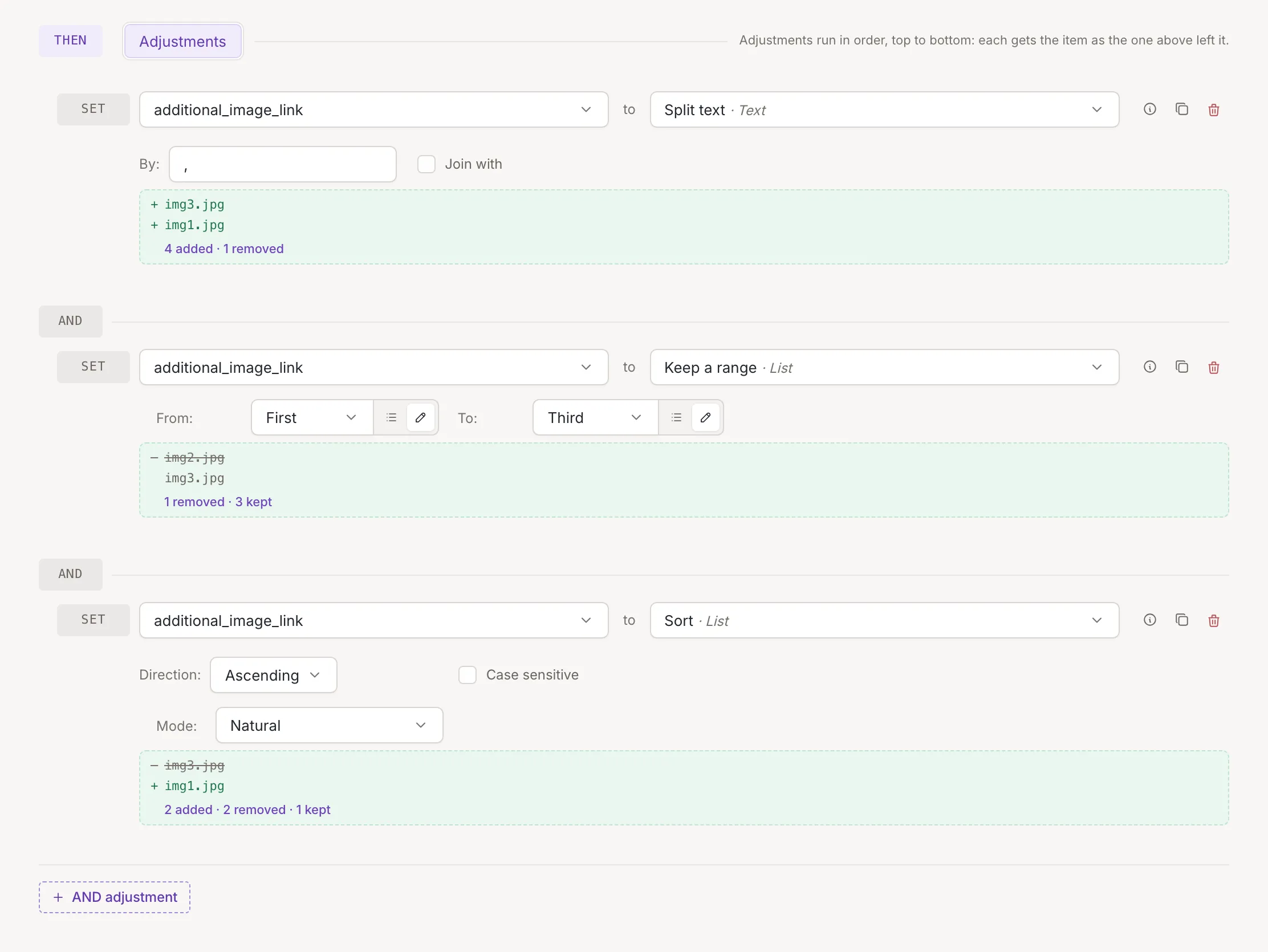
With Keep one element, a position beyond the end of the list leaves the field empty. With Keep a range, both ends are included: From: First and To: Third keep the first three elements. Choosing Last as the end keeps everything up to the last element.
Keep one element
Section titled “Keep one element”Keeps the element at the chosen position; the field then holds that single value. A position past the end leaves the field empty.
| Field before | Position | Field after |
|---|---|---|
[XS, S, M, L, XL] |
Second | S |
[XS, S, M, L, XL] |
Last | XL |
[XS, S, M, L, XL] |
Tenth | empty |
Keep a range
Section titled “Keep a range”Keeps the elements from one position to another, both ends included. The start counts from the beginning, or from the end with the last positions of the list.
| Field before | From: | To: | Field after |
|---|---|---|---|
[XS, S, M, L, XL] |
First | Third | [XS, S, M] |
[XS, S, M, L, XL] |
Second | Last | [S, M, L, XL] |
[XS, S, M, L, XL] |
Second | Next to last | [S, M, L] |
Add, filter and join
Section titled “Add, filter and join”| Action | What it does |
|---|---|
| Add to the end | adds a value after the last element |
| Add to the start | adds a value before the first element |
| Filter | Removes the list elements that match the given value. |
| Join | joins the elements into one text |
- The value to add is a field or a custom value, chosen as in Fields, custom values and dates. If the field held a single text, it becomes a list of that text and the new value.
- Filter takes a value, which can be a field that holds a list, and removes the elements equal to it:
summer,trendingfiltered bysummergivetrending. Capital letters are ignored unless Case sensitive is ticked. - Join puts the separator under With: between the
elements:
a.jpg,b.jpgjoined with|givea.jpg|b.jpg. A field that is not a list is left as it is.
Add to the end
Section titled “Add to the end”Adds a value after the last element. A single text becomes a list of that text and the new value.
| Field before | Value to add | Field after |
|---|---|---|
[hiking, camping] |
trail |
[hiking, camping, trail] |
hiking |
trail |
[hiking, trail] |
Add to the start
Section titled “Add to the start”Adds a value before the first element. A single text becomes a list of the new value and that text.
| Field before | Value to add | Field after |
|---|---|---|
[camping, trail] |
hiking |
[hiking, camping, trail] |
trail |
hiking |
[hiking, trail] |
Filter
Section titled “Filter”Removes the elements that equal the value, whole element against whole value; capital letters are ignored unless Case sensitive is ticked. A list left with one element becomes that element as a text; with none, the field is empty.
| Field before | Value | Case sensitive | Field after |
|---|---|---|---|
[summer, trending, sale, Summer] |
summer |
off | [trending, sale] |
[summer, trending, sale, Summer] |
summer |
ticked | [trending, sale, Summer] |
[summer, summer sale] |
summer |
off | summer sale |
Joins the elements into one text, with the separator between them.
| Field before | With: | Field after |
|---|---|---|
[front.jpg, side.jpg] |
; |
front.jpg;side.jpg |
[S, M, L] |
- |
S-M-L |
Sort orders the elements.
- Direction: Ascending or Descending.
- Case sensitive is off by default, so
alpha,Beta,Gammastay in that order. Ticked, in Text mode, capital letters come first:Beta,Gamma,alpha. - Mode: says how elements are compared. Text compares them
letter by letter, so
10comes before2. Numeric compares them as numbers:2,3,10. Natural puts numbers inside texts in their natural order:img1,img2,img10. Natural ignores capital letters whether or not the box is ticked.
| Field before | Mode | Field after |
|---|---|---|
[2, 10, 3] |
Text | [10, 2, 3] |
[2, 10, 3] |
Numeric | [2, 3, 10] |
[img10, img2, img1] |
Natural | [img1, img2, img10] |
Sort with related fields sorts the list in the same way and puts the elements of the fields listed under Related fields to sort: in the same order. Use it for lists that belong together, such as image links and their captions: the first list decides the order, and each related list follows it, shortened or filled with empty values to the same length.
Sort with related fields
Section titled “Sort with related fields”Sorts the list and moves the elements of the related fields along with it. The settings are those of Sort.
| Field before | Related field before | Field after | Related field after |
|---|---|---|---|
[b.jpg, c.jpg, a.jpg] |
[Back, Side, Front] |
[a.jpg, b.jpg, c.jpg] |
[Front, Back, Side] |
[b.jpg, c.jpg, a.jpg] |
[Back] |
[a.jpg, b.jpg, c.jpg] |
[empty, Back, empty] |
Find lowest, highest and position
Section titled “Find lowest, highest and position”| Action | What it does |
|---|---|
| Find lowest | finds the lowest number in a list |
| Find highest | finds the highest number in a list |
| Find position | finds where a value first appears in a list |
- Find lowest and Find highest read the list from the field under Of: and write the result into the field of the row. The mode is Value (the number) or Position (its position).
- Find position looks for Find first occurrence of: a value In: a field that holds a list, with the options Case sensitive and Use regex. The result is the position of the first match, or empty when there is none.
- Positions start at 0 for the first element: in
a.jpg,b.jpg,c.jpg, the position ofc.jpgis 2.
Find lowest
Section titled “Find lowest”Finds the lowest number in the list under Of: and writes it, or its position, into the field of the row. Elements that are not numbers are ignored; with no number in the list the field is empty. With equal elements, the first one counts.
| List | Mode | Field after |
|---|---|---|
[12, 3, 25, 7] |
Value | 3 |
[12, 3, 25, 7] |
Position | 1 |
[n/a, 8, x] |
Value | 8 |
Find highest
Section titled “Find highest”Finds the highest number in the list under Of: and writes it, or its position, into the field of the row. Numbers are
compared as numbers, so 10 is higher than 2.
| List | Mode | Field after |
|---|---|---|
[12, 3, 25, 7] |
Value | 25 |
[12, 3, 25, 7] |
Position | 2 |
[2, 10] |
Value | 10 |
Find position
Section titled “Find position”Writes the position of the first element that equals the value. Without regex the whole element must equal it; with Use regex the value is a regular expression and a match anywhere in the element counts. With no match the field is empty.
| List | Find first occurrence of: | Case sensitive | Use regex | Field after |
|---|---|---|---|---|
[front.jpg, side.jpg, back.jpg] |
side.jpg |
off | off | 1 |
[front.jpg, side.jpg, back.jpg] |
SIDE.JPG |
ticked | off | empty |
[front.jpg, side.jpg, back.jpg] |
^s |
off | ticked | 1 |
Remove duplicates and compare lists
Section titled “Remove duplicates and compare lists”| Action | What it does |
|---|---|
| Remove duplicates | removes repeated elements, keeping the first of each |
| Count elements | writes the number of elements of a field |
| Keep common elements | keeps the elements that are also in the other lists |
| Remove common elements | removes the elements that are also in the other lists |
| Reverse | reverses the order |
| Sum | adds up the numbers of the list |
- Remove duplicates has a Mode: to choose how elements are compared: as text, as numbers or in the Regular way.
- Count elements and the two comparing actions take fields under Of:.
The comparing actions take a list of fields, which you add to with the plus button
(Add a field) and reorder by dragging. They need at least one field.
A single value counts as one element, so
Count elementsof a field with one text gives 1. - Sum treats an element that is not a number as 0.
Remove duplicates
Section titled “Remove duplicates”Removes repeated elements and keeps the first of each. The text mode tells red from Red.
| Field before | Mode | Field after |
|---|---|---|
[red, blue, red, Red] |
Text | [red, blue, Red] |
[1, 1.0, 2, 01] |
Text | [1, 1.0, 2, 01] |
[1, 1.0, 2, 01] |
Numeric | [1, 2] |
Count elements
Section titled “Count elements”Writes the number of elements of the list under Of:. A single text counts as one element.
| List | Field after |
|---|---|
[S, M, L] |
3 |
S |
1 |
Keep common elements
Section titled “Keep common elements”Keeps the elements of the field that are also in every list under Of:. Capital letters count: Red is not red.
| Field before | Of: | Field after |
|---|---|---|
[red, blue, green] |
[blue, green, pink] |
[blue, green] |
[Red, blue] |
[red, blue] |
[blue] |
Remove common elements
Section titled “Remove common elements”Removes the elements of the field that are also in any list under Of:. Capital letters count here too.
| Field before | Of: | Field after |
|---|---|---|
[red, blue, green] |
[blue, green, pink] |
[red] |
[Red, blue] |
[red] |
[Red, blue] |
Reverse
Section titled “Reverse”Reverses the order of the elements.
| Field before | Field after |
|---|---|
[front.jpg, side.jpg, back.jpg] |
[back.jpg, side.jpg, front.jpg] |
[S, M, L] |
[L, M, S] |
Adds up the numbers of the list. An element that is not a number counts as 0.
| Field before | Field after |
|---|---|
[10, 2.5, 4] |
16.5 |
[3, 4.5, n/a] |
7.5 |