Recent updates of a source
The Recent updates card in a source’s settings lists the updates of the last seven days: when each one ended, how long it took, how many items it read and how that compares with the update before. It is the place to see whether a source is steady, and to open the details or the file of one update.
The list and the chart
Section titled “The list and the chart”The card opens unfolded, after Status and Details (Source settings); click its title to fold it. The window, Last 7 days, starts at midnight seven days ago.
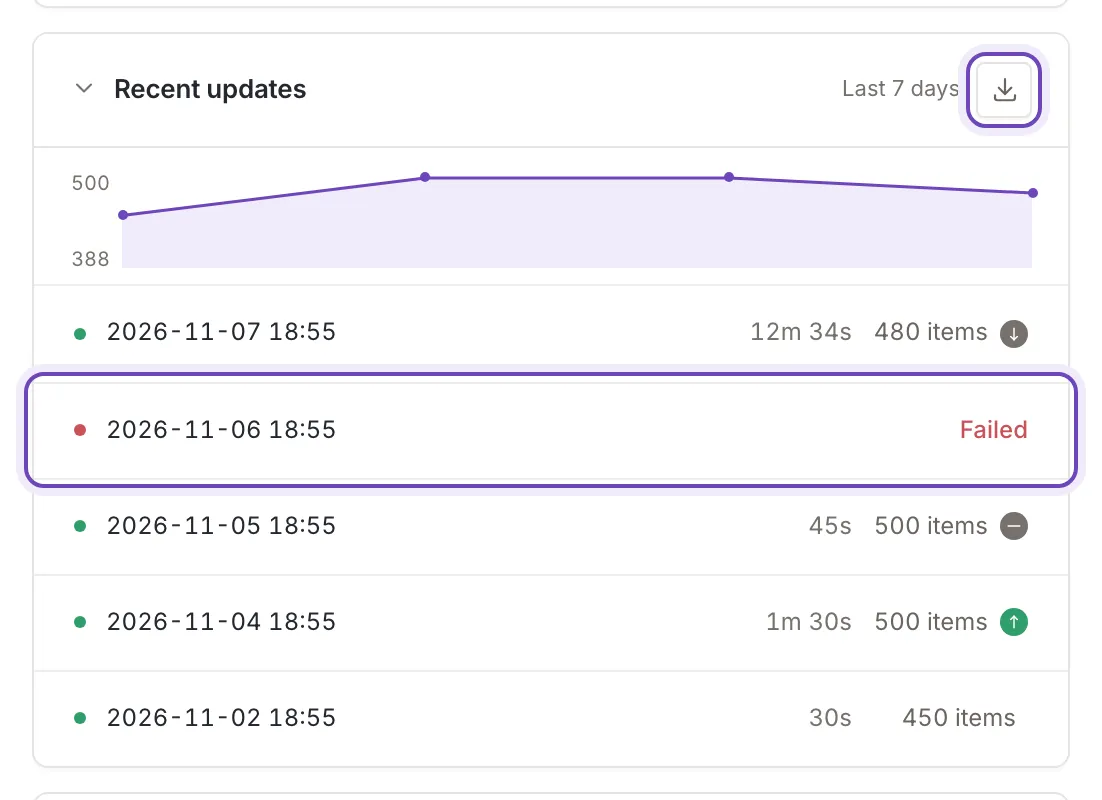
Each row is one update, newest first:
- A dot: green for an update that succeeded, red for Failed, amber for Aborted, grey for Canceled or Cancelling…. An update that is still going shows as Updating or Queued.
- The date and time the update ended, in the inkspace’s time zone.
- For an update that succeeded, how long it took, the number of items it read and an arrow that compares the count with the update that succeeded before it: More items than in the previous update, Same number of items as in the previous update, Fewer items than in the previous update or At least 10% fewer items than in the previous update. Point at the arrow for the change and both counts, for example “+11.1% since the previous update (450 → 500 items)”. The oldest update on the list has nothing to compare with. For any other update the row shows its status word instead of the count.
- Two buttons when you point at the row: Update details and Download (see below).
Above the rows, the chart draws the item counts of the updates that succeeded, oldest on the left, and two numbers at its side, the ends of its scale. It appears once there are at least two such updates; with one update the card shows a flat line with a dot. Point at it and the row of the matching update is marked. The card reads again by itself when an update of this source ends.
Download the file or the CSV
Section titled “Download the file or the CSV”Update details opens the steps of that update, the same panel the status chip opens (When a source update fails). Download opens the file Feedink read in that update in a new tab. It is only there for an update that left a file, and an owner, a collaborator and a viewer can use it.
The icon beside the period, Download as CSV, saves the list as a CSV file. It has the columns Date, Duration, Items and Status, one row per update, separated by semicolons. The duration is in seconds and the dates are in your computer’s time zone. The icon is there only when the list has rows.
Empty and error states
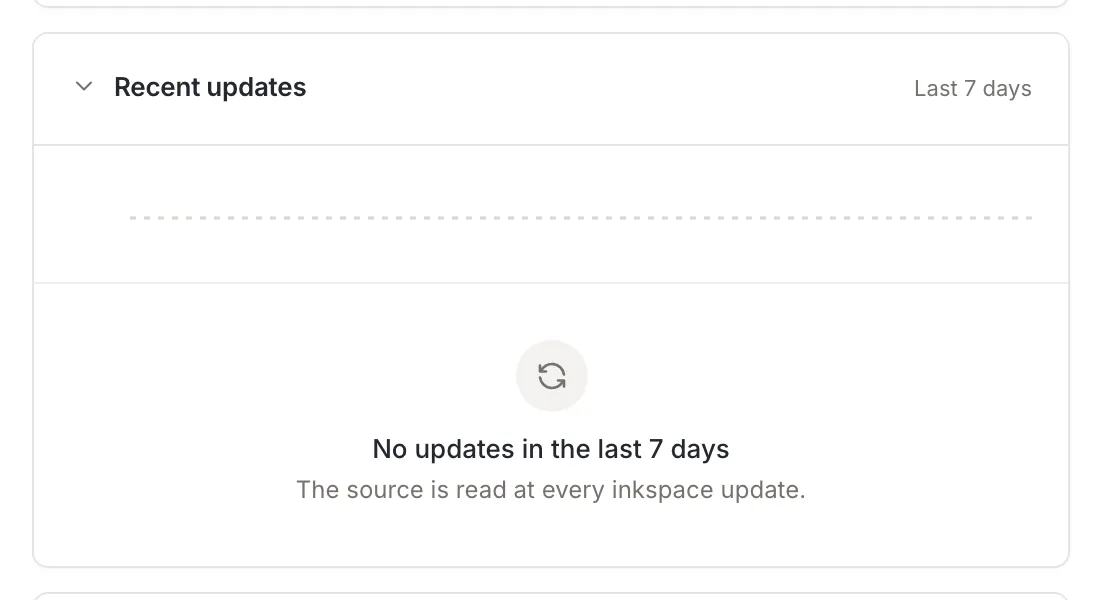
Section titled “Empty and error states”While the updates load, the card shows a grey chart and four grey rows. A source with no update in the seven days shows No updates in the last 7 days: The source is read at every inkspace update.
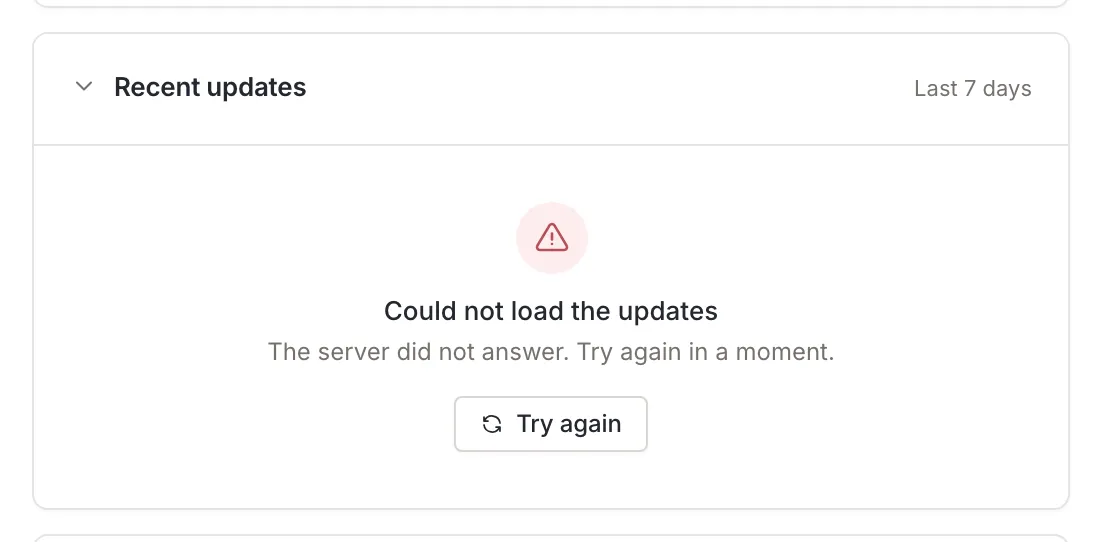
If the list cannot be read, the card says Could not load the updates (The server did not answer. Try again in a moment.) and has a button, Try again. There is no chart and no CSV icon then.