
Your activity in all inkspaces
At the bottom of your profile, the Your activity in all inkspaces card lists what you changed in Feedink: sources, channels, rules, inkspaces and your own log-ins, newest first. It covers every inkspace you work in, so you can see where you made a change and when.
What the list shows
Section titled “What the list shows”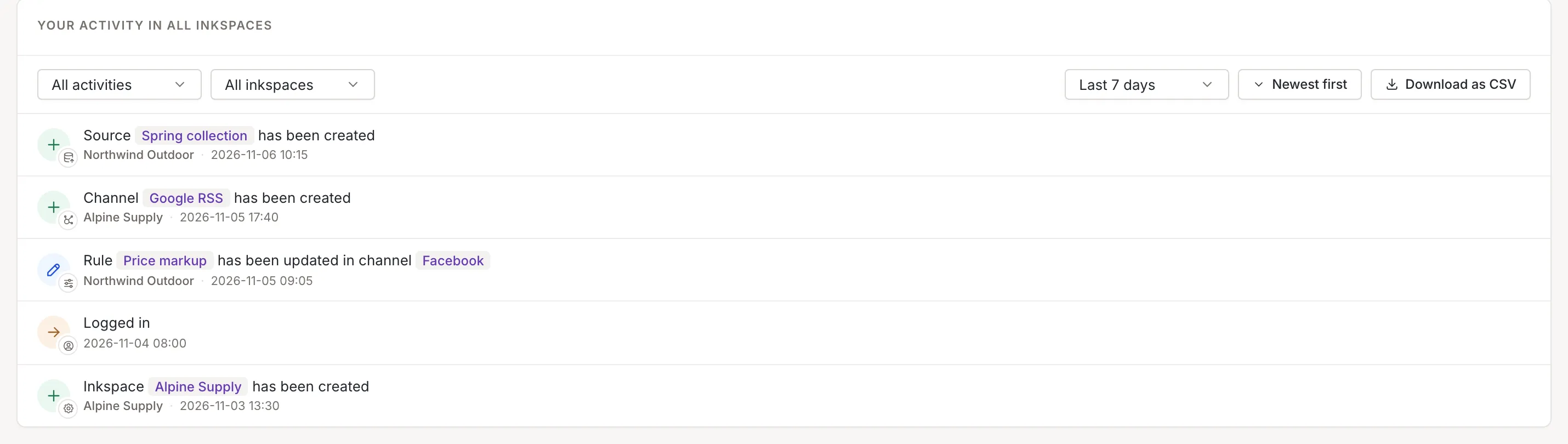
Each row has:
- an icon that shows what kind of thing changed and whether it was created, updated or deleted;
- a sentence such as “Channel Google RSS has been created”, with the names of the things in it (for an update, the changed fields follow next to the inkspace and the date);
- below it, the name of the inkspace as a link that opens that inkspace (a row without an inkspace, such as a log-in, has none), and the date and time.
The list starts with the last 7 days and loads 10 rows at a time. While the first rows load, three grey placeholder rows stand in for them. Rows are for reading; the inkspace name is the only link in a row.
Filter and sort
Section titled “Filter and sort”The bar above the rows has four controls:
- Activity type: All activities, Sources, Channels, Rules, Users (such as logging in) or Inkspace (other changes to an inkspace and its settings).
- Inkspace: All inkspaces or one of the inkspaces that appear in the rows loaded so far.
- Period: Last 7 days, Last 30 days or Last 90 days.
- A button that switches between Newest first and Oldest first.

The type and the inkspace only hide rows that are already loaded; they do not load anything. The period and the order load the list again from the first page, so the list jumps back to its first 10 rows. The type and inkspace you chose stay as they are.
Show more
Section titled “Show more”While fewer rows are loaded than there are in the period, Show more appears under the list. It loads the next 10 rows and adds them below. The filters apply to the new rows as well. The button is gone once all rows are loaded.
Download as CSV
Section titled “Download as CSV”Download as CSV saves the rows that are on screen, after the type and
inkspace filters, as a file named like user_<your id>_activity_<today>.csv. It holds three columns,
Date, Inkspace
and Activity: the date and time in your browser’s time zone,
the inkspace name, and the sentence as plain text. Only the rows loaded so far are in it: click
Show more first if you want more. The button appears only while the
list shows at least one row.
Empty and error states
Section titled “Empty and error states”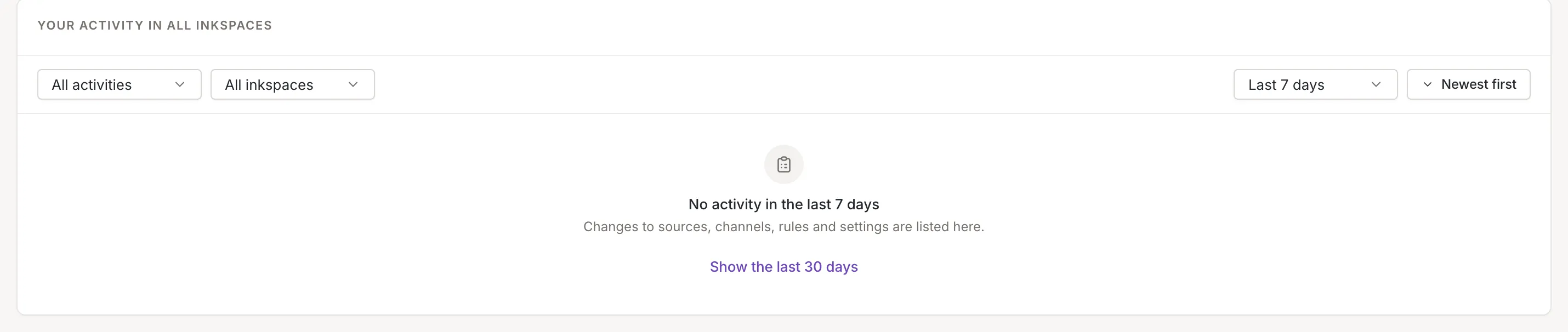
- Nothing in the period. The list says, for example, “No activity in the last 7 days”, adds Changes to sources, channels, rules and settings are listed here. and, unless the period is already the longest, offers a link to the next longer one, such as “Show the last 30 days”. There is no download button.
- The filters hide everything. The list says No activity matches the filters; Clear filters shows the rows again.
- The list could not be loaded. It says Could not load the activity with The server did not answer. Try again in a moment. If the rows you already see were loaded, a failed Show more says Could not load more activity instead. Click Try again to ask again.