
The Summary and required fields
Summary is the checklist of the mapping. It groups the fields by how much the destination needs them, shows which are mapped and what each one holds, and lets you map the ones that are missing without going back to the tree.
The progress meter
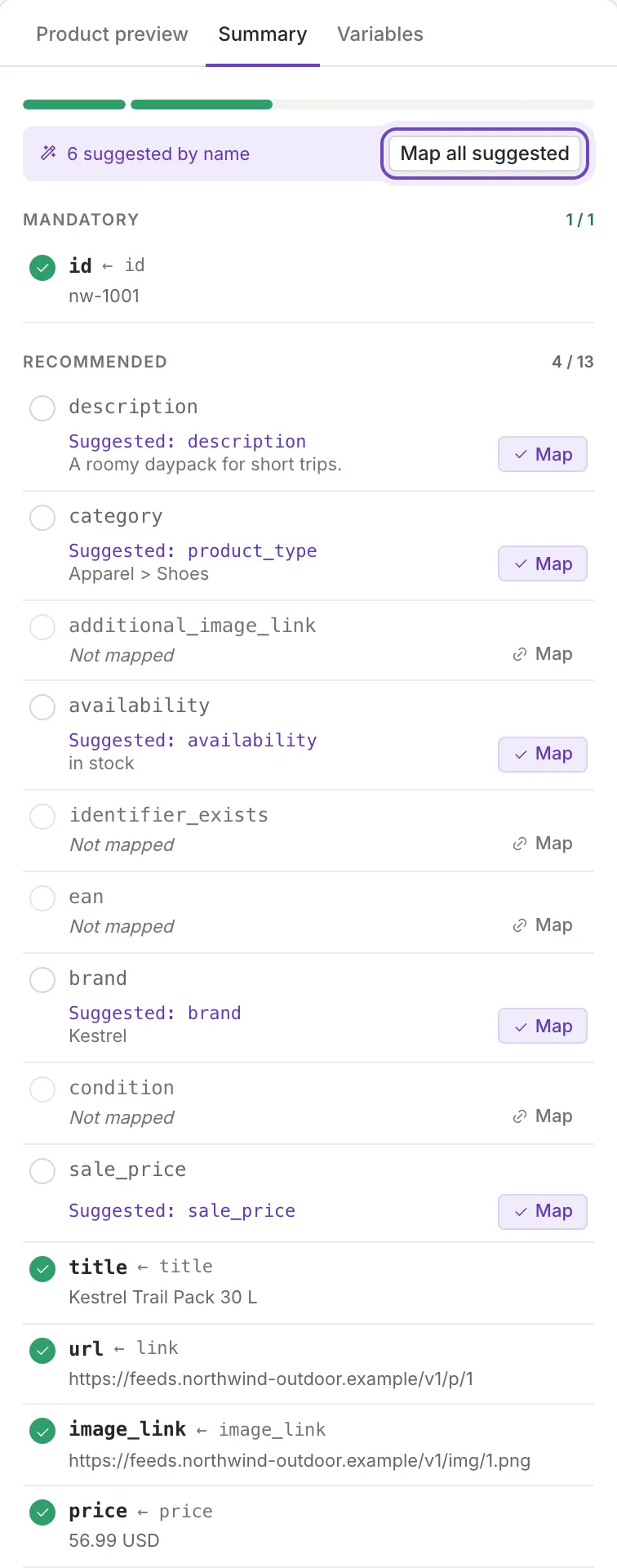
Section titled “The progress meter”The bar at the top has one segment for the mandatory fields and one for the recommended ones; each segment is as wide as its group is large and fills as the fields in it are done. The same count, “4 / 13” for example, stands beside the heading of each group. A field is done when it is mapped and has a value in at least one example. The count turns green when the group is complete.
Mandatory, recommended and other
Section titled “Mandatory, recommended and other”The rows come in groups:
- Mandatory: what the destination refuses to work without. An unmapped one reads Mandatory – not mapped.
- Recommended: fields that improve the result. An unmapped one reads Not mapped, in a quieter style.
- Other mapped: only the fields that you have mapped. Underneath, a line counts those you have not mapped (“50 other fields are not mapped”, for example); you pick them from the field list of an element in the tree.
In every group the fields that still need mapping come first. A mapped row shows the field, an arrow and the element it comes from, and the value in the example shown in the product preview. Click a mapped row and the tree flashes that element.
Suggestions and Map all suggested
Section titled “Suggestions and Map all suggested”For an unmapped field Feedink looks at the names of your elements. When one matches closely, the row reads Suggested: {{source}} (for example “Suggested: product_type”) with the first value of that element, and a Map button maps it at once.
The bar under the meter counts them (“6 suggested by name”, for example) and Map all suggested maps all of them in one click. Both disappear when no suggestion is left. Mapping is a change like any other: it waits for Save.
Pick a field for a missing one
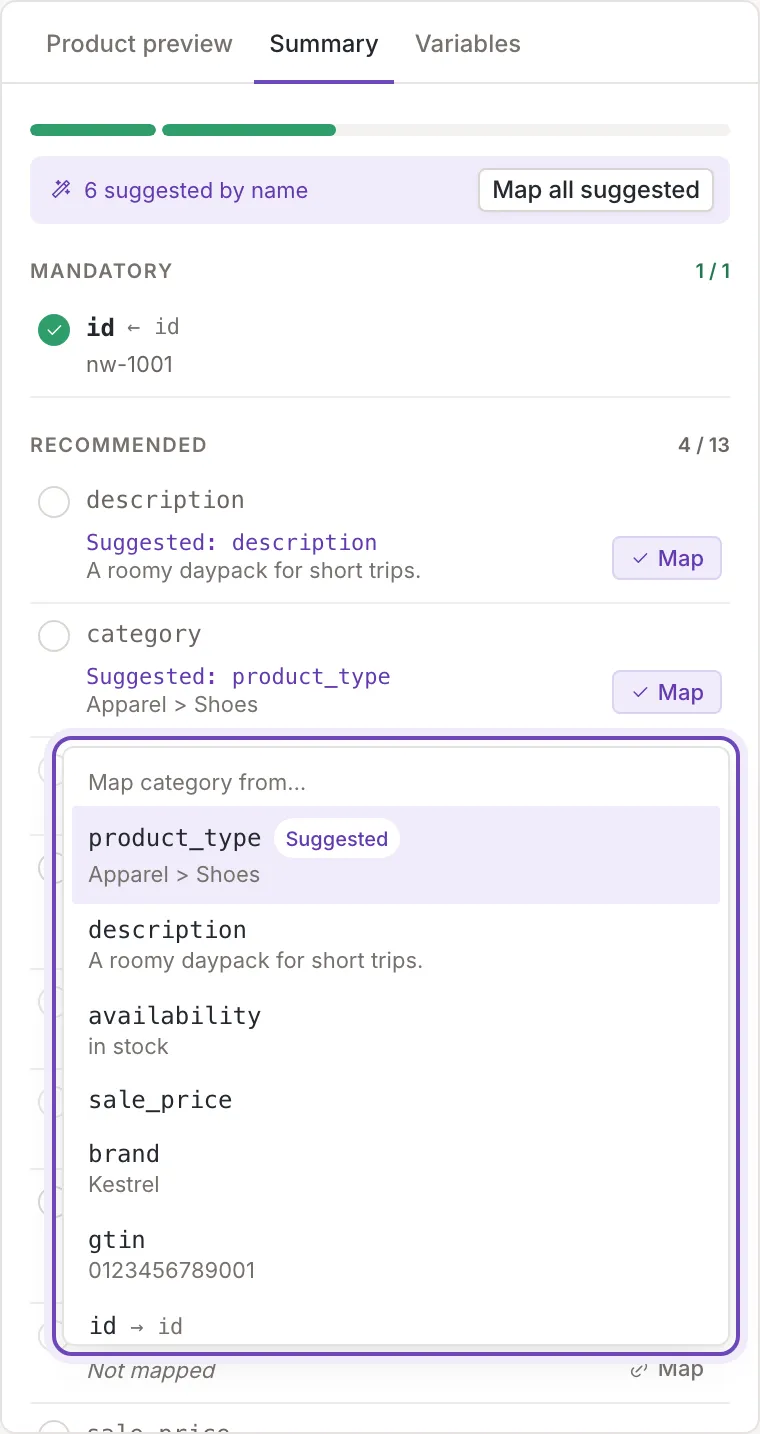
Section titled “Pick a field for a missing one”A row without a suggestion has a Map link. Click the row, or the link, and a list opens over the Summary. Its heading names the field (“Map category from…”, for example); the list holds the elements of your file with an example value each, the likeliest one first and tagged Suggested, then the free elements, and last the elements that already fill another field, with that field after an arrow. Clicking a row that has a suggestion opens the same list. Click an element to map it. Click outside the list, or press Esc, to close it without a choice.
Empty in every example
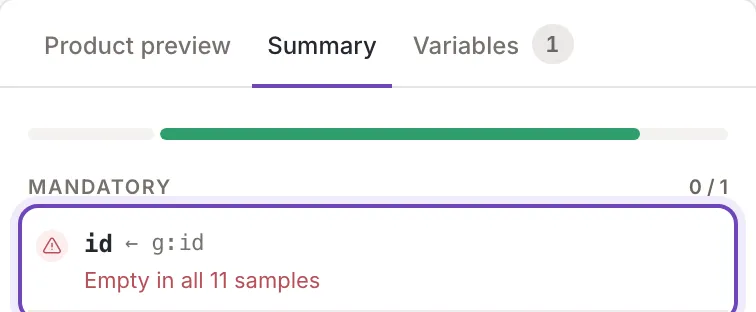
Section titled “Empty in every example”A field can be mapped and still hold nothing. When the examples have no value for it, the row says “Empty in all 11 samples” (a channel: “Empty in all 10 items”), and the field does not count as done. A mandatory field in this state shows a warning mark: map another element, or fix the data in your file.
When only the example you are looking at is empty, the row says empty in this product.
On a channel
Section titled “On a channel”A channel’s Summary lists the elements of the feed, not Feedink fields, and groups them by the importance the feed format gives them: Mandatory, Recommended and Other mapped. Inside the recommended group the elements tagged Useful come before the others. A row names the element, then the field of your items that fills it. The optional elements that have no field yet are not listed one by one: a line under the list counts them (“1 other element is empty”, for example), and you map them in the tree.
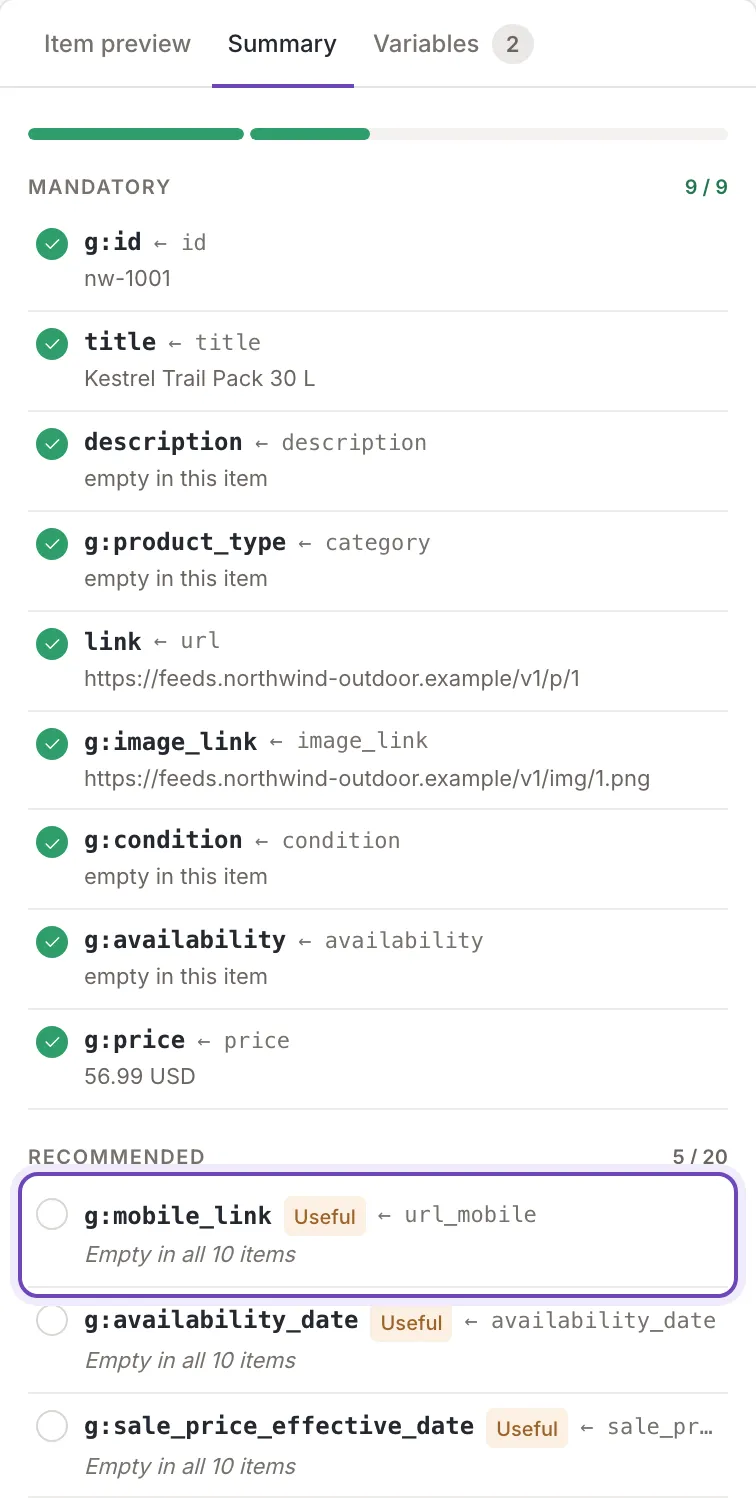
The example values come from your inkspace’s items (see The channel’s item preview), so “empty” means empty in all of the example items the mapping loads: “Empty in all 10 items”.
An unmapped element works as on a source, with two differences. The suggestion is a field of your items, and the list heading reads “Fill g:id with…” (the element’s name). The list offers the suggested fields first, then every field and custom variable in alphabetical order. When the element’s name suggests a new custom variable, the list starts with an entry that offers a new variable named after the element, tagged Suggested; choosing it creates the variable at once (see Custom variables).