
Map an element to a field
Each element inside the product element has a cell on the right of the tree. The cell holds the Feedink field the element fills, and clicking it opens the list of fields. A pick is kept when you save (Save, undo and leave); the exception is keeping an element as a custom variable (below), which creates the variable at once, and only its link to the element waits for Save.
Pick a field
Section titled “Pick a field”Click the cell of an element. (A cell with no suggestion also opens when you reach it with Tab; one that shows a suggestion has buttons instead.) The list opens at once, with the cursor in its search box (Choose a field… is what an empty cell says). Click a field to fill the cell with it. Esc, or a click outside the list, closes it and changes nothing.
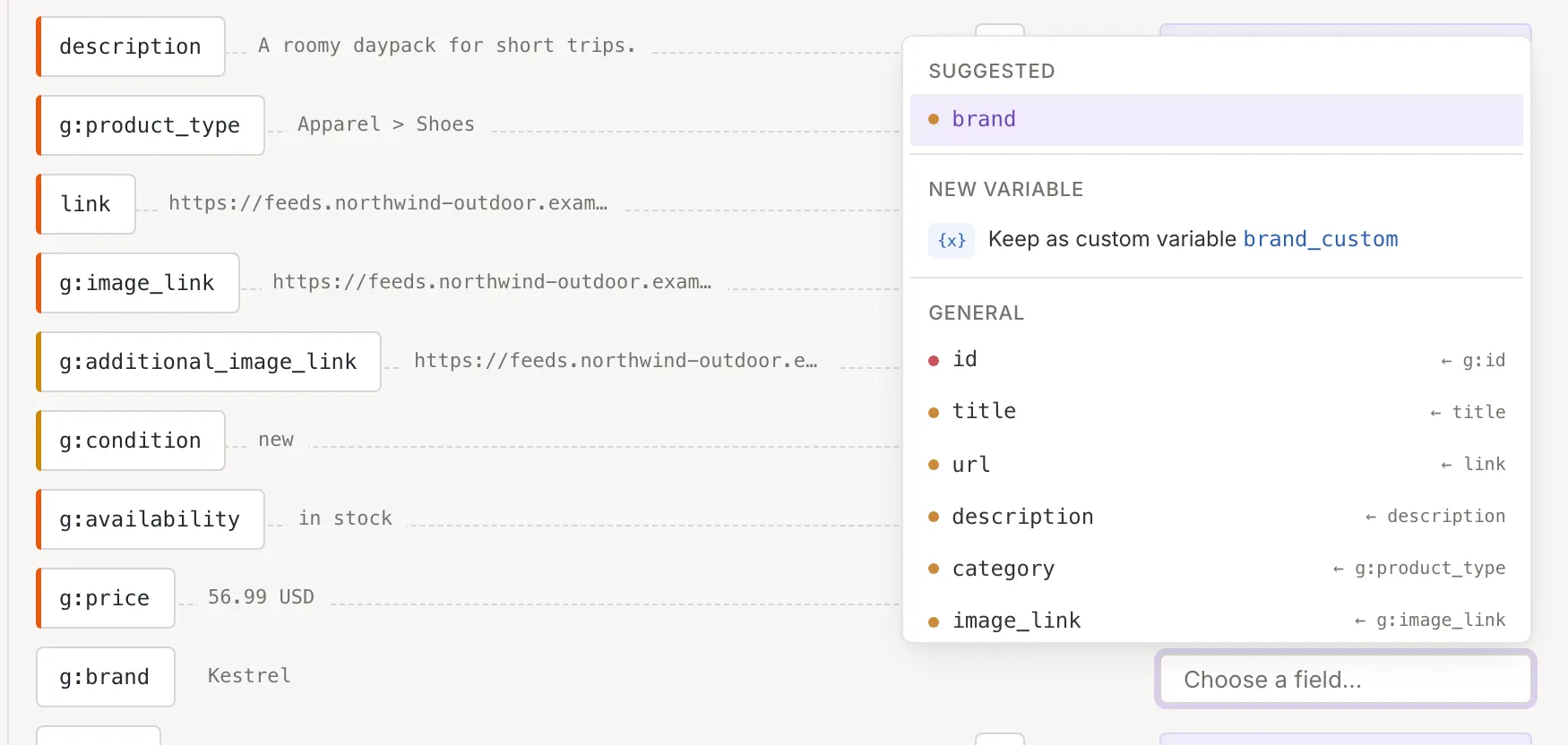
The list is ordered like this:
- The suggested field, when the element is free and its name matches a free field well.
- On a source, for a free element, the option to keep it as a custom variable (see below). It is first while nothing is typed, and last for an element whose data is in its attributes.
- All fields, in groups by what they are for, and your custom variables. Each field has a dot: red for a mandatory field, orange for a recommended or useful one, grey for the others and blue for your custom variables. After a field’s name, “← g:brand” (for example) says which element already holds it.
Suggested and similar fields
Section titled “Suggested and similar fields”For a free element Feedink compares the element’s name with the names of the fields that no element holds yet. The best match goes to the top of the list under Suggested when it is a sure match. A weaker match goes under Similar name; it is not offered in the cell itself, only in the list. An element that already has a field gets no suggestion.
Search
Section titled “Search”Type to narrow the list. A field stays when your text is part of its name, in any case. While you type, the suggestion is not moved to the top; the first match is highlighted, and Enter or Tab picks the highlighted choice (Tab also moves on to the next control).
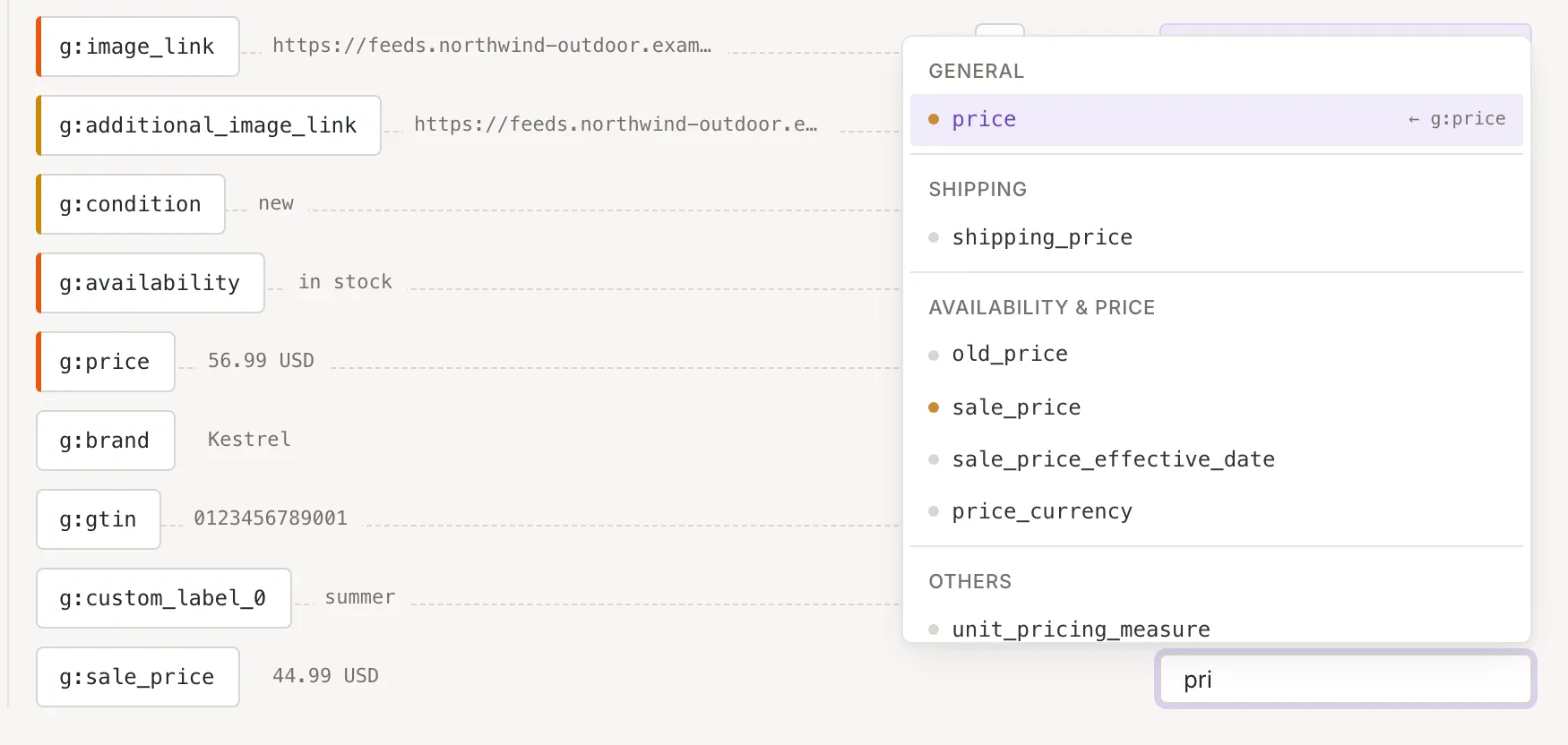
On a source, the option Keep as custom variable follows the matches and carries what you typed, cleaned into a valid name. It is the way to keep an element’s value under your own name; see Custom variables. It cannot be chosen, and says why, when the name is empty, has no Latin letters or digits, or is already a field or a variable.
Accept a suggestion
Section titled “Accept a suggestion”A free element whose name matches a field well shows the field’s name in its cell with a check button. Click the check (Map to {{field}} is its label when you point at it, with the field’s name) to map it in one step; click the name instead to open the list.

On a source, a free element that has example values but no sure field is offered as a variable under its own name: keep as and the name, with its own check. See Custom variables. The Summary can accept every suggestion at once.
Remove a mapping
Section titled “Remove a mapping”The button before a filled cell, Remove mapping, clears it, and the element is free again. A custom variable that was already saved stays in your variables, unused (Custom variables).
An element that holds its data in attributes has no value of its own: its cell says Data in its attributes. Map the attributes; the element’s own cell can still be filled.
Fields used twice
Section titled “Fields used twice”The list shows which element holds a field, but it does not stop you picking it. Feedink maps the field to the element you chose and leaves it on the other one too, so one field can come from two elements.
On a channel
Section titled “On a channel”A channel’s mapping (Channel mapping) has the same cells and list, with these differences: the fields are those of the items of your inkspace, the cell has no “keep as” suggestion, and the list’s last option is New custom variable, a variable that stays empty until a rule sets it (Empty until a rule sets it.).
Who can use it
Section titled “Who can use it”Owners and collaborators can save what they pick; a viewer sees the same list but cannot save (Source mapping).