Item details
The details of an item show everything Feedink holds about it after the last update: the checks it failed, its images, each field with the source that supplied it, and Feedink’s own data. They open beside the items list and, with the same content, on a page of their own. Nothing here can be edited: the values come from your sources, their mapping and your rules.
Open an item
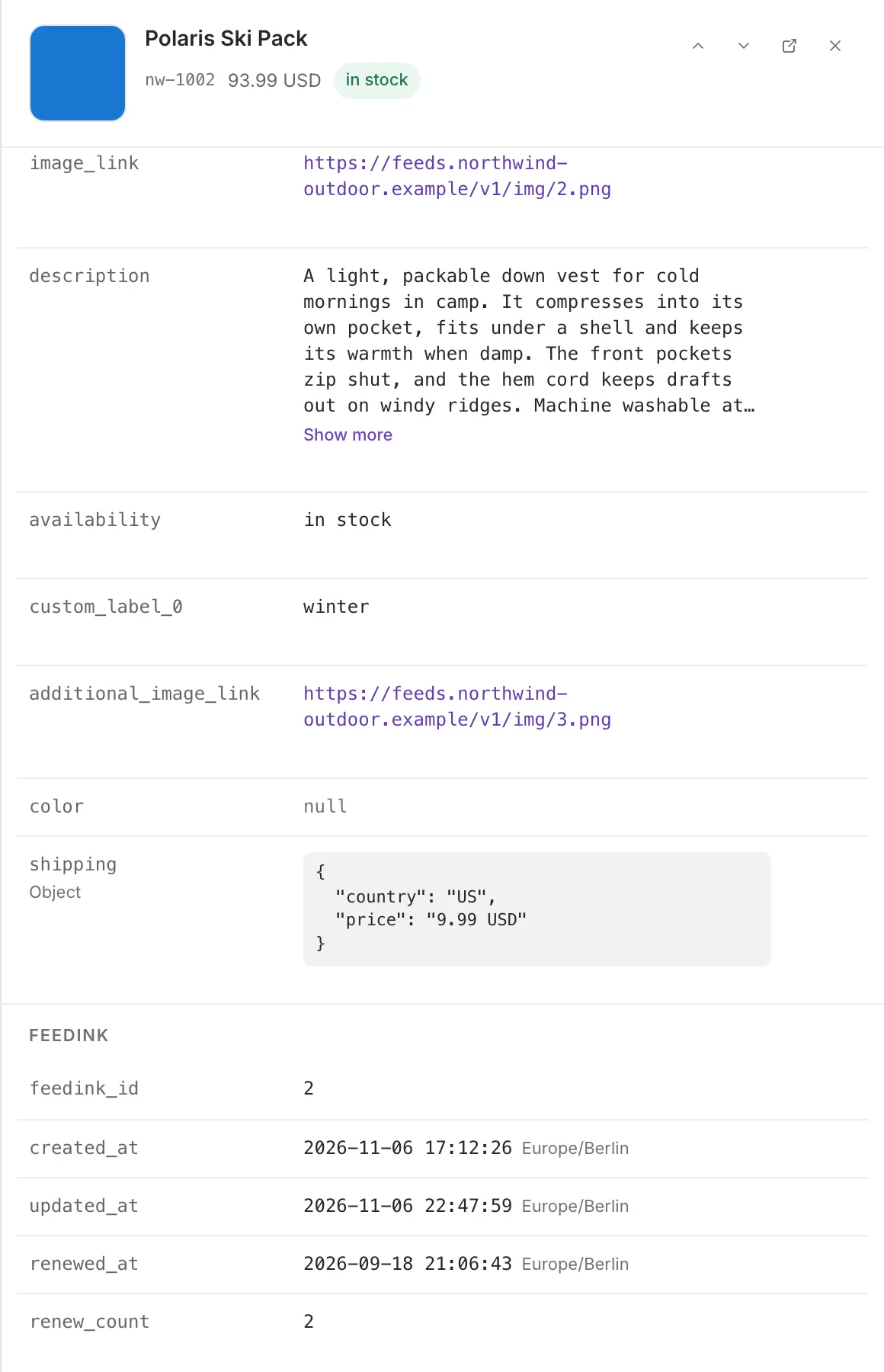
Section titled “Open an item”Click a row of the list, or select it with the keyboard and press Enter. The item opens in a drawer over the list: the row stays marked and the rest of the list is shaded. The head of the drawer shows the photo, the title (the ID for an item without one), the ID, the price and the availability at once; the details under it appear as soon as the item has been read. Feedink reads the item again every time you open it.
The buttons in the head are:
- Previous item and Next item: move to the row above or below in the list you came from. They are off at the first and the last row of the page the list shows.
- Open as a page: opens the same details as a page (below).
- Close: closes the drawer. Clicking the shaded list does the same, and so does Esc once the details have loaded.
The address of the list holds the open item, so the browser’s Back and Forward buttons move between the items you opened, and a copy of the address opens the list with the same item.
The product page
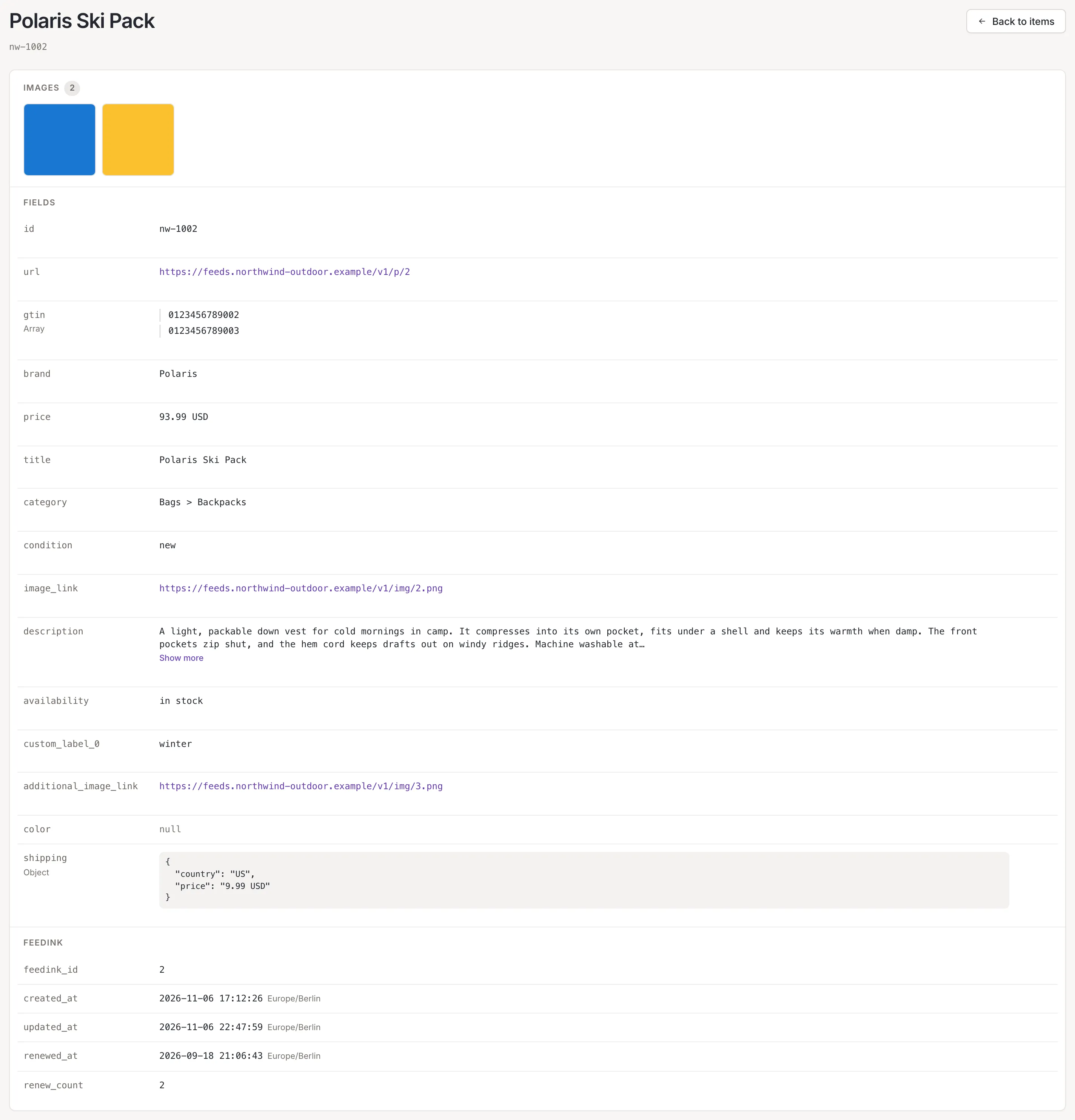
Section titled “The product page”The page shows the item’s title (or ID) with its ID under it, a Back to items button, and then the same sections as the drawer, in a card. Use it when you want the details at full width, or to keep one open in its own tab: a click on a row with Ctrl, Cmd or Shift held, or a middle click, opens it that way.
Checks
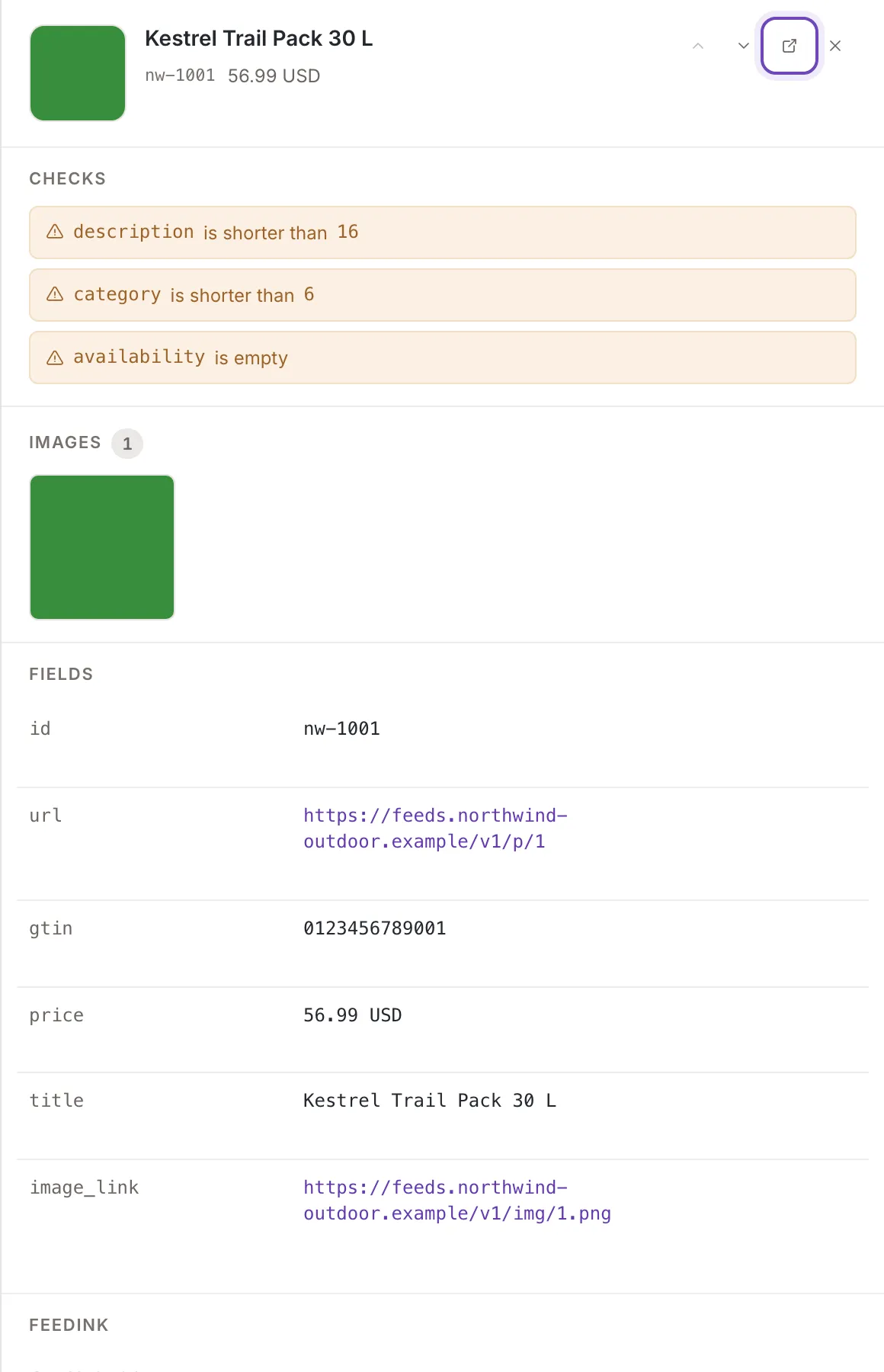
Section titled “Checks”Checks appears at the top when the inkspace has quality checks switched on and the item failed at least one. Each failed check is a button that reads like the check: the fields it looks at, the condition and, where the condition has one, its value. An error is red, a warning or info check amber. Click one to open it on the Quality tab (Quality checks).
Images
Section titled “Images”Images shows the item’s photos with their number: the main image first, then the additional ones. Point at a photo and click the icon in its corner (Open the image in a new tab) to see it in a new tab. The section is left out when the item has no image field.
Fields
Section titled “Fields”Fields lists every field the item holds, with the name on the left and the value on the right. These are the values after your sources, mapping and rules: what your channels build their feeds from.
- A field with several values shows them all, one under the other, with Array under its name. A field that holds a group of values is shown as formatted text with Object under its name.
- A value that is an address is a link that opens in a new tab.
- A field without a value reads null.
- A long value is cut after 240 characters; Show more shows all of it and Show less folds it again.
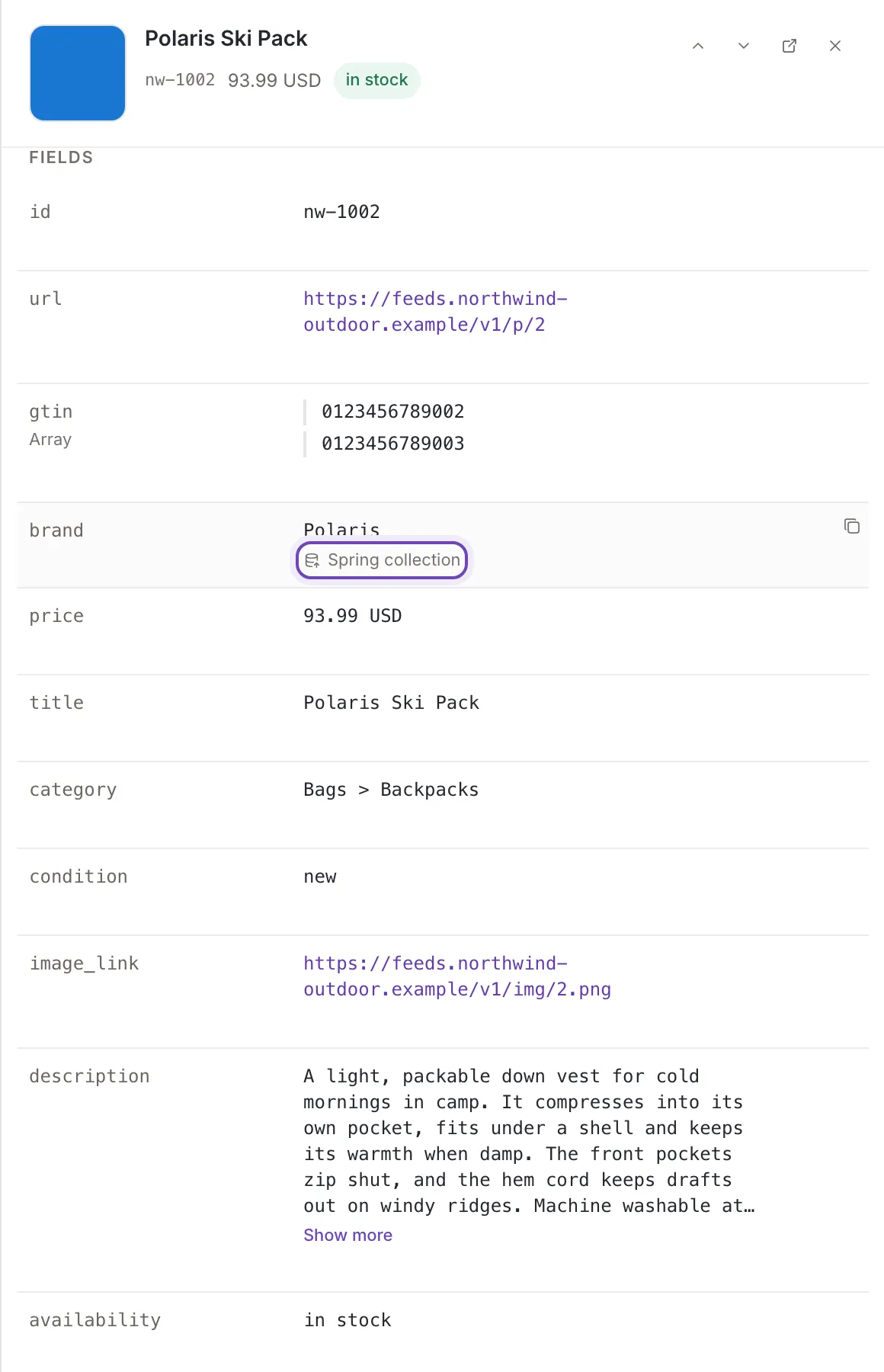
Point at a row to see what you can do with it:
- Copy value puts the value on the clipboard and Feedink says Copied to the clipboard.. A list or a group of values is copied as text with its structure. An empty field has no copy button.
- Open in a new tab opens an address field’s value in a new tab.
- Under the value, the name of the source that supplied the field. Click it (Go to the mapping of this source) to open that source’s mapping. A field that no source supplied, for example one a rule set, shows no source.
Feedink data
Section titled “Feedink data”Feedink holds what Feedink keeps about the item itself:
feedink_id, the item’s ID in Feedink, and the dates created_at, updated_at, renewed_at and archived_at, each only
when it is set. The dates are written in the inkspace’s time zone, which is shown beside each. renew_count appears
when it is above zero.