
Add, move and remove elements
The schema is the structure Feedink expects in your file. You can add elements and attributes to it, move elements around and remove them. Every change is an edit of the page: it waits for Save and can be undone (Save, undo and leave).
Add an element or attribute
Section titled “Add an element or attribute”The heading of the tree has the buttons Add element and Add attribute (on a CSV file or a Google Sheet, only Add column; see Mapping a CSV or Google Sheet source). A click puts a new entry in a tray above the tree, under Drag the new elements into the schema below.:
- Type the name. The check button (Confirm) confirms it. An empty name shows a toast titled Name not accepted with the reason, and so does, for an XML element or attribute, a name that is not a valid XML name; the entry stays to be corrected. (For a column the tray only refuses an empty name.)
- A confirmed entry shows a handle (Drag to move). Press it and drag the entry to a row of the tree; see Move by dragging for the places it can land. A new attribute lands only on an element, in the zone As attribute.
- The trash button (Remove element) drops an entry you do not want.

An entry in the tray is not part of the schema yet: the counts of the tree do not change until you drop it.
The add menu on a row
Section titled “The add menu on a row”To add next to a row, point at it and click the plus button (Add). Its menu offers Element inside, Element above, Element below, Attribute and, for an element that has attributes, Variant.
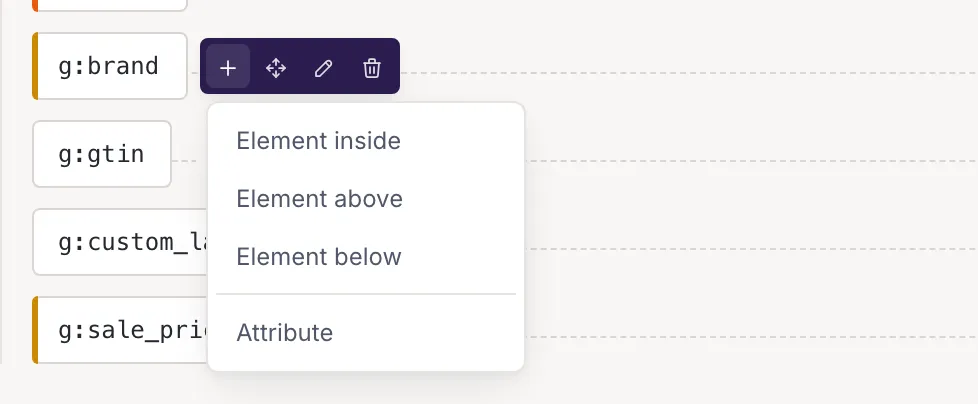
An entry on the menu opens a small row right where the new element will land, with the cursor in its name box. Enter or the check button (Add) adds it; Esc, the cross (Cancel) or leaving the box empty cancels. The check stays off while the name is not valid. An element added inside a folded branch opens the branch. On an attribute row the plus button adds another attribute to the same element.
Variants
Section titled “Variants”Some files repeat one element and tell the repeats apart by an attribute, such as an element with the attribute
name="Brand" in one repeat and name="GTIN" in the next. A variant is one of those repeats.
Variant in an element’s plus menu adds one, with the
first example value of each of the element’s attributes. A variant has its own row and map cell, and one row for each
attribute: choose its value from the example values (Choose a value),
or switch to your own text with Enter a custom value. When the file has no example values for the attribute, the
value is a text box.
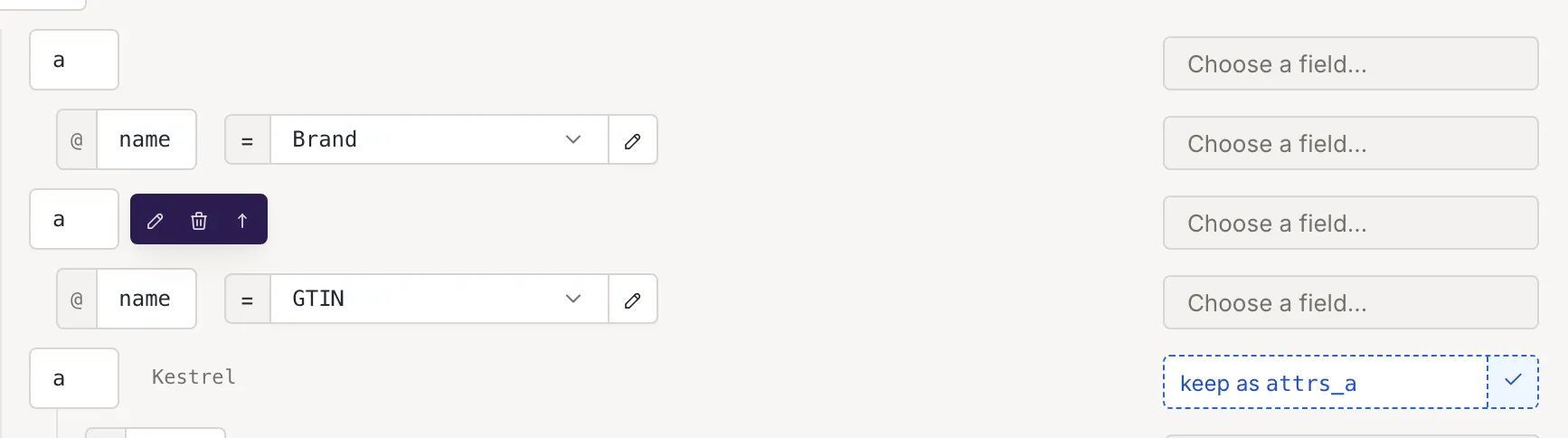
A variant’s row has buttons, in this order, to open its settings and to remove it, then to move it up (Move variant up; not on the first variant) and down (Move variant down; not on the last). Renaming an attribute in its settings renames it in all variants; see Element settings of a source.
Move by dragging
Section titled “Move by dragging”Elements and columns have a handle (Drag to move) among the row buttons. Press it and drag. While you drag, the row under the pointer shows where the element can land:
- Below: after that row, at the same level.
- Inside: as the last child of that row.
- As attribute: only for a new attribute from the tray.
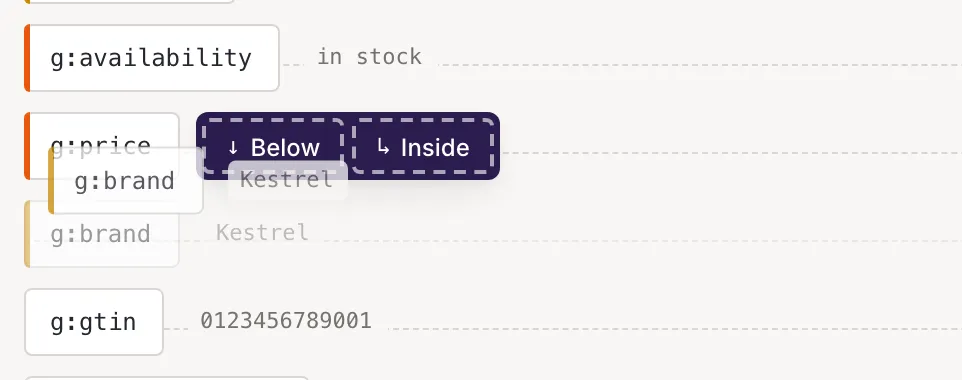
An element moves with everything inside it. It cannot land next to or inside itself or its own branch; there, and on attribute and variant rows, a grey notice starting with Can't drop here gives the reason. Attributes have no handle: remove one and add it again to put it elsewhere. Variants move with their arrows.
Remove
Section titled “Remove”The trash button of a row (Remove element, Remove attribute, or Remove variant) removes it at once, with no question. An element goes with the elements inside it, and with their mappings. If you remove the product element, the tree says that no item element is selected (The mapping tree). Use Undo in the bar under the head, or Discard changes, to take a removal back.
Names that are not accepted
Section titled “Names that are not accepted”A new XML element or attribute needs a valid XML name: Start with a letter, _ or :, then use letters, digits, -, _, :, . or ·. In the add row the reason shows under the box:
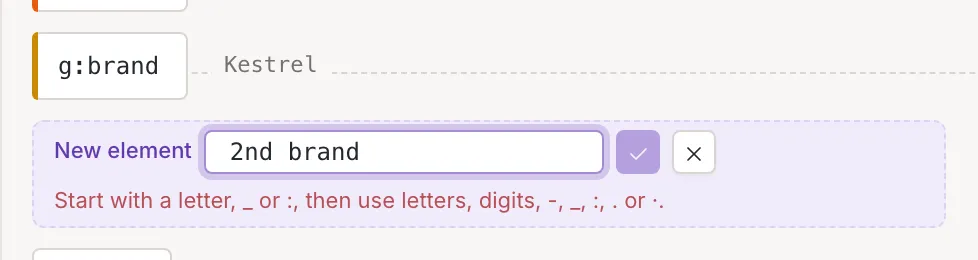
In the add row that the plus menu opens, an attribute cannot take a name its element already has; the row says so. A CSV column has a stricter rule (Mapping a CSV or Google Sheet source).
Who can edit
Section titled “Who can edit”The buttons in the heading are for owners and collaborators only; a viewer does not see them, and cannot save an edit (Source mapping). A channel’s mapping has the same tools, and its heading also has a button that puts the feed’s default schema back (Channel mapping).