
Log in and out
You log in with the e-mail address and password of your account. After logging in you land on your inkspaces list. If you do not have an account yet, see Create an account.
Log in
Section titled “Log in”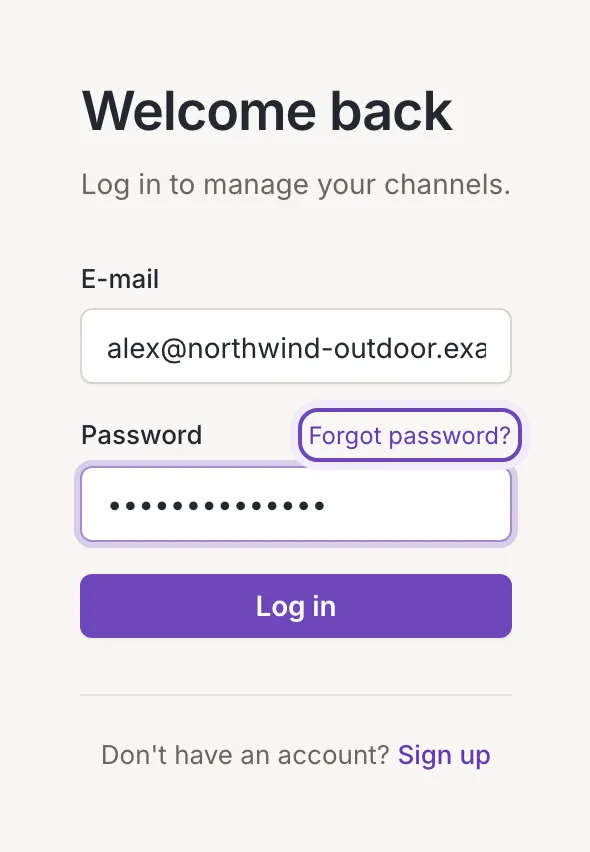
The Welcome back screen has two fields and a button:
- E-mail: the cursor is already in this field when the screen opens.
- Password: the characters are hidden.
- Log in: signs you in. While Feedink checks your details the button shows it is busy and the fields are disabled.
Forgot password? sits above the password field; it opens Reset your password. Sign up at the bottom opens Create an account.
If the log-in fails
Section titled “If the log-in fails”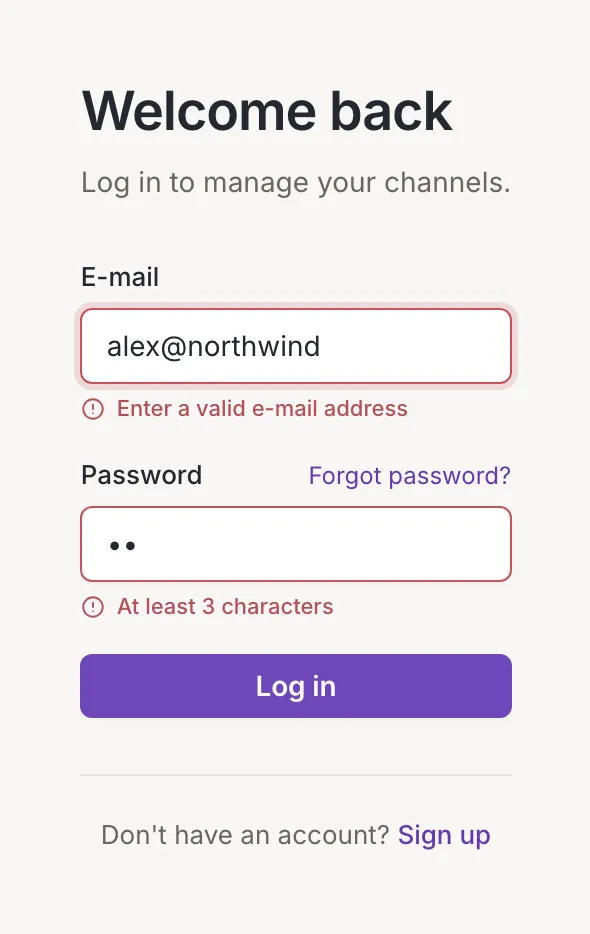
- A field is empty or invalid. Nothing is sent. Each field that needs attention shows its own message under it: Required for an empty field, Enter a valid e-mail address for an e-mail address that is not one, and a message such as “At least 3 characters” for a password that is too short. The first of those fields gets the cursor.
- The details are wrong. A message titled Could not log in says Check your e-mail and password. The form works again straight away, with your e-mail still in it. If you forgot the password, use Forgot password?.
- Something else went wrong. Feedink could not complete the log-in for another reason and the same title says Could not log in. Try again in a moment. If Feedink cannot be reached at all, the message says Feedink did not answer. Check your connection and try again.
Log out
Section titled “Log out”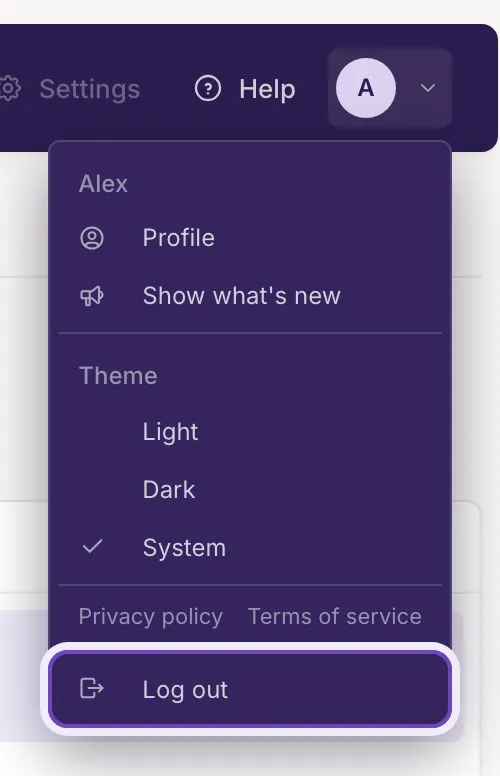
Open the Account menu (your initial in the top right corner of every signed-in screen) and click Log out. Feedink ends your session in this browser and shows the log-in screen. The other entries of the menu are described in Your profile, theme and the account menu.
If a screen holds changes you have not saved, Feedink asks first: Leave without saving? Your unsaved changes will be lost. Click Stay to stay signed in on that screen, or Leave to log out and drop the changes.
Signed-out screens and the legal links
Section titled “Signed-out screens and the legal links”Log in, sign-up and password reset share one frame: a purple panel on the left and the screen on the right. On a narrow window the panel shrinks to a bar with the logo. The logo always leads to the log-in screen. At the bottom of the screen are Privacy policy and Terms of service; both open in a new tab.
These screens are only for people who are signed out. If you open one while signed in, Feedink shows your inkspaces list instead, and if you open a signed-in address while signed out, you land on the log-in screen.