
Clone a channel
Cloning makes a copy of a channel. Use it to start a new channel from one that is set up, in this inkspace or another. Owners and collaborators can clone; a viewer cannot.
Open the clone window
Section titled “Open the clone window”- In the list, open the row menu of the channel and choose Clone.
- To clone several channels, select them and click Clone in the bar (Row menu and bulk actions). The window then says Clone the selected channels.
- In a channel’s settings, use the card Clone channel: Same settings, mapping and rules.
Choose where it goes
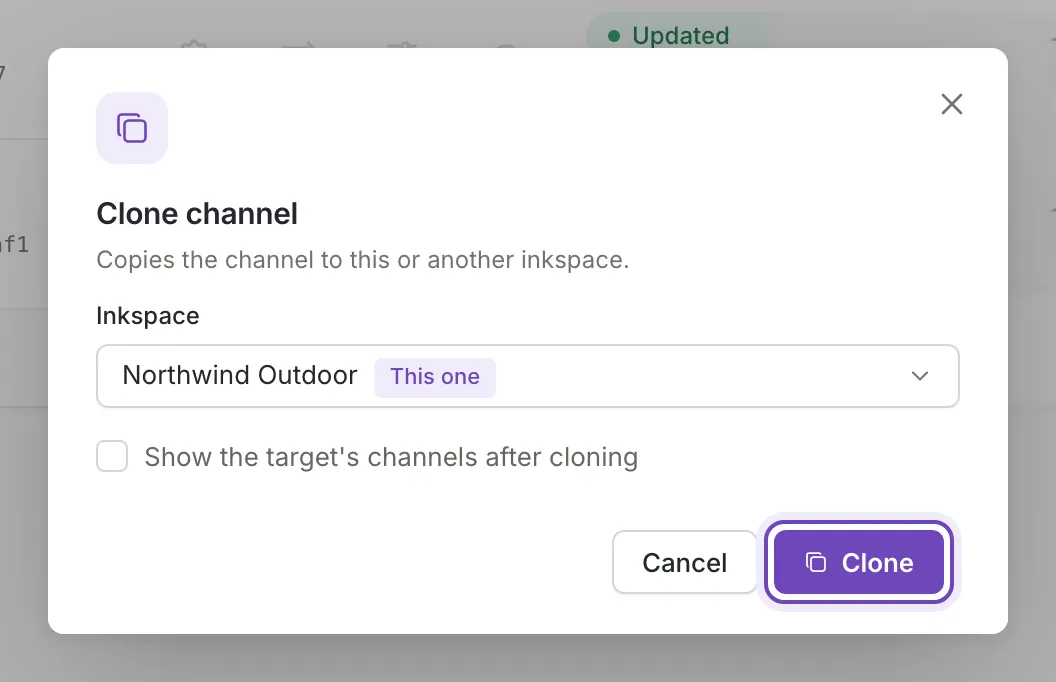
Section titled “Choose where it goes”Under Inkspace the open inkspace is chosen at the start and marked This one. Open the list to pick another: it holds your inkspaces, by name.
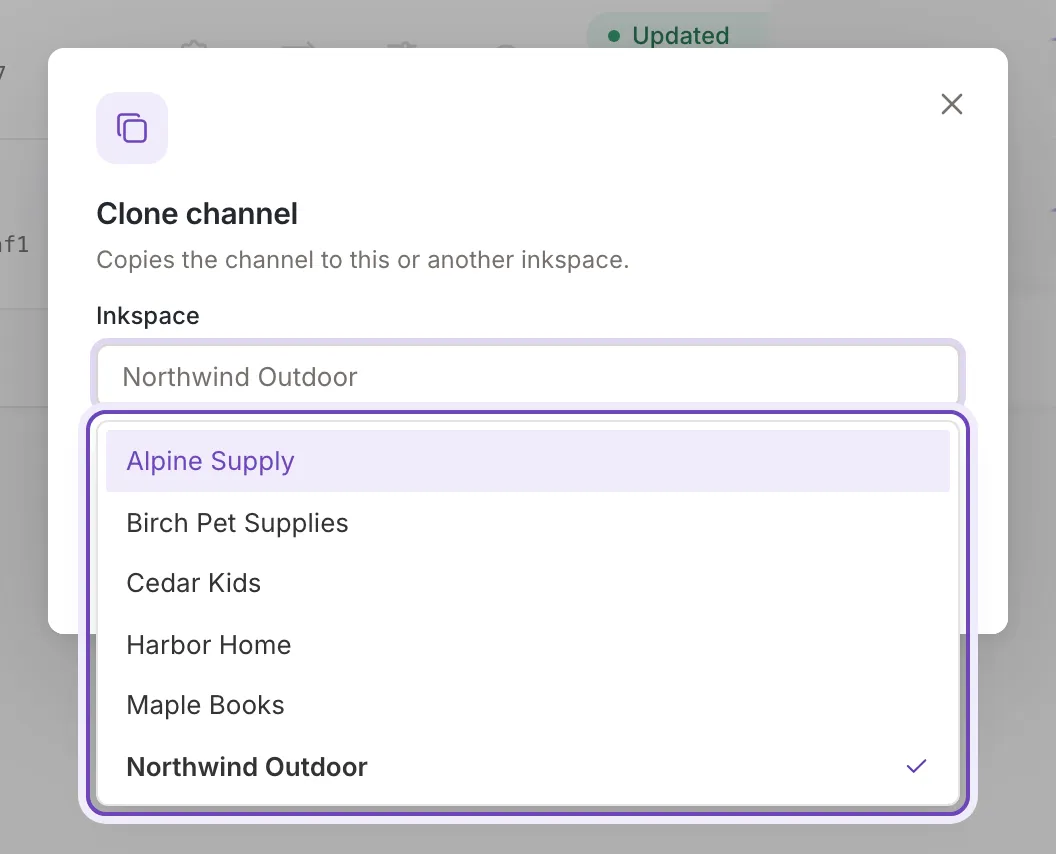
Clone stays off while no inkspace is chosen. Tick Show the target's channels after cloning to go to the channels of that inkspace when the copy is made. Cancel, the cross, Esc and a click outside the window close it and send nothing.
After cloning
Section titled “After cloning”Feedink says Channel cloned. (or Channels cloned. for several) and the copy appears in the channels list of the chosen inkspace. The copy takes the settings, mapping and rules of the original. Its name, its status and whether it is active are decided when it is made, so check them in the list. The copy is a channel of its own.
If the copy cannot be made, a message titled Channels not cloned gives the reason, for example that an inkspace is being updated; try again once the update has finished. The selection stays.