
Custom variables
A custom variable is a value that carries a name of your own. You use it to keep the value of an element of your file under a name that is easy to find, and then to read it in your rules and map it in your channels. Variables are managed in the mapping (they can also be added from the rules screen, and using one in a rule is covered in Custom variables in rules).
Keep an element as a custom variable
Section titled “Keep an element as a custom variable”The quickest way to make a variable is from the tree. Open the field list of an element and choose Keep as custom variable; the list offers it under New variable, named after the element or after what you typed in the search. A free element that has example values also shows a small keep as chip with the proposed name in its map cell: click it to do the same. The name is taken from the element’s name, without a namespace, and gets “_custom” at its end when a field or a variable already uses it.
The variable is created at once and the element is mapped to it. The link to the element is a change of the page like any other: it waits for Save.
The Variables tab
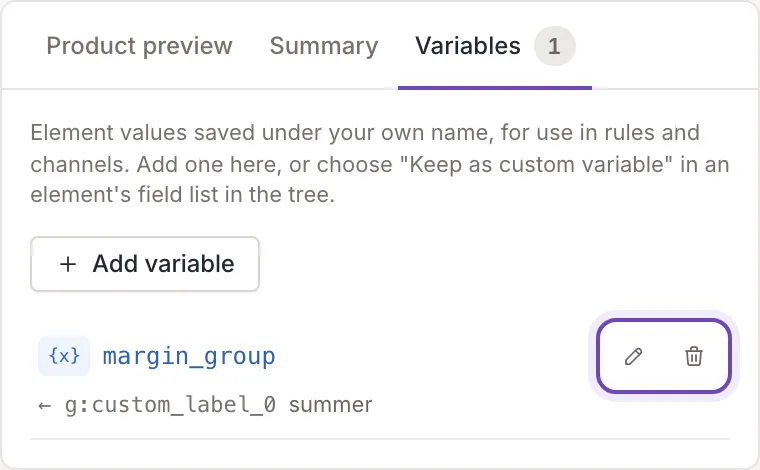
Section titled “The Variables tab”The Variables tab of the mapping panel lists the custom variables, and the number on the tab counts them. Each row shows the name and where the value comes from: the element that is mapped to it with the value of the example you are looking at in the product preview, or Not used by any element when no element is mapped to it. Click a row that is in use and the tree flashes the element. Hover over a row to show its two buttons: rename and remove.
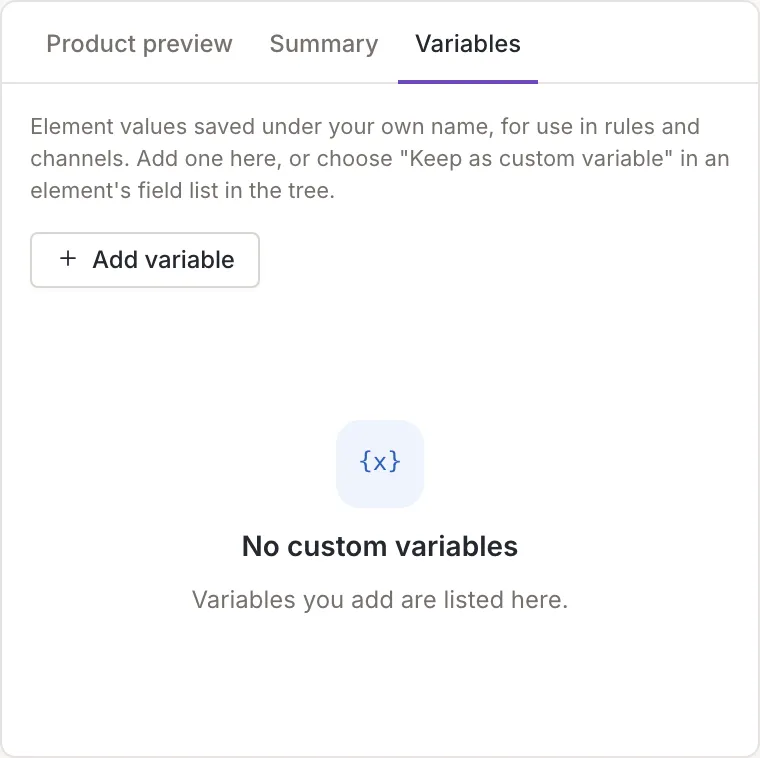
An empty list says No custom variables:
Variables you add are listed here.Add a variable
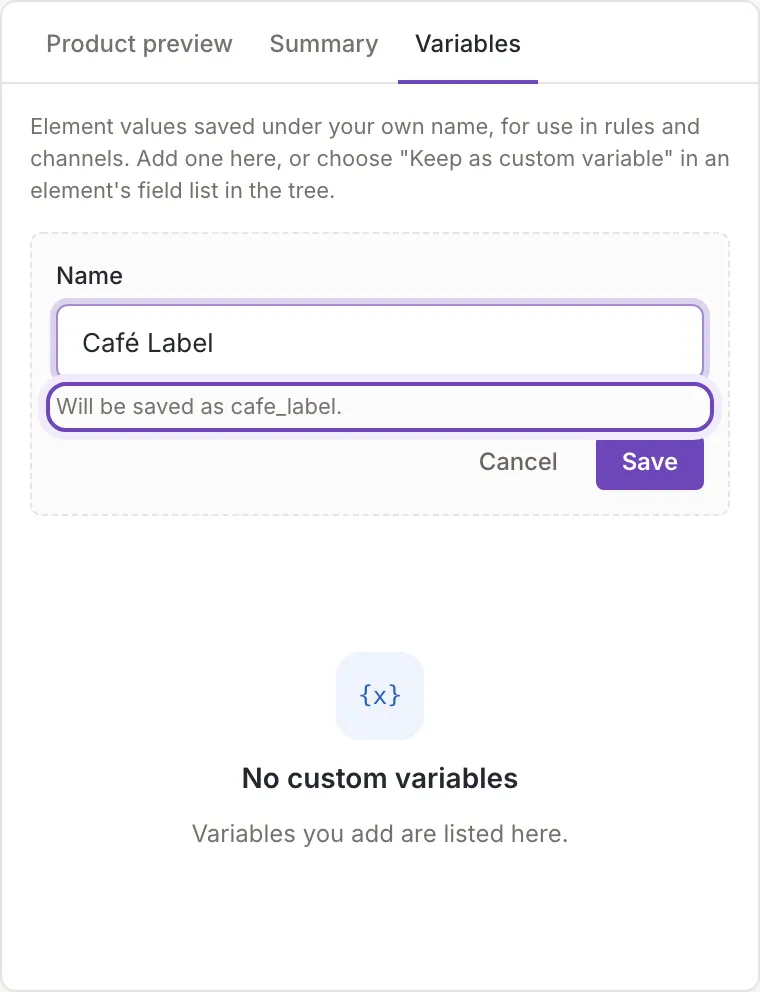
Section titled “Add a variable”Click Add variable, type the Name and click Save (or Cancel). A name is made of Latin letters, digits and underscores. Feedink turns what you type into that form, dropping accents (the name is lowercased), and tells you what it will do: for example “Will be saved as cafe_label.” when you type “Café Label”.
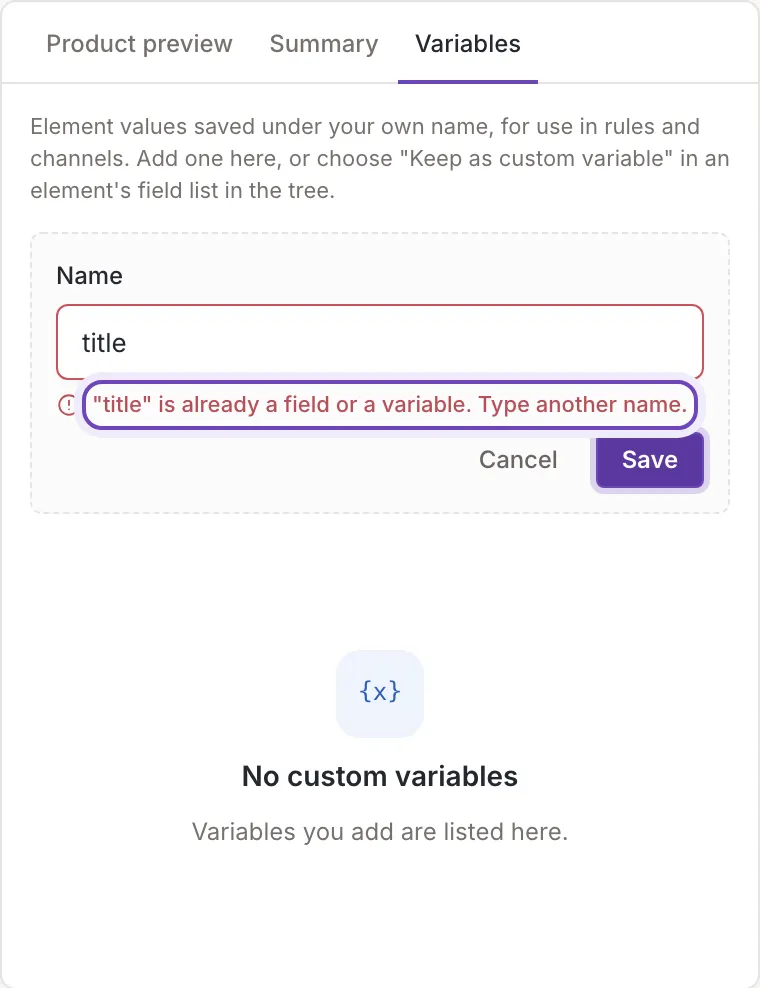
A name is refused with a message under the field:
- Type a name.
- Use Latin letters, digits or _ for the name.
- a message that the name you typed (for example
title) is already a field or a variable, so you type another one.
The variable is saved when you click Save in the form, without waiting for the page’s Save. If it cannot be saved, a message says why and the form stays open.
Rename or remove
Section titled “Rename or remove”The pencil button of a row opens a field with the current name, the same checks, and Save and Cancel. The rename is saved at once, and the element that was mapped to the variable follows the new name.
The trash button (Remove (also unlinks it from its element)) removes the variable, again at once and without a question. It is refused, with the toast Variable not removed, while:
- an element is mapped to it: The custom variable is used in the mapping or by a rule. Remove those uses first, or rename the variable instead.
- it is a field of Combine data: The custom variable is a join field in the combine settings. Choose another join field and save the combine settings first, or rename the variable instead.
- a rule uses it. The toast then names the rules, and you remove those uses first.
A variable whose element you unlinked stays in the list, marked Not used by any element, until you remove it.
On a channel
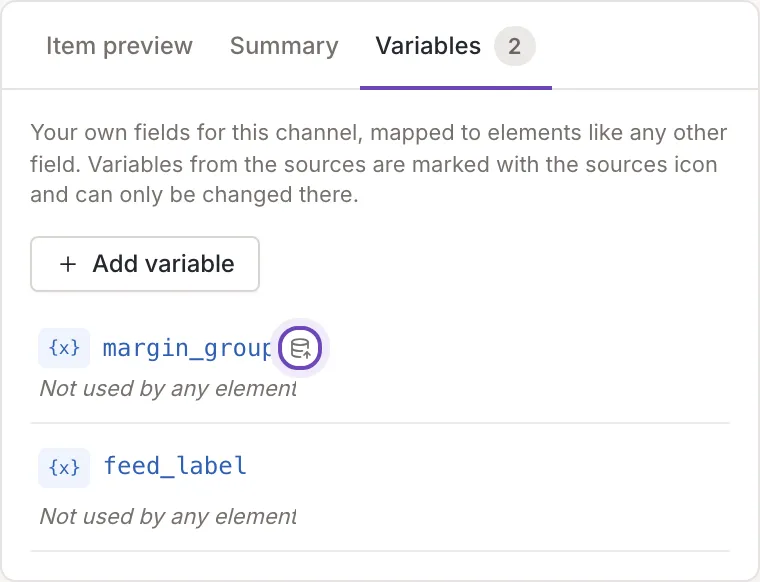
Section titled “On a channel”A channel has its own Variables tab with the same buttons. Your own fields for this channel, mapped to elements like any other field. Variables from the sources are marked with the sources icon and can only be changed there. The variables you add there belong to the channel. The tab also lists the variables of your sources. Those carry a small icon instead of the buttons; hover over it to see which source holds the variable (for example “Variable of the source Google RSS”, or Variable of a source when no source can be named), followed by “Rename or remove it there.” Rename or remove them in the mapping of the source.
In the field list of a channel’s element the option to make a variable is New custom variable, and it says Empty until a rule sets it. The channel’s variable has no element value of its own; a rule gives it one. An empty channel variables list says
Add one above to map onto an element of the feed.