
Source statuses
Every source shows a status chip in the Sources list and in the head of its panel. It tells you whether the source’s data is up to date, and what to do when it is not.
The chip and its colors
Section titled “The chip and its colors”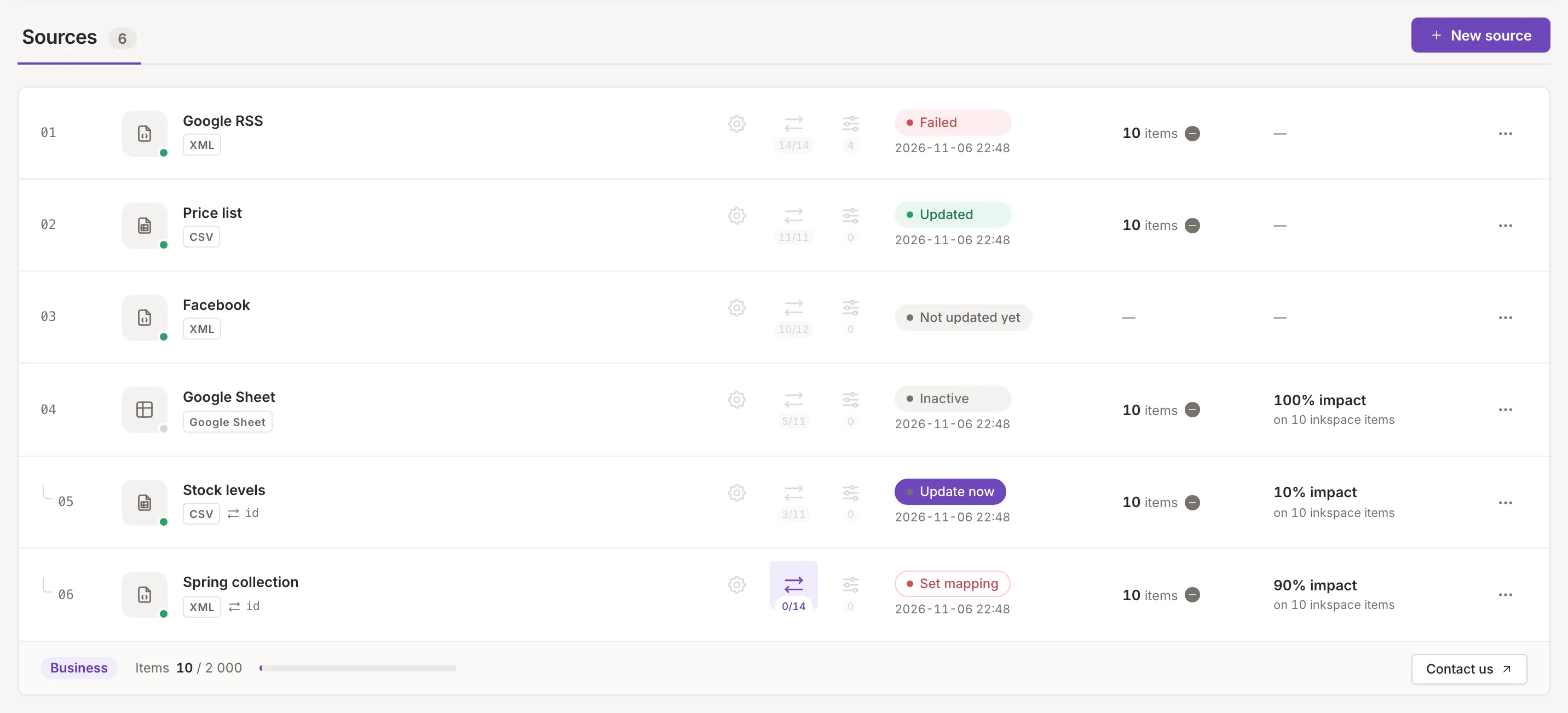
A source is read when its inkspace updates: it has no schedule of its own. The chip shows the first of these that applies:
- Inactive: the source is switched off.
- Over limit: the number of sources your plan allows leaves this one out.
- Cancelling…, Requested or Postponed: an update was asked for, or is being stopped.
- Set mapping: the source has been updated, but nothing is mapped yet.
- Update now: your latest changes are not in the data yet.
- The state of the update: Updating while one runs, else the result of the last one: Updated, Failed, Aborted or Canceled.
- Not updated yet: the source has not been updated yet. Every new source starts here.
The chip is green for an update that succeeded, red for a failed one and amber for an interrupted one. It is blue while an update runs. Set mapping is outlined in red, Update now is a purple button and Requested has a green clock. The other states that wait or are off are grey. A source waiting in the queue reads Updating like a running one. Failed and Aborted are explained in When a source update fails. A source whose update failed or was interrupted and that has nothing mapped has its Mapping and Rules shortcuts switched off.
Update now and Set mapping
Section titled “Update now and Set mapping”Two chips are buttons.
Update now means a change is waiting: a new URL, another format or another setting is not in the source’s data yet (Your latest changes are not in the feed yet.). Click it to request an update of this source. Feedink says Update requested. and the chip reads Requested, then the countdown of the update. It is for an owner or a collaborator; for a viewer the chip is off. In the head of the source’s panel the same state is a plain label, Changed, not a button.
If the update cannot be requested, a toast titled Update not requested says why, for example The source is being updated. Try again once the update has finished. or
The inkspace is unpaid. Updates are paused until payment.Set mapping says the source has been read but none of its fields is mapped, so it gives the items nothing. Click it to open the source’s mapping. An inactive source or one over the limit shows its own chip and offers no update.
While a source is updating
Section titled “While a source is updating”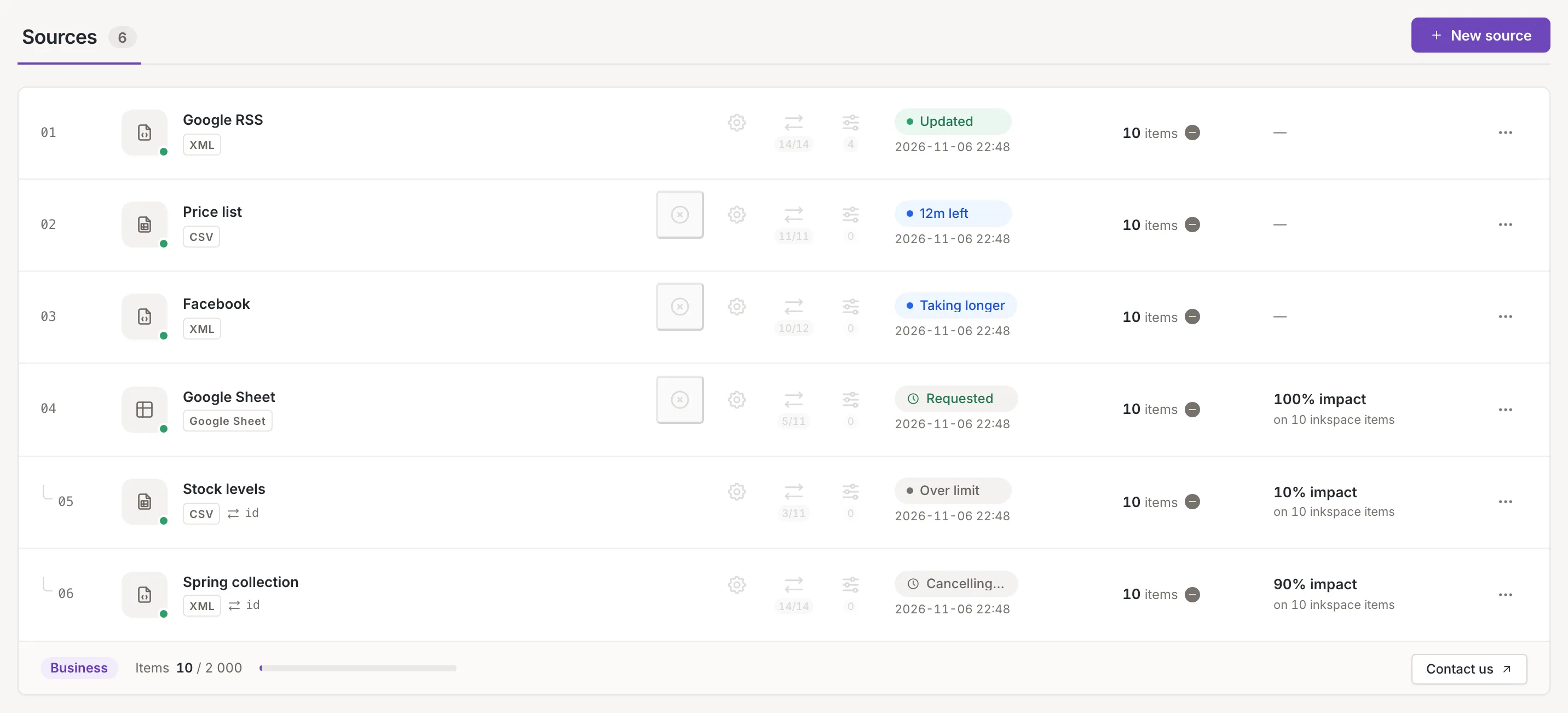
The chip reads the time left, for example “12m left”, counted down from the estimate of the update. When the update takes longer than estimated it reads Taking longer.
An owner or a collaborator can stop the update with the Cancel update icon on the row, or with the button in the notice above the source’s settings. The chip then reads Cancelling…. While an update is only requested, the same button withdraws the request. If the source’s update is a part of the inkspace’s update, Feedink asks first (Part of the inkspace update) and cancels the whole inkspace update on Cancel inkspace update.
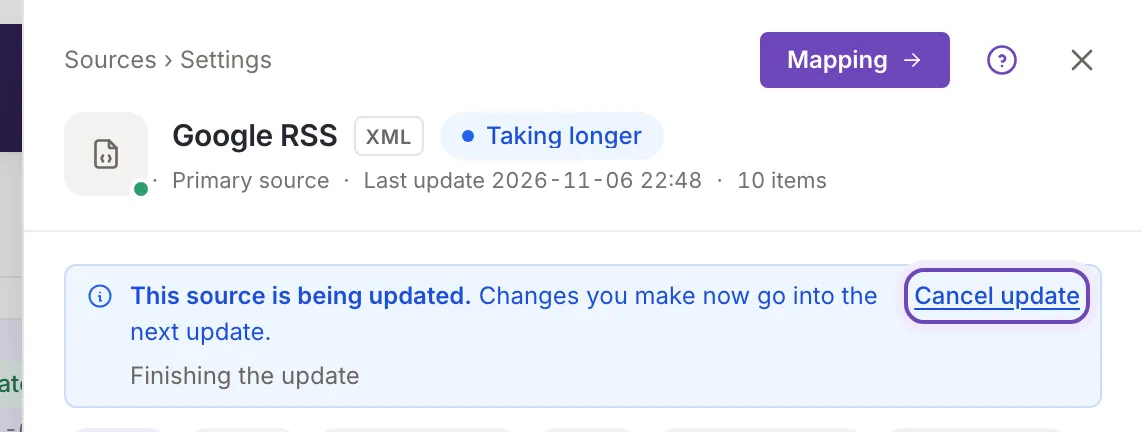
The notice says This source is being updated. Changes you make now go into the next update. You can keep editing the source: the form, the Active switch and Delete are not locked while it updates. If Feedink refuses a save or a delete because of the running update, a toast says to try again after it finishes. A requested update shows Update requested.
It starts shortly.Postponed means the request starts after the maintenance window (An update has been requested. It starts after the maintenance window.).
When the next update of a source will download its data again, the hints of Requested, Postponed, Over limit and Update now end with
The next update downloads the data again.Inactive, over limit and other special states
Section titled “Inactive, over limit and other special states”Inactive means the source is switched off with the Active switch in its settings (Source settings). It is not read, and it does not add items.
Over limit means the source does not fit the number of sources your plan allows. Point at the chip for the explanation: Over your plan's limit, so it is not processed. It comes back by itself when the plan allows it.
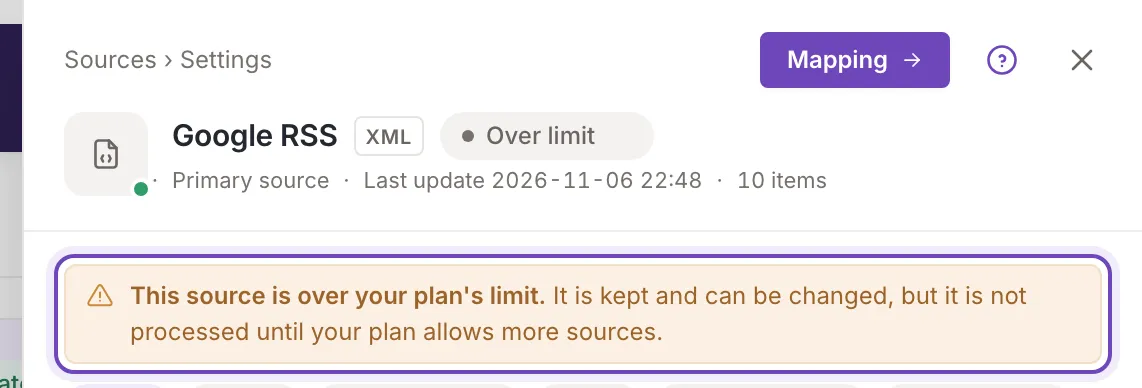
The panel of such a source says This source is over your plan's limit.
It is kept and can be changed, but it is not processed until your plan allows more sources.When an update was interrupted, the panel says The last update was interrupted. and gives the reason; Show details opens the steps of that update. The reasons are in When a source update fails.
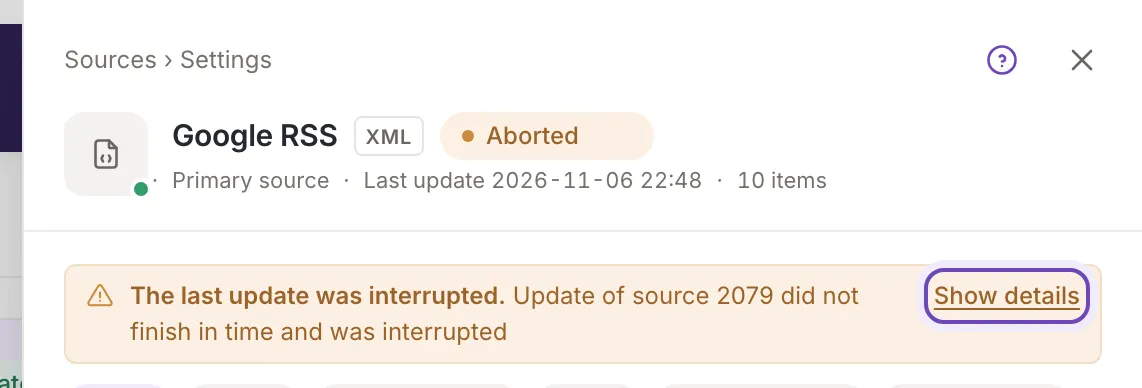
Show details
Section titled “Show details”Point at a chip: the word gives way to Show details. Click it to open the steps of an update: the one that is running, otherwise the last one that finished. A chip that stands for a request (Requested or Postponed), and a source that has never been updated, open nothing. The steps are described in When a source update fails.