
Preview the feed
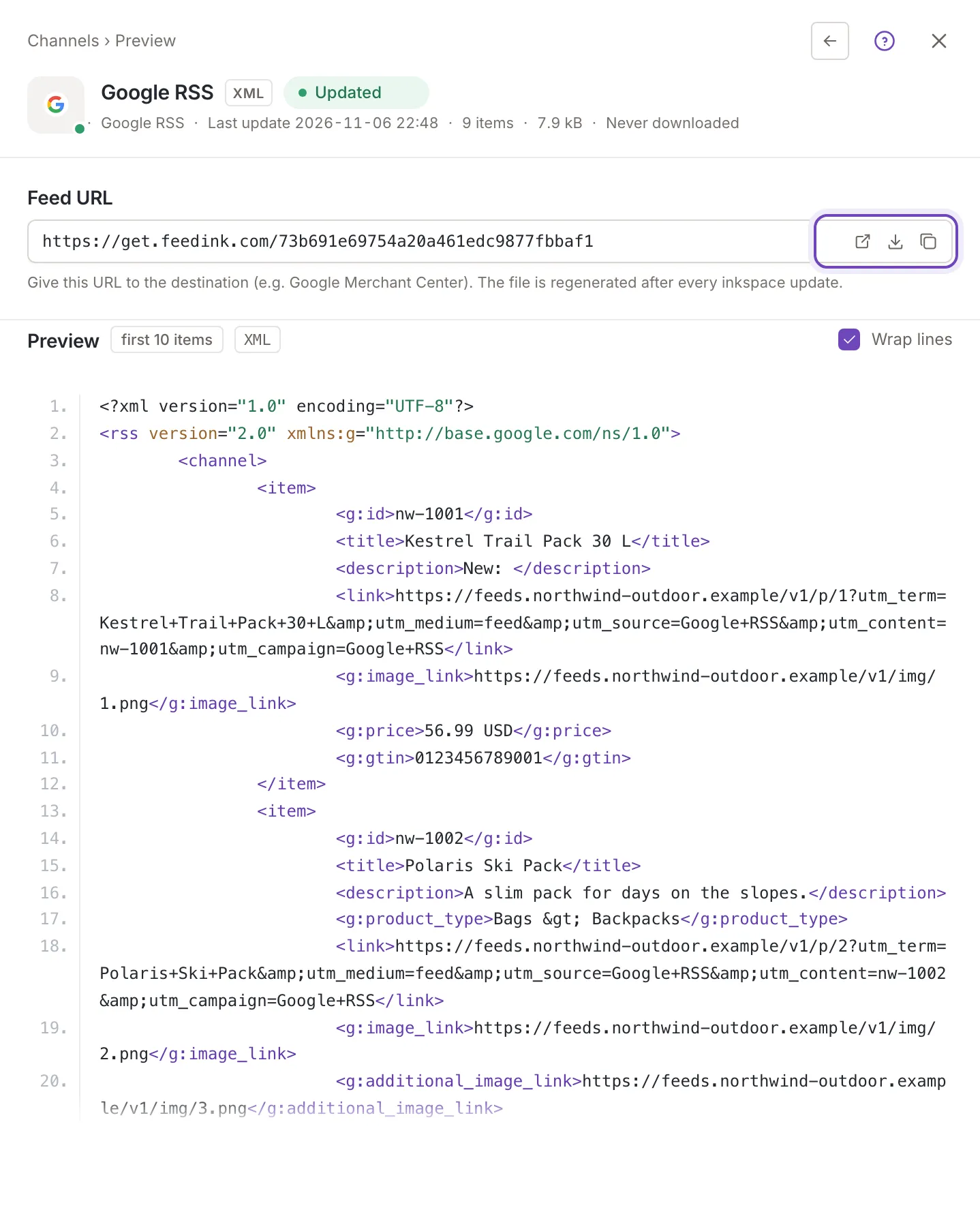
Preview is the last step of a channel. It shows the URL of the feed and the first items of the file Feedink generated, so you can check it before you give the URL to the destination.
The preview
Section titled “The preview”The Preview card shows the first 10 items of the channel’s last generated file (first 10 items), as highlighted XML or CSV with line numbers, in the format of the channel. The preview follows the file: after a successful update of the channel it reads the new file by itself. The file of a run that was aborted or canceled is the last good one, so the preview still shows it.
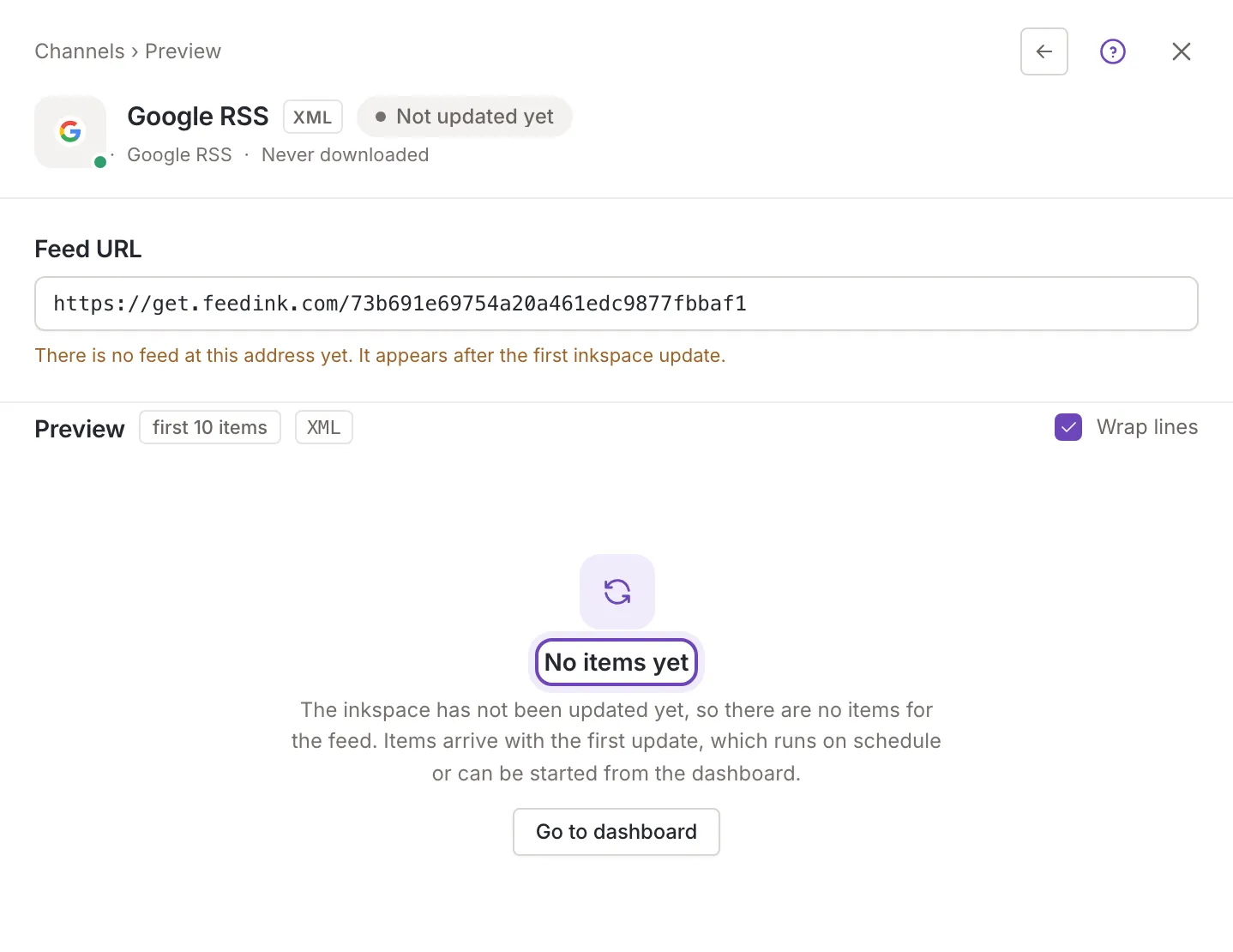
The Feed URL card above it holds the channel’s URL. Hover over it (or focus it) to see three buttons: Open feed opens the feed in a new tab, Download feed saves the file and Copy feed URL copies the URL. Open and Download appear once the inkspace has had its first update; before it the card says There is no feed at this address yet. It appears after the first inkspace update. and only Copy is there. More about the URL in Channel settings.
Wrap lines
Section titled “Wrap lines”Long lines, such as product links, are wrapped by default. Clear Wrap lines to see each element on one line and scroll sideways.
When there is no preview
Section titled “When there is no preview”Instead of code the card can show one of these states, checked in this order:
-
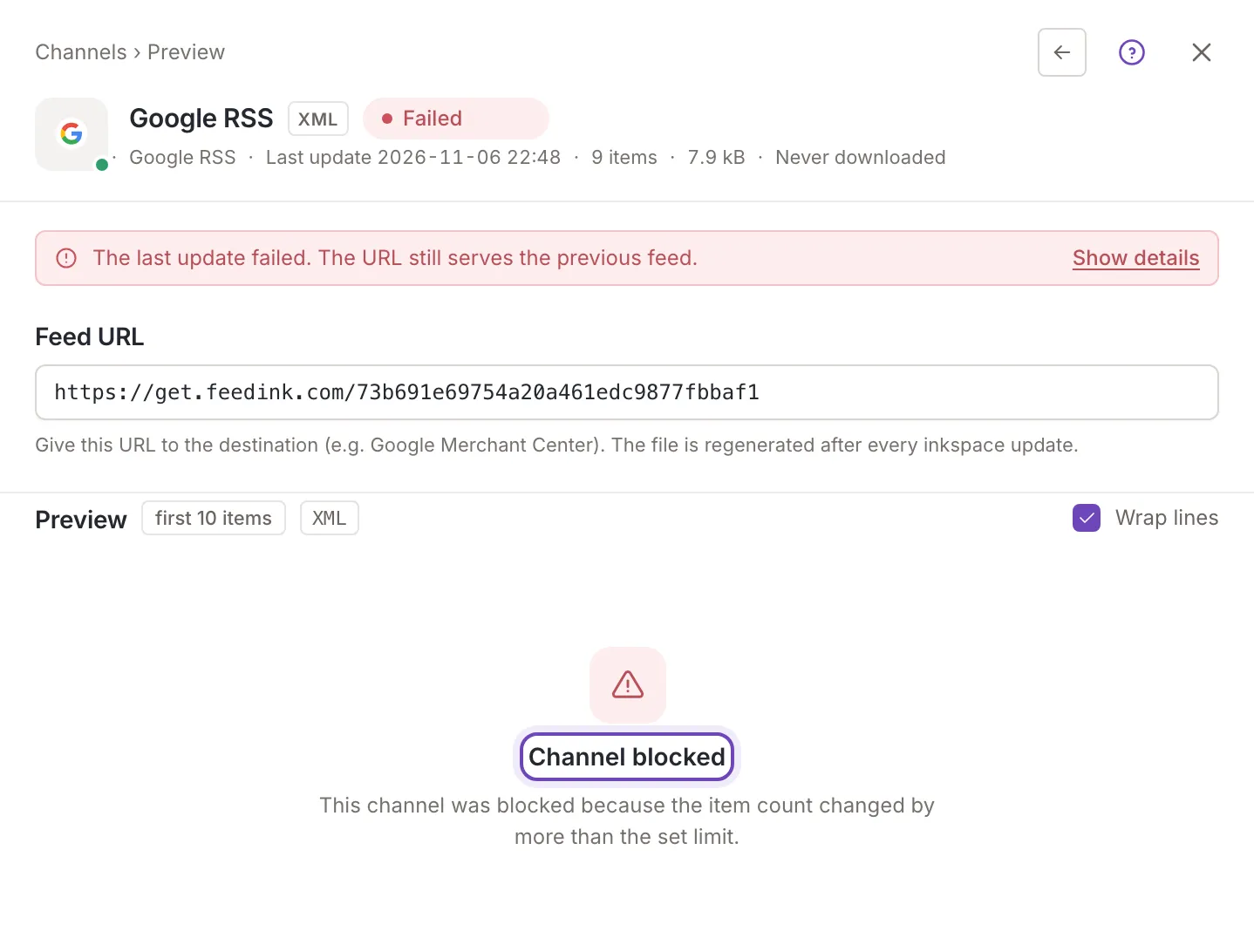
Channel blocked: This channel was blocked because the item count changed by more than the set limit. This is what a channel with Block channel on difference shows after it held back a feed. The same text also appears when the last update failed and had items for another reason, so open the update details (the Show details link under the head) to see the cause: Why a channel update failed.
-
Generating the feed: an update is running. You can close the panel and come back when it ends.
-
Changes not applied yet: you changed the channel and the feed does not have the change yet. When the inkspace has items, the Update now button starts an update (owners and collaborators). When the inkspace has never been updated or has no items, the card sends you to the dashboard instead.
-
No items yet: the inkspace has not been updated yet. Updates run on the inkspace’s schedule or from the dashboard (Go to dashboard).
-
The feed is empty: The feed is empty. Your source file may be empty, or your rules may have excluded all items. Check your sources, the channel’s mapping and its rules.
If the preview itself cannot be read, the card says Could not load the preview. Try again in a moment. The URL card stays.
The Preview step is not available while the channel is inactive.