
Date conditions
A date condition checks a date field of the item, such as updated_at or an expiration date, against a day or a moment
you choose. It is one of the condition types.
Choose a date operator
Section titled “Choose a date operator”Pick the type Date and one of three operators:
- Is before: the date in the field is earlier than the date you give.
- Is on or after: it is the same or later.
- Equals: it is the same.
Next to the operator, choose Use a date and time (the calendar button) and then a mode. The mode decides which date you compare with and which part of the dates is compared. The calendar button is offered only for date operators; if you change to another operator, the date turns into plain text.
The field of the item should hold a date that Feedink can read, such as 2026-11-01, 2026-11-01 10:00:00 or
2026-11-01T10:00:00+01:00. A field that is empty or holds no readable date never meets a date condition, whichever operator
you pick. In the examples, Field is what the item holds, and Value is the mode and the date you give.
Compare a date with a date and time: use the calendar button and pick the mode there.
Is before
Section titled “Is before”Met when the date in the field is earlier than the date you give, in the part the mode compares. With a relative mode such as 3 days ago, the date you give moves on with the calendar, so an item can be met today and not met next week.
| Field | Value | Result |
|---|---|---|
2026-10-15 |
exact date 2026-11-01 |
Met |
2026-11-01 09:30:00 |
exact date 2026-11-01 |
Not met (same day, the time is ignored) |
2026-11-01 08:00:00 |
exact time 09:00 |
Met |
Is on or after
Section titled “Is on or after”Met when the date in the field is the same as the date you give or later.
| Field | Value | Result |
|---|---|---|
2026-10-15 |
exact date 2026-11-01 |
Not met |
2026-11-01 09:30:00 |
exact date 2026-11-01 |
Met |
2025-03-02 10:00:00 |
exact time 09:00 |
Met (the date is ignored) |
Equals
Section titled “Equals”Met when the date in the field is the same as the date you give, in the part the mode compares. A date with a time zone is converted to UTC first, so 2026-11-01T23:30:00-05:00 is on 2 November.
| Field | Value | Result |
|---|---|---|
2026-11-01 09:30:00 |
exact date 2026-11-01 |
Met |
2026-10-15 |
exact date 2026-11-01 |
Not met |
2025-12-05 |
exact month December | Met (the year and the day are ignored) |
Exact dates
Section titled “Exact dates”The Exact modes compare with a date you type or pick. Only the part the mode names is compared; the rest is ignored.
| Mode | What you give | What is compared |
|---|---|---|
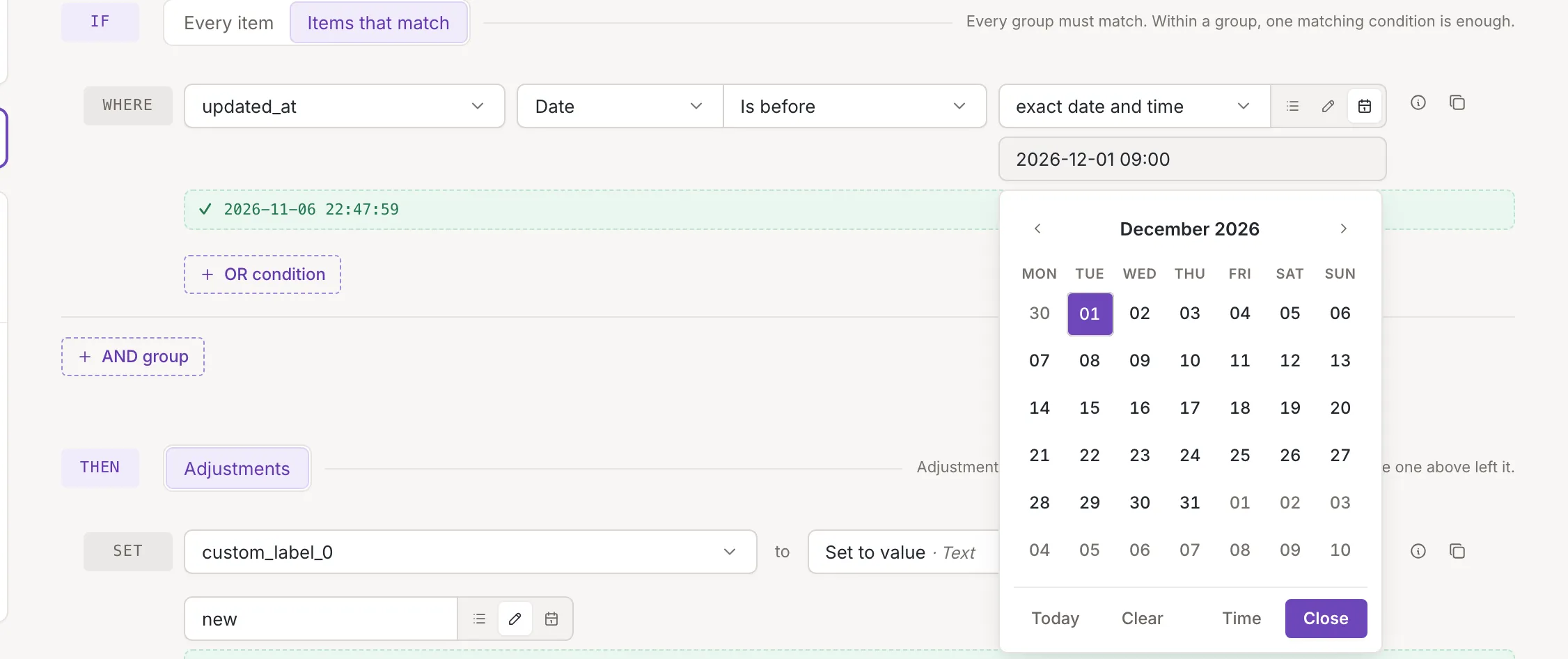
| exact date and time | a date and time | the date and the time, to the minute |
| exact date | a date | the day only; the time is ignored |
| exact time | a time | the time of day only; the date is ignored |
| exact month | a month from a list | the month only; the year and the day are ignored |
| exact day | a day of the month, 1 to 31 | the day of the month only |
| exact weekday | a weekday from a list | the weekday only; for “before” and “on or after” the week runs from Sunday to Saturday |
For example, “Equals exact month December” is met by an item dated in December of any year, and “Is before exact time 09:00” by an item dated before 9 in the morning on any day.
The date and time pickers open when you click the field. They have the buttons Today, Clear, Time (to set the hour and minute; the button then reads Date) and Close. The time view also has Now.
Relative dates
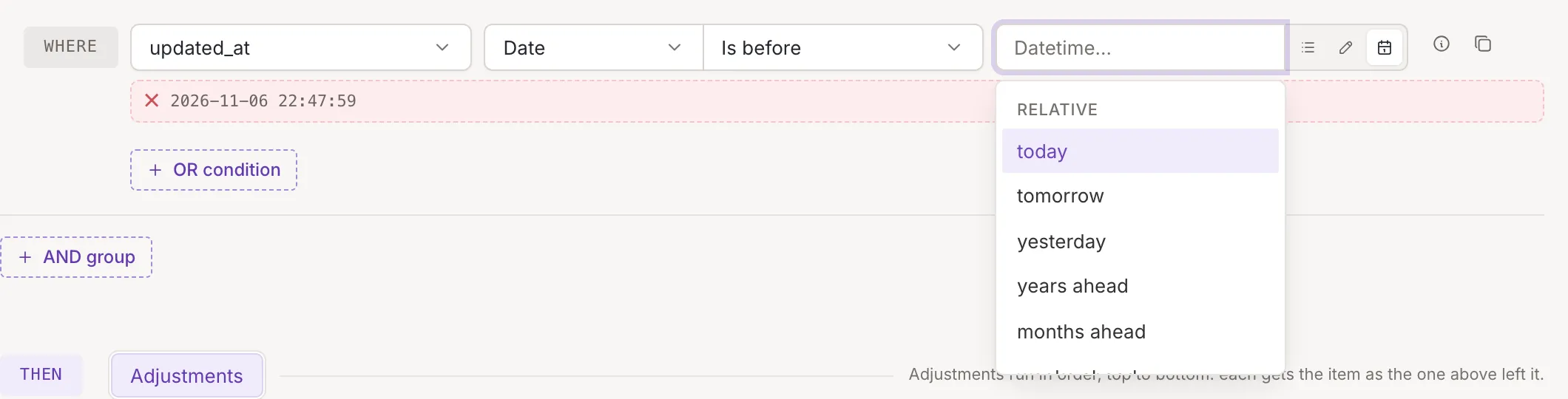
Section titled “Relative dates”The Relative modes compare with a moment counted from now, so the rule keeps working as time passes.
| Mode | What you give | What is compared |
|---|---|---|
| today, tomorrow, yesterday | nothing | the day; the time is ignored |
| days ahead, days ago (and the same for weeks, months and years) | a number | the day; the time is ignored |
| hours ahead, hours ago, minutes ahead, minutes ago | a number | a moment counted from now in hours or minutes |
The number is a whole number of at least 0; a fraction is cut down to the whole number, and 0 means now. A number below 0 is marked with a message.
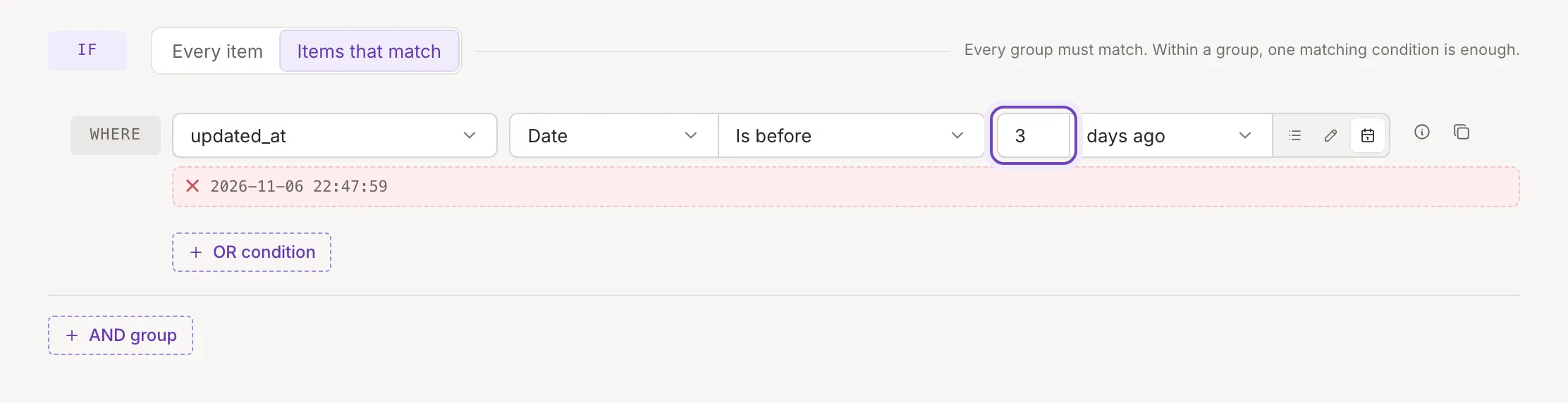
For example, “updated_at Is before 3 days ago” is met by items last updated more than 3 days ago.
Clear and invalid dates
Section titled “Clear and invalid dates”- A field or a custom value that holds a date, such as
2030-01-01 00:00:00, is compared as the full date and time, seconds included; it needs no mode. - Changing the mode clears the value. Switching between the field, custom value and date buttons clears it too.
- Clear empties an exact date. Pick a date again before you rely on the condition; nothing stops you from saving it empty.
- A mode left on Datetime… means no mode is chosen yet. Pick one.
Use Test on item to check a date condition against a real item before you save the rule.