
The dashboard
The dashboard is the first screen of an inkspace. It shows how the inkspace stands after its last update, what needs attention, how its items changed over time and who changed what. Everyone who has access to the inkspace sees it: owners, collaborators and viewers.
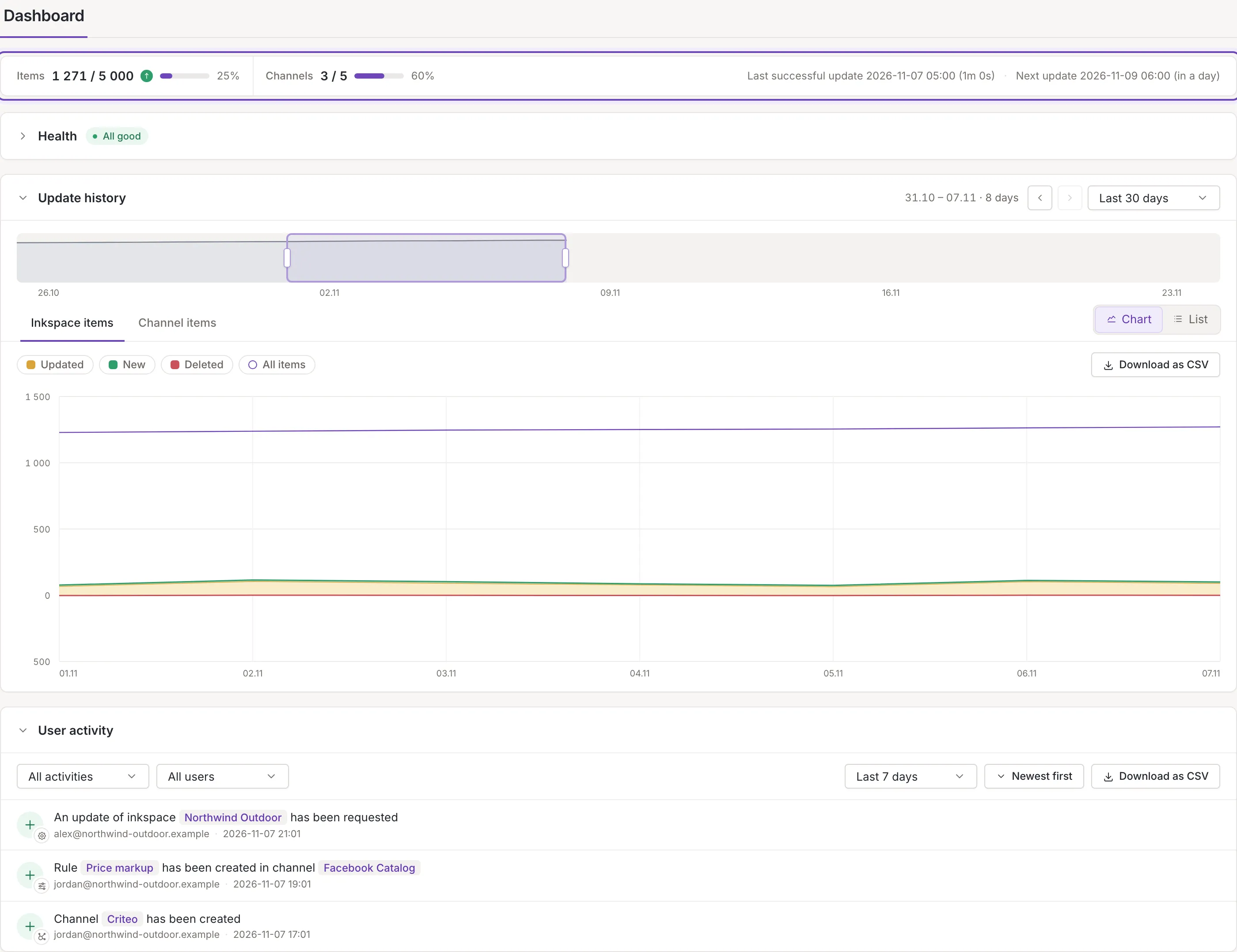
What is on the dashboard
Section titled “What is on the dashboard”Under the title Dashboard, from top to bottom:
- The state strip: items, channels and the last and next update (below).
- Health: what needs your attention after the last update, with a link to fix each thing (Health).
- Update history: the items after every update, as a chart, a list and a list of channels (Update history, Inkspace items and Per channel lists). To find an update that failed, see Failed updates on the dashboard.
- User activity: who changed what in the inkspace (User activity).
While an update of the inkspace is queued or running, a thin bar runs under the title. Point at it and a tooltip says The inkspace is being updated. Changes you make now go into the next update. It is not the bar under the header that tells about updates on every screen: that one is in Update status.
A point on a chart, a row of the update list or a red dot on a channel opens the update’s steps (Update details).
An old link to the inkspace’s statistics opens the dashboard.
The state strip
Section titled “The state strip”The strip appears once the inkspace has finished its first update. Before that, only the next scheduled update is written beside the title, when there is a schedule. Its figures are those of the last successful update, so a failed update does not change them.
- Items is the number of items. When your plan limits the items, it reads as the count against the limit, for example “1 258 / 5 000”, with a bar and the share used. The bar turns amber when the limit is close and red when it is reached. A dash means the count is not known. The small mark after the count compares it with the update before: an arrow up when there are more items, a dash when there are as many, an arrow down when there are fewer, and red when the drop is 10% or more. Point at it for the change and both counts.
- Channels is the number of active channels now (not as of the last update), against your plan’s limit with a bar when the plan has one.
- Archival appears only when the last update left archived items, for inkspaces that keep them.
- At the right end: the date and duration of the last successful update, or No successful update yet, and the time of the next scheduled update with how far away it is. The next update is left out when the inkspace has no schedule. Dates are in the inkspace’s time zone.
While the inkspace is being prepared
Section titled “While the inkspace is being prepared”A new inkspace needs a moment before it can show anything. Until then the dashboard has no sections, only a panel that says Your inkspace is being prepared and
Thank you for your patience. The dashboard fills in by itself when it is ready.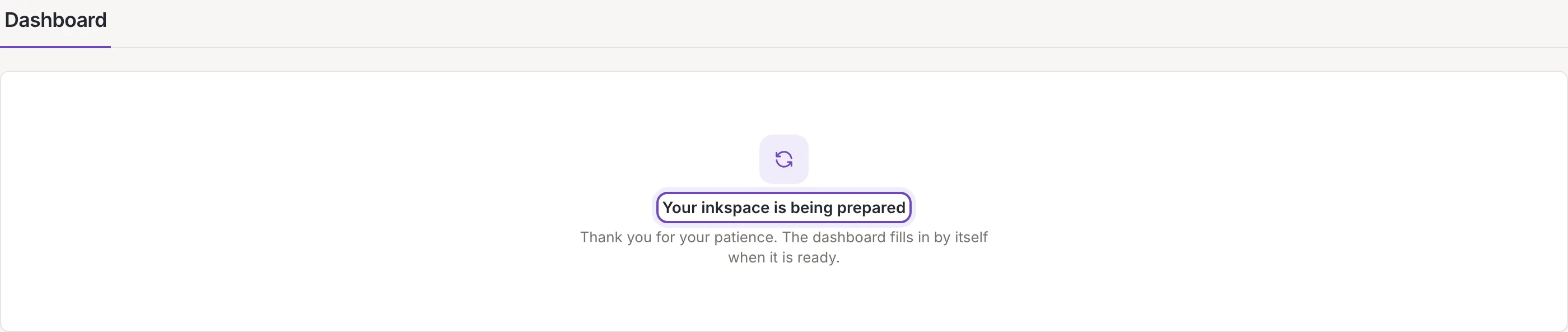
When the inkspace is being moved to another server, the panel says Your inkspace is being moved, and
Updates may be paused for a moment. The dashboard fills in by itself when the move is done.Folding sections
Section titled “Folding sections”Click the head of Health, Update history or User activity to fold or open it. The keys Enter and Space do the same on a focused head. Health opens by itself when it has something to say and stays folded when all is well. The other two start open. Nothing is remembered: each visit starts the same way, and the history starts with its Inkspace items tab, the chart, a period of 30 days and a window of the latest 7 days.