
Clone a rule
Cloning copies a rule to another source or channel, or to the same one, so you do not have to build it again. Only owners and collaborators can clone.
Open the clone window
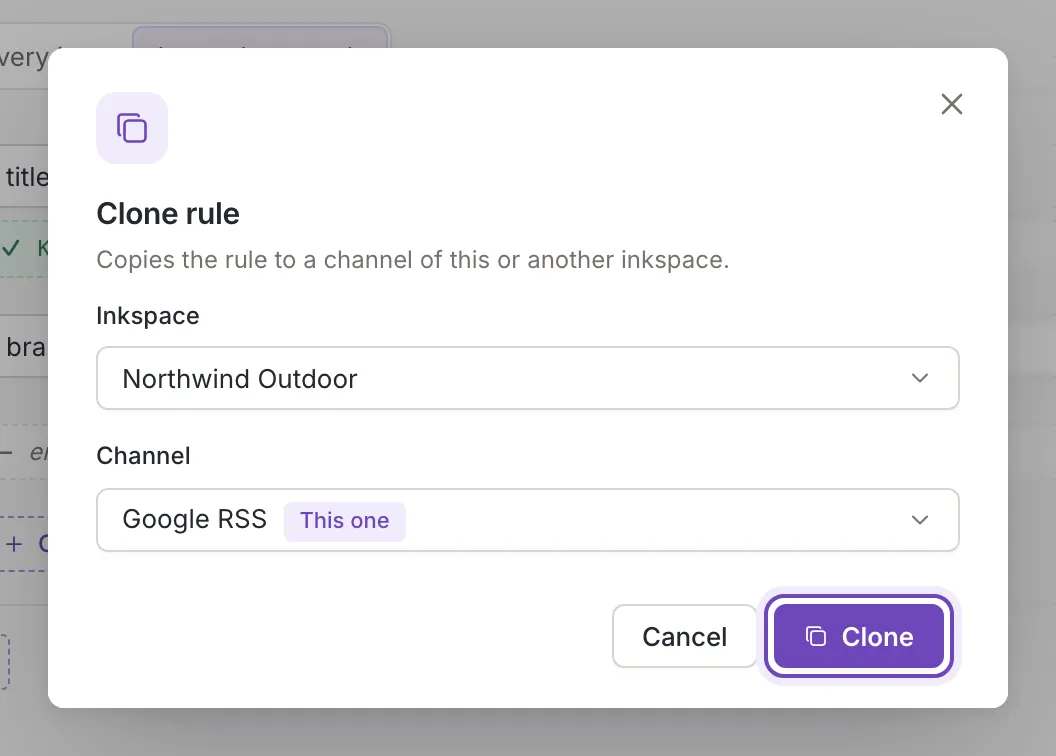
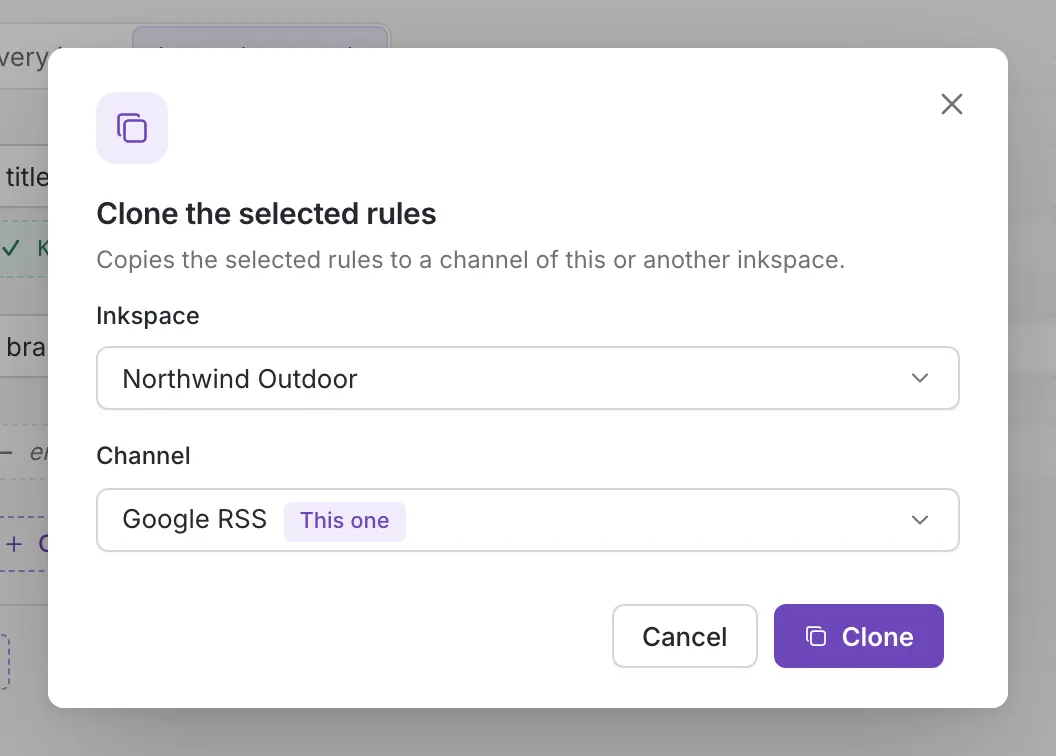
Section titled “Open the clone window”For one rule, open it and click Clone in its header. For several, tick them in the list and click Clone in the bar (see Work on several rules). The window is titled Clone rule, or Clone the selected rules for several, and says that it copies the rule or rules to a channel (or a source) of this or another inkspace.
Choose where to copy
Section titled “Choose where to copy”- Inkspace starts as the inkspace you are in; open it to choose another of your inkspaces. Choosing another inkspace loads its sources or channels and clears the second choice.
- Channel (on a source rule: Source) lists the channels (or sources) of that inkspace. It starts as the one you are in, marked This one, and one that is switched off is marked Inactive. A source’s rule can be copied only to a source, and a channel’s rule only to a channel.
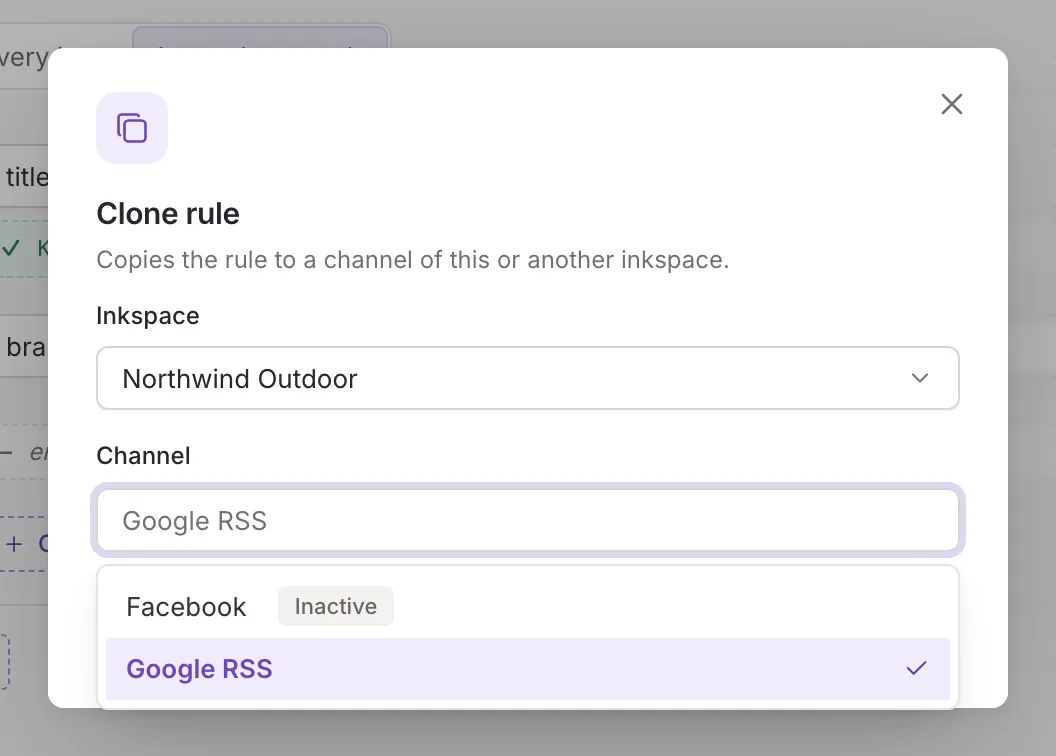
Clone works once an inkspace and a target are chosen. Leaving the current one as it is copies the rule into the same source or channel. Cancel, the close button and the Escape key close the window and copy nothing.
After cloning
Section titled “After cloning”Feedink shows Channel rule cloned. (several rules: Channel rules cloned.; on a source the text starts with Source) and the rules list of the current source or channel is refreshed. When you chose a different target, the window also has Go to the rules after cloning: tick it to open the rules of the target when the copy is done.
When it fails
Section titled “When it fails”A toast titled Rules not cloned gives the reason, for example that an update is in progress. Nothing is copied. When you cloned several rules, they stay selected in the list so you can try again.