
Recent updates and downloads
Two cards at the bottom of a channel’s settings show what happened to the channel in the last 7 days: its updates, and the downloads of its feed.
Recent updates
Section titled “Recent updates”Recent updates lists every update of the channel in the Last 7 days, newest first. A channel has no schedule of its own: it is updated whenever the inkspace is, so each row is one inkspace update as it reached this channel.
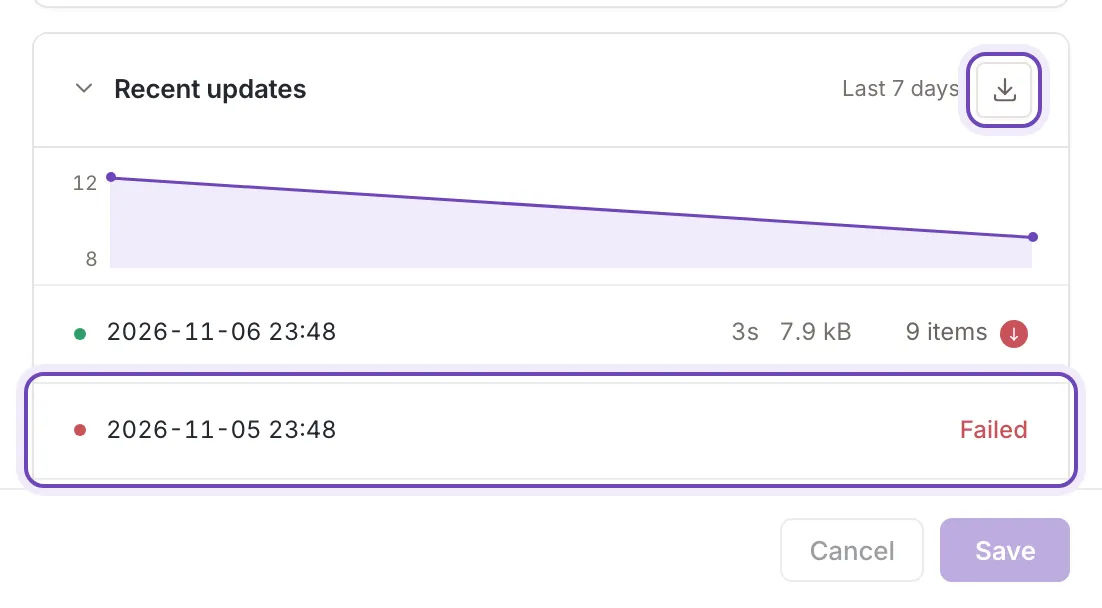
The chart above the rows draws the number of items in each update, with its highest and lowest value at the left edge. Each row shows:
- a dot for the result (green for a successful update, red when it failed, amber when it was aborted), and the date and time in your inkspace’s time zone;
- for a successful update, how long it took, then the size of the file it wrote and the number of items, with an arrow when the number rose or fell since the update before. An update that did not succeed shows its status instead of the items (Failed, Aborted, Canceled, or Updating while it runs);
- the Update details button, which opens Update details: the steps of that update and, for a failed one, the step that failed with its reason. See Why a channel update failed, and Failed updates on the dashboard for the same panel from the dashboard.
The card lists itself again when an update of this channel finishes. The button Download as CSV at the top right saves the list as a CSV file with the columns Date, Duration, Items and Status.
When there are no updates, the card says No updates in the last 7 days and why: The channel's feed is built at every inkspace update. If the list cannot be loaded, it says Could not load the updates with a Try again button.
Download a past feed file
Section titled “Download a past feed file”A row whose update wrote a file has a Download icon: it downloads the feed file of that update. The file is available to owners, collaborators and viewers. A failed update that wrote no file has no download icon.
Downloads of your feed
Section titled “Downloads of your feed”Downloads lists each time the channel’s feed URL was read in the last 7 days, for example by Google when it fetches the feed. Each row has the date and time, the country and the IP address of the reader, newest first. Hover over a row to see the referrer, the address the request came from, when there is one.
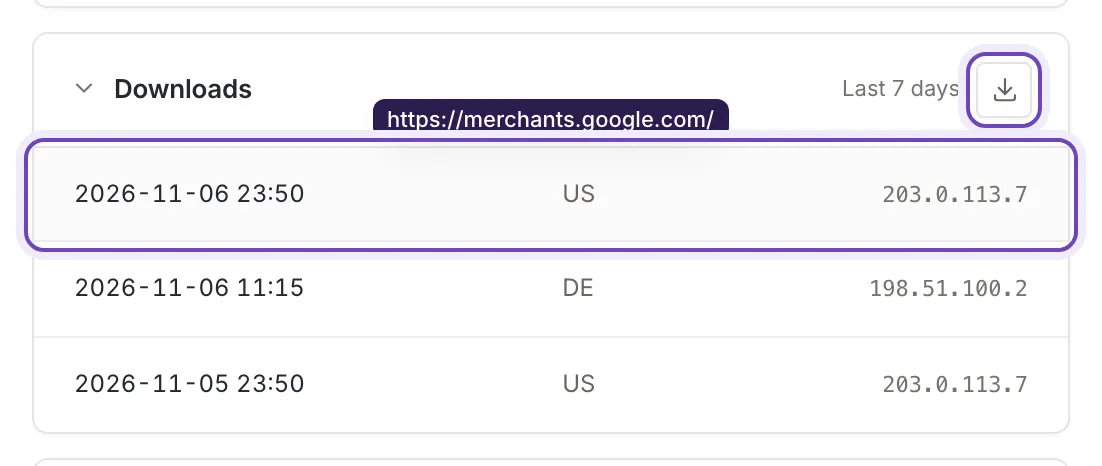
Download as CSV saves the rows as a CSV file with the columns Date, Country, IP and Referrer. A page holds 50 downloads; with more, a pager under the table moves between pages, and the CSV holds the page you see.
With no downloads the card says No downloads in the last 7 days: Each time a service such as Google reads this channel's feed, it is listed here. If it cannot be loaded, it says Could not load the downloads with a Try again button.
The date of the last download also shows in the panel’s head and in the Status card, and on the channels list as the color of the download icon in the Status column.