
Read the test result
With Test on item on, the panel, the rules list and the rule’s editor all show what the rules do to the picked item. They read the same result, so they never disagree. The result is worked out again whenever you pick another item, edit a rule or change a setting.
This rule
Section titled “This rule”The panel is titled What this rule does when the open rule is tested. Next to the title is a status chip, then the changes the rule makes.
- Applies · 1 change: its conditions are met and it changes the item. The count follows the number of changed fields (for example “Applies · 2 changes”).
- Applies · no changes: Its conditions are met, but no value changes.
- Does not apply: Its conditions are not met, so it changes nothing for this item.
- Excludes the item: This rule leaves the item out. A rule that excludes items takes the item out of the feed.
- Excluded earlier: a rule above this one has already left the item out, so this rule never sees it. The note names that rule (for example “Exclude out of stock”) followed by , above this rule, leaves the item out. Click the name to open that rule. This happens in Sequence mode only.
- Not active: the rule is inactive or outside its time limit, so it does not run in updates. The chip’s tooltip says so (Inactive or out of its time limit: it does not run in updates.), and under the chip It is inactive or out of its time limit, so it does not run in updates; this is what it would do. The result is what the rule would do.
- A rule that splits the item adds a note such as “It splits the item into 2 items; the first one is shown.” Only the first of the items goes on to the next rule.
Each change is a line: the field, its old value struck through and its new value, for example
New: Grippy shoes for rocky paths. after a rule prepends text. An empty value reads
empty. The first 3 changes are shown, then a link that reads
“Show all 6 changes” (for a rule with 6) and, once open, Show fewer.
A field that holds a list shows its number of elements and the elements one by one, an added one with a plus and a removed
one with a minus; the first 3 are listed, then “+4 more” (for example). A list with one element reads 1 element. When a change leaves the text of a value as it
was but changes its type, for example text to number, the line says “type change: text → number”; the types it names are
text, number,
true / false, no value,
list and object. Values that the rule
changed also show in the item’s card, on the left, in the accent color
(the item card).
All rules
Section titled “All rules”What all rules do shows what all the active rules do together: the item after the last one, as a list of changes against the original item. Each change names the last rule that made it (by and the rule’s name; click it to open the rule, as a click on its row in the list does, so the question about unsaved changes applies). The status is the number of changed fields (“2 changes”, 1 change for one), and inactive rules or rules outside their time limit do not count. When the active rules change nothing, the status reads “0 changes” and the note Its conditions are met, but no value changes.
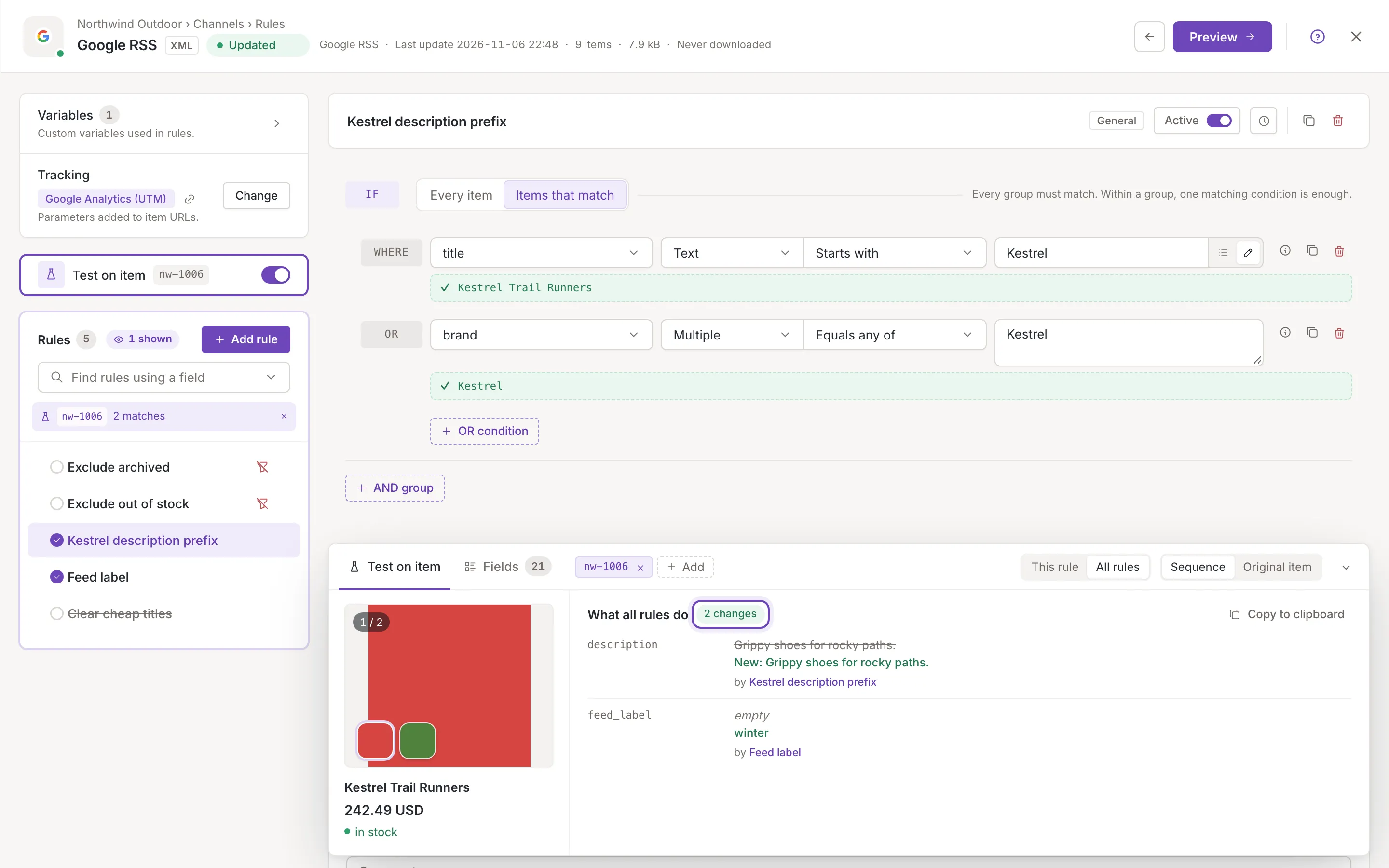
When several rules changed the same field, its line ends with a button such as “2 rules changed it”. It opens the steps: Original, then each rule with the value it left, the final value in green. The rule that is open in the editor is marked In the editor. Hide steps closes them.
When a rule leaves the item out, the status is Excluded and the note names the rule, then leaves the item out. If rules above it had already changed the item, Before that, the rules above it changed: lists those changes; in the steps, Later rules do not run. follows the rule that excluded it.
Marks in the list
Section titled “Marks in the list”While Test on item is on, each row of the rules list shows a mark before the rule’s name. Point at a mark to read it:
- Applies to this item: the rule runs and its conditions are met.
- Excludes this item: it runs, its conditions are met and it takes the item out.
- Does not apply to this item: its conditions are not met, or it is inactive or outside its time limit.
- The item was excluded by a rule above: a rule above it left the item out (Sequence mode).
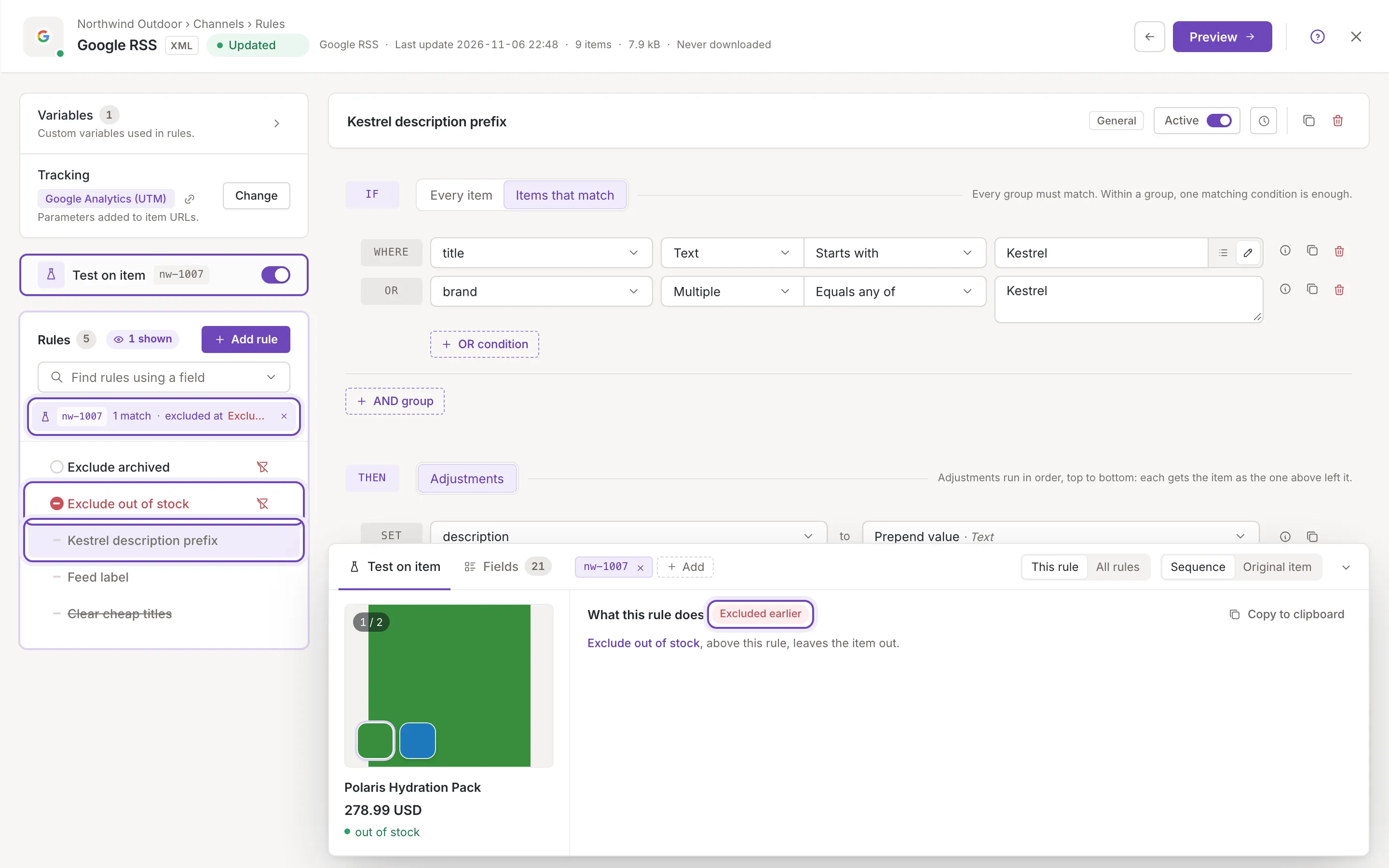
Above the rows a strip names the picked item and how many rules match it (“3 matches”, 1 match for one). When a rule takes the item out, it adds excluded at and the rule’s name; click it (it is a button) to open that rule. The cross at the end of the strip (Switch off Test on item) switches Test on item off.
Lines under conditions and adjustments
Section titled “Lines under conditions and adjustments”With an item picked, the rule’s editor shows lines under its conditions, also with the panel closed. A line starts with a sign and the item’s value of the field, as the rule receives it (in Sequence mode, after the rules above it):
- a green check: Matches the item
- a red cross: Does not match the item
- a grey dash: Not needed: another condition of its group matches the item The condition does not match, but it does not need to.
A missing value reads empty. A long value is cut to two lines (point at it to read it all); a list shows its first two elements and “+3 more” (for example).
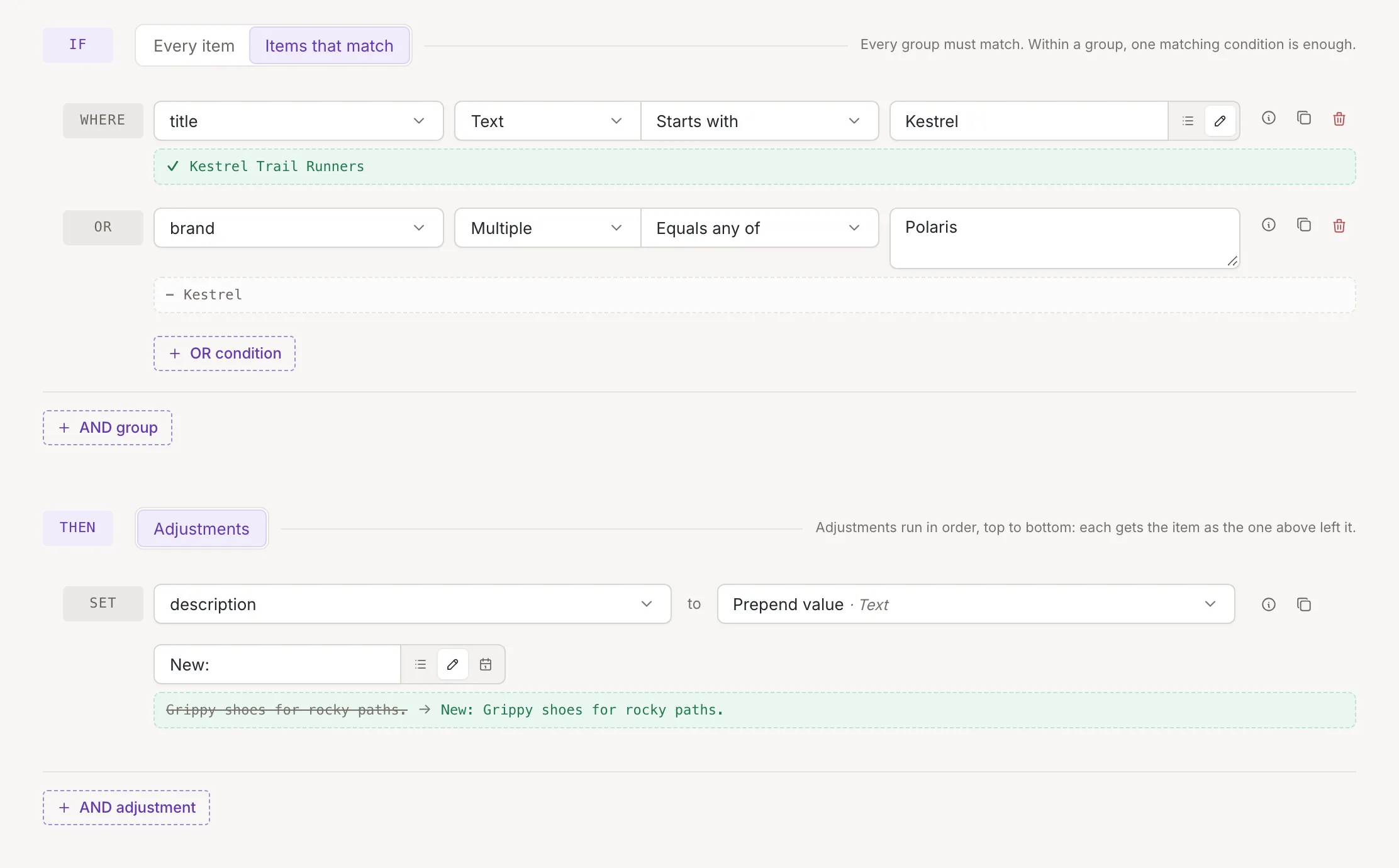
Under each adjustment, while the panel is closed, a line shows the field’s value before the adjustment (struck through) and after it. When nothing changes it reads no change. A list shows its elements with a plus and a minus, the first two, then a counter such as “1 added · 3 kept” that opens the rest (Show all elements). An adjustment that leaves the item out shows Takes the item out; the adjustments below do not run. and the adjustments below it get no lines.
Copy the result
Section titled “Copy the result”Copy to clipboard in the panel copies the result, for example to send it to a colleague. It holds the item’s key, the title and status of the result, the note naming the rule that leaves the item out (when another rule leaves it out) and a table of the changes, each field with its original value and then the value after the rule (in All rules, after each rule that changed it, the last one in bold); pasting it into an e-mail gives the table, and anywhere else plain text. A message confirms it: Test result copied.