
Order and switch rules on or off
The order of the rules list is the order in which the rules run, and the Active switch decides whether a rule runs at all. Only owners and collaborators can change either.
Run order
Section titled “Run order”Rules run from the top of the list to the bottom. Each rule gets the item as the rules above left it. So a rule that sets a field can be followed by a rule that reads it, and a rule that leaves items out stops the rules below it from seeing those items. Source rules and channel rules says how the two lists relate.
Drag a rule
Section titled “Drag a rule”Press the handle at the left of a row (Drag to move) and drag the row. It fades while you drag, and a line shows where it will land. Let go to drop it there. Press Escape before you let go to cancel the move.
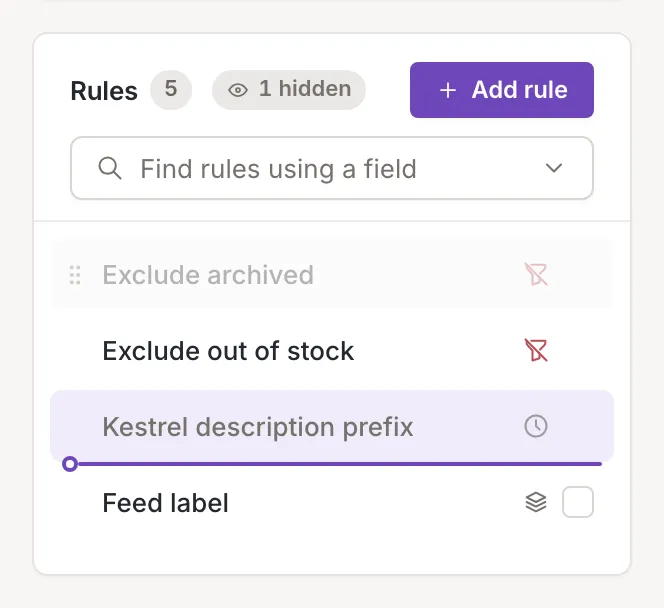
The list takes its new order a moment after the drop, when Feedink has saved it. If the move fails, a toast titled Order not changed says Could not move the rule. Try again. and the list stays as it was. Dropping a rule back where it was sends nothing. Deactivated rules that are hidden keep their places in the order.
Switch a rule on or off
Section titled “Switch a rule on or off”Open the rule and use the Active switch in its header. It saves at once: there is no Save to press, and the toast says Channel rule deactivated. or Channel rule activated. (on a source it begins with Source rule). The row in the list shows the new state. A rule that is switched off does not run in updates, but it keeps its conditions, adjustments and place, and you can switch it on again. To switch several at once, use Work on several rules.

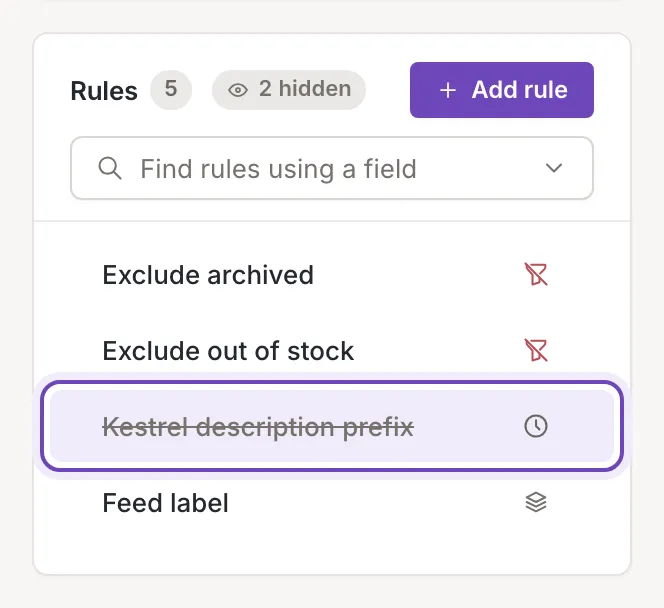
If the request fails, a toast titled Request failed gives the reason, for example that an update is in progress, and the switch stays where it was.
A rule can also be inactive without being switched off: one with a time limit does not run outside its dates (see Run a rule between two dates). Test on item says
Inactive or out of its time limit: it does not run in updates.