
Test on item
Test on item runs the rules of a source or a channel on one sample item and shows what they would do to it, while you build them. It only reads: nothing is saved, and no update starts.
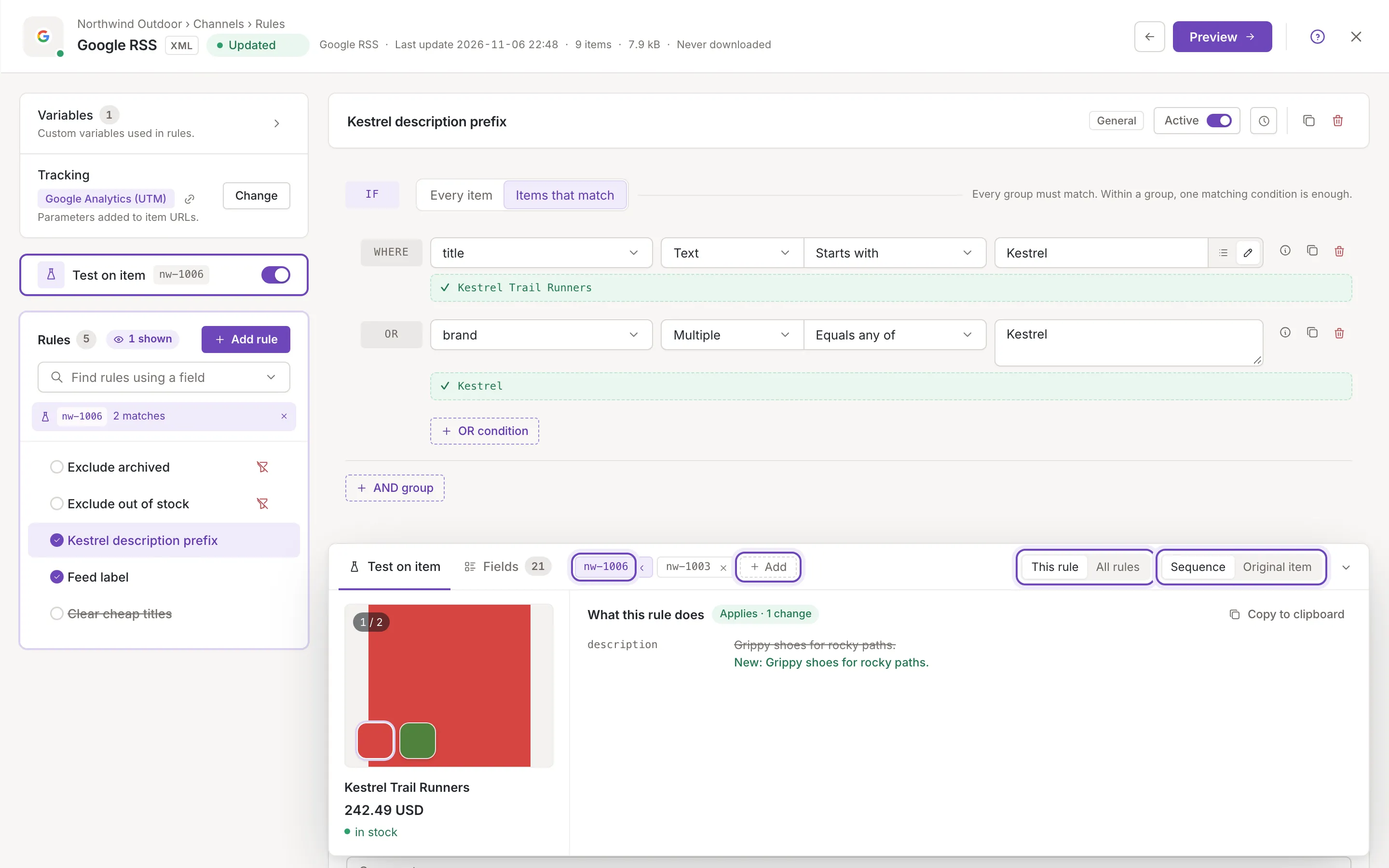
Everyone who can open the rules screen can use it, owners, collaborators and viewers alike. How to read the answer is in Read the test result.
Switch Test on item on
Section titled “Switch Test on item on”The Test on item switch sits above the rules list, with the key of the item picked. Switch it on to open the panel at the bottom of the rule column; switch it off, or use the arrow at the right of the panel’s head, to close it (Switch off Test on item). Point at the switch to read what it does (Test the rules on a sample item when it is off). The panel is off each time you open the screen. While it is off, the chosen item stays picked, so the lines under conditions and adjustments still work (Read the test result).
The panel has two tabs: Test on item and Fields. Both use the same item. The tests count what is on the screen: an edit you have not saved yet is tested as it is. A new rule you are still adding is tested too: “This rule” and the lines under its conditions and adjustments work on it, at the position you chose. The marks in the rules list and “All rules” count it once it is saved.
Choose a sample item
Section titled “Choose a sample item”The sample items are chips in the head of the panel. Click a chip to pick that item; the picked one is marked, and its key shows on the switch. A chip’s cross removes it from the test. An item added at random is picked when it is the only chip; an item added by its ID is not: click its chip to test on it. When you remove the picked chip, no item is picked (the next chip is not taken for you) and the panel asks for one again.
On a channel
Section titled “On a channel”A channel tests real items of your inkspace. The item is shown as it is stored, with the channel’s currency; its dates show in the inkspace’s time zone, and Feedink adds fields such as feedink_id and created_at to it, so rules can read them. Only the rules of this channel run on it.
- When you have no chips yet, Feedink picks one item of your inkspace at random.
- Add opens a menu. Add by ID opens a box (Enter the item ID…) for an item ID: press Enter or click Add to add it, and Cancel or Escape to drop the box. Add random adds an item you do not have as a chip yet.
- An empty box is refused with Enter the item ID. and an ID you have added already with This item ID is already added.. When there is nothing left to pick at random, you read No random items found.
- An ID that is not an item of this inkspace still makes a chip; it says that the item is not in the inkspace (for example “Item nw-9999 is not in this inkspace”) when you point at it, and the panel adds Pick another item or add one. While an item is being read the panel says Loading the item…
- Without a picked item the panel says No item to test on. Add one by its ID or pick a random one, and see what the rules do to it.
The chips are kept in this browser, for this channel: the next time you open the channel’s rules in the same browser they are there again, and the first one is picked. Another browser, or another channel, has its own. Removing a chip removes it from the browser’s memory as well.
On a source
Section titled “On a source”A source’s rules run before items exist in your inkspace, so Test on item makes items up from the source’s mapping: each mapped element gives one of its sample values to the field it is mapped to. The chips are named Random data and a number, and the first one is added when the screen opens. Add random adds another, with other samples where the mapping has more than one. There is no way to add an item by its ID, and nothing is kept: a reload starts again with one item, made from a new random pick of the samples. Without a picked item the panel says
No item to test on. Add a random one and see what the rules do to it.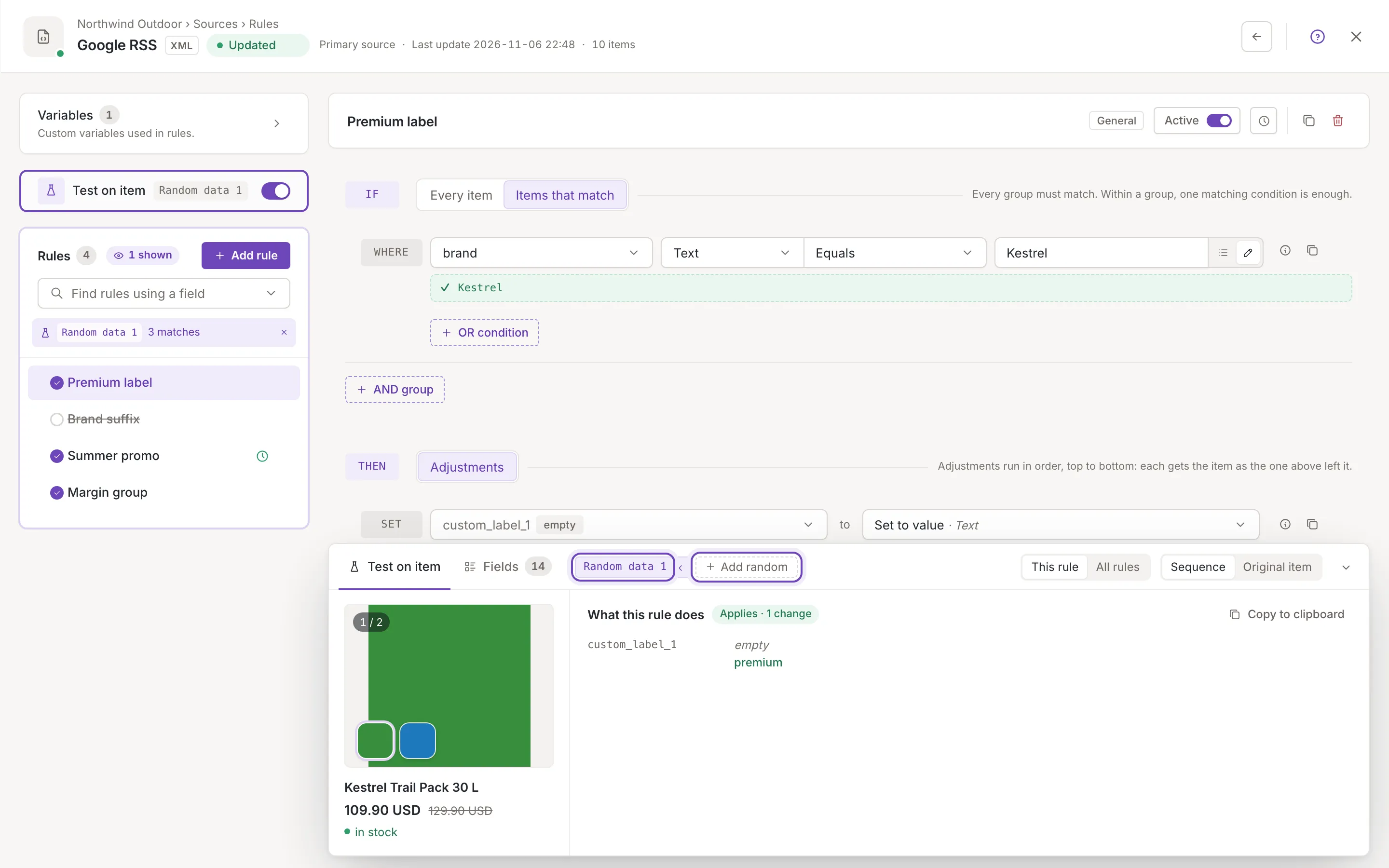
The item card
Section titled “The item card”Next to the result, the panel shows the picked item as a card: the item as the rule (or, in All rules, all the rules) leave it, so a value a rule changed is already changed here, and drawn in the accent color. The card shows the photos, the title, the price and the availability; the other fields are in the Fields tab.
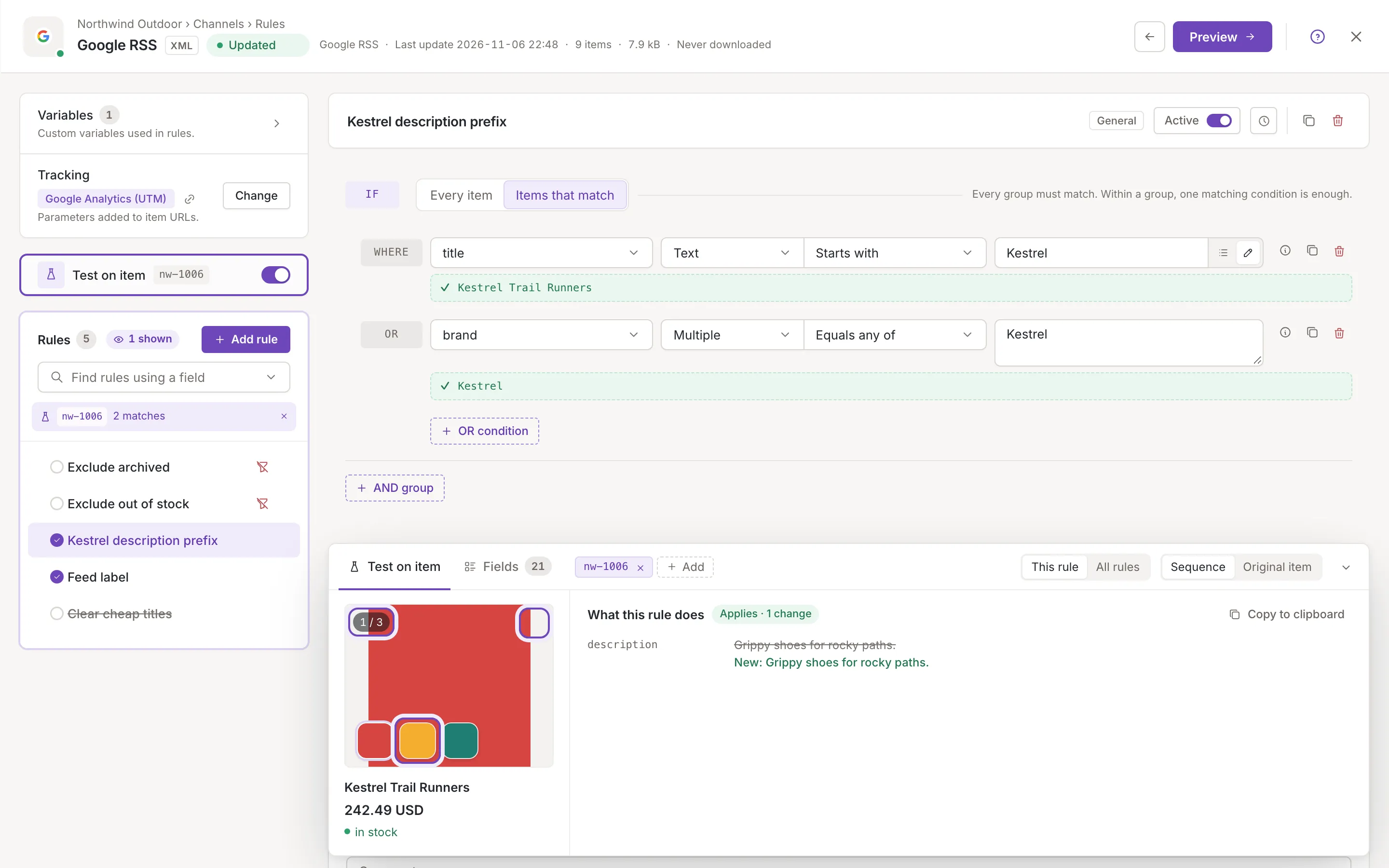
- Photos: the item’s image and then its additional images. With more than one, a counter (“1 / 3”, for example) and a row of thumbnails appear; click a thumbnail to see that photo (point at it to read which one, for example “Photo 2 of 3”). A new item starts at its first photo.
- The link in the corner of the photo (Open in a new tab) opens the picture in a new browser tab.
- An item without a picture shows No image; a picture that cannot be loaded shows Could not load the image.
- With a sale price, the card shows it in bold and the regular price struck through; without one, the price in bold.
This rule or all rules
Section titled “This rule or all rules”When a rule is open (also a new one), the head of the panel has a switch (What to show) between This rule and All rules. The first shows what the open rule does to the item; the second what all the active rules of the source or channel do together, one after another. With no rule open there is no switch: the panel shows All rules. Both are described in Read the test result.
Sequence or original item
Section titled “Sequence or original item”Sequence and Original item (the switch named How to test, on the Test on item tab) set which item a rule works on:
- Sequence: Each rule gets the item as the rules above left it. This is how the rules run in an update, and it is the default; the choice is not kept: it is Sequence again each time you open the screen.
- Original item: Every rule gets the item as it came in. Use it to see a rule on its own, without the effect of the ones above it.
The choice changes “This rule”, the marks in the rules list and the lines under the rule’s conditions. “All rules” always runs the rules in order. Only rules that run are counted: an inactive rule, or one outside its time limit, is skipped (in “This rule” it is shown with what it would do, marked as not active).
Limits
Section titled “Limits”- Up to 10 sample items (on a channel, the open ID boxes count too). At the limit, adding another says You can test on up to 10 items. Remove one to add another.
- The panel cannot test what the item does not hold: a rule that reads an empty field sees an empty value.
- The result is worked out in your browser from the rules as they are on the screen, for the one item. It does not show how the rules treat the rest of your items; for that, preview the feed (Preview the feed).