
The items list
Items lists the items of your inkspace: the rows that Feedink builds from the products of your sources, after mapping and rules. Open it from the inkspace’s header. The list shows the items of the last successful update.
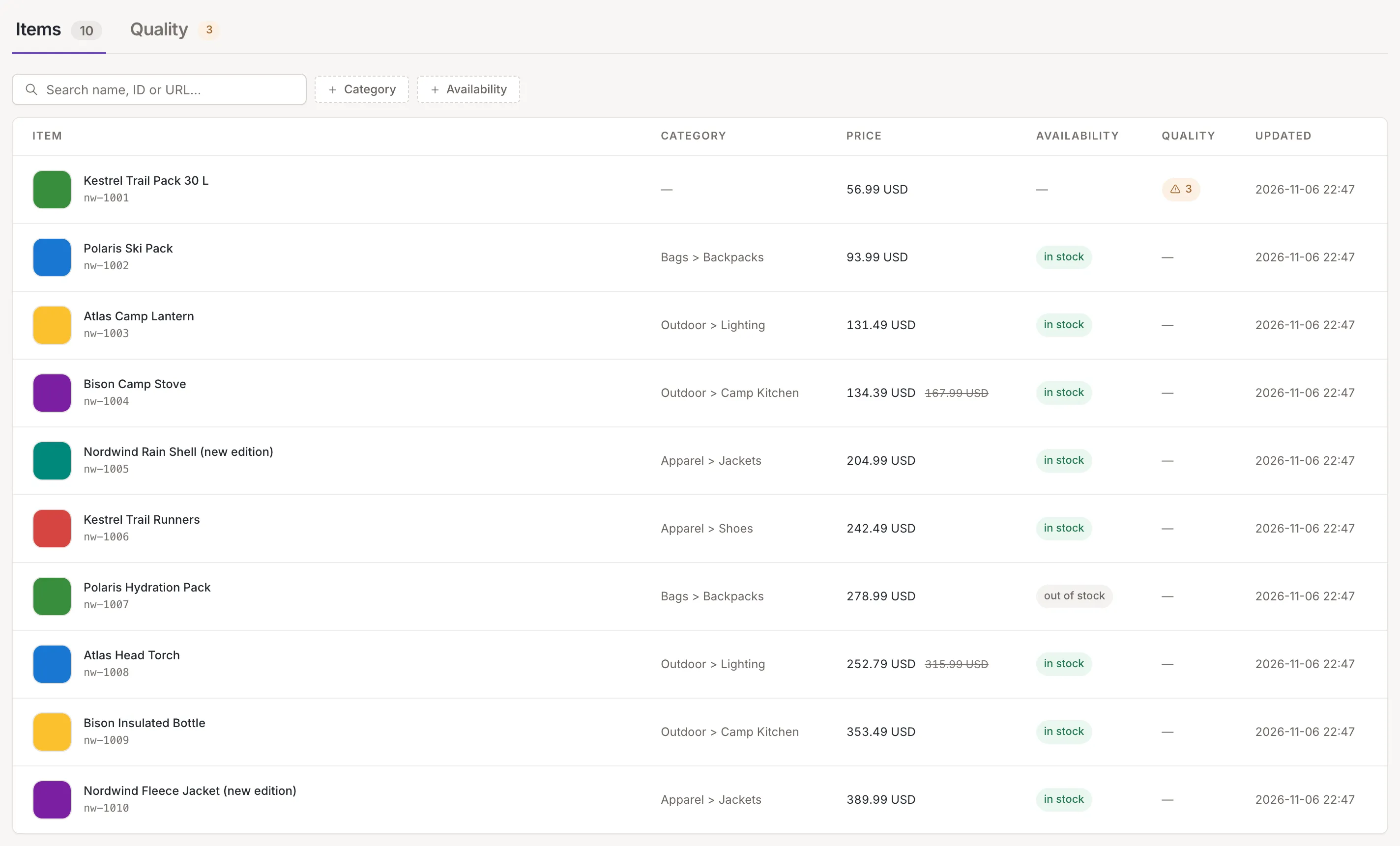
What items are
Section titled “What items are”An item is one product of the inkspace as it stands after the update: the values your sources brought in, changed by mapping and rules. The list is for looking. You cannot edit an item here, select several rows, run a bulk action, choose columns or export the list. To change what an item says, change the source, its mapping or a rule, and the next update brings the change in. Click a row to see everything an item holds: Item details.
The count next to the Items tab is the number of items of the last update. It does not change when you search or filter. The Quality tab next to it leads to the quality checks; the small badge on it counts the checks that flagged items. The tab is offered only when quality checks are switched on for the inkspace.
The table
Section titled “The table”Each row is one item. The columns are:
- Item: the photo, the title and, under it, the item’s ID. An item without a title shows its ID in the title’s place. The photo is a link that opens the image in a new tab (Open the image in a new tab); an item without a photo, or whose photo cannot be loaded, shows a placeholder.
- Category: the item’s category. A field with several values shows its first value.
- Price: the sale price when the item has one, with the regular price struck through beside it.
- Availability: the availability text from your feed. The text “in stock” is green, any other text is grey.
- Quality: the number of quality checks the item failed, in the color of the most serious one (red for an error, amber for a warning, blue for info). A dash means no check flagged it.
- Updated: when the item was last updated, or created if it was never updated, as date and time in the inkspace’s time zone.
A field without a value shows a dash.
Click a row, or select it with the keyboard and press Enter or Space, to open the item beside the list. Hold Ctrl, Cmd or Shift while you click, or click with the middle button, to open the item’s page in a new tab. Pointing at a row also shows a small button, Open as a page, at its end.
Sorting
Section titled “Sorting”Click the heading of Item, Category or Price to sort by it. The first click sorts from the highest value down; a second click reverses it. Only one column sorts at a time. A sort cannot be switched off, only reversed; until you click a heading the list is in the order of the items’ IDs. The other columns do not sort.
Search and filters
Section titled “Search and filters”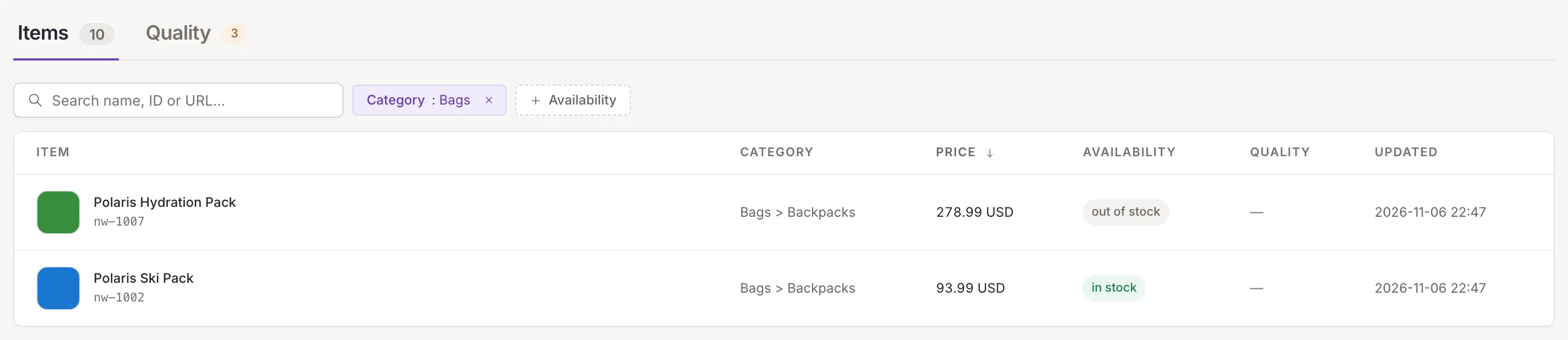
The search box finds items whose title, ID or URL contains what you type (Search name, ID or URL…). The list updates a moment after you stop typing and goes back to the first page.
Category and Availability are filter chips. Click one to open a small field (Category contains… or e.g. in stock) and type part of the value you want: the filter keeps the items whose value contains it. A chip that filters shows the value; click the x on it to clear it. The search and the filters work together.
When you arrive from a quality check (Check, from Quality checks), a third chip names that check and the list holds only the items it flagged. Click its x to see all items again.

The list shows 25 items a page. When the inkspace has more, a bar under the table shows which rows you see (for example 1–25 of 100), a button to show 25, 50 or 100 items a page, and the page numbers with arrows to the previous and next page. Changing the page size, searching or filtering goes back to the first page.

Plan limit
Section titled “Plan limit”Your plan limits how many items an inkspace holds. When the inkspace has reached the limit, a note appears beside the tabs. It says how many items the inkspace holds and, when your sources hold more, how many products they have, for example “100 of 500 products – plan limit”; otherwise it names the limit, for example “100 items – plan limit”. Point at it for the full sentence: the inkspace holds the most its plan allows, so some products of your sources are not in it.

Contact us starts a request to Feedink about your plan. Owners and collaborators see it; a viewer sees the note only.
When the list is empty
Section titled “When the list is empty”Before there are items, the table gives way to a card, No items yet, and one button for the next step:
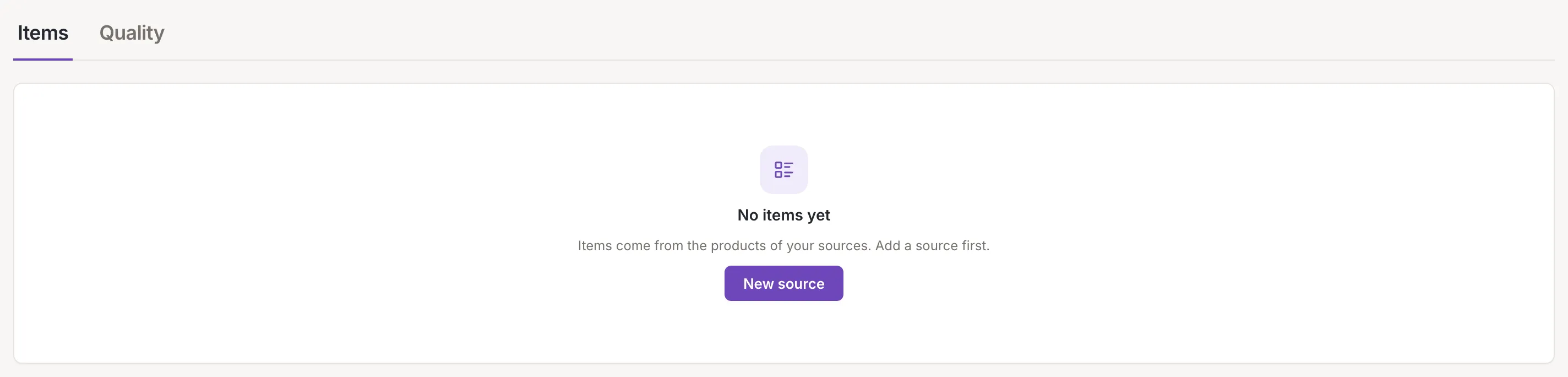
- With no source, the card says Items come from the products of your sources. Add a source first. and offers New source (Add a source).
- With a source but no channel, it says how many products your primary sources have (Your primary sources have {{count}} products. with the number) and They become items with the first inkspace update, which you can start once the inkspace has a channel., with New channel (Add a channel).
- With a source and a channel but no update yet, it says Items appear after the first inkspace update, which reads the products from your sources. Start it on the dashboard., with Go to dashboard.
- After an update that found nothing, it says The last inkspace update found no items. Check the sources and their rules., with Go to sources.
New source and New channel are for owners and collaborators; a viewer sees the card without them.
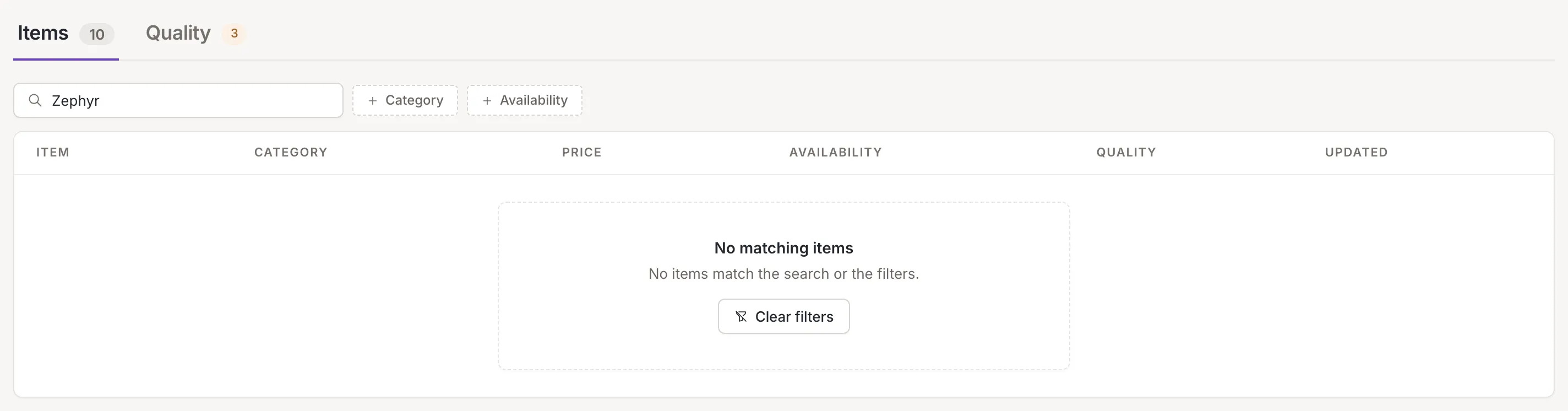
When a search or a filter leaves nothing, the table says No matching items (No items match the search or the filters.) with Clear filters, which clears the search, the chips and the check chip.
If the items cannot be read, the table says Could not load the items and The server did not answer. Try again in a moment.; Try again reads them again. While the first page loads, grey rows stand in for the items. When all the inkspace’s items are cleared, the list reads again in place and Feedink says The items have been cleared..