
Conditions
The IF card of a rule says which items the rule changes. How rules work gives the idea; this article goes through the card control by control. The same card is on the rules of a source and of a channel.
Every item or items that match
Section titled “Every item or items that match”The switch at the top of the card sets what the rule covers:
- Every item applies the adjustments to every item. The card shows no conditions, only the hint The adjustments apply to every item.. A new rule starts this way.
- Items that match applies them only to the items that meet your conditions. The card shows one empty condition to fill in.

If you switch to Every item and back while the rule is still open, the conditions you had come back.
Groups and conditions
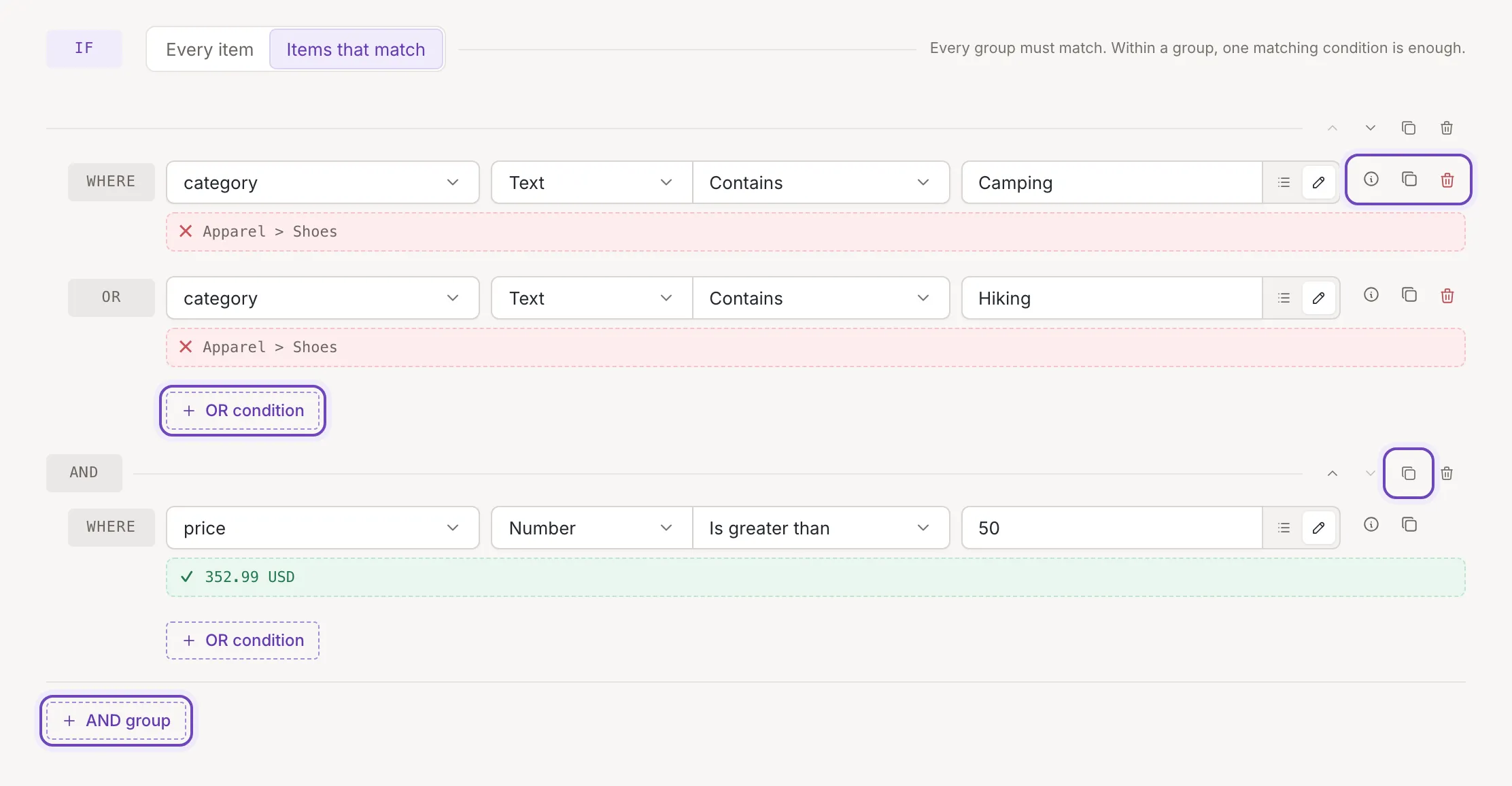
Section titled “Groups and conditions”A condition compares one field of the item with a value. Conditions are arranged in groups, and
Every group must match. Within a group, one matching condition is enough.- OR condition adds a condition at the end of its group. The first condition of a group is labelled where, the others or. An item meets the group when it meets at least one of them.
- AND group adds a group with one empty condition. Groups after the first are marked AND. An item meets the rule only when it meets every group.
Condition operators lists what each operator compares.
Choose a field
Section titled “Choose a field”Every condition starts with the field to check (Choose a field…).
The list is grouped and has a search box. It holds the fields of your items and your
custom variables. On a channel it also has a group of global fields such as feedink_id and
updated_at. Google Analytics fields are not offered.
When you pick a field, the condition is set to Text and Equals; pick another type and operator next to it. The type and operator selects are described in Condition operators, and the value on the right in Fields, custom values and dates. Values are not checked while you type, so an empty value is allowed; what it means depends on the operator.
A condition with no field cannot be saved. After you try to save, its field select is marked and the cursor goes there. A condition you add but never fill in matches no item.
Move, duplicate and remove
Section titled “Move, duplicate and remove”Each condition has these controls on its right and left:
- Move up and Move down arrows, and a grip (Drag to move). Drag the grip to put the condition in another group; a group left empty disappears.
- Duplicate condition adds a copy right after the condition.
- Remove condition removes it. The button is there only while the group has two conditions or more.
Once a rule has two groups or more, each group gets a row of its own with Move group up, Move group down, Duplicate group (the copy goes to the end) and Remove group. The order of groups and of conditions does not change which items match; it only changes how the card reads.
Operator descriptions
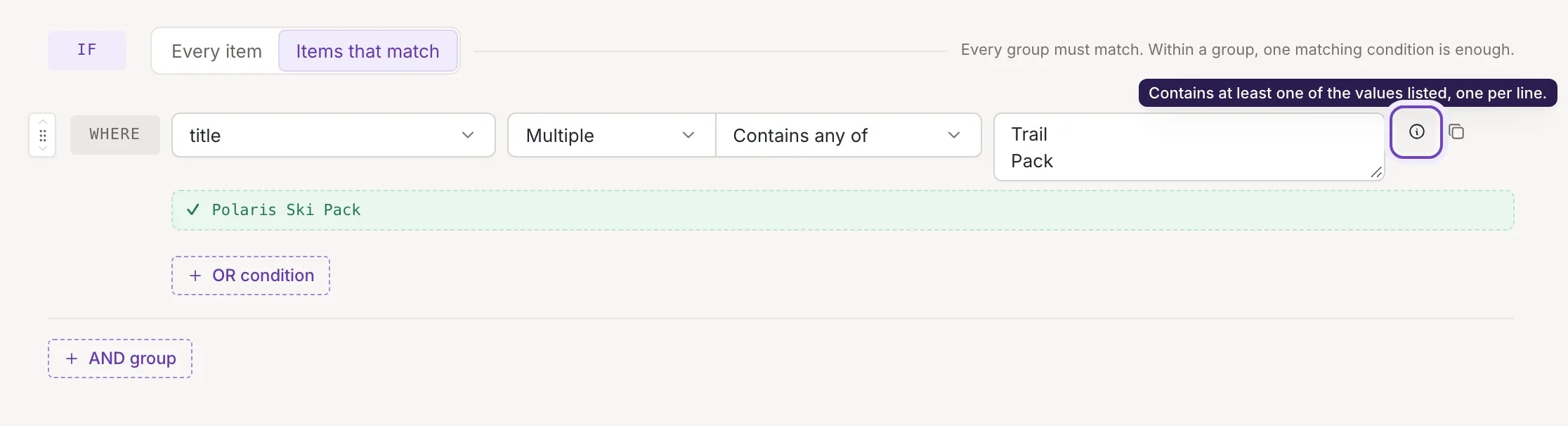
Section titled “Operator descriptions”Hover over the info button (?) of a condition to read a one-line description of its operator. Click it to open the operator’s part of this help, with examples, in the Help panel; hold Cmd (Ctrl on Windows) to open it in a new tab instead.
Test lines and who can edit
Section titled “Test lines and who can edit”With a sample item picked in Test on item, even while its panel is closed, each condition shows a green check or a red cross under it, with the value the rule received from the sample item. Read the test result explains them.
Owners and collaborators can change conditions and save the rule. A viewer can change the fields on screen to try something, but the rule has no Save button for them, so nothing is kept. See Edit a rule for saving.