
Your plan and its limits
Each inkspace belongs to a plan, and the plan sets how much the inkspace may hold. Feedink shows your usage next to the limits, and a Contact us button asks the Feedink team to talk about a different plan.
Where you see your usage
Section titled “Where you see your usage”The Plan card is on the inkspace’s settings page (Inkspace settings). It names your plan and shows what the inkspace uses against what the plan allows:
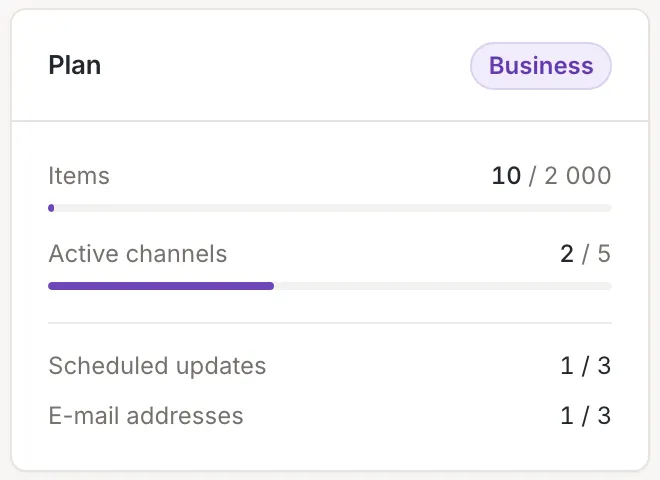
- Items: the items of the last successful update, with a bar.
- Active channels: the channels that are switched on, with a bar. Inactive channels do not count.
- Scheduled updates and E-mail addresses: how many you use out of how many the plan allows (Update schedule, E-mail notifications). A dash replaces the number when the list could not be read.
Your list of inkspaces has the same two bars for every inkspace, under the items and channels columns, with the plan’s name under each inkspace’s name (Your inkspaces). An inkspace without a plan shows a dash in place of the numbers.
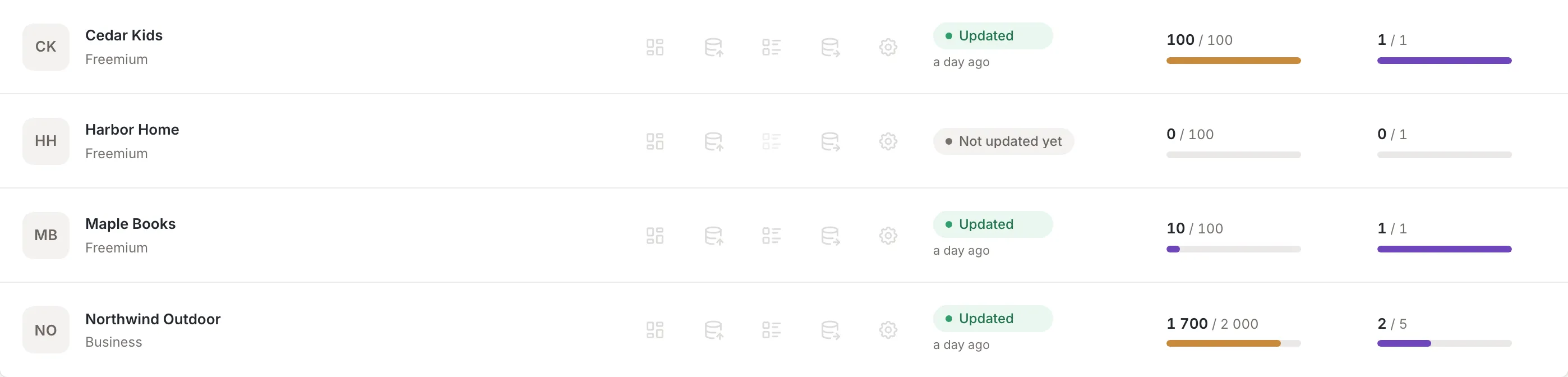
The sources list and the channels list also show their usage against the plan, and the items screen and the dashboard’s Health card tell you when the inkspace is close to its items limit or has reached it.
What the limits are
Section titled “What the limits are”Your plan limits four things, and the Plan card shows each of them as a count against its limit:
- the items of the inkspace;
- the active channels;
- the scheduled updates;
- the e-mail addresses that get notifications.
The numbers come with your plan and differ between plans. Feedink shows them; you do not set them.
When a limit is reached
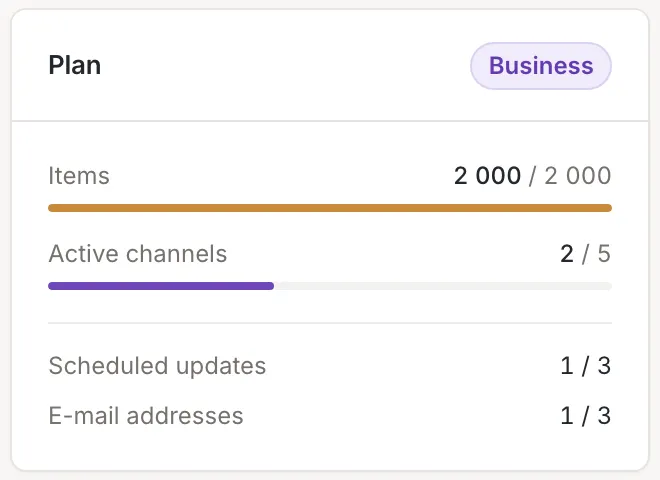
Section titled “When a limit is reached”The bar of the items turns amber when the inkspace is close to its limit, and stays amber at it.
What stops depends on the limit:
- Items. The inkspace holds the most items its plan allows, so some products of your sources are not in it. The items screen says so, and the dashboard’s Health card tells you when you are close and when you have reached it.
- Channels. A new channel is added inactive, and you cannot activate another one: Channel limit reached: a new channel is added inactive. To activate more channels, contact us. A channel left over the limit when a plan changes is kept and can still be changed, but it is not processed (This channel is over your plan's limit. It is kept and can be changed, but it is not processed until your plan allows more channels.). A source over the limit is treated the same way (This source is over your plan's limit. It is kept and can be changed, but it is not processed until your plan allows more sources.).
- Scheduled updates and e-mail addresses. At the limit the button that adds one is off, and the composer says “To schedule another update, upgrade your plan or contact support.” (for an address, “To add another e-mail address, upgrade your plan or contact support.”). Point at the switch of a switched-off entry to read why it cannot be switched on: “The plan's limit is reached: disable or remove another schedule first.” An entry that is over the limit is marked Over plan limit and is not used until the plan allows more; switch off or remove another one to use it now.
Contact us
Section titled “Contact us”A Contact us button sits next to the limit on the dashboard (the items limit row, once the limit is reached), on the sources list, on the channels list, on the items screen and in Add channel when the channel limit is reached. Owners and collaborators see it; a viewer does not. The Plan card, the list of inkspaces and the composers of the schedule and the addresses have no such button.
Click it and a confirmation opens, titled Contact about your plan:
We will get in touch about your plan and its limits. Send the request?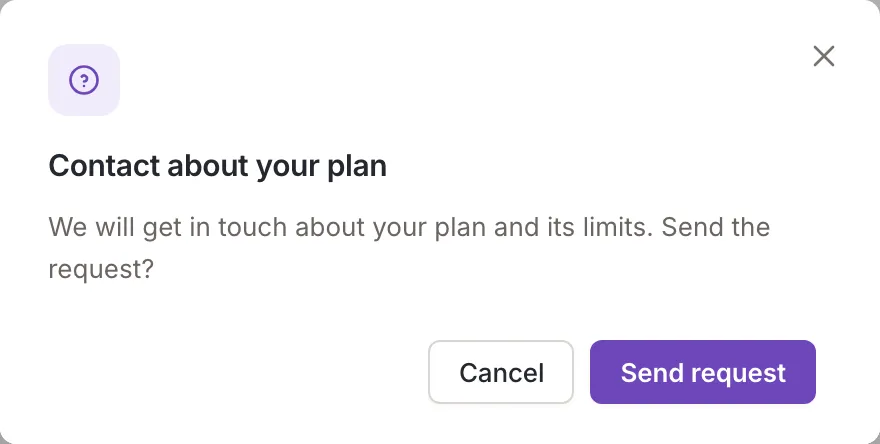
- Send request sends the request. A message confirms it: Request sent. We will contact you about your plan. The request does not change your plan by itself.
- Cancel, the close button and Esc send nothing.
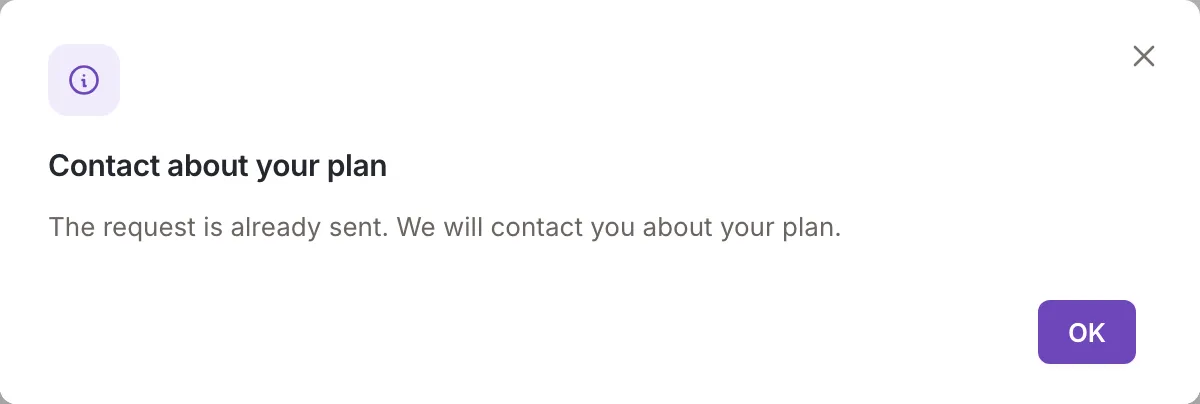
- If a request was already sent, the same button opens a notice instead of asking again: The request is already sent. We will contact you about your plan.
If sending fails, a message titled Request failed gives the reason, or Could not send the request. Contact our support team. Try again later.