
Inkspace
Your inkspaces, their settings and plan limits, the update schedule, e-mail notifications and the update status in the header.
Feedink reads your shop’s product file, lets you map and adjust its data, and publishes a feed for each place that shows your products: Google, Meta, Criteo and many more. These guides describe every screen of the app. Inside the app, Help in the header opens the guides for the screen you are on (Help in the app).
The path from a new account to a feed a destination can read:
Inkspace
Your inkspaces, their settings and plan limits, the update schedule, e-mail notifications and the update status in the header.
Dashboard
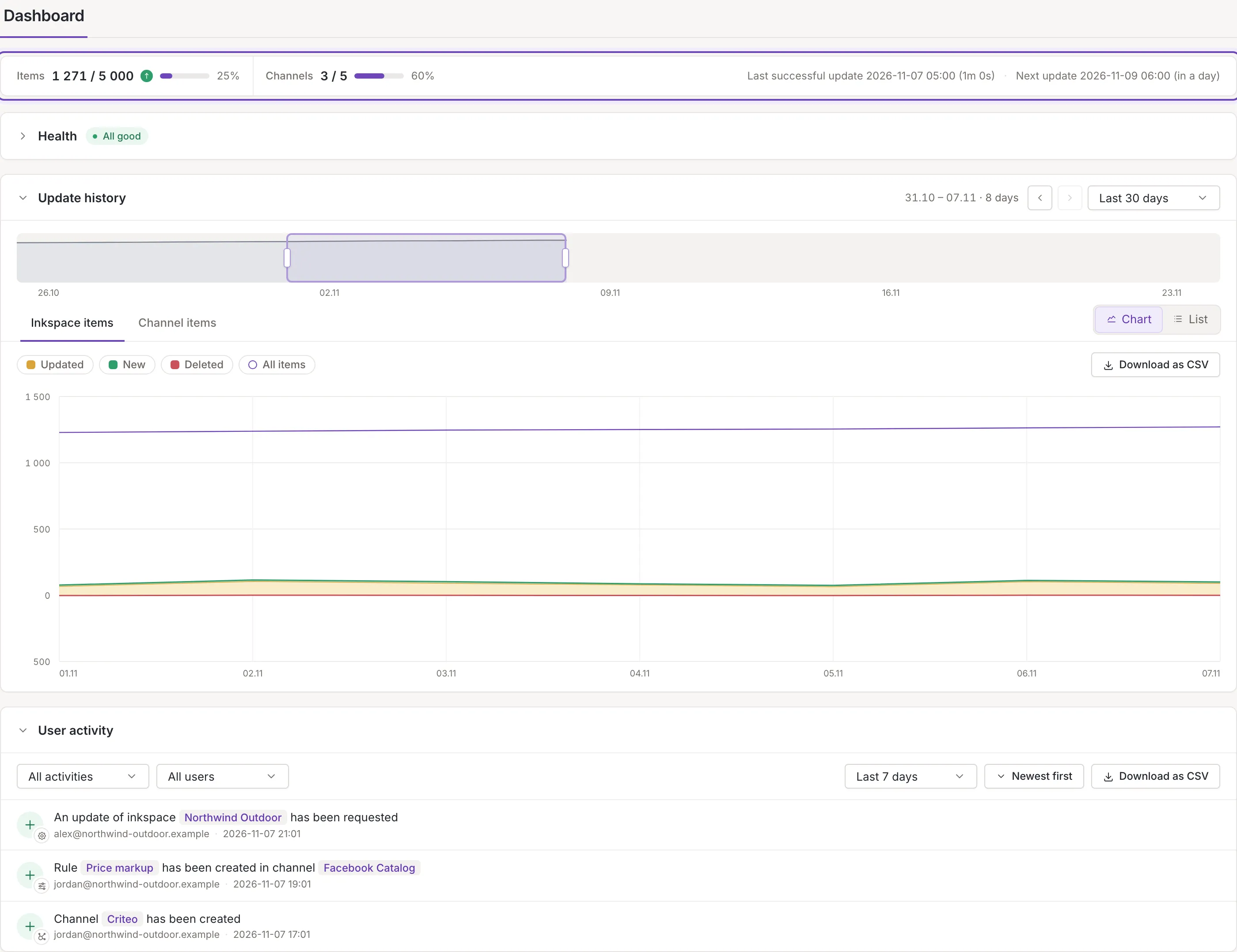
The state of an inkspace at a glance: health, update history, failed updates and who changed what.
Sources
The product files Feedink reads: adding one, its formats, statuses, settings and recent updates.
Channels
The feeds you publish: adding one, its format, settings and feed URL, the preview, tracking parameters and bulk actions.
Mapping
How a source’s elements become Feedink’s fields, and how those fields fill a channel’s format.
Rules
Conditions and adjustments that change your data, their order, and testing them on an item.
Items
The items of an inkspace, the details of one, and the quality checks that run on every update.
Account
Creating an account, logging in, your password, profile, theme and activity, and Help in the app.